Skip to content
LogoTechnipages
LogoTechnipages
  • Topics
        • Android
        • Browsers
        • Gaming
        • Hardware
        • Internet
        • iPhone
        • Linux
        • macOS
        • Office
        • Reviews
        • Software
        • Windows
        • Definitions
        • All Recent Posts
  • Product Reviews
  • About

Fix: Microsoft IPP Class Driver Offers No Color, Only Greyscale

Madalina DinitaFebruary 14, 2022 Comments (3)
Microsoft-IPP-Class-Driver-no-colour

After upgrading to Windows 11, many users noticed the Microsoft IPP driver offered only greyscale and monochrome printing options. This means that users can’t print in color; they can only print in black and white. While this may not be a major issue for most users, it can be quite annoying if you’re trying to print photos or images.

Contents

  • 1 How to Fix Microsoft IPP Class Driver No Color Options
    • 1.1 Run the Printer Troubleshooter
    • 1.2 Update Your Printer Drivers
    • 1.3 Enable the Correct Printer Driver and Port
    • 1.4 Reinstall Your Printer
    • 1.5 Conclusion

How to Fix Microsoft IPP Class Driver No Color Options

⇒ Quick Fix: Try saving the print file as an XPS Document and then check if you can print it in color.

Run the Printer Troubleshooter

Navigate to Settings, select System, and go to Troubleshoot. Then, select Other troubleshooters, and run the Printer troubleshooter.
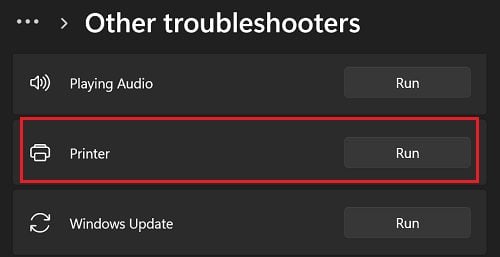
Wait until the troubleshooter fixes your printer issues, and try to print in color again.

Update Your Printer Drivers

  1. Launch the Device Manager.
  2. Click on Print Queues.
  3. Right-click on your print driver.
  4. Select Update driver.update-printer-driver-windows-11
  5. First, select Browse my computer for driver software.
  6. Then, click on Let me pick from a list of available drivers on my computer.
  7. Select the Microsoft IPP Class Driver.
  8. Hit Next, and follow the on-screen instructions.
  9. If the issue persists, select Update driver again.
  10. Then, click on Search automatically for drivers.
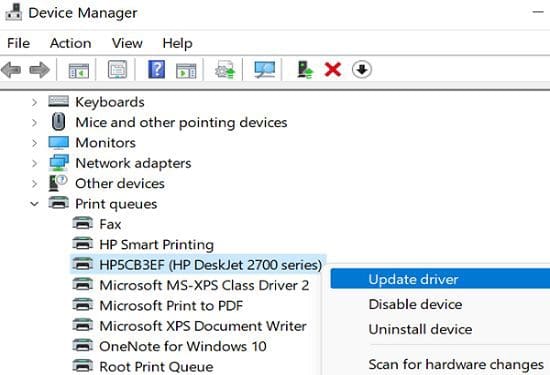
If you still can’t print in color, right-click on your printer driver, and select Uninstall device. Then, restart your computer to reinstall a new driver version.

Enable the Correct Printer Driver and Port

  1. Go to Settings.
  2. Click on Bluetooth & Devices.
  3. Select Printers & scanners.
  4. Click on your printer and scroll down to Printer properties.
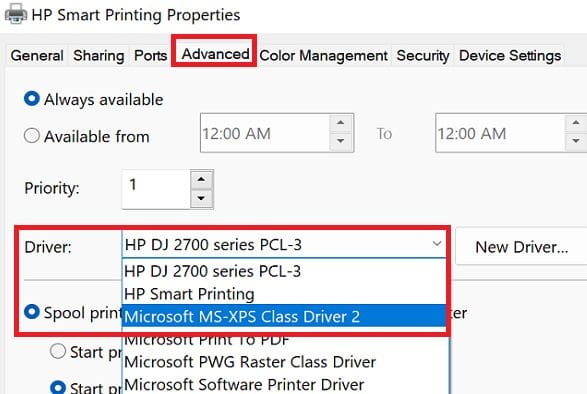
  5. Then, select the Advanced tab.
  6. In the Driver field, use the drop-down menu to select the correct printer name.printer-properties-advanced-settings
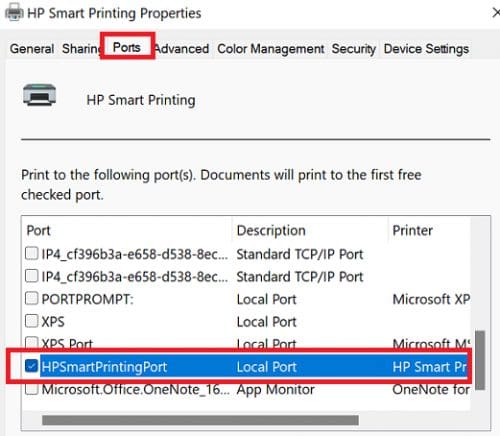
  7. Click on the Ports tab.
  8. Select the correct printer name.printer-port-settings
  9. Hit Apply to save the settings.
  10. Shut your printer down and restart your computer.
  11. Turn on your printer, and wait until it connects to your machine.
  12. Try to print in color again.

Reinstall Your Printer

Try reinstalling your printer and check if the issue persists.

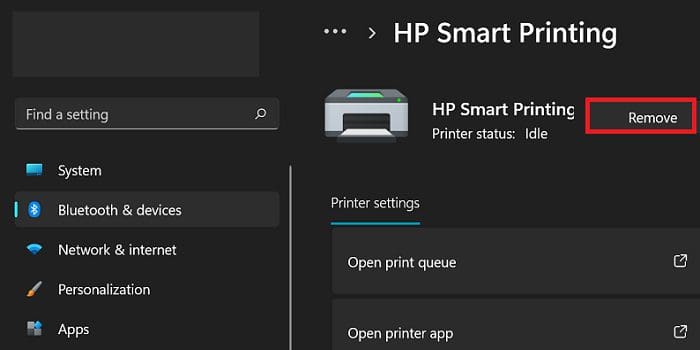
  1. Navigate to Settings.
  2. Select Bluetooth & Devices.
  3. Then, scroll down to Printers & Scanners.
  4. Click on your printer and hit the Remove button.uninstall-printer-windows-11
  5. Make sure to uninstall the other items related to your printer, such as drivers, apps, and so on.
  6. Restart your computer and reinstall your printer.
Some users said they had to reinstall the printer twice to solve the problem. Check if this workaround does the trick for you as well.

Conclusion

To fix the issue where the Microsoft IPP driver offers only greyscale and monochrome printing options, first run the Printer troubleshooter. Then, update your printer driver to the latest version. Additionally, go to advanced printer settings, and enable the correct driver and port. If the issue persists, uninstall and reinstall your printer.

Did these solutions help you fix the problem? Which of them did the trick for you? Don’t forget to comment below.


Categories: Windows

Author Madalina Dinita

Madalina has been a Windows fan ever since she got her hands on her first Windows XP computer. She is interested in all things technology, especially emerging technologies -- AI and DNA computing in particular.

You Might Also Like

  • Magnifying Glass

    What is File Extension XPS and How to Open It

    Kat ArmstrongmacOS
  • Word Logo Header

    How to Resize an Image Correctly in Word

    MonaWindows
  • windows-11-clock-alarm-app-not-loading

    Fix Windows Camera Error Code 0xa00f4244

    Madalina DinitaWindows
  • Microsoft-Protection-Definition-Update-Failed

    Fix: Protection Definition Update Failed

    Madalina DinitaWindows

Comments

  1. Doug says:
    September 29, 2022 at 10:30 pm

    Microsoft will be coming out with a fix :
    https://learn.microsoft.com/en-us/windows/release-health/known-issues/known-issue-2913

  2. Anne says:
    July 2, 2022 at 6:53 am

    Thank you. I had to uninstall and reinstall, but it worked just in time for designing my daughter’s party invitations!

  3. Samantha says:
    June 28, 2022 at 12:53 pm

    Finally a forum that actually solved one of my issues!

Leave a Reply

Your email address will not be published. Required fields are marked *

  • browser screen goes black

    Browser Screen Goes Black Intermittently 

  • computer heating up in hyper v

    Computer Heating Up When Using Hyper-V – How to Fix 

  • clipchamp unexpected application error

    Clipchamp Unexpected Application Error: Here’s the Solution 

  • winload.efi file missing error

    Winload.EFI File Missing Error on Boot – How to Fix

  • fix error 0x9cfc7550

    How to Fix Error 0x9cfc7550 (We Couldn’t Create a New Partition) in Windows 

profile pic

The Experts Behind Technipages

My name is Mitch Bartlett. I've been working in technology for over 20 years in a wide range of tech jobs from Tech Support to Software Testing. I started this site as a technical guide for myself and it has grown into what I hope is a useful reference for all.

Learn More

technipages logo white
linkedin icon

Technipages is part of Guiding Tech Media, a leading digital media publisher focused on helping people figure out technology. Learn more about our mission and team here.

© 2025 Guiding Tech Media All Rights Reserved

  • About Us
  • Contact
  • Terms of Use
  • Privacy Policy

© 2025 Guiding Tech Media All Rights Reserved

Information from your device can be used to personalize your ad experience.
Do not sell my personal information.

Last Updated on February 14, 2022 by Judy Sanhz