
Google Meet is a secure and versatile video conferencing platform with a straightforward and easy-to-use interface. The best part is that you don’t need to download anything on your computer. All you need to do is go to www.meet.google.com and use your Google account to join or start video calls.
Unfortunately, Google Meet is sometimes affected by minor hiccups and errors. For example, the platform may fail to detect your headphones. Let’s explore how you can troubleshoot this issue.
Contents
How to Fix Google Meet Not Recognizing Headphones
Check Your Mic
Check your headphones and cable and make sure they’re not faulty. Ensure you did not accidentally enable the mute button. If possible, grab a different mic or another pair of headphones and check if you’re experiencing the same issue.
Check Your Browser Settings
Make sure Chrome is up-to-date. Go to Settings, select Help and then click About Google Chrome to check for updates. Additionally, close all the other tabs that may be using audio input from your microphone.
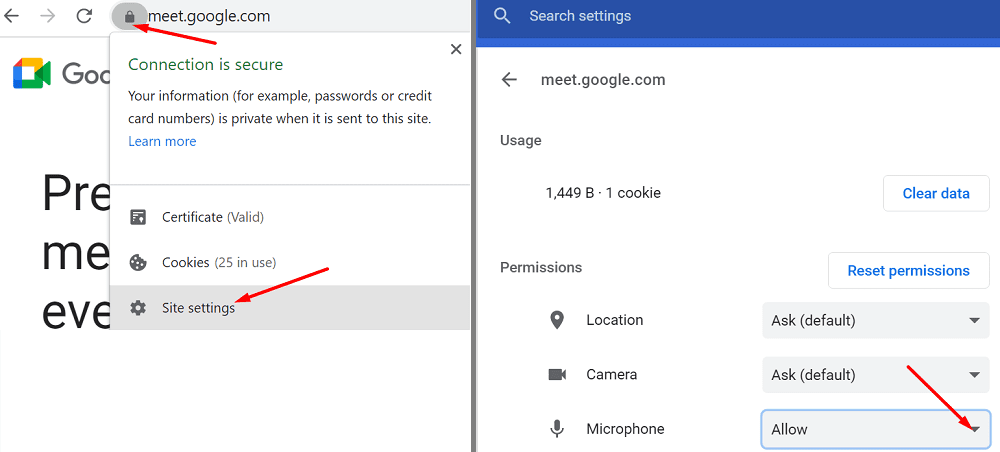
Next, go to meet.google.com and click on the lock icon. Select Site settings and set use the drop-down menu to always allow Meet to use your microphone.
Then disable all your browser extensions. Some of them might be interfering with Google Meet. If it’s been a long time since you last cleared your browser cache, it’s a good idea to get rid of all those temporary files.
Click on your browser menu and navigate to More Tools, select Extensions, and manually toggle off all your extensions.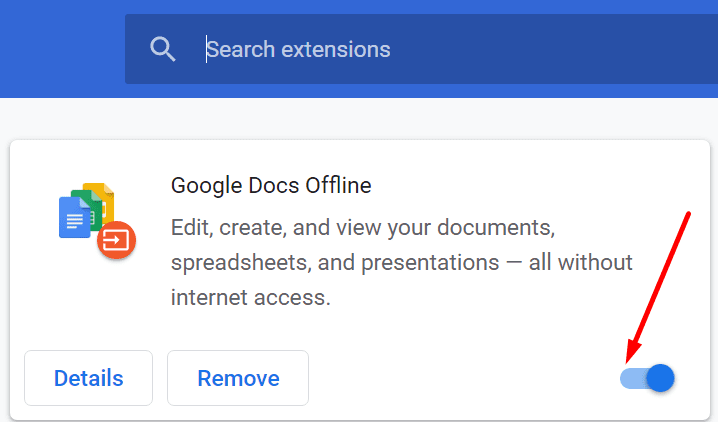
Then click on History, and hit the Clear browsing data option. After selecting the time range and the type of data you want to clear, hit the Clear data button.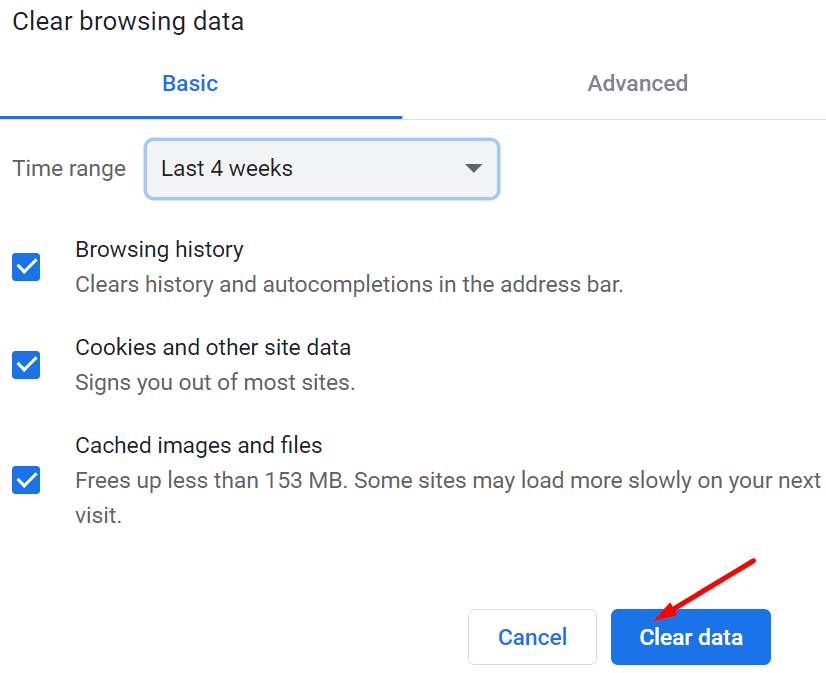
Check Your Mic Settings
Maybe your current privacy settings are preventing Google Meet from accessing and using your computer. Or maybe the mic volume is inaudible.
- Go to Settings, click on System and then select Sound.
- Make sure to select your mic as your default input device.
- Hit the Troubleshoot button and let your computer automatically detect and fix your audio issues.

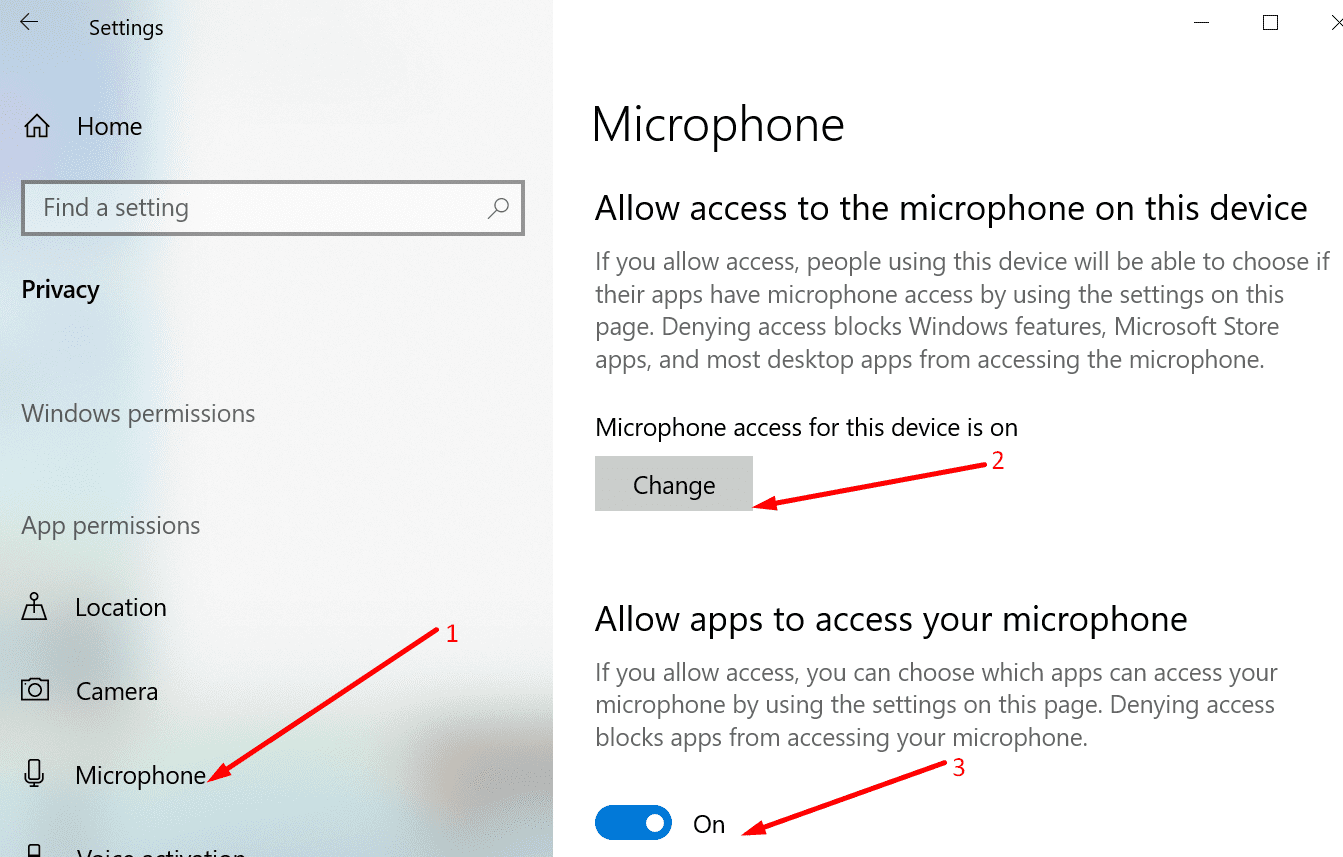
Go back to Settings and select Privacy. On the left-hand pane, scroll down to Microphone and enable the two options that allow your apps to access your microphone.
Conclusion
If Google Meet fails to detect your headphones, make sure the service can access and use your microphone. Disable all your browser extensions and clear the cache to prevent other elements from interfering with the online meeting platform. If you found other potential solutions to troubleshoot this problem, let us know in the comments below.



I am having a lot of trouble with Google Meet Calls and the USB-Logitech-Base connected headset. The headset is connected wirelessly to the base and the base is connected to my computer through a USB dongle. People often hear a “chirping” sound when I am connected or they can’t hear me at all. I am using a HD 1080 Logitech Webcam.
Thank you so much!!! You helped me! instead of paying someone to fix my problem, you made me do it by myself with your assistance! Thank you very much!! Keep it up! Job well done!