Running a Windows computer can be confusing, especially when you’re not sure about the large number of processes that are running on your machine and which ones are hogging most of the resources. Some require a lot of resources on their own, while others seem to create endless duplicates in your Task Manager.
In this article, we’re going to be taking a look at the Microsoft OneDrive “FileCoAuthexe” error, what causes it, and how to troubleshoot.
Contents
What Is FileCoAuth.exe?
Let’s start with what this process is. “FileCoAuth.exe”is an executable tied to Microsoft OneDrive. The process allows for co-authoring of shared files on the OneDrive, allowing other people to work on files simultaneously or share them. It’s a collaboration tool, essentially.
Problems arise when OneDrive keeps making new “FileCoAuth.exe” processes in Task Manager, taking up memory and disk usage, or if the executable refuses to work at all. These problems are usually related to missing or corrupted files and drivers, and problems communicating with OneDrive online. Viruses and malware can’t be ruled out either.
Fixing the FileCoAuth.exe Error
Several possible causes mean there are also several potential fixes to try, and we’ve got them for you below:
Restart Everything
Sometimes the best fixes are the most direct ones. Before attempting any other troubleshooting, restart your PC, which can stop processes like “FileCoAuth.exe”frombehaving erratically and creating more .exe files in Task Manager. If restarting the machine is not possible, try rebooting OneDrive and your other Microsoft apps instead (particularly Office apps).
Scan for Viruses and Malware
Another quick fix, particularly if your “FileCoAuth.exe” is replicating in Task Manager, is to check for viruses and malware masquerading as OneDrive. Run your antivirus software. If you’re curious about where the file is running from, you can also confirm its location in Task Manager:
Step 1. Open Task Manager (Ctrl + Shift +Esc) and go to the “Details” tab.
Step 2. Find a running instance of the “FileCoAuth.exe”and right-click it.
Step 3. Select “Open file location” from the context menu.
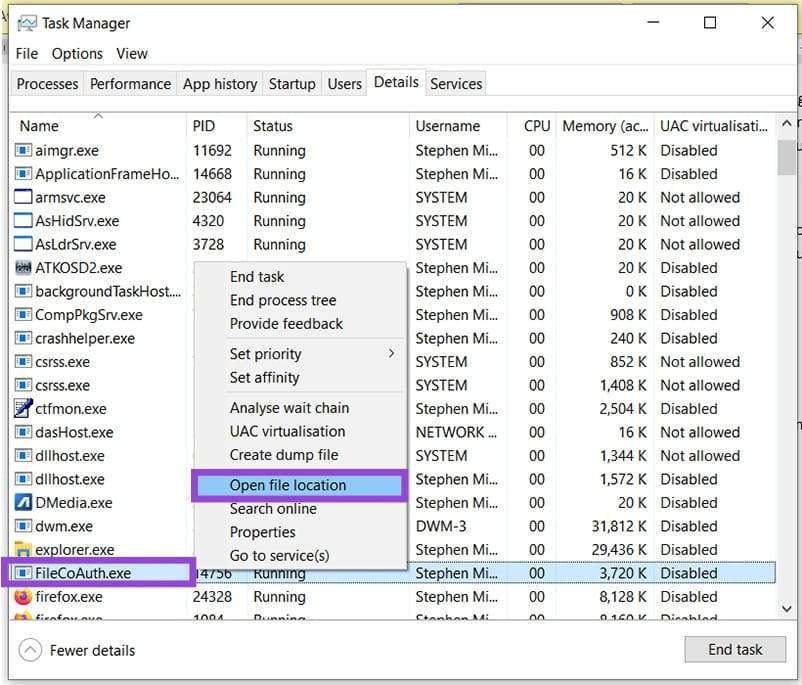
Step 4. Explorer will open up a new window. See where on your PC this file is located, and if it seems legit.
Unlink and Relink Your PC to OneDrive
If you’re receiving the “FileCoAuth.exe” error out of the blue, then the problem might be solved by unlinking and relinking OneDrive to your PC:
Step 1. Open up OneDrive via the icon in the system tray.
Step 2. Click the Settings icon and navigate to the “Account” tab.
Step 3. Click “Unlink this PC.”
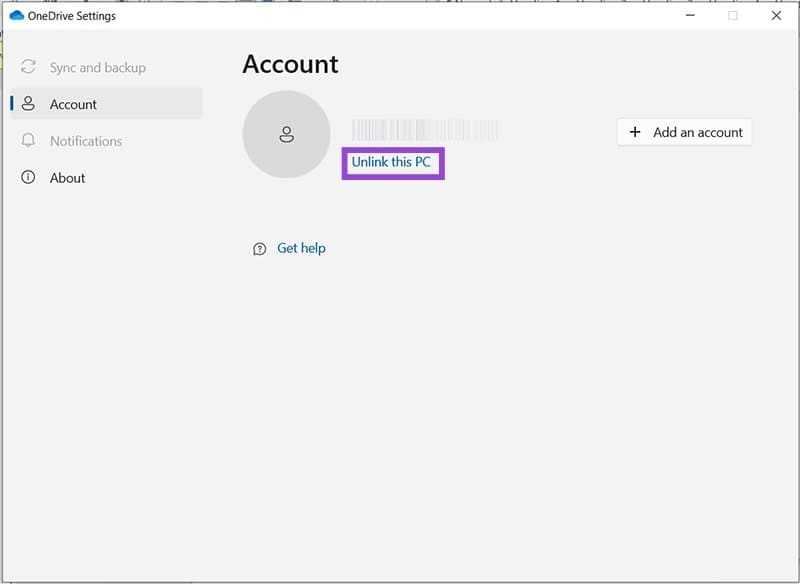
Step 4. Once unlinked, reopen the OneDrive app. Enter your account details and see if the issue is resolved.

Delete Your OneDrive Cache
A cache buildup can, over time, cause problems in the running of certain programs. Files might get corrupted or go missing, and suddenly your “FileCoAuth.exe”process isn’t working. Here’s how to clear your cache.
Step 1. Open the Run dialog (Win + R) and type “%localappdata%\Microsoft\OneDrive\onedrive.exe /reset” before pressing “Enter.”
Step 2. Your app cache should reset.
Step 3. You’ll automatically be signed out of your OneDrive and will have to relink your PC again. Once done, check that the problem is resolved.
Reinstall OneDrive
As a last-ditch action, uninstall OneDrive and reinstall it. This can solve a whole lot of problems, such as corrupted “.dll” files and missing app files.