Skip to content
LogoTechnipages
LogoTechnipages
  • Topics
        • Android
        • Browsers
        • Gaming
        • Hardware
        • Internet
        • iPhone
        • Linux
        • macOS
        • Office
        • Reviews
        • Software
        • Windows
        • Definitions
        • All Recent Posts
  • Product Reviews
  • About

Fix: Chromebook Stylus Stopped Working

Madalina DinitaSeptember 28, 2021 Comments (3)
chromebook-stylus-not-working-fix

If you own a touchscreen Chromebook, you can use a stylus to improve your productivity. For example, you can take notes and screenshots, make your screen bigger, and so on. Unfortunately, many users complained ChromeOS sometimes fails to recognize digital pens. Let’s explore how you can quickly fix this problem.

Contents

  • 1 Fix: Stylus Stopped Working on Chromebook
    • 1.1 Check Your Pen
    • 1.2 Reset Your Hardware
    • 1.3 Update ChromeOS and Reinstall Problematic Apps
    • 1.4 Contact Support
    • 1.5 Conclusion

Fix: Stylus Stopped Working on Chromebook

Check Your Pen

Make sure your stylus is working properly. Give it a full charge and check if you notice any improvements. Ensure the tip is positioned correctly. Additionally, connect your pen to a different touchscreen device and check if you can use it. If the stylus remains unresponsive, this may indicate the device is faulty and you need to replace it.

Reset Your Hardware

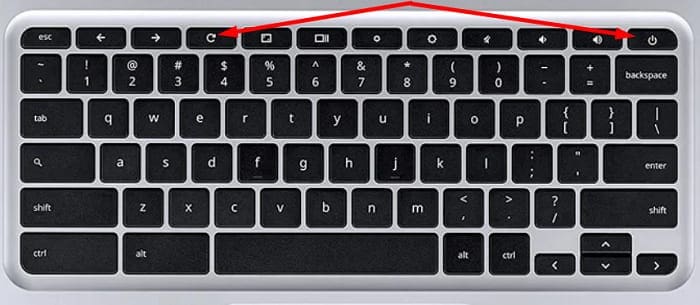
Restart your Chromebook a few times and check if this quick method does the trick for you. If the issue persists, try resetting your Chromebook hardware.

  1. Turn off your laptop, and wait for 30 seconds.
  2. Then press and hold the Refresh and Power keys. power-and-refresh-keys-chromebook
  3. Your laptop should start up after a few seconds. Release the Refresh button when that happens.
  4. Wait until your device boots up and check if you can use your stylus.
Update ChromeOS and Reinstall Problematic Apps

Let’s move on to the next step on the list; make sure you’re running the latest ChromeOS version on your device. Go to Settings, click on About Chrome OS, and hit the Check for updates button.

If you can’t use your stylus with particular apps, uninstall them and then restart your laptop. Reinstall the problematic apps, and check if the issue is gone.

Contact Support

If the problem persists, contact your stylus or Chromebook manufacturer for further help. If your ChromeOS device is managed by an organization, contact your IT admin first and check if they can help you fix the issue.

Conclusion

If your stylus stopped working on Chromebook, first check your pen, and make sure it’s fully charged. Then ensure the tip is positioned correctly. If the issue persists, update Chrome OS, and reset your hardware. If you can’t use your digital pen with specific apps, reinstall them. Did these solutions help you fix the problem? Let us know in the comments below.


Categories: Hardware

Author Madalina Dinita

Madalina has been a Windows fan ever since she got her hands on her first Windows XP computer. She is interested in all things technology, especially emerging technologies -- AI and DNA computing in particular.

You Might Also Like

  • How To Set Up A Windows VPN

    Is a VPN Worth It? Do You Need One in 2020?

    Mel HawthorneHardware
  • memory slots

    What Is Conventional Memory?

    Mel HawthorneHardware
  • memory slots

    What Is Shadow Memory?

    Mel HawthorneHardware
  • What Is the Data Link Layer?

    Mel HawthorneHardware

Comments

  1. Charlotte Duggan says:
    July 27, 2022 at 8:52 pm

    This wasn’t helpful at all. :-(

  2. Ludmila says:
    June 11, 2022 at 3:05 pm

    Also having issues with the pen. It simply stopped working. I also made sure that the chromebook is using the most up to date OS: Version 102.0.5005.75 (Official Build) (32-bit)

  3. Tammy says:
    February 20, 2022 at 2:45 pm

    I have chatted with HP, they want the part number for the pen. The pen came with the computer. The QR code on the box of pen is no help either. No part number anywhere!

Leave a Reply

Your email address will not be published. Required fields are marked *

  • battery issues after windows 11 update

    Battery Issues After Windows 11 Update? Here’s the Fix

  • why is ram so expensive

    Why Is RAM Suddenly So Expensive?

  • how to fix error code 0x800f0922 windows 11

    How to Fix Error Code 0x800f0922 in Windows 11

  • service outage message on Xbox

    What to Do With a Service Outage Message on Xbox

  • signs your hdd is failing

    Signs That Your HDD Is Failing

profile pic

The Experts Behind Technipages

My name is Mitch Bartlett. I've been working in technology for over 20 years in a wide range of tech jobs from Tech Support to Software Testing. I started this site as a technical guide for myself and it has grown into what I hope is a useful reference for all.

Learn More

technipages logo white
linkedin icon

Technipages is part of Guiding Tech Media, a leading digital media publisher focused on helping people figure out technology. Learn more about our mission and team here.

© 2026 Guiding Tech Media All Rights Reserved

  • About Us
  • Contact
  • Terms of Use
  • Privacy Policy

© 2026 Guiding Tech Media All Rights Reserved

Information from your device can be used to personalize your ad experience.
Do not sell my personal information.

Last Updated on September 28, 2021 by Judy Sanhz