
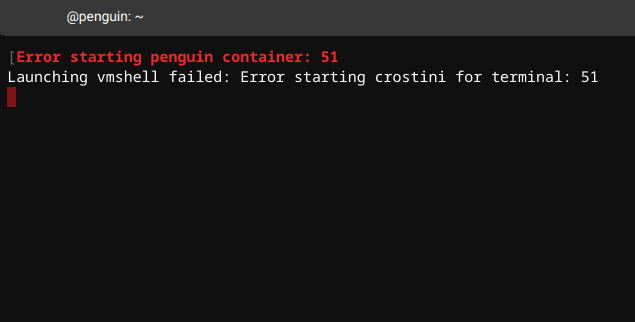
When you’re trying to launch your Linux terminal on Chromebook, you may sometimes get an alert that says an error occurred while starting the Penguin container. The error reads as follows: “Error starting penguin container. Launching vmshell failed: Error starting crostini for terminal“. If you’re not sure what to do about this issue, follow the troubleshooting steps below.
Contents
How to Fix Error Starting Penguin Container on ChromeOS
Restart Your Chromebook and Remove the Battery
Restart your Chromebook two or three times in a row and check if the issue persists. Sometimes, simply restarting your device is enough to clear up strange glitches like this one.
Additionally, you can also remove the battery and leave your device unplugged for one minute. Insert the battery, power up the device, and check if you can launch Linux. If you’re still getting the same error, go to the next step.
Reset the Hardware
Reset your Chromebook hardware to make sure this issue is not triggered by some temporary hardware glitches.
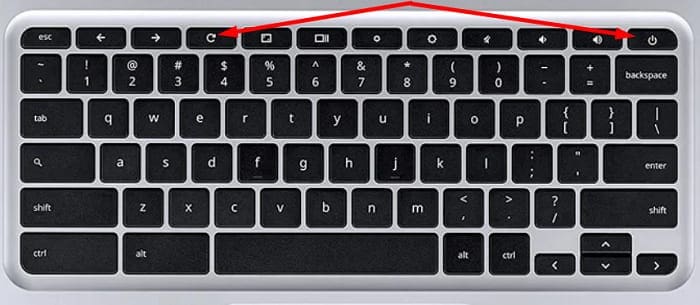
- Shut down your ChromeOS laptop.
- Then press and hold the Refresh and Power keys at the same time.

- Release the Refresh key once the laptop starts up.
- Try to relaunch Linux and check the results.
Update Your VM and Packages
- Restart your ChromeOS laptop.
- Launch a new Chrome tab and go to chrome://components.
- Go to cros-termina, and hit the Check for updates option.
- Then launch Terminal, and run this command:
sudo apt-get update && sudo apt-get dist-upgrade - Restart your laptop again, and check if the Penguin container error is gone.
Start Your VM and Container From a Crosh Session
As a quick reminder, Terminal and Crosh are pretty similar. The main difference is that Crosh is specific for ChromeOS, while Terminal is specific for the Linux side of ChromeOS. Check if you can access your container through Crosh.
- Shut your Chromebook down.
- Then boot up your device and log in to your Linux account.
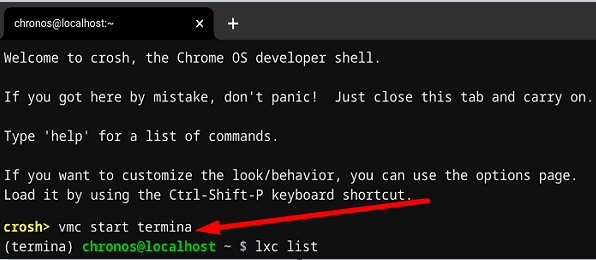
- Open a new Crosh session by pressing the Ctrl, Alt, and T keys simultaneously.
- Enter the vmc start termina command.

- If you don’t get an error, enter the exit command.
- Then run the vmc container termina penguin command.
- Check if you’re logged in to your container. Then check if Bash Shell access is fully functional.
Remove and Reinstall Linux
If the error persists, you’re kind of running out of options. Remove Linux, and then set it up again. Keep in mind that you’ll lose all the data stored inside your Linux environment.
Follow the steps below to uninstall Linux:
- Go to chrome://version and check the Platform line to check which Linux version you installed.
- Then go to More, and select Settings.
- Navigate to ChromeOS settings, and locate Linux (Beta).
- Use the right arrow and select Remove Linux from Chromebook.
- Restart your computer, go to Settings, select Linux (Beta) and reinstall it.
⇒ Note: If you can’t remove Linux using Settings, press Ctrl, Alt, and T, and launch a new Crosh session. Then run the vmc destroy termina command. Go back to Settings, and check if you can remove Linux now.
Conclusion
If your Chromebook says an error occurred while starting the Penguin container, restart your laptop and reset the hardware. Then update your VM and packages. Additionally, check if you can start your VM and container directly from a Crosh session. If the issue persists, reinstall Linux. Did these tips help you fix the problem? Let us know in the comments below.


I didn’t see “cros-termina” in chrome://components
Helped me when i was too stupid to know how to fix it
On update you Vm packages part It says to open terminal, how tf do I Use terminal when it can’t work??>:(
can’t get it to work keep say error make go mad
Thank you, this was extremely helpful
Thank you very much for your post. You have been very helpful and I appreciate the effort you took to write this tutorial -With Love, Pablo
how come i can’t find cros-termina?
Helpful but unsuccessful.
I have a Chromebook and I have been trying to download Anaconda.
I have been wanting to learn Python but I have been very unsuccessful installing anything on my Chromebook. I cant Download Anaconda. I turned on my Linux on my Chrome,. But I get a bunch of errors. I been working on the terminal after I turn on linux and my terminal displays this ([/ ]) rotating, and later it some error.
When I open crosh I get this
:Welcome to crosh, the Chrome OS developer shell.
If you got here by mistake, don’t panic! Just close this tab and carry on.
Type ‘help’ for a list of commands.
If you want to customize the look/behavior, you can use the options page.
Load it by using the Ctrl-Shift-P keyboard shortcut.
crosh> vms destroy termina
[ERROR:src/main.rs:183] ERROR: unknown command: vms
crosh> vmc destroy termina
crosh> vmc destroy termina
crosh> vmc destroy termina
crosh> vmc update
Error: no such subcommand: `update`
[ERROR:src/main.rs:183] ERROR: command failed
crosh> vmc destroy termina
crosh>
I dont know what to do at this point. I am using Python all in one for Dummies . It says I have to download Anaconda, VS Code where I can access jupyter or python. If you can help me I would highly appreciated. and if not do you have any advice or IDE you recommend to start my python journey. What can I really do with a chromebook….. I feel so limited.
Google Chrome 99.0.4844.94 (Official Build) (64-bit)
Revision 7a707d0e28a4ca9d1ed139eae5b2d9fec25ad909-refs/branch-heads/4844@{#1107}
Platform 14469.59.0 (Official Build) stable-channel setzer
Firmware Version Google_Setzer.7287.381.0
ARC 8267479
JavaScript V8 9.9.115.10
User Agent Mozilla/5.0 (X11; CrOS x86_64 14469.59.0) AppleWebKit/537.36 (KHTML, like Gecko) Chrome/99.0.4844.94 Safari/537.36
Command Line /opt/google/chrome/chrome –use-gl=egl –enable-native-g