OneDrive is an excellent cloud storage service that you can use to store your files and free up more space on your computer. Unfortunately, the app may sometimes throw an annoying error message when you try to save a folder in a specific location or sync your files. The error simply says that “Your OneDrive folder can’t be created in the location you selected.” Let’s discuss how you can fix this issue.
Contents
OneDrive Folder Can’t Be Created in the Location You Selected

Are You Using a Portable Storage Device?
First of all, if you’re using a USB storage device to sync OneDrive, don’t be surprised if you’re getting all kinds of errors. Microsoft doesn’t recommend using a portable device to sync your files. Check if you can create your OneDrive folder in a different location.
Edit Full Permissions
- Copy your OneDrive folder to your Users folder.
- Then Unlink This PC in Settings.
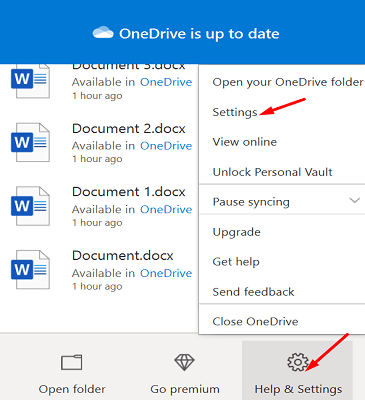
- Right-click on your OneDrive taskbar icon, select Help and Settings. Click on Settings.

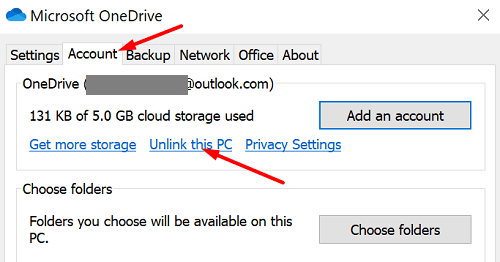
- Then, click on the Account tab, select Unlink this PC.
- Click on Unlink account.

- Right-click on your OneDrive taskbar icon, select Help and Settings. Click on Settings.
- Then, go to C:\Users\UserName\OneDrive.
- Right-click on the OneDrive folder and select Properties.
- Go to Security, and click on Users.

- After that, click on Edit to change permissions and give users Full Control, and Modify.
- Log in to OneDrive, and then change the location to your new folder.
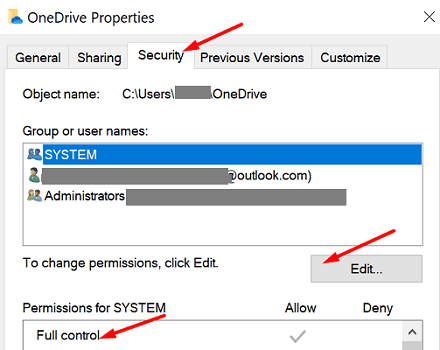
Check if giving full permissions to users, and placing the OneDrive folder in the upper C:\Users level did the trick.
Reinstall OneDrive
Try uninstalling and reinstalling OneDrive and check if installing a fresh copy of the app solves the problem.
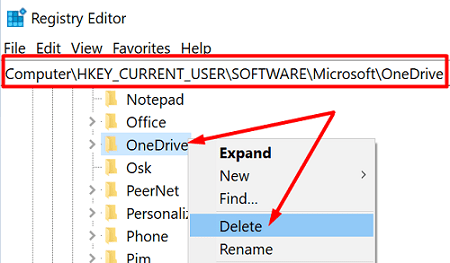
- Press the Windows and R keys, type “regedit” in the Run window and hit Enter.
- Navigate to HKEY_CURRENT_USER\Software\Microsoft.
- After that, expand the list and locate the OneDrive folder.
- Right-click on the folder and delete it.

- Rest assured, you’ll only remove the current OneDrive configuration settings associated with the respective user profile. You won’t delete core app data.
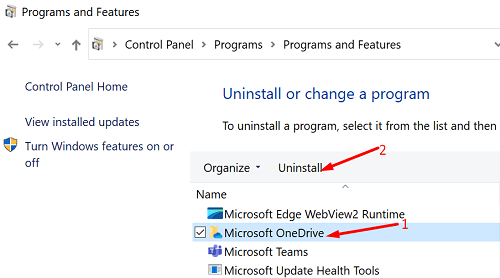
- Then, go to Control Panel, click on Uninstall a program.
- Select Microsoft OneDrive and hit the Uninstall button.

- Restart your computer and reinstall OneDrive from Microsoft’s official website.
Disable Your Antivirus and Firewall
Your antivirus, firewall, or antimalware program might be interfering with OneDrive preventing the tool from launching or syncing your files. Exit OneDrive, disable your security tools and check if you can create your OneDrive folder in the location you desire.
By the way, many users confirmed that Bitdefender may sometimes block OneDrive from creating a folder in a so-called protected space. Disable the protected files function in your antivirus settings, created your OneDrive folder, and then re-enable BitDefender.
Install an Older OneDrive Version
If this problem started occurring after installing a new OneDrive version on your machine, install an older version. Don’t forget to block the client access to the Update and StandaloneUpdate folders.
- First, go to OneDrive release notes and download an older app version. Or you can use the direct download link to download the OneDrive Setup app.
- Then, go to Control Panel, select Uninstall a program and delete OneDrive.
- Disconnect your computer from the Internet.
- Then install the OneDrive version you previously downloaded. Simply ignore the prompts to go back online.
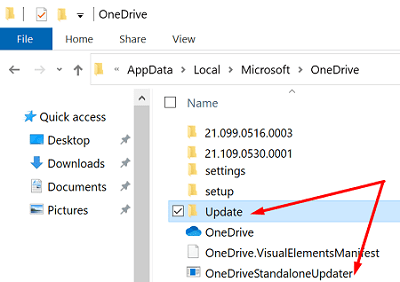
- After that, go to C:\Users\UserName\AppData\Local\Microsoft\OneDrive.
- Locate the Update and StandaloneUpdater folders.

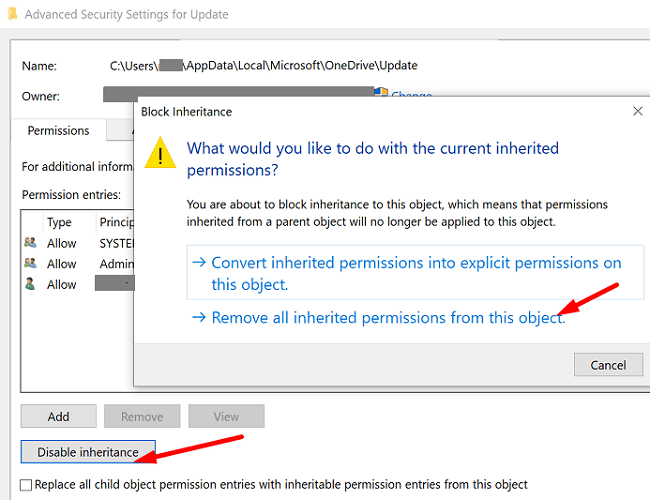
- Right-click the Update folder, select Properties, and go to the Security tab.
- Select Advanced, go to Disable inheritance and select Remove all inherited permissions from this object.

- Hit OK and click Yes on the security prompt.
- Repeat the same steps for the StandaloneUpdater.
- Go back online, launch OneDrive and check if you can create your folders where you want to.
Conclusion
As you can see, fixing the issue where OneDrive can’t create a new folder in the location you selected requires following multiple troubleshooting steps. For example, you can edit user permissions, disable your antivirus and firewall, or reinstall OneDrive. Did you manage to troubleshoot your OneDrive issues? Let us know in the comments below.