Skip to content
LogoTechnipages
LogoTechnipages
  • Topics
        • Android
        • Browsers
        • Gaming
        • Hardware
        • Internet
        • iPhone
        • Linux
        • macOS
        • Office
        • Reviews
        • Software
        • Windows
        • Definitions
        • All Recent Posts
  • Product Reviews
  • About

Fix: Adobe Acrobat Couldn’t Read This Document

Madalina DinitaMarch 23, 2022 Comments (0)
Adobe-Acrobat-there-was-a-problem-reading-this-document

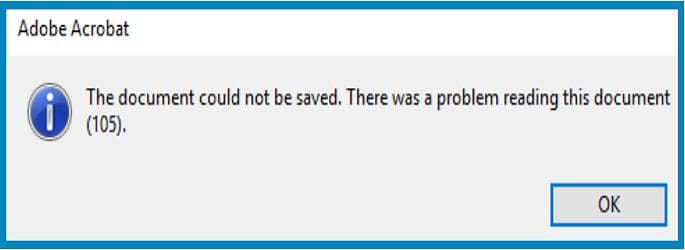
When you try to open or save a PDF file, Adobe Acrobat may sometimes throw a strange error message that says there was a problem reading the document. Wait for a few seconds, and try again. If the issue persists, follow the troubleshooting steps below to solve the problem.

Contents

  • 1 Adobe Acrobat: There Was a Problem Reading This Document
    • 1.1 Use an Alternative PDF Viewer
    • 1.2 Extract Pages
    • 1.3 Print to PDF
    • 1.4 Export to PostScript
    • 1.5 Create a New Document
    • 1.6 Conclusion

Adobe Acrobat: There Was a Problem Reading This Document

Adobe-Acrobat-problem-reading-this-document

Use an Alternative PDF Viewer

If you’re getting this error when you try to open a PDF file, you can use an alternative program to view it. For example, you can use your browser. Both Chrome and Edge support this functionality. Of course, the PDF viewer available on your browser doesn’t support advanced features.

Go to the next solution to fix the problematic file. Most likely, your PDF file got corrupted. Hold down the Ctrl key and click on the OK button in the error window to get a more technical explanation of this issue.

Extract Pages

Use the option that allows you to extract specific pages from the problematic document, and check if Adobe Acrobat can read those pages.

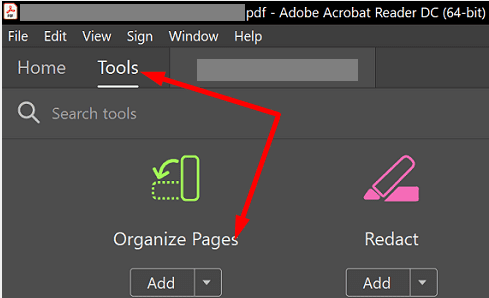
Go to the Tools menu, and select Organize Pages. Then, click on Extract Pages, and select the pages you want to extract to create a new document. Click on Save As and check if you’re still getting the same error message.
Adobe-Acrobat-Organize-Pages

Print to PDF

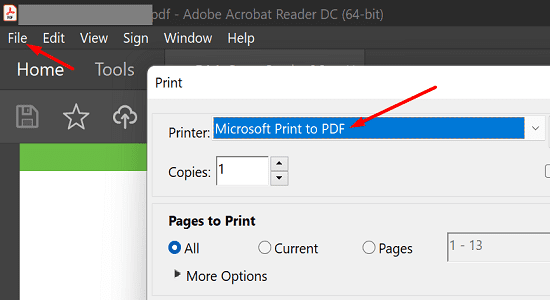
If extracting your files fails to solve the problem, try printing to PDF. To do that, click on the File menu, and select Print. Then, select the Print to PDF option and check if you can save the document.
Adobe-Acrobat-Print-to-PDF

Export to PostScript

Try exporting the problematic file to PostScript. Click on Tools, and select Export PDF. Select the problematic file, tick the PostScript option in the right-hand pane, and hit the Export button.
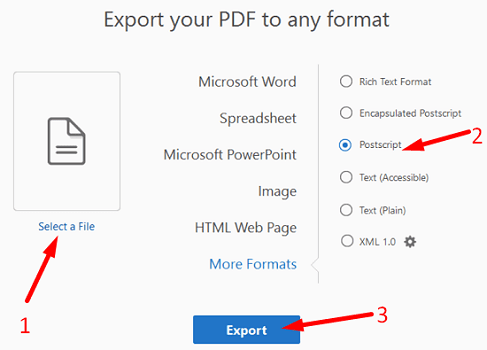
Adobe-Reader-file-export-options

Create a New Document

Press Ctrl and A to select all the text in the document. Then, open a new file and press Ctrl and P to paste the text into the new document. Press Ctrl and S, and check if you can save the new file.

Conclusion

If Adobe Acrobat Reader cannot read a document, use an alternative PDF viewer. To fix the problematic file, extract its pages to a new document. You can also use the “Print to PDF” or “Export to PostScript” options to get the job done. Alternatively, you can simply copy the text from the problematic document into a new file.

Did you manage to solve the problem? Hit the comments below and let us know which method worked for you.


Categories: Software

Author Madalina Dinita

Madalina has been a Windows fan ever since she got her hands on her first Windows XP computer. She is interested in all things technology, especially emerging technologies -- AI and DNA computing in particular.

You Might Also Like

  • Zoom: How to Hide Call Participants Who Aren’t Using a Webcam

    Mel HawthorneInternet
  • microsoft teams how secure is it

    How Secure Is Microsoft Teams?

    Madalina DinitaSoftware
  • Google Duo: How To Prevent Other People From Seeing Your Video Before They Pick up Your Call

    Mel HawthorneInternet
  • microsoft teams emojis not working fix

    Microsoft Teams Emojis Not Working

    Madalina DinitaSoftware

Leave a Reply

Your email address will not be published. Required fields are marked *

  • fix error 0x9cfc7550

    How to Fix Error 0x9cfc7550 (We Couldn’t Create a New Partition) in Windows 

  • fix error code 0x3000008 1

    How to Fix Error Code 0x3000008 for Remote Desktop Connection

  • fix error code 0x80190001 1

    How to Quickly Fix Error 0x80190001 for Microsoft or Outlook Account Login 

  • fix filecoauth.exe application error

    Fix FileCoAuth.exe Application Error 

  • fix error code 0x80010002 in windows update

    How to Fix 0x80010002 Error in Windows Update 

profile pic

The Experts Behind Technipages

My name is Mitch Bartlett. I've been working in technology for over 20 years in a wide range of tech jobs from Tech Support to Software Testing. I started this site as a technical guide for myself and it has grown into what I hope is a useful reference for all.

Learn More

technipages logo white
linkedin icon

Technipages is part of Guiding Tech Media, a leading digital media publisher focused on helping people figure out technology. Learn more about our mission and team here.

© 2025 Guiding Tech Media All Rights Reserved

  • About Us
  • Contact
  • Terms of Use
  • Privacy Policy

© 2025 Guiding Tech Media All Rights Reserved

Information from your device can be used to personalize your ad experience.
Do not sell my personal information.

Last Updated on March 23, 2022 by Judy Sanhz