Skip to content
LogoTechnipages
LogoTechnipages
  • Topics
        • Android
        • Browsers
        • Gaming
        • Hardware
        • Internet
        • iPhone
        • Linux
        • macOS
        • Office
        • Reviews
        • Software
        • Windows
        • Definitions
        • All Recent Posts
  • Product Reviews
  • About

Enable/Disable Display of Formulas in Cells in Excel

Mitch BartlettFebruary 27, 2023 Comments (5)
Excel Header

In this tutorial, we will learn how to enable or prevent the showing formulas in the spreadsheet in Microsoft Excel. Performing these steps won’t actually change the value of the cell. It will only allow you to view the formula within the cell.

For all Windows versions of Microsoft Excel, you can simply hold down the “Ctrl” key on your keyboard and press `. This key is called the “grave accent” and is usually located to the right of the number 1 on most keyboards. Here are some other methods you can use.

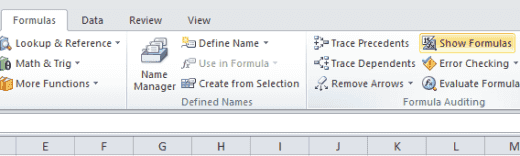
  1. Select the “Formulas” tab.
  2. Select the “Show Formulas” button in the “Formula Auditing” area.
    Show Formulas button in Excel 2010

FAQ

The “Show Formulas” and “Formula Auditing” area is missing from the Formulas tab. What do I do?

In Microsoft Outlook 2007 and higher, you can customize the ribbon. That means that the “Show Formulas” and “Formula Auditing” options can be removed, and not exist on your computer. You can often add it back by going to the “Customize Quick Access Toolbar” arrow, then choose “More Commands“.
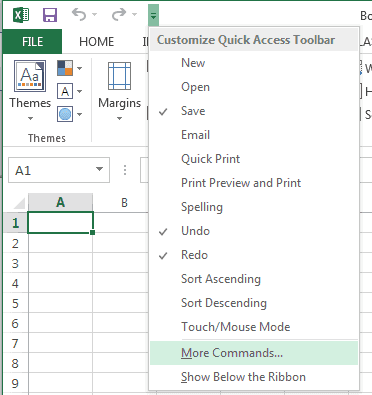
Excel More Commands option

From there, you can choose “Customize Ribbon“, then add the “Formula Auditing” section anywhere you want it. You could also use the “Reset” button on this screen to reset your customization back to default settings.
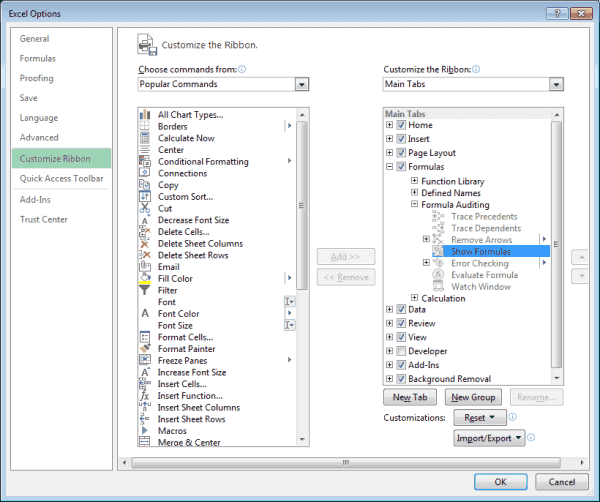
Adding Show Formulas option to Excel ribbon

Categories: Office

Author Mitch Bartlett

Through my career that spans over 20 years I have become an expert in Microsoft Systems Administration, Android, and macOS. I started this site as a technical guide for myself and it has grown into what I hope is a useful knowledgebase for everyone.

You Might Also Like

  • Outlook Logo Header

    How to Enable or Disable Outlook Mail Notification Box

    Mitch BartlettOffice
  • Outlook 2010 select meeting

    Outlook: Check Who Accepted Meeting Invite

    Mitch BartlettOffice
  • Outlook 2010 email signature screen

    How to Set the Email Signature in Outlook 365

    Mitch BartlettOffice
  • Outlook Logo Header

    Why is “Junk” Grayed Out in Outlook 365?

    Mitch BartlettOffice

Comments

  1. Bal Gaire says:
    July 29, 2019 at 6:31 am

    1. When I enter word in cell one it reflect automatically in another.
    2. When I work in v lookup function it disable the Data tools from the excel.

  2. Bekki Toth says:
    October 29, 2018 at 4:59 pm

    I have to stop a formula on the 31st of oct and set it to start again on the 1st of november. This is Weds and Thursday of same week. How is the best way to do this?

  3. Shon says:
    July 30, 2018 at 12:56 pm

    Hey, Jerry in Texas. See if this works: On the View tab, under “Show” uncheck the Formula Bar.

  4. Shon says:
    July 30, 2018 at 12:49 pm

    Formulas show despite using the grave accent and the Show Formulas option in the Formula Auditing pane.

  5. J. Pousson says:
    June 23, 2018 at 11:36 am

    when I click a cell in Excel the formula often, but not always, displays in the cell and in the formula bar area.
    I find this very annoying and has caused frequent errors. I much prefer using the formula bar and need to find a way of not displaying formulas in both the cell and formula bar…I don’t recall this occurring in earlier work in Excel workbooks…Please help, I can not find a solution on the Internet.. The suggestion using CTRL+tilde key causes formulas to display over the entire worksheet and for me is useless…Thanks for any help you might share. Jerry in Texas

Leave a Reply

Your email address will not be published. Required fields are marked *

  • browser screen goes black

    Browser Screen Goes Black Intermittently 

  • computer heating up in hyper v

    Computer Heating Up When Using Hyper-V – How to Fix 

  • clipchamp unexpected application error

    Clipchamp Unexpected Application Error: Here’s the Solution 

  • winload.efi file missing error

    Winload.EFI File Missing Error on Boot – How to Fix

  • fix error 0x9cfc7550

    How to Fix Error 0x9cfc7550 (We Couldn’t Create a New Partition) in Windows 

profile pic

The Experts Behind Technipages

My name is Mitch Bartlett. I've been working in technology for over 20 years in a wide range of tech jobs from Tech Support to Software Testing. I started this site as a technical guide for myself and it has grown into what I hope is a useful reference for all.

Learn More

technipages logo white
linkedin icon

Technipages is part of Guiding Tech Media, a leading digital media publisher focused on helping people figure out technology. Learn more about our mission and team here.

© 2025 Guiding Tech Media All Rights Reserved

  • About Us
  • Contact
  • Terms of Use
  • Privacy Policy

© 2025 Guiding Tech Media All Rights Reserved

Information from your device can be used to personalize your ad experience.
Do not sell my personal information.

Last Updated on February 27, 2023 by Mitch Bartlett