

If you’re getting error code 43 on Windows 11, it means that your system has detected an issue with a hardware device, and to prevent it from causing any damage to the system, has stopped it from functioning properly. Often, a simple solution is all you need to correct the software and fix this error code.
Contents
Fix 1. Restart Your Computer
Restarting your computer is the simplest and often most effective first step. It reboots the underlying software controlling your hardware devices, frequently clearing the conditions that cause error code 43.
Step 1. Open the Start menu.
Step 2. Click the power icon and choose Restart.

Fix 2. Reconnect the Device
Disconnecting and reconnecting the device can resolve some issues, as it functions similarly to restarting.
Step 1. Unplug the device.
Step 2. Wait a few seconds then reconnect it.
Step 3. Go to Settings > Bluetooth and devices > Devices.

Step 4. Find the device in the list to make sure your computer has recognized it correctly.
If you have a USB device, try plugging it into a different port. If it works, the problem is likely inside the connection point.
Fix 3. Update the Device Driver
If your system is using outdated drivers, this can cause compatibility issues with certain hardware.
Step 1. Find ‘Device Manager’ in the search bar.

Step 2. Find the device causing the error.
Step 3. Right-click on the device and select ‘Update driver.’

Step 4. Choose ‘Search automatically for drivers.’
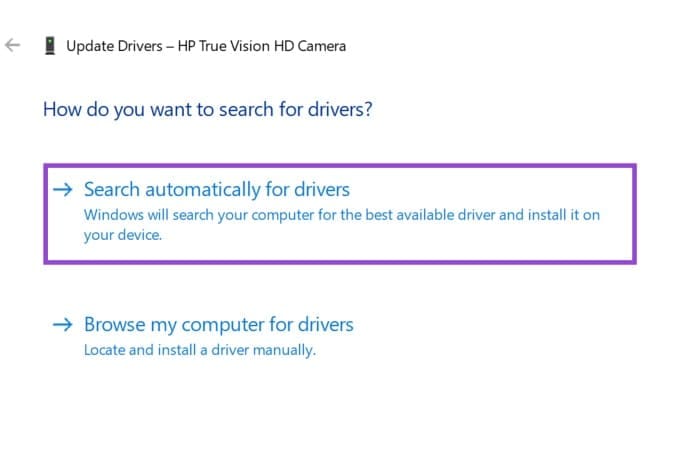
Step 5. Restart your computer.
Fix 4. Uninstall and Reinstall the Driver
If updating the driver doesn’t work, you might need to reset it completely.
Step 1. Open Device Manager.
Step 2. Right-click on the device and select ‘Uninstall device.’

Step 3. Confirm by clicking Uninstall.
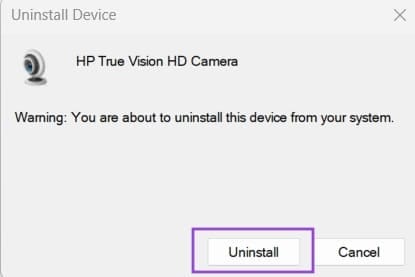
Step 4. Restart your computer.
Windows should automatically reinstall the driver during the restart. However, if it doesn’t, you can visit the manufacturer’s website and download the latest version manually.
Fix 5. Run Windows Troubleshooter
Windows has built-in troubleshooting tools that can help diagnose and fix hardware issues.
Step 1. Search for ‘Settings’ in the taskbar.
Step 2. Go to System > Troubleshoot > Other trouble-shooters.

Step 3. Find the relevant troubleshooter for your device (Audio for a mic, Camera for video devices, etc.).
Step 4. Click Run.

A pop-up will appear to walk you through the process.
Fix 6. Check for Windows Updates
Windows should update itself automatically, but if it misses an update due to poor connection or power issues, that can cause problems with hardware devices that are expecting the latest version of Windows software.
Step 1. Open Settings.
Step 2. Go to ‘Windows Update’ and click ‘Check for updates.’

If updates are available, install them and then restart your computer.
Fix 7. Check Device Hardware
If correcting the software issues doesn’t fix error code 43, then there could be a physical issue with your hardware. Try connecting the device to another computer to see if it works and if it doesn’t, it may be damaged and require repair or replacement. A visual inspection can show some signs of damage, like obvious scratches or broken parts. If this is the case, you may need a technician to repair it.




