
If you’ve been struggling to log in to your Microsoft Account for a while with your password, you might’ve gotten Error 400 (“Bad Request”) thrown at you more than a few times. It’s frustrating, sure, but we’re here to help you fix this sign-in error. In this article, we’ll be looking at what to do with Error 400 when signing in.
Contents
What Causes This Error?
As with most login problems, Error 400 is a problem with the network, device, or platform. It can be due to:
- Too many login requests in a row, which can trigger security measures
- Problems with your network or Microsoft’s servers
- An outdated app
- Trouble with your browser’s cache
Let’s take a look at a few ways of tackling this issue.
Error 400 When Signing in – Possible Fixes
If you’ve got Microsoft sign in error 400 staring at you, here are a few fixes you can try:
Update Everything
Starting simply, if you’re trying to log in through your app, ensure that it’s updated first. The same goes for your phone’s OS. If using a PC and browser, ensure that both are fully up to date.
Try Another Sign In Method
If you aren’t having any luck with your smartphone, try logging in through your browser, and vice versa. If that browser doesn’t work, try signing in through another. If you have the option of multiple networks, try choosing another (and disable any VPN while you’re at it).
An alternative way to sign in is to use a method other than inserting your password. Microsoft gives its users a few ways to sign in for convenience and security, and if you have other methods available, it’s a good idea to do so. You can:
- Receive a phone call or text to a connected number and verify through a one-time password (OTP)
- Use an authenticator app on your smartphone
- Use your PIN or biometric data
Flush Your DNS Cache
If using a browser, the DNS Cache stores a list of IP addresses that saves your PC from having to look them up again. This can sometimes become erratic after a while and cause sign-in issues. Flushing the cache is easy to do:
Step 1. Open the Run Dialog (Win + R) and type “cmd” into the box. Press (Ctrl + Shift+ Enter) to run as Admin.
Step 2. Once in Command Prompt, type the following: “ipconfig /flushdns” and hit “Enter.”
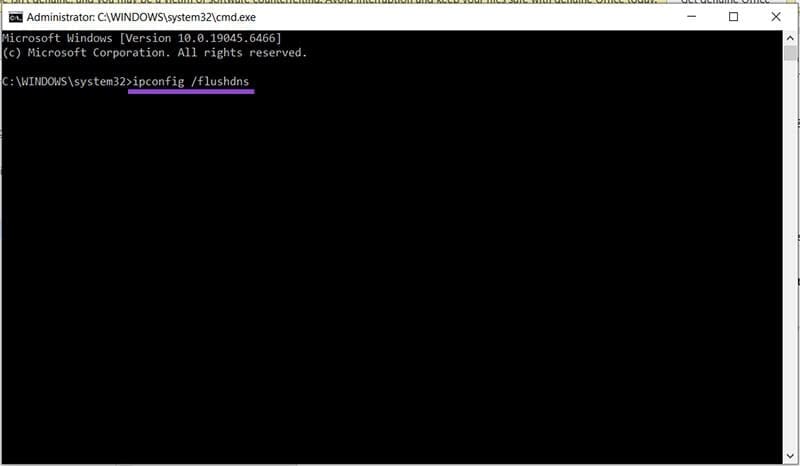
Step 3. Your cache will then be cleared. Try signing in again.
Clear the Browser Cache
Another browser problem can lie in its cache. Clearing it may help you sign in again.
For Chrome:
Step 1. Hit (Ctrl + Shift + Del).
Step 2. Select “Cached images and files” and any other files you’d like to clear in the window that pops up.

Step 3. Click “Delete from this device” to finalize.
For Edge:
Step 1. Press (Ctrl + Shift + Del) to bring up the “Delete browsing data” window.

Step 2. Select what you want to delete by checking the boxes and then click “Clear now” to finalize.
For Firefox:
Step 1. Hit (Ctrl + Shift + Del).
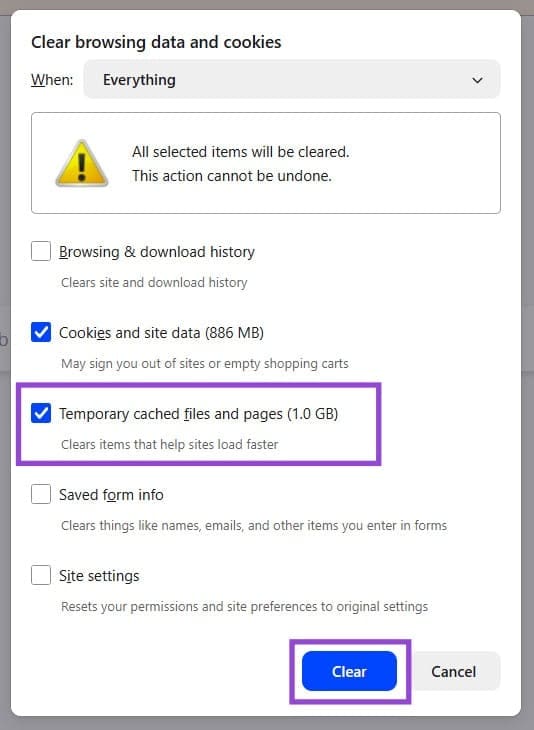
Step 2. Check “Temporary cached files and pages” and whatever else needs to go.
Step 3. Click “Clear” to finish the process.