Skip to content
LogoTechnipages
LogoTechnipages
  • Topics
        • Android
        • Browsers
        • Gaming
        • Hardware
        • Internet
        • iPhone
        • Linux
        • macOS
        • Office
        • Reviews
        • Software
        • Windows
        • Definitions
        • All Recent Posts
  • Product Reviews
  • About

Edge for Android: How to Disable Search Suggestions

Mel HawthorneAugust 19, 2020 Comments (1)

Search suggestions are intended to act as a quality of life improvement to browsers. By attempting to predict your search query, the browser tries to save you time. To do this though, the browser needs to monitor everything you type in the search bar.

This data isn’t just held on your local browser, it’s sent to the browser provider and can be sent to your default search engine too. That means that search suggestions can be a serious privacy issue. If you’re concerned about sending your search data like this, you may want to disable search suggestions.

To disable search suggestions in the URL bar, you need to go into the in-app settings. To access these settings, you need to tap the triple-dot icon in the centre of the bottom bar.

Tap the triple-dot icon in the centre of the bottom bar to be able to access the in-app settings.

Next, tap the “Settings” icon in the top-right corner of the popup pane to open the in-app settings.
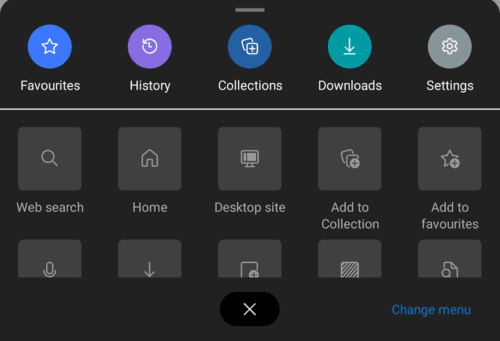
Tap “Settings” in the top-right corner of the popup pane to open the settings.

To access the search suggestion options, you need to tap on “Privacy and Security” at the top of the “Advanced” section. This will be the seventh option from the bottom.
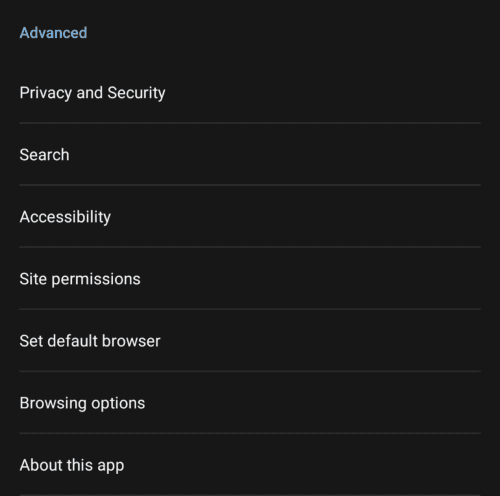
Tap “Privacy and Security” at the top of the “Advanced” section.

To disable search suggestions simply tap “Search and URL suggestions” so that the checkbox is unticked. This option will be the first option in the “Privacy and Security” settings page.

Tip: This setting disables both search suggestions and URL predictions. You can only have neither or both of them. If you want URL suggestions enabled, you will, unfortunately, have to live with search suggestions as well.
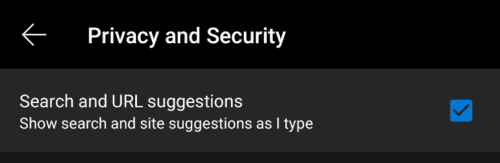
Untick the “Search and URL suggestions” checkbox to disable search suggestions.

Categories: Android

Author Mel Hawthorne

You Might Also Like

  • Galaxy Note8 & S8: Set Text Message Ringtone

    Mitch BartlettAndroid
  • How to Enable and Use Split Screen Mode on a Moto G6 Play

    Judy SanhzAndroid
  • Whatsapp: How to Reply to Specific Message

    Judy SanhzAndroid
  • How to Change Your Status on Google Chat in Gmail

    Judy SanhzAndroid

Comments

  1. BertCBW says:
    April 7, 2023 at 10:15 am

    No. Text suggestions for textboxes in a webpage still are going on. Even so annoying that you cannot even type text anymore because of then suggestion list covers the keyboard, which you cannot remove…. Edge unusable now.

Leave a Reply

Your email address will not be published. Required fields are marked *

  • winload.efi file missing error

    Winload.EFI File Missing Error on Boot – How to Fix

  • fix error 0x9cfc7550

    How to Fix Error 0x9cfc7550 (We Couldn’t Create a New Partition) in Windows 

  • fix error code 0x3000008 1

    How to Fix Error Code 0x3000008 for Remote Desktop Connection

  • fix error code 0x80190001 1

    How to Quickly Fix Error 0x80190001 for Microsoft or Outlook Account Login 

  • fix filecoauth.exe application error

    Fix FileCoAuth.exe Application Error 

profile pic

The Experts Behind Technipages

My name is Mitch Bartlett. I've been working in technology for over 20 years in a wide range of tech jobs from Tech Support to Software Testing. I started this site as a technical guide for myself and it has grown into what I hope is a useful reference for all.

Learn More

technipages logo white
linkedin icon

Technipages is part of Guiding Tech Media, a leading digital media publisher focused on helping people figure out technology. Learn more about our mission and team here.

© 2025 Guiding Tech Media All Rights Reserved

  • About Us
  • Contact
  • Terms of Use
  • Privacy Policy

© 2025 Guiding Tech Media All Rights Reserved

Information from your device can be used to personalize your ad experience.
Do not sell my personal information.

Last Updated on August 19, 2020 by Mitch Bartlett