Passwords are a good way to protect your privacy, but they can be a problem for forgetful people. Forgetting your Login password to Windows 7 can might be scary, but don’t worry. Retrieving a forgotten password for the OS is easy.
Here are a few of the ways you can reset or retrieve your password.
Contents
Password Reset for Windows 7
To use the built-in password reset option in Windows 7 you have to set it up beforehand. If you have:
1. You must have seen the Reset Password option on the Login Use it to recover your login password.
2. Password Reset Wizard is your buddy. It will enable you to reset your password. To proceed in the password reset process use the Next
3. You have to select the password reset disk from the menu. Now hit the Next
4. Enter your recovery clues and new password. After you are done, press on the Finish
Command Prompt Method
If you want to recover your login password by Command Prompt, you have to login into the system. You can log in from another user account to use the Command Prompt.
1. When you have logged in, go to the Command Prompt. Accessories > Command Prompt. You have to click the right button of the mouse. This will reveal a drop-down menu for Command Prompt. In the menu list, click on the Run as Administrator
2. You will be switched to the Command Prompt interface. Give the command Net User and enter it.
3. Now you have to give the command to reset your password. This is the command to reset password net user username new_password. You have to make the following changes to customize the command. You will replace the username > your account name and new_password > your password.
4. Enter the modified command and your password will be reset.
The Installation Method for Windows 7
This is less straightforward that other methods and is kind of a trick. You can use Command Prompt without login by:
1. Insert an installation CD/DVD of Windows 7 and restart your system.
2. During the Reboot, choose the option Repair My Computer.
3. You will see Command Prompt in the repair list. Command Prompt is the medium to change the password.
4. In the Command Prompt enter this pattern of commands to reset your password.
c:
cd (small letters) windows
cd (small letters) system32
ren sethc.exe (small letters) sethc.exe.bak (small letters)
copy (small letters) cmd.exe sethc.exe
5. Take out the installation disk and shut all the interactive windows.
6. You have to switch to the Command Prompt interface to reset your password. For this purpose, tap on the Shift key many times. Command Prompt will appear on your screen. Now you can type the commands for the password reset. Use this command net user username new_password.
PC Unlocker Application Method
This is your last resort. If all of the other methods aren’t an option, give this a try. It’s a third-party app that is used in the following way:
1. In a PC, install the PC unlocker through a different user account. Well, your user account is locked you can’t use it.
2. Now save the zip folder of PC Unlocker and extract the data. In the dialogue box, select the Start Burn option.
3. Plug in the Win 7 installation CD and reboot your PC.
4. PC Unlocker dialogue box will appear on the screen. In the dialogue box, tap on the Reset Password PC Unlocker tool will reset your password instantly.
5. Password from your account will be removed and you can now use your PC.
Consider Using Windows 7 after End of Life:
There are advantages and drawbacks regardless if you opt to stay on Windows 7 or migrate to a new system. Consider your options and decide for yourself what would be the best option for your needs or the needs of your company.
– Cheaper
– No More Learning
– Most Apps Work
– No Migration
– No More Support
– Some Apps won’t Work
– Diminishing Security
– Diminishing Utility over Time
Consider Buying Windows 10
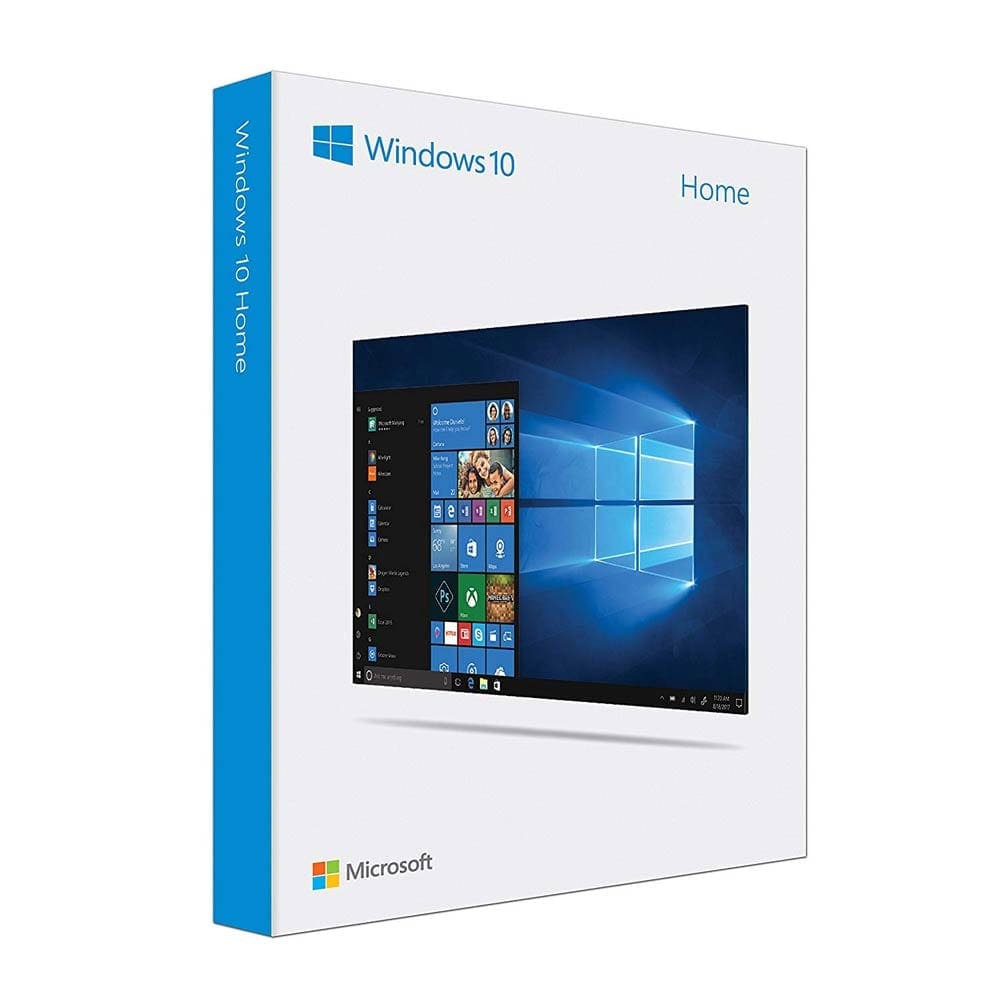
You can buy a USB drive with Microsoft Windows 10 Home Edition and join millions of users worldwide on a platform that is considered the industry standard.