Skip to content
LogoTechnipages
LogoTechnipages
  • Topics
        • Android
        • Browsers
        • Gaming
        • Hardware
        • Internet
        • iPhone
        • Linux
        • macOS
        • Office
        • Reviews
        • Software
        • Windows
        • Definitions
        • All Recent Posts
  • Product Reviews
  • About

Do You Really Need to Eject USB Drives in Windows 10?

Mel HawthorneJuly 30, 2020 Comments (0)

Everyone who’s used a USB memory device has dealt with the prompt about needing to “Safely eject the USB memory device”. The system never really explains why this is necessary though, and in most cases, it seems that doing so is unnecessary, which can lead to confusion over what safely ejecting a USB device does and if it’s really needed.

Why is safely ejecting necessary?

When writing data to a USB drive, not all data is copied across immediately. In some cases, data is cached in RAM or on a hard drive and then transferred to the USB memory stick when it is less busy. Before this cached data has been transferred onto the USB stick, it is vulnerable to corruption if the device is suddenly removed, or if the power is cut.

Safely ejecting a USB device is a process that ensures that all data is written to the drive so that there’s no risk of data loss. In some cases, this process can take time, especially if a large amount of data needs to be written or if the drive is particularly slow.

Quick removal

Quick removal is a setting that can be applied to USB drives. If it is enabled, then all data is automatically written straight to the device during any transfer. Once the notification of transfer is complete the device can be instantly removed without needing to safely eject it first. Quick removal is generally enabled by default on USB memory sticks.

If quick removal is disabled then transfers will be shown to proceed quicker, while actually writing some data to a cache for transfer later. To protect against data loss, devices with quick removal disabled should be safely ejected before removal. Leaving quick removal disabled enables write caching to provide better performance. Quick removal is disabled by default on large USB storage devices such as external hard drives.

You can manually enable or disable quick removal on removable storage devices by configuring the device properties. To do so, you need to right-click on the removable drive in File Explorer and select “Properties”. In the properties window, you need to switch to the hardware tab, select the drive again, and click “Properties”.

In the new properties window, you need to click on the “Policies” tab. If this tab is not present you may need to click the “Change settings” button in the “General” tab. In the Policies tab, you can select between the “Quick removal” and “Better performance” modes with the radio buttons and click “OK” to apply the settings.
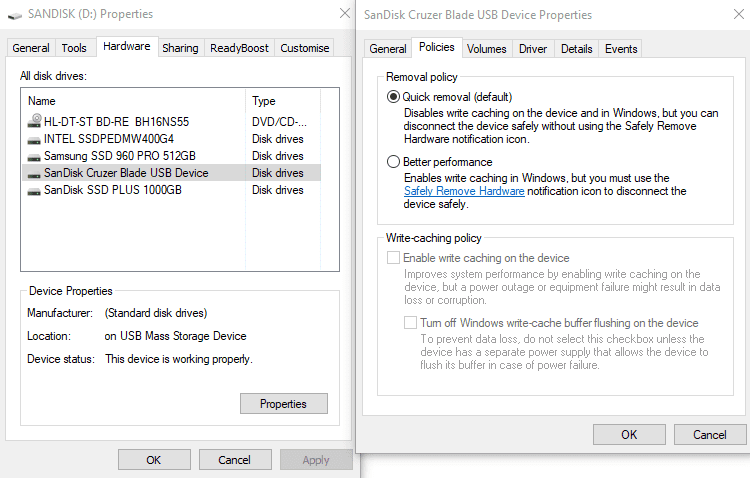
You can manually enable or disable quick removal through the device properties.

Categories: Windows

Author Mel Hawthorne

You Might Also Like

  • What to Do When the Taskbar Won’t Hide in Windows 10

    Judy SanhzWindows
  • Change Screen Brightness In Windows 10

    Change Screen Brightness in Windows 10

    MonaWindows
  • windows-11-widgets-not-working-fix

    Windows 11: What to Do When the Widgets Stop Working

    Madalina DinitaWindows
  • fix-windows-cannot-map-network-drive

    What to Do When You Can’t Find Your Screenshots on Windows 10

    Judy SanhzWindows

Leave a Reply

Your email address will not be published. Required fields are marked *

  • fix error 0x9cfc7550

    How to Fix Error 0x9cfc7550 (We Couldn’t Create a New Partition) in Windows 

  • fix error code 0x3000008 1

    How to Fix Error Code 0x3000008 for Remote Desktop Connection

  • fix error code 0x80190001 1

    How to Quickly Fix Error 0x80190001 for Microsoft or Outlook Account Login 

  • fix filecoauth.exe application error

    Fix FileCoAuth.exe Application Error 

  • fix error code 0x80010002 in windows update

    How to Fix 0x80010002 Error in Windows Update 

profile pic

The Experts Behind Technipages

My name is Mitch Bartlett. I've been working in technology for over 20 years in a wide range of tech jobs from Tech Support to Software Testing. I started this site as a technical guide for myself and it has grown into what I hope is a useful reference for all.

Learn More

technipages logo white
linkedin icon

Technipages is part of Guiding Tech Media, a leading digital media publisher focused on helping people figure out technology. Learn more about our mission and team here.

© 2025 Guiding Tech Media All Rights Reserved

  • About Us
  • Contact
  • Terms of Use
  • Privacy Policy

© 2025 Guiding Tech Media All Rights Reserved

Information from your device can be used to personalize your ad experience.
Do not sell my personal information.

Last Updated on July 30, 2020 by Mitch Bartlett