Skip to content
LogoTechnipages
LogoTechnipages
  • Topics
        • Android
        • Browsers
        • Gaming
        • Hardware
        • Internet
        • iPhone
        • Linux
        • macOS
        • Office
        • Reviews
        • Software
        • Windows
        • Definitions
        • All Recent Posts
  • Product Reviews
  • About

Google Chrome: Fix “No data received” Error

Mitch BartlettJuly 10, 2018 Comments (0)

I was recently supporting a person who would type a username and password for almost any website in Google Chrome, and would receive an error that said:

“No data received. Unable to load the webpage because the server sent no data. Error 324 (net::ERR_EMPTY_RESPONSE): The server closed the connection without sending any data.“
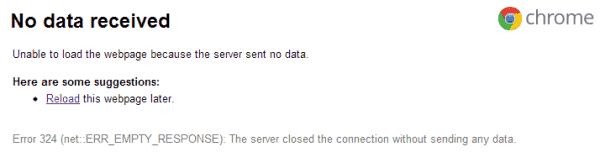
Chrome No Data Received error

This problem occurred only on HTTPS websites. I tried several things including clearing the cache and cookies. Many forums recommend uninstalling and reinstalling Chrome, but that didn’t work either.

I did find a few strange extensions and plugins installed. When I disabled them, they seemed to remain enabled in Chrome. This was not normal behavior. It was time to check for malware.


Fix 1

Run a scan with the free version of Malwarebytes. In my case, it detected “Trojan BHO”, which was infecting the Chrome browser. Malwarebytes removed the trojan successfully. After a restart, Chrome was like new. We could now access HTTPS websites without error.


Fix 2

If you still receive the “No data received” error when attempting to access websites in Chrome, you may have to uninstall and reinstall Chrome using these steps:

  1. Close Google Chrome.
  2. Right-click the “Start” button, then select “Control Panel“.
  3. Select “Programs and Features” or “Programs” > “Programs and Features“.
  4. Find “Google Chrome” in the list, then select it.
  5. Select the “Uninstall” option.
  6. Download and install a new copy of Google Chrome.
Categories: Software

Author Mitch Bartlett

Through my career that spans over 20 years I have become an expert in Microsoft Systems Administration, Android, and macOS. I started this site as a technical guide for myself and it has grown into what I hope is a useful knowledgebase for everyone.

You Might Also Like

  • Fix Google Maps Not Showing Street View

    Madalina DinitaSoftware
  • How to Add Websites to Burp Suite’s Target Scope

    Mel HawthorneInternet
  • Linux Mint: How to Make Scroll Bars More Visible

    Mel HawthorneSoftware
  • MS Teams Header

    Microsoft Teams: How Can I See Myself During Calls?

    Madalina DinitaSoftware

Leave a Reply

Your email address will not be published. Required fields are marked *

  • system32 folder opens on startup

    System32 Folder Opens on Startup – How to Fix

  • browser keeps opening hp support

    Browser Keeps Opening HP Support Assistant Tabs 

  • camera not working in vmware

    Camera Not Working in VMware – How to Fix

  • browser screen goes black

    Browser Screen Goes Black Intermittently 

  • computer heating up in hyper v

    Computer Heating Up When Using Hyper-V – How to Fix 

profile pic

The Experts Behind Technipages

My name is Mitch Bartlett. I've been working in technology for over 20 years in a wide range of tech jobs from Tech Support to Software Testing. I started this site as a technical guide for myself and it has grown into what I hope is a useful reference for all.

Learn More

technipages logo white
linkedin icon

Technipages is part of Guiding Tech Media, a leading digital media publisher focused on helping people figure out technology. Learn more about our mission and team here.

© 2026 Guiding Tech Media All Rights Reserved

  • About Us
  • Contact
  • Terms of Use
  • Privacy Policy

© 2026 Guiding Tech Media All Rights Reserved

Information from your device can be used to personalize your ad experience.
Do not sell my personal information.

Last Updated on July 10, 2018 by Mitch Bartlett