
When you use Chrome, you expect it to work flawlessly, especially when you have a deadline to meet. So, when you can’t scroll using the scrollbars, you may feel like throwing your computer out the window. When this happens, you want it fixed yesterday. Sometimes the fix can be as simple as restarting your browser, but sometimes you have to try a few methods before you come across the one that fixes the issue.
Contents
How to Get Chrome Scrolling Again
Chrome extensions are supposed to help us, but it’s nothing out of the ordinary that they cause you problems from time to time. Try to remember if the issue started sometime after you installed one or various Chrome extensions. If you installed quite a few, then you’ll need to uninstall the ones you think might be the culprit until you’ve removed all the extensions. To see if an extension is a culprit, you can try using Chrome in incognito mode.
How to Enable Incognito Mode in Chrome
To use Chrome in incognito mode, open the browser and click on the dots at the top right. The third option down should be the option to open a tab in incognito mode.

Once you click on it, the incognito tab will open. See if you can scroll while in this mode. If you can, then there’s a good chance that it’s an extension causing the issue. To exit incognito mode, click on the spy at the top right, and you should see the option to exit incognito mode.

Use Chrome’s Built-in Cleaner
If restarting your computer didn’t work, you can try using Chrome’s built-in cleaner. You may not have known that Chrome has one, but it does. It’s a great option to count on when you don’t want to install anything else on your computer. To access the cleaner, click on the dots at the top right and go to Settings. Go all the way down and click on the Advanced option. Once the additional options appear, keep going down until you come across the Clean up my computer option.

On the next page, you’ll see a blue Find button. Click on that button, so Chrome can find any errors that could be causing the scrolling issue. The process might take a while, so as soon as you click on the button, you can go get the cup of coffee.

Try Resetting Chrome
Resetting Chrome might be out of the question for some, but if you think you’ve tried everything, is there really any other choice. Drastic times call for drastic measures. So, if you think you’re ready to reset Chrome, you’ll need to go to:
- Settings
- Advanced
- Restore settings to their original defaults

Chrome will show you a message warning about what you’re about to do. If you’re sure this is what you want to do, click on the blue reset settings button.
Turn off Smooth Scrolling in Chrome
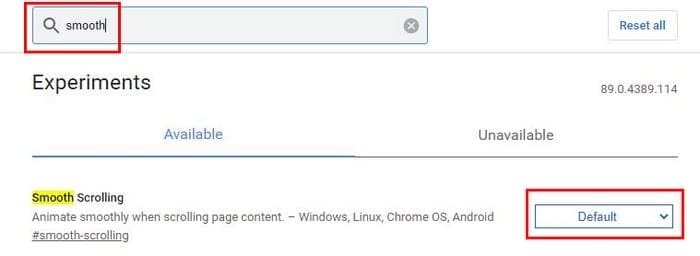
To turn off Smooth Scrolling, type chrome://flasgs in the addy bar. To find the option faster, type the word smooth in the search bar, and it should appear automatically. Click on the dropdown menu, where it says default. The disable option should be the last one on the list. If you want to go a little further, you can also try typing the word scroll in the flags search bar. It’ll show you all the scroll-related flags. Turn them all off if you have any of them enabled and forgot about them.
Try Erasing Chrome User Profile Data
If none of the above methods worked, you could try erasing Chrome’s user profile data. You can do this by opening Run by pressing the Windows key and R key. When it opens, type the following: %LOCALAPPDATA%\Google\Chrome\User Data\.

After clicking on the OK button, you should see a series of folders. Look for and right-click on the one named Default. Click on Rename and name it default.backup. Re-launch Chrome and see if the scrolling problem has gone away. You can also try re-installing Chrome; a fresh start just might be the method that will make the problem go away.
Conclusion
Sometimes an issue can be fixed with the most unexpected methods. Sometimes a restart is good enough, but sometimes you have to go into the browser’s experimental features. Hopefully, the methods mentioned above helped you fix the issue. Did I miss an option that worked for you? Let me know about it in the comments below.




I tried the above…nothing worked..reinstalled chrome…
I noticed I couldnt scroll (only in chrome browser, other browser worked)…after searching for something…then right clicked Open link in tab…then i couldnt scroll. its like a whole bar filled up..no scroll available…i can see the top tips of the search results but the screen wouldnt budge.