Usually, when you install a new browser, it’ll ask you if you want to set it as the default browser. However, if you can’t set a new default browser right away, then your only option is to do it manually.
Check if Your Browser Needs an Update
First, ensure that your browser is up-to-date. This usually happens automatically, but here’s how to check and force an update if needed.
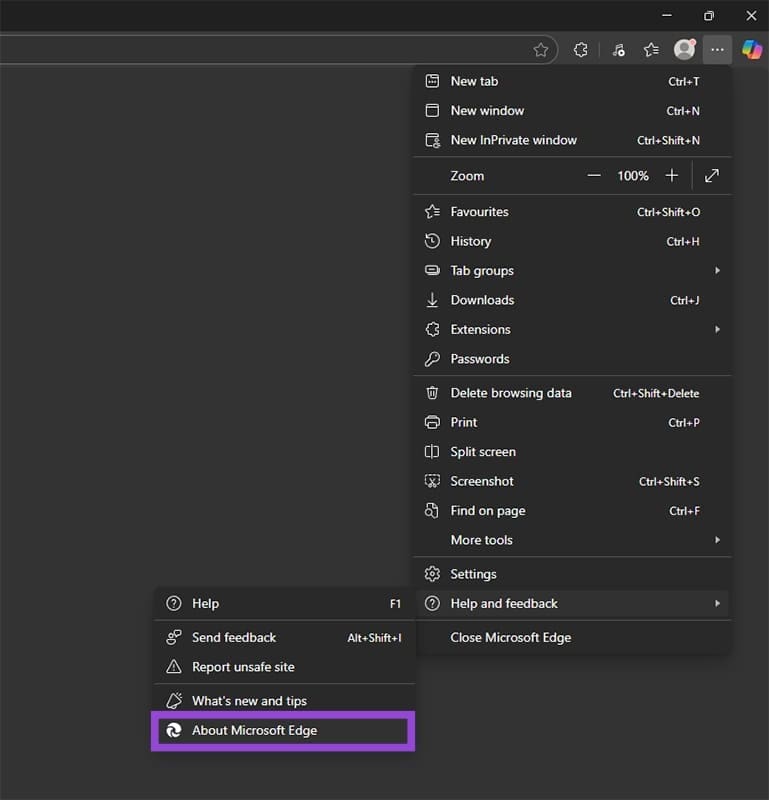
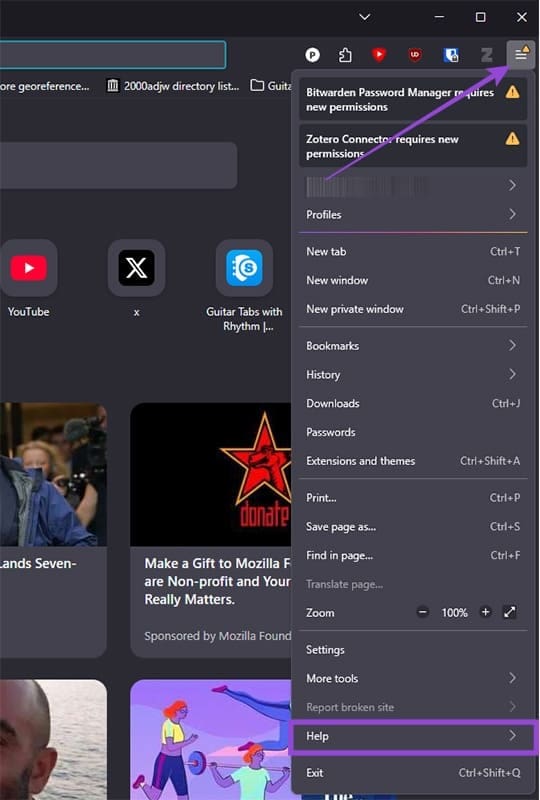
Step 1. In the top right of the browser window, click on a menu button, shown by either three lines or three dots.
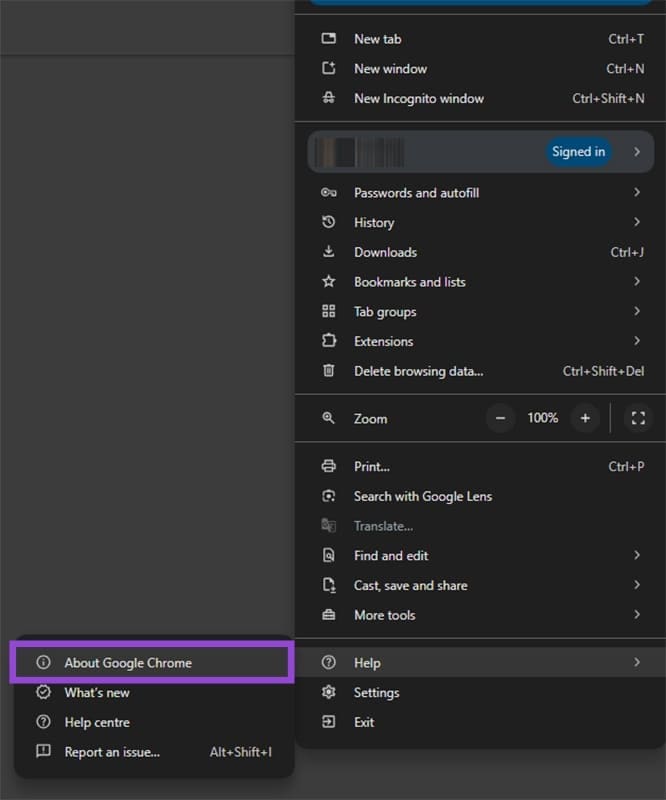
Step 2. Click on the About option. Here, you can see some basic details about your browser and start the update checker.
Here’s the menu option in Chrome:
And here’s the menu option in Edge:
In Firefox, you’ll first have to click the Help option.
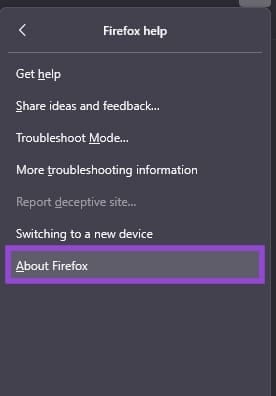
Here you’ll find the About Firefox option.
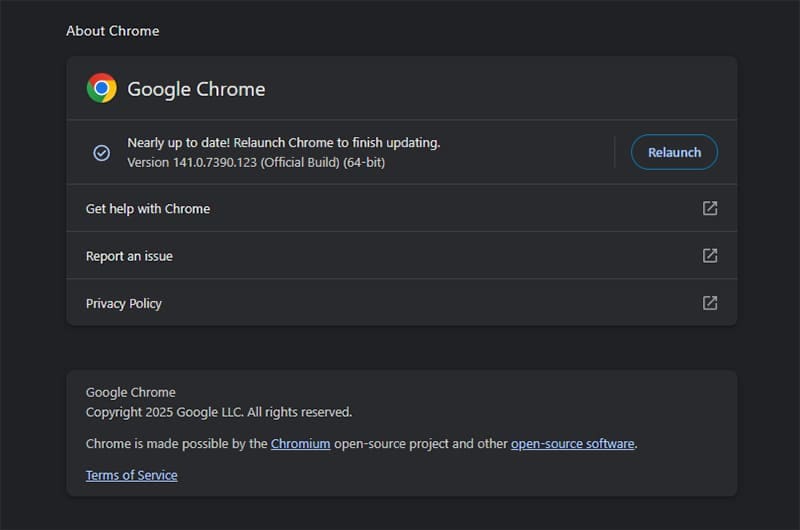
Step 3. In the About section of each browser, you’ll see more information about your browser: usually its current version number, the year of release, and copyright details.
More importantly, here the browser will check for updates and prompt you to install them if any are found.
Here’s what this looks like in Chrome:
And in Edge:
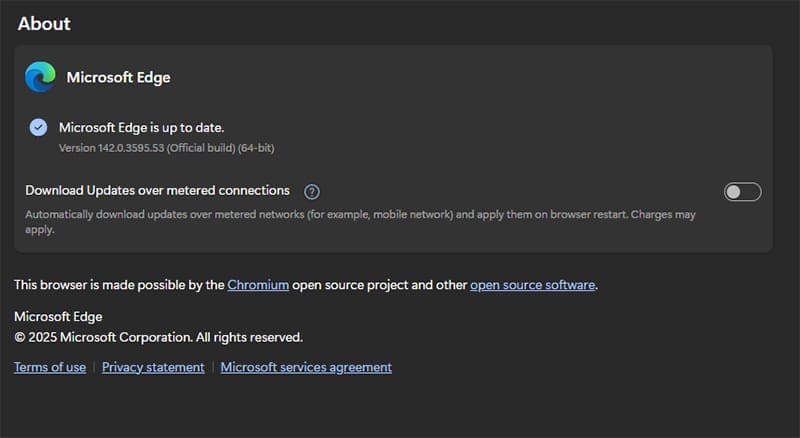
And finally, in Firefox:

Step 4. If any updates are found, simply follow the on-screen prompts to complete the update procedure.
Set a New Default Browser
When your browser is fully up-to-date, you can then proceed to set it as the default.
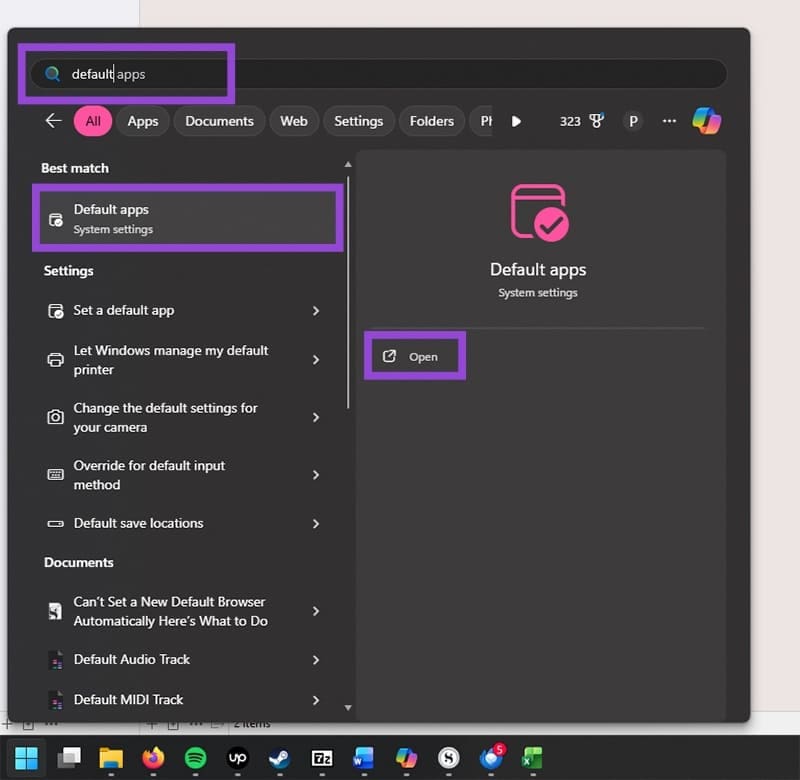
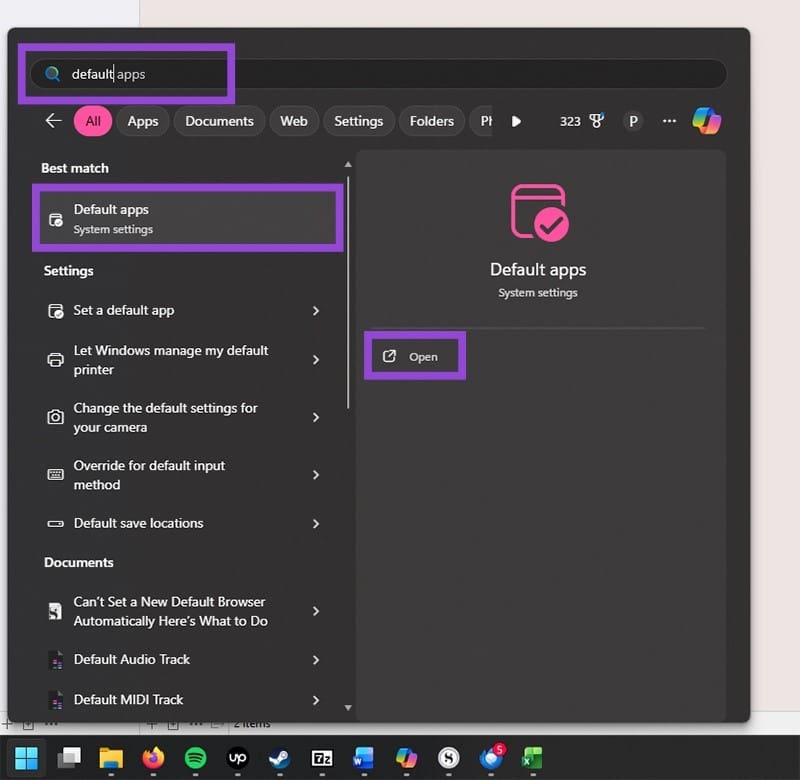
Step 1. Type “default apps” into the Start menu search bar. Click on the Default apps option when it appears.
Step 2. Scroll down the list of installed apps until you find the one you want to select as your default browser. For example, here you can see both Firefox and Chrome in the list. Either of these could be chosen as the default web browser.
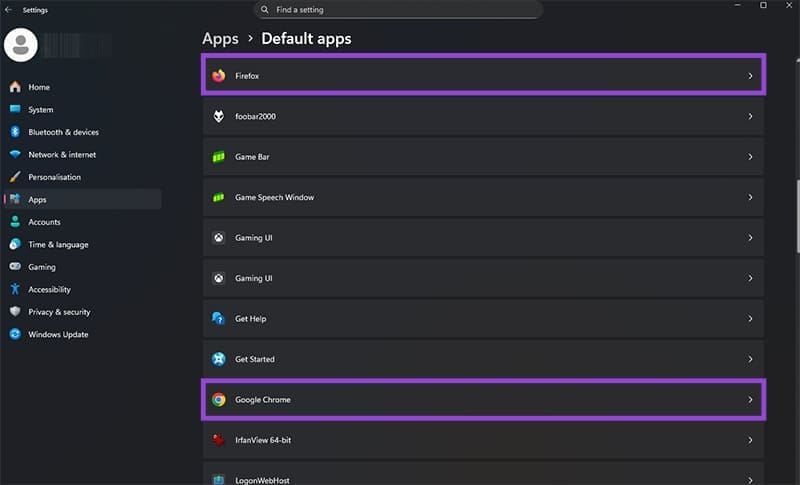
Step 3. Click on the browser you wish to be the default – in this case we’ve chosen Firefox.
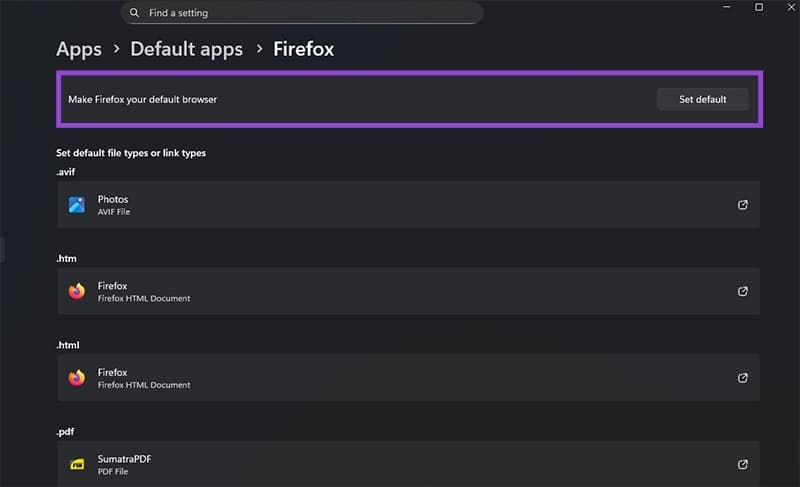
At the top, you’ll see the text “Make Firefox your default browser”, with a button labeled Set default next to it. This text will change depending on which browser you’ve chosen, of course.
Simply click the Set default button to choose your default web browser.
Reset Default Apps
If all else fails, your last resort is resetting the default apps on your computer.
Keep in mind that resetting the default apps will affect more than just your web browser. It can make changes to your system, meaning that you may have to set default apps for every file you regularly open, such as documents, photos, and videos.
However, if you can’t change your default browser, this procedure might fix the issue.
Step 1. Type “default apps” into the Start menu as before. Click on Default apps.
Step 2. Scroll all the way down to the bottom of the list of installed apps. Here, you’ll find the Reset all default apps menu option.
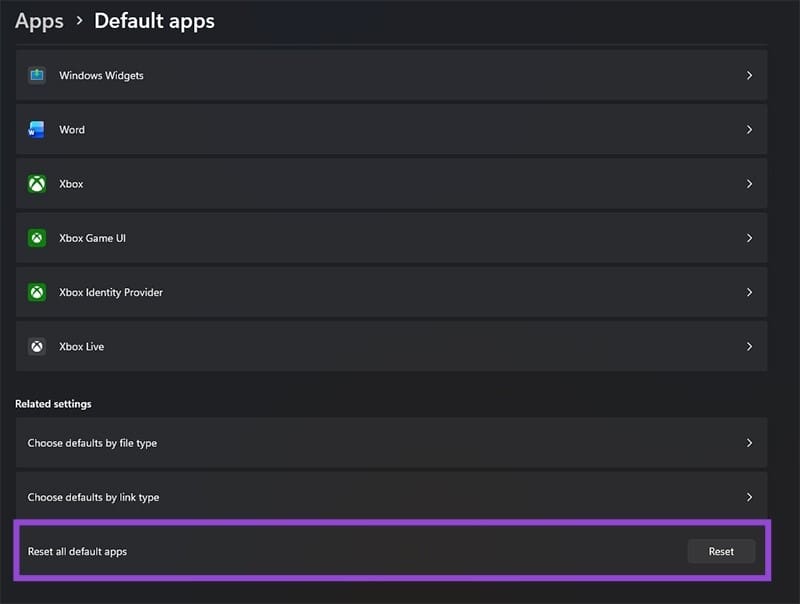
Step 3. Click the Reset button. This will initiate the procedure of resetting all default apps on your system.
Step 4. Now, simply follow the steps detailed in the previous section of this guide (Set a New Default Browser).