
As a web proxy designed for penetration testing, specifically the modification of your web traffic, you’ll want to use Burp to intercept and modify your web traffic. Once you’ve got Burp installed, and your system configured to route your web traffic through the proxy, there are a number of ways to see and modify your traffic.
The HTTP history function, found in the “HTTP history” sub-tab of the “Proxy” tab, allows you to view all of your requests in chronological order. The site map in the “Site map” sub-tab of the “Target” tab, allows you to browse through your requests by which website and page they went to. From here you can send your requests to Repeater and then adjust them at will.
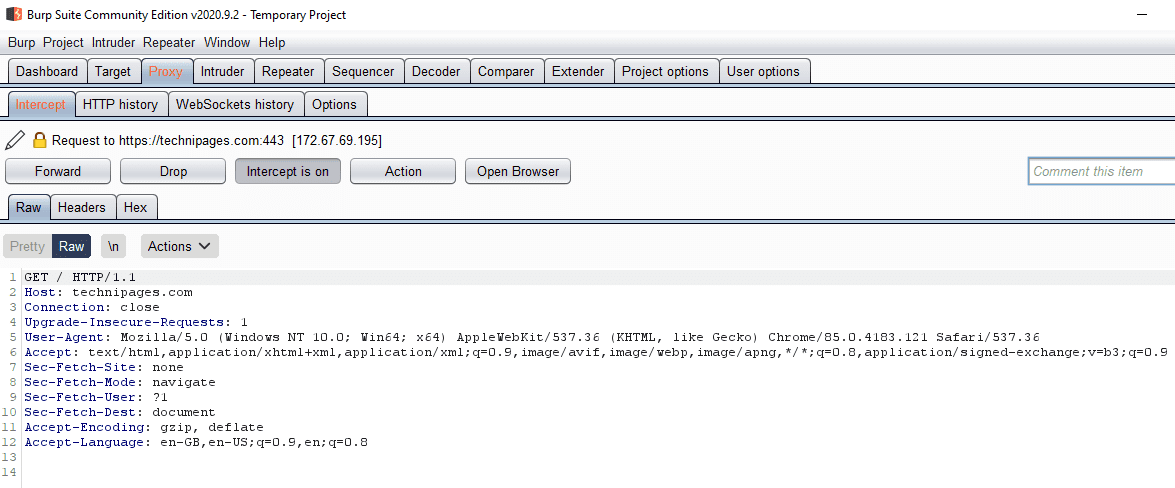
The other option is to use the Intercept feature found in the “Intercept” sub-tab of the “Proxy” tab. Intercept allows you to intercept and modify requests and responses live, between your browser and the webserver. This means you can see and approve any request your browser sends, or you can modify every request your browser sends. It’s a very useful tool as without any further set up you can see the result of your request in the browser straight away.
You can toggle Intercept on and off in the “Intercept” sub-tab of the “Proxy” tab. To do so, just click “Intercept is on” or “Intercept is off” to turn Intercept off and on respectively. All rule matching requests and responses will be held in a chronological queue awaiting approval. Disabling Intercept when one or more messages are pending approval will automatically approve them all, as will leaving Intercept disabled.
Tip: Turning Intercept off won’t prevent burp from intercepting your traffic, it just won’t show up in this tool unless the feature is enabled.
“Forward” sends the message, as it currently appears, including any changes you’ve made. “Drop” deletes the message, preventing it from ever getting to its destination. “Action” opens the right-click menu. “Open Browser” opens a portable version of Google Chrome which is pre-configured to work with Burp even if your system is not set to proxy traffic through burp.
When a message is intercepted the “Proxy” and “Intercept” tab and sub-tab titles will light up, as will the Burp Suite icon if you’re not focused on the window.
You can configure the rules for which requests and responses are automatically sent to the Intercept tool in the “Options” sub-tab of the “Proxy” tab. By default, only requests are intercepted, you can enable or edit the existing rules or add your own custom rules.
Tip: It’s recommended that you only intercept traffic you might actually want to modify. If you intercept every request and response, you’ll get bogged down with all of the small requests and responses for images and scripts, etc. In most cases, the default settings are a good option, although you may want to restrict it to requests that are “in the target scope” if you’re using the scope feature.