Nothing is more irritating than a screen that keeps flickering, whether it’s your entire display or just your web browser window. If you find this keeps happening to you, you’re no doubt looking for a way to fix things. In this article, we’ll be providing a few solutions to help you when your browser screen goes black.
Contents
What to Do When Browser Screen Goes Black
If your browser screen is flickering or going black occasionally, this is usually a sign of graphical issues or driver and app conflicts. It’s essentially a rendering issue between the browser and your operating system. We’ve got a few troubleshooting methods below to help you out:
Disable Hardware Acceleration
Hardware acceleration is a very useful feature that provides dedicated power to an app to enable it to run faster than it would via the CPU. In the browser’s case, this is typically the GPU. That said, it can also cause graphical glitches for the app, such as stuttering, flickering, and occasional black screens. Here’s how to disable hardware acceleration.
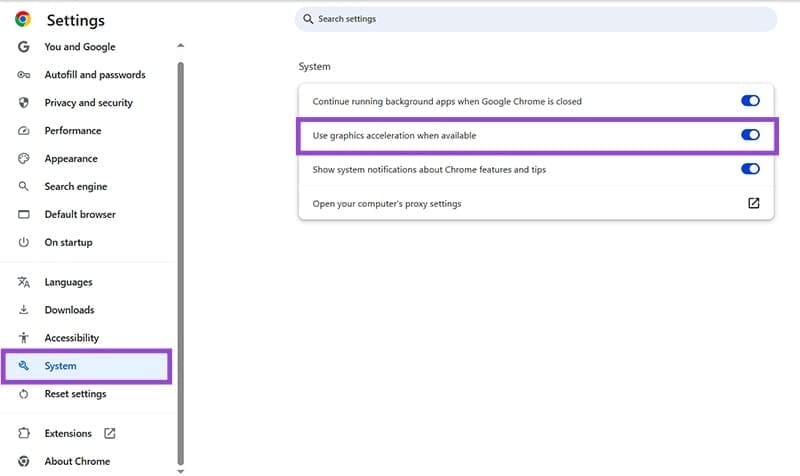
If your Chrome screen goes black:
Step 1. Open up the More menu (three dots) in the top-right corner and click “Settings.”
Step 2. Choose “System” on the sidebar and uncheck “Use graphics acceleration when possible” in the main window.
If your Edge screen goes black:
Step 1. Open up the More menu in the top-right and click “Settings.”
Step 2. Navigate to “System and performance” in the sidebar, and click the “Graphics acceleration” button.
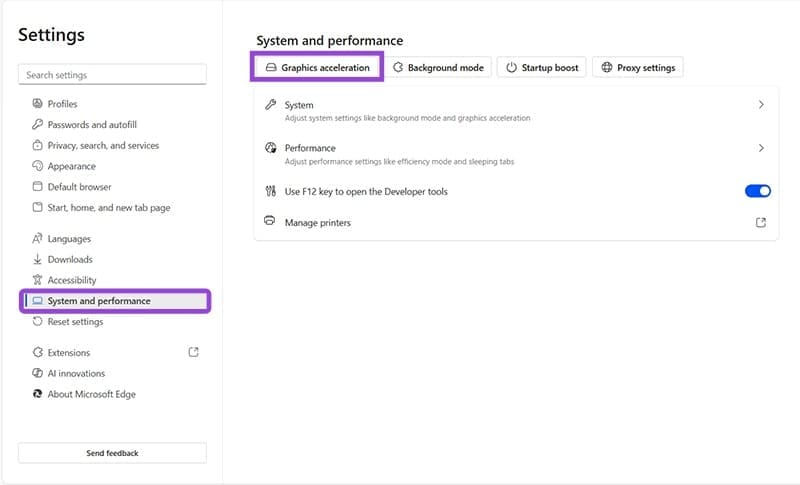
Step 3. Uncheck “Use graphics acceleration when available” and restart the browser.

If your Firefox screen goes black, here’s what to do:
Step 1. Click the More button and select “Settings.”

Step 2. Scroll down to the “Performance” subsection and uncheck “Use recommended performance settings.”
Step 3. A new option will appear, called “Use hardware acceleration when available.” Uncheck this too.

Try a Different Browser
If one browser is showing a black screen, and you have another installed, try using the second one and see if the issue exists with that one too. If it does, the issue might be a larger one connected to your PC graphics (the whole screen flickering is a giveaway), and you’ll need to update your graphics drivers.
Update Your Browser
Your next step should be to check that your browser is fully up to date. This is usually done automatically by Windows, but you can check your version in the “About” section of each browser to ensure it’s the latest version. Operating system updates can interfere with older browser versions and cause a black screen.
Disable Extensions
Third-party extensions can also cause issues. Disabling extensions one by one can help narrow down the offender, which you can then keep disabled or remove completely.
- For Chrome, these can be found under “Extensions” when clicking the “More” button.
- For Edge, they can also be found in the same place.
- For Firefox, they can be found in “Extensions and Themes” when clicking the “More” button.
Clear the Browser Cache
A browser cache may sometimes cause corruption and erratic behavior in a browser. Clearing the cache can help with issues like a black screen.
For Chrome:
Step 1. Hit (Ctrl + Shift + Del).
Step 2. In the window that pops up, select “Cached images and files” and any other files you’d like to clear.
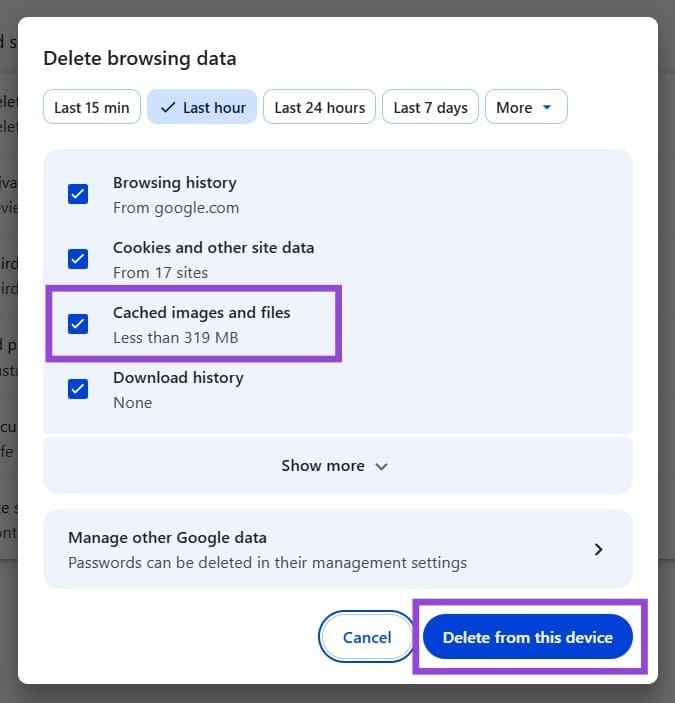
Step 3. Click “Delete data” to finalize.
For Edge:
Step 1. Press (Ctrl + Shift + Del) to bring up the “Delete browsing data” window.
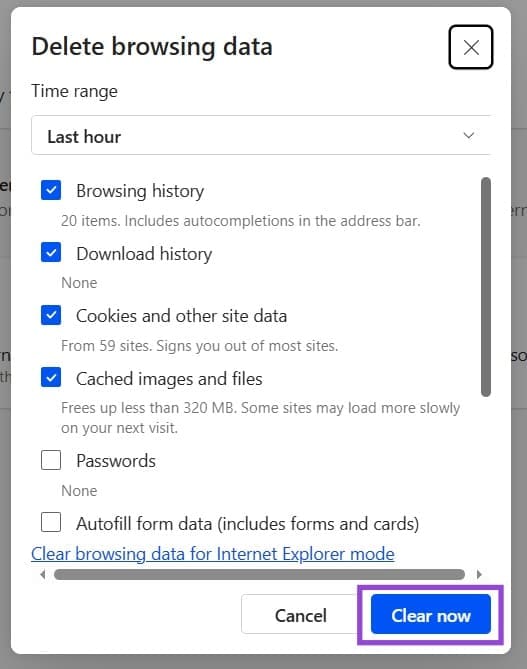
Step 2. Select what you want to delete and click “Clear now” to finalize.
For Firefox:
Step 1. Hit (Ctrl + Shift + Del).
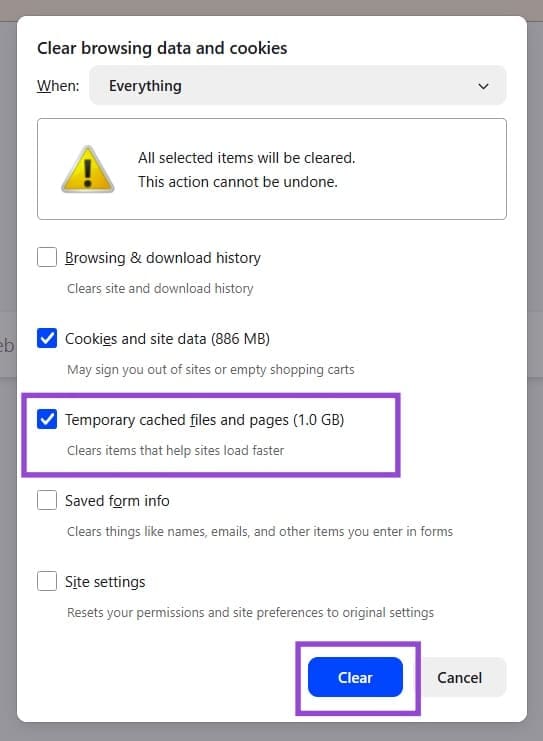
Step 2. Check “Temporary cached files and pages” and anything else you’d like to clear.
Step 3. Click “Clear” to execute.