If your internet browser keeps opening HP support assistant tabs whenever you start it up, you might think you’ve got a severe issue with your laptop. But chances are that it’s a relatively benign problem related to your browser settings or background processes. Here’s what to do.
Contents
Fix 1: Stop Browser Keeps Opening HP Support Tabs by Removing Preloading
Modern versions of Chrome and Edge browsers have a “prediction” feature that preloads commonly used tabs in the memory and makes them available when you stop and start sessions. However, this feature seems to trigger HP’s support on some laptops, which leads to the issue where the browser keeps opening tabs, so you might need to remove it.
Option 1: Microsoft Edge
Step 1. Open a new tab.
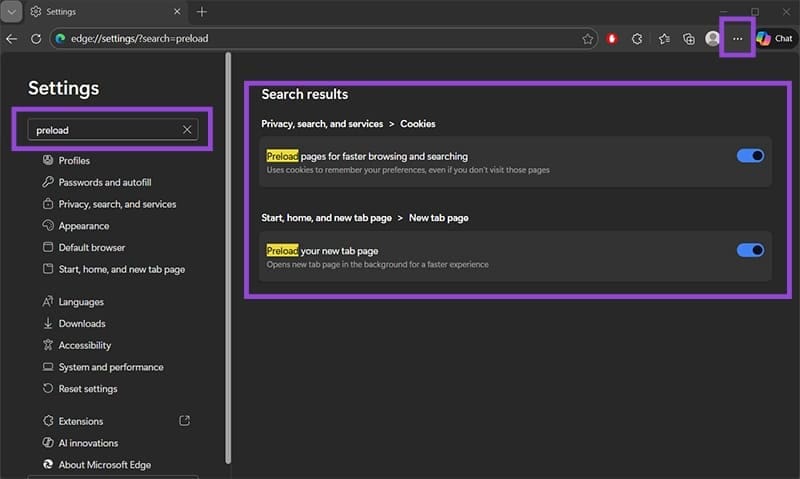
Step 2. Click on the three horizontal dots in the top-right corner and select “Settings.”
Step 3. Search for “preload” in the textbox and toggle off both of the listed options.
Step 4. Click on “Clear browsing data” on the top of the Settings page and select to only remove cached images and files, then hit “Clear now.”

Step 5. Restart Edge.
Option 2: Chrome
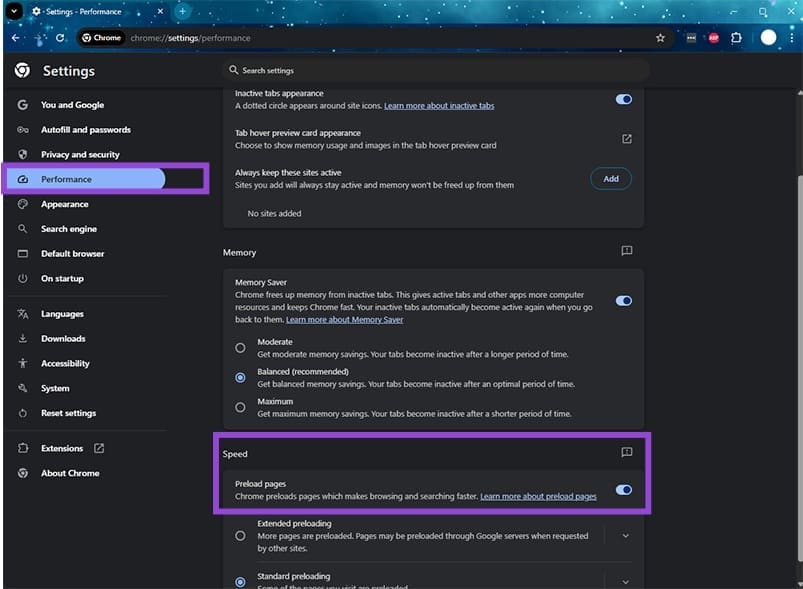
Step 1. Open Chrome and click the three vertical dots in the top-right corner and go to “Settings.”
Step 2. Go to the “Performance” tab on the left, then scroll down to “Speed” and toggle off “Preload pages.”
Step 3. Go to the “Privacy and security” tab and select “Delete browsing data.”
Step 4. Check to remove only cached images and files, then confirm the deletion.

Step 5. Restart Chrome.
Fix 2: Browser Keeps Opening Tabs Due to HP Support Background Program
HP laptops or devices using HP peripherals often have dedicated HP software installed to act as the “troubleshooter.” This program typically constantly runs in the background and might cause issues.
Step 1. Search for “Add or remove programs” or just “programs” in the search bar to get the Settings for app management.
Step 2. In the search bar on the top, type in HP and see if you get “HP PC Hardware Diagnostics,” “HP Smart,” or “HP Support Assistant.”

Step 3. You can go to Task Manager and prevent the program from opening in the background by disabling it in the “Startup” section. Alternatively, remove the app entirely by uninstalling it from the “Installed apps” window.
Fix 3: See if You Have Stuck F Keys
In some cases, the F1 key defaults to turning on HP Support Assistant’s help feature, which opens the browser. If your keyboard is sticky or the button is short-circuiting, it can lead to the PC wrongly detecting you’ve pressed it.
Make sure to clean around the button and check with other apps that have F1 listed as a shortcut to see if it doesn’t get pressed unintentionally. For Word, for example, F1 opens the Help pane.
Fix 4: Check for Unwanted Background Apps or Browser Extensions
You can get a full list of background processes in your Task Manager, under “Startup apps.” If some of those seem unfamiliar, search for what they’re supposed to do and disable them.
Alternatively, the issue may be with your browser extensions. You can find a list of extensions by clicking on the three-dots icon and selecting “Extensions” from the list.
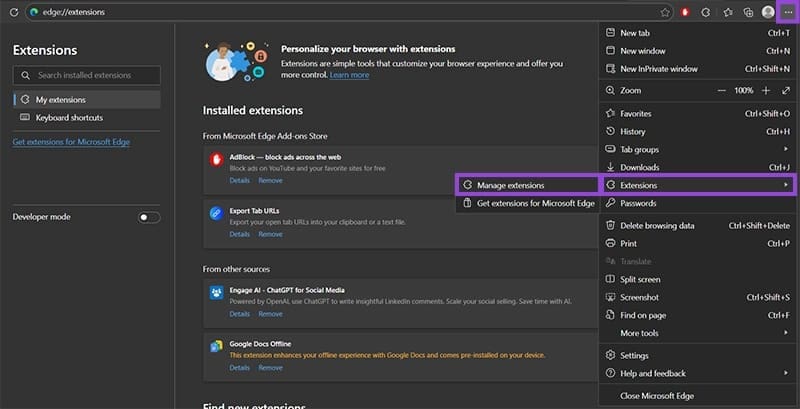
Remove extensions you don’t need, then toggle them back on until the issue reappears, in which case you’ve found the culprit.