The reason as to why you may want to block someone on Instagram can vary. There could be a user that you don’t get along with anymore, and you don’t want them looking at your pictures. Instagram has millions and millions of users, and it’s no shocker that there will be some users you don’t want to be friends with.
The good news is that blocking or unblocking someone is not as hard it may seem. It doesn’t matter if you’re using Instagram on your phone or on your computer, the process is very similar and easy. Let’s see how you can finally rest easy knowing that a particular user is eventually blocked.
Blocking on Instagram
Blocking someone on Instagram will only take three taps. First, you’ll need to find the account that you want to block. You can find the account by either tapping on one of their stories or searching for it.
The second icon at the bottom left is the search icon. Tap on it, and Instagram will suggest some users for you automatically. If the account you’re looking for is not there, tap on the search bar and type the first letters of the account.
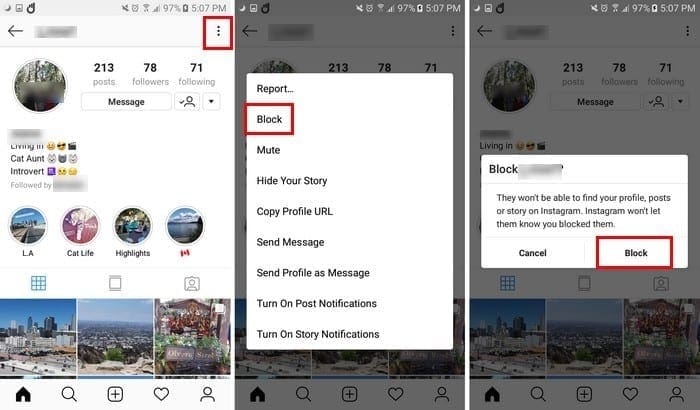
After tapping on the account, you should now be in the other user’s main page. Tap on the three vertical dots at the top right and choose block. Instagram will remind you that the person you are about to block won’t be able to find your profile, posts, or stories on the social network. The good news is that Instagram won’t let the other user know you blocked them.
If you’re using Instagram on your computer, the process is the same. The only small difference is that the three dots is beside the user’s profile name, instead of the top right of your display.
Unblocking on Instagram
Unblocking someone is just as easy as blocking them. Use the search tool to find the account you want to unblock. Once you’re in the user’s main profile page, once again, tap on the three vertical dots and tap on unblock. An even easier way is to tap on the blue unblock button to the right of the profile page, but just in case you don’t see it, you have this second option.
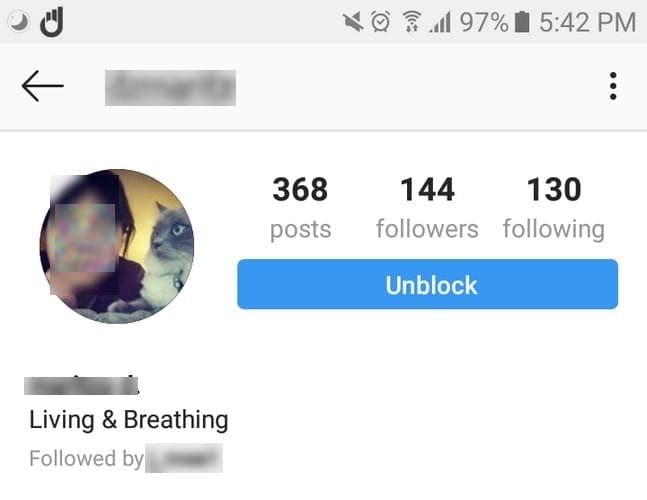
If you’re trying to unblock the account through your computer, you may come across an issue. You may be unable to find the account you want to unblock. In that case, you’ll have no choice but to unblock the user using the Instagram mobile app.
Finding Blocked Accounts
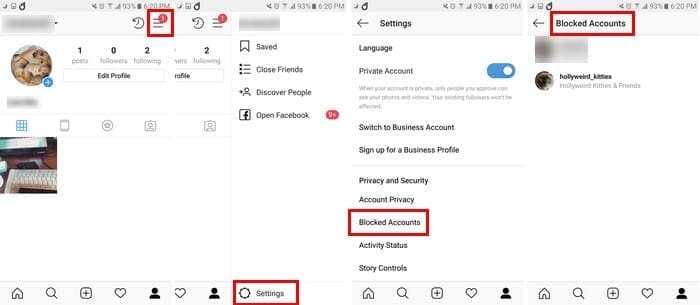
If you’ve blocked more than one account and want to see what the grand total is, you’ll need to go to your profile > hamburger icon  (Android) or gear icon (iOS) > Settings > Swipe down to blocked accounts, and that is where you should see a list of all the accounts you’ve blocked.
Conclusion
As you can see, Instagram makes it easy for you to either block or unblock someone on the social network. You can do this as many times as you want, so it doesn’t matter how many times you change your mind. From the looks of it, you can block as many accounts as you want, but hopefully, you won’t need to block too many. Have you blocked anyone recently?