Do you have a speech to give and want to hear how it’s going to sound? You can always use one of the many voice recording apps you can install for free.
There are quite a few to choose from, so you might not have the time to test all of them out. The following list shows you what apps are worth installing and the best features they have to offer.
Contents
1. Voice Recorder
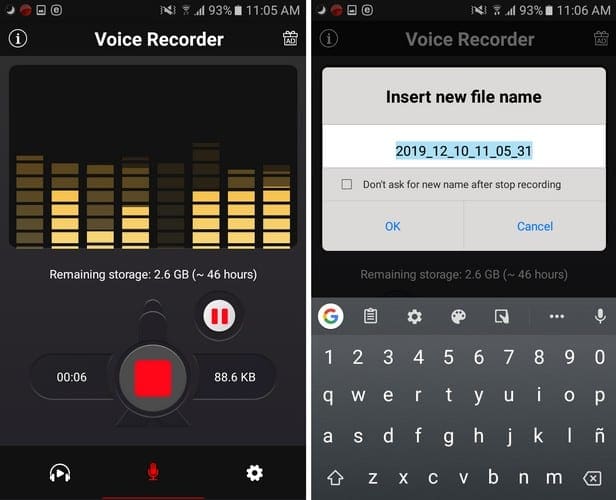
An easy to use voice recording app that won’t bombard you with too many ads is Voice Recorder. As soon as you open the app, you’ll see the red record button, and the app will also tell you how many hours of recording time you have.
If you want to pause the recording, the pause button is close by. To save your recording, tap on the red button. You’ll automatically be asked to name your recording. Once you name it, it will be added to your recordings library (the play icon with the headphones around it).
The app offers features such as:
- Background recording even when the screen is off
- Microphone gain calibration tool
- Sharing options
- MP3 encoding with an adjustable same rate
- Live audio spectrum analyzer
The app does have a pro version that will remove the ads. But that will set you back $3.49.
2. ASR Voice Recorder
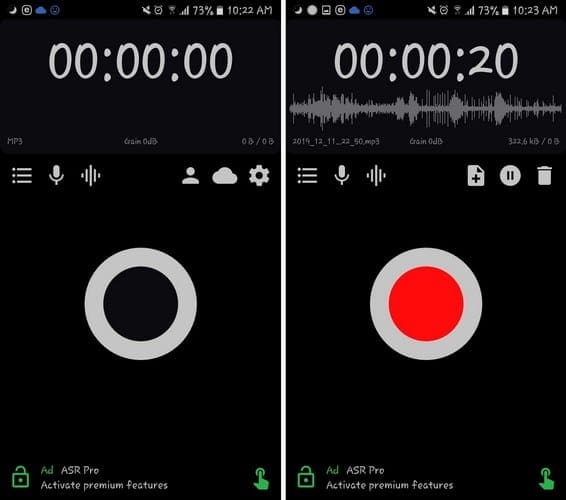
A good quality voice recorder you can count on is ASR Voice Recorder. It has a clean design that makes it a delight to use, but it also has some handy features such as:
- Being able to add recording profiles
- Cloud integration to Google Drive, Dropbox, and more
- Adjust gain
- Supports various languages
- Support for formats such as MP3, FLAC, WAV, OGG, and MP4
- Playback speed controls
- Option to skip silent parts
- Bluetooth support
- Add notes while recording
- Loop option
- Option to rewind or forward 10 seconds
- Fine-tune to adjust start and end times
- Options to add tags
Don’t worry about learning how to use the app since it gives you a tour of what each of the options does. The app is easy to use, and if you want to get rid of the ads, you can always go Pro for $3.94.
3. Easy Voice Recorder

The free version of Easy Voice Recorder is also a great option. It also gives you an excellent design with options such as:
- Record while the screen is off
- Silence device while recording
- Pause recording on call
- Pause for other apps
- Compress file for easy sharing
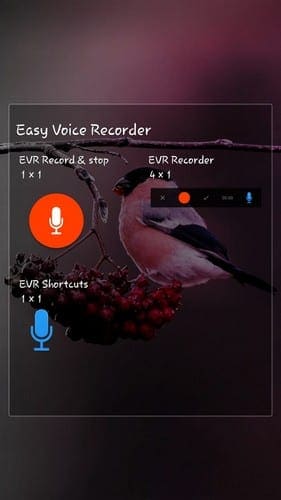
Other options include choosing the kind of file you record to. There is also widget support that will let you choose from three different designs.
To add the widget to your home screen, long-press on space big enough for it and press the widget option at the bottom. Swipe until you come across the widgets for the app and drag and drop to where you want the widget to go.
For $1.99 you can remove ads, but if you want Pro features such as:
- Organize recordings with folders
- Control recording from the notification bar
- Automatic cloud upload
- Record in Stereo
- Custom bitrates
- Skip silence and more
4. Hi-Q (Free)
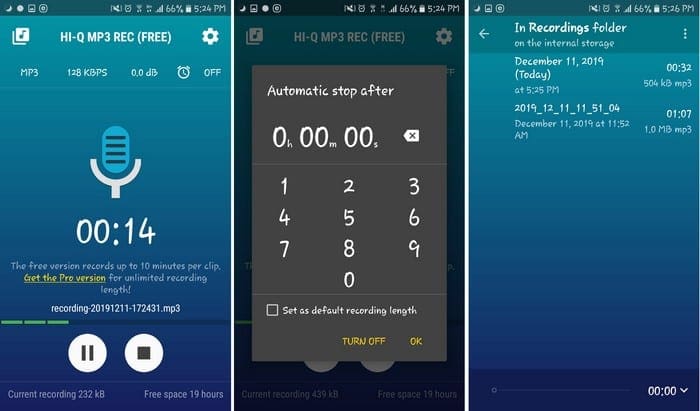
A unique feature you’re going to find on High-Q Free is an option to record for a specific amount of time. This is a great option when, for whatever reason, you can’t stop the recording when you need to.
When you first open the app, you’ll see various options such as:
- Format on MP3 by default – Other options include WAV, M4A, OGG, and FLAC
- Bit rate – 320 kbps, 256, 192, 160, 128, 96, 64, and 32 kbps
- Default gain – Use the slider to adjust
- Automatic time stopper
At the bottom right, the app will tell you how many hours of storage you have available. It will also tell you how big your current recording is at the bottom left.
By tapping on the cogwheel, you can access options to upload your recordings to the cloud and make various changes when it comes to the interface.
Conclusion
You never know when you’re going to need to record something. Now, you have a list of useful apps you can choose for your recording needs. Which app do you think you’re going to go with? Let me know in the comments below.