
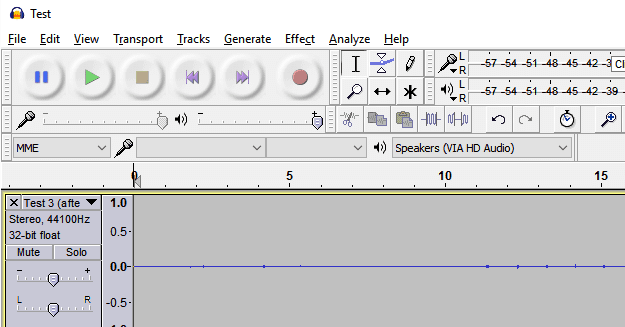
Audacity is one of the most popular audio recording and editing tools worldwide. Its simple and user-friendly UI makes it very easy for users to record and edit audio files.
But there’s an issue that may sometimes affect users. It’s this error message: ‘Audacity could not find any audio devices’.
If restarting your computer did not fix this error, here are some additional troubleshooting suggestions.
Contents
What to do if Audacity Could Not Find Your Audio Device
Update your audio drivers
Outdated audio drivers may trigger this Audacity error. The same is valid if you’re not using the appropriate audio drivers for your device.
So, updating or reinstalling your audio drivers should fix this problem.
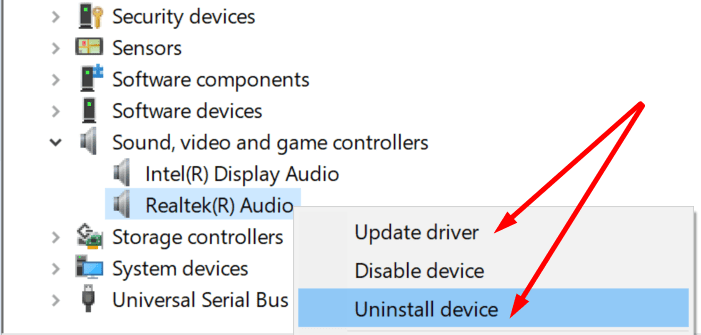
- The first step is to open the Device Manager. Click the Windows button, type Device Manager, then click the Device Manager option.
- Go to Sound, video and game controllers.
- Then right-click on your sound card driver.
- Select Update driver.

- After that, check if the issue is gone. If it persists, this indicates the driver is not compatible with your device.
- Right-click on your driver again and select Uninstall device this time.
- Then restart your computer to install the latest audio driver.
Disable or uninstall other audio recording tools
Are you using other audio recording and editing tools? They might interfere with Audacity. For example, they may be preventing Audacity from accessing your audio device.
Unfortunately, there is no list of audio recording programs that may interfere with Audacity. In other words, simply disable similar tools. Make sure they’re not running in the background.
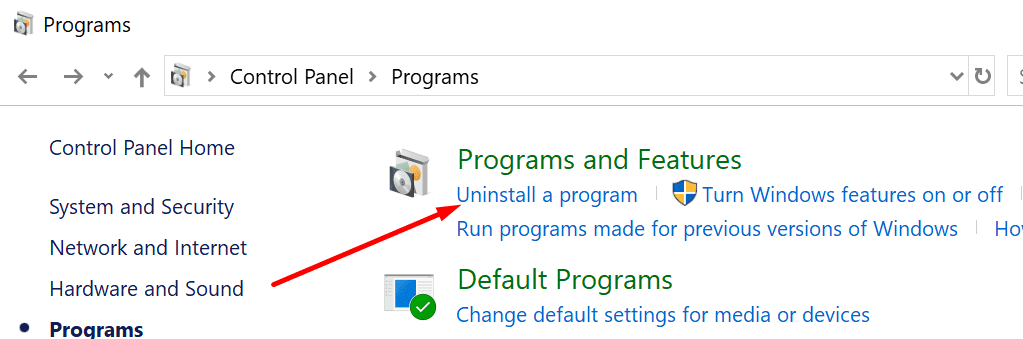
If that did not work, you can open the Control Panel, and go to Programs and Features. Select Uninstall a program, and then remove the respective program(s) from your computer.
Allow Audacity to access your microphone
This error may occur if you did not allow third-party apps to access your microphone. Windows 10 has some pretty rigid privacy settings. That is to say, the OS automatically prevents third-party apps from accessing your camera and microphone.
As a result, you need to give apps explicit permission to access your microphone and camera.
To do this:
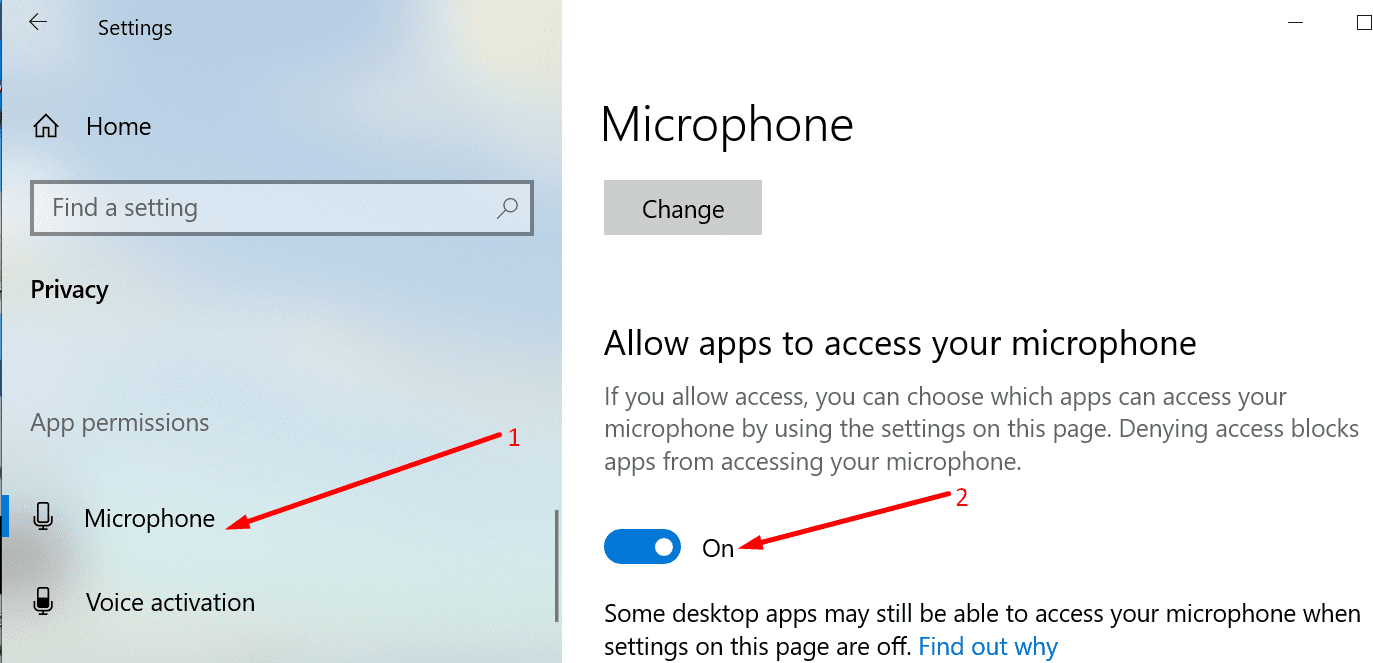
- Go to Settings.
- Next, click on Privacy.
- Under App Permissions, select Microphone.
- Then toggle on Allow apps to access your microphone.

Reinstall Audacity
If nothing worked, as a last resort, you can reinstall Audacity. If some of the program files got corrupted or you accidentally deleted them, the tool may not work as intended.
- Open the Control Panel.
- Locate Programs and Features.
- Next, select Uninstall a program.
- Select Audacity and click on the Uninstall button to remove it.
- Go ahead and restart your computer.
- Then, download the tool again and install it.
Installing a fresh copy of Audacity should fix the issue where the program failed to detect your audio device.


Plug a mic in or a line device or the input wont be available.
Thanks. I have ever used Audacity, the audio editing freeware. But it is always having problems and causing me trouble. I’m fed up with this. Now, I use the alternative – Joyoshare Video Cutter. It is easy yet professional video & audio editing software. Not only is compatible with clearly any media formats but also offers various practical editing tools.