Skip to content
LogoTechnipages
LogoTechnipages
  • Topics
        • Android
        • Browsers
        • Gaming
        • Hardware
        • Internet
        • iPhone
        • Linux
        • macOS
        • Office
        • Reviews
        • Software
        • Windows
        • Definitions
        • All Recent Posts
  • Product Reviews
  • About

Android: Restore Prompt For Default Application

Mitch BartlettAugust 23, 2018 Comments (0)

You may notice that your Android device might prompt you to with a “Complete action using” dialog that allows you to select a default app if you choose to always complete the action using the selected app. If you wish to change the default app at another time, you will have to restore this prompt. Here’s how it’s done.
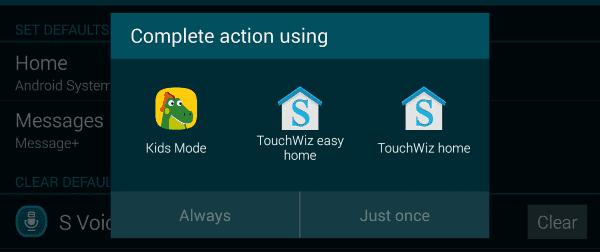
Android set default app

  1. Open “Settings“.
  2. Go to “Applications” > “Application Manager“.
    Note: This selection may vary depending on the device and version of Android you are using.
  3. Select the app that is set as a default in your given situation.
  4. Select “Set as default“.
  5. Tap “Clear defaults“.

Now the prompt will return whenever you choose the action again.


Third-Party Options

Some Android devices such as the Samsung Galaxy S7 provide a default app manager. The Galaxy S7 has it listed under “Settings” > “Applications” > “Default applications“.

You also have the option of downloading the Default App Manager app. The app allows you to instantly set default apps from an simple to use screen.

Categories: Android

Author Mitch Bartlett

Through my career that spans over 20 years I have become an expert in Microsoft Systems Administration, Android, and macOS. I started this site as a technical guide for myself and it has grown into what I hope is a useful knowledgebase for everyone.

You Might Also Like

  • How to Protect Yourself from Mobile Phishing Attacks

    Judy SanhzAndroid
  • automatically-label-emails-gmail

    Gmail: How to Add the Chat and Spaces Tabs in the Android App

    Judy SanhzAndroid
  • Fix-Blue-Screen-Errors-Android

    How to Wipe Sensitive Data from Your Device – Android 11

    Judy SanhzAndroid
  • Fix-Outlook-Failed-to-Connect-You-to-Shared-Calendar

    Microsoft Outlook: How to Create and Erase a Folder

    Judy SanhzAndroid

Leave a Reply

Your email address will not be published. Required fields are marked *

  • battery issues after windows 11 update

    Battery Issues After Windows 11 Update? Here’s the Fix

  • why is ram so expensive

    Why Is RAM Suddenly So Expensive?

  • how to fix error code 0x800f0922 windows 11

    How to Fix Error Code 0x800f0922 in Windows 11

  • service outage message on Xbox

    What to Do With a Service Outage Message on Xbox

  • signs your hdd is failing

    Signs That Your HDD Is Failing

profile pic

The Experts Behind Technipages

My name is Mitch Bartlett. I've been working in technology for over 20 years in a wide range of tech jobs from Tech Support to Software Testing. I started this site as a technical guide for myself and it has grown into what I hope is a useful reference for all.

Learn More

technipages logo white
linkedin icon

Technipages is part of Guiding Tech Media, a leading digital media publisher focused on helping people figure out technology. Learn more about our mission and team here.

© 2026 Guiding Tech Media All Rights Reserved

  • About Us
  • Contact
  • Terms of Use
  • Privacy Policy

© 2026 Guiding Tech Media All Rights Reserved

Information from your device can be used to personalize your ad experience.
Do not sell my personal information.

Last Updated on August 23, 2018 by Mitch Bartlett