
Skip to content
LogoTechnipages
LogoTechnipages
  • Topics
        • Android
        • Browsers
        • Gaming
        • Hardware
        • Internet
        • iPhone
        • Linux
        • macOS
        • Office
        • Reviews
        • Software
        • Windows
        • Definitions
        • All Recent Posts
  • Product Reviews
  • About

5 Best Windows 11 Widgets You Need to Try

Evan MercerApril 5, 2025 Comments (0)
best windows 11 widgets

Widgets are interactive elements of your computer’s interface that perhaps don’t have the functionality of a full application. They’re usually visible on your desktop or easy to pull up from the taskbar, providing essential information or performing tasks. Although, there are some widgets that are just for fun! Today, we’re looking at five of the best Windows 11 widgets you just have to try. They’re all free to download and could help boost your productivity or help you take a well-earned break.

Contents

  • 1 Finding the Best Widgets for Windows 11
  • 2 Best Windows 11 Widgets #1: Major League Soccer (MLS)
  • 3 Best Windows 11 Widgets #2: Countdown
  • 4 Best Windows 11 Widgets #3: Focus Session
  • 5 Best Windows 11 Widgets #4: Spotify
  • 6 Best Windows 11 Widgets #5: Watchlist

Finding the Best Widgets for Windows 11

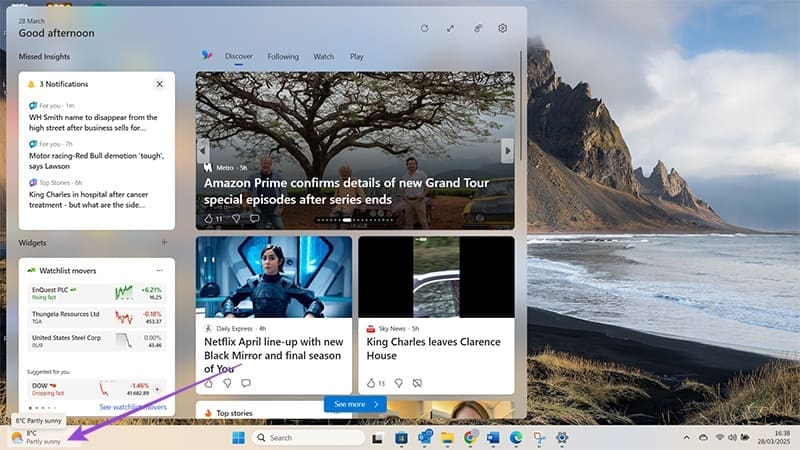
Before you get started, it’s helpful to know exactly how to add a widget. Thankfully, this is really easy. Just look at the bottom left of your screen, and you should see a weather icon. Note: If you’ve disabled the weather widget, this icon will show another widget, for example, Stocks. Hover over the weather icon to see your widgets. You can also see your news feed and notifications here.
Best Windows 11 Widgets You Need to Try 1

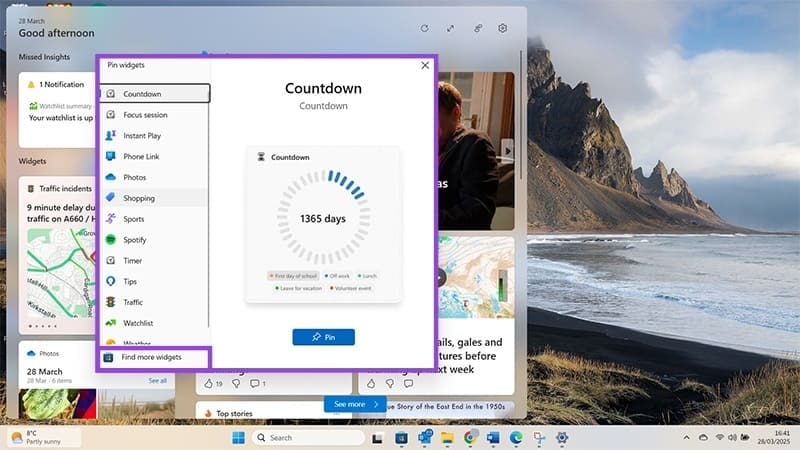
Next to “Widgets,” click the “+” icon.
Best Windows 11 Widgets You Need to Try 2

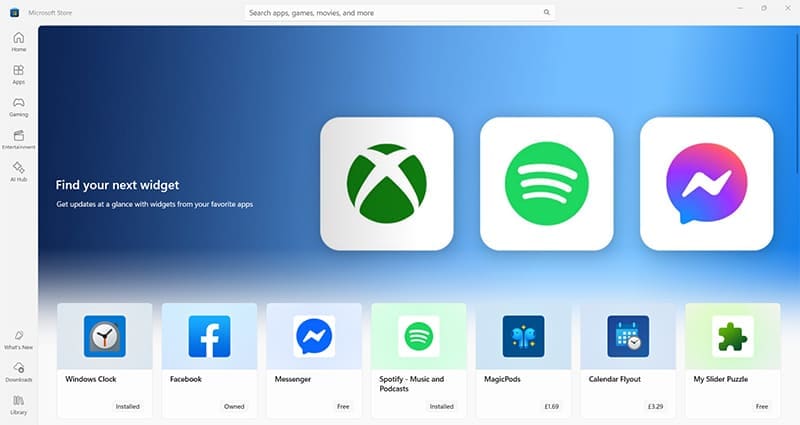
Click on any of the available widgets to add them. Alternatively, click on “Find more widgets” to load the Microsoft Store and download additional widgets.
Best Windows 11 Widgets You Need to Try 3

Best Windows 11 Widgets #1: Major League Soccer (MLS)

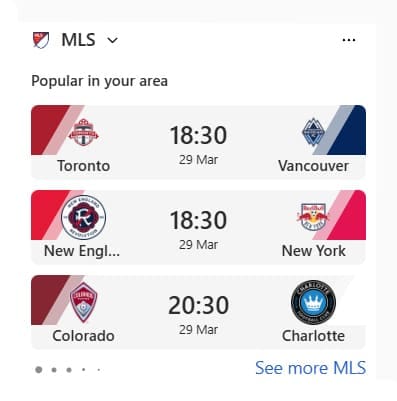
Sports fans, add the MLS app and get scores from the latest matches right on your desktop. You can review the most popular matches at a glance or click an embedded link to get more information online.
Best Windows 11 Widgets You Need to Try 4

Best Windows 11 Widgets #2: Countdown

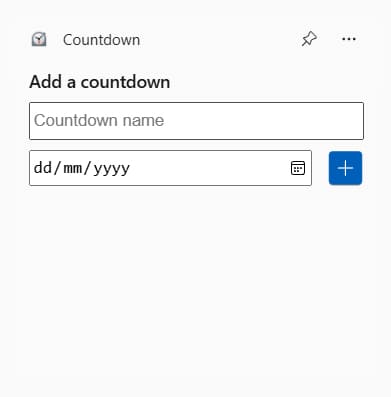
Have you got something you’re looking forward to? Maybe you’re counting the days until your vacation, or you’ve got a special anniversary coming up. Keep an eye on how much time is left with the free Countdown Widget. As soon as you add this widget, it asks for the name and date of your upcoming event.
Best Windows 11 Widgets You Need to Try 5

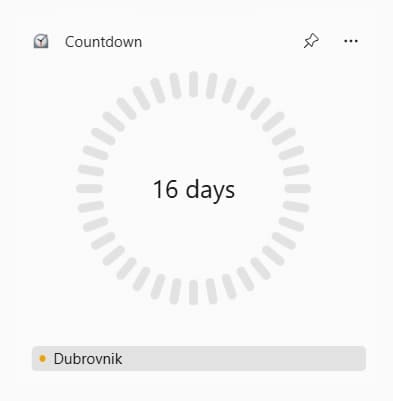
Enter the details, and you get an ongoing countdown you can check whenever you like.
Best Windows 11 Widgets You Need to Try 6

Best Windows 11 Widgets #3: Focus Session

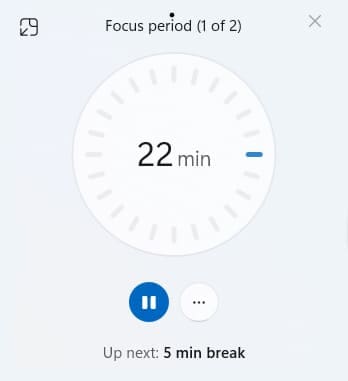
Microsoft recently added the Focus function to Windows 11, which allows you to set timers for work and breaks to help keep you productive. There’s now a Focus Session widget that you can add directly from the “+” icon in the Widgets area.

Best Windows 11 Widgets You Need to Try 7

Pin the widget, then choose how long you want to work for, and the widget will allocate you breaks and alert you when you need to take one.
Best Windows 11 Widgets You Need to Try 8

Best Windows 11 Widgets #4: Spotify

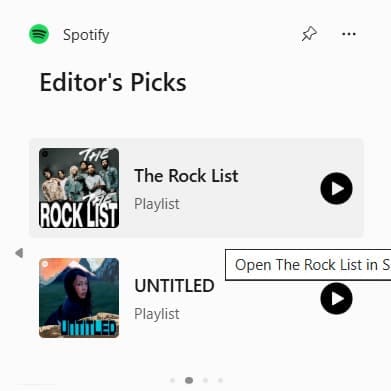
If you need background noise while you work or study, the Spotify widget could be perfect for you. This widget recommends playlists and takes you to your Spotify app so you can choose the right background sounds for the day.
Best Windows 11 Widgets You Need to Try 9

You can play music straight from the widget as long as it’s one of the Editor’s Picks playlists.

Best Windows 11 Widgets #5: Watchlist

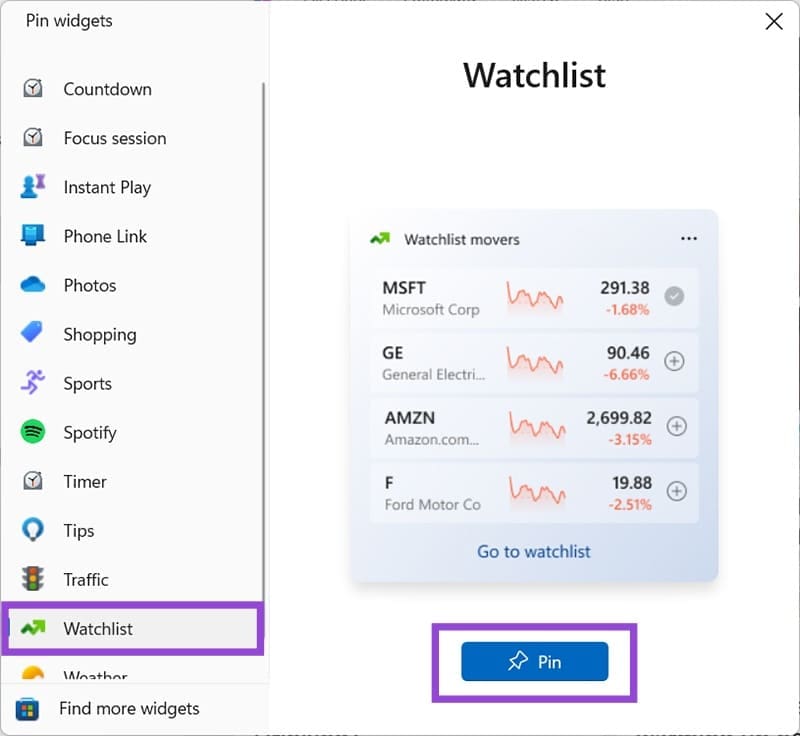
If you work in finance or are passionate about investing, the Watchlist widget keeps you up to date with stocks, cryptocurrencies, and more. The widget shows companies to watch and has an embedded link for more detailed information.
Best Windows 11 Widgets You Need to Try 10
Categories: Windows

Author Evan Mercer

I’m a computer science grad who loves to tinker with smartphones and tablets in my spare time. When I’m not writing about how to fix techy problems, I like hanging out with my dogs and sipping nice wine after a tough day.

You Might Also Like

  • Encryption Header

    How to Turn Off Windows File Encryption (EFS)

    Mitch BartlettWindows
  • Win11 Install Telnet Header

    How to Install Telnet in Windows 11

    Mitch BartlettWindows
  • authentication-error-function-requested-not-supported-windows-10

    Fix Windows 10 Remote Desktop Authentication Errors

    Madalina DinitaWindows
  • microsoft-word-pasting-not-working

    How to Quickly Erase All Images in a Word Document

    Judy SanhzWindows

Leave a Reply

Your email address will not be published. Required fields are marked *

  • clipchamp unexpected application error

    Clipchamp Unexpected Application Error: Here’s the Solution 

  • winload.efi file missing error

    Winload.EFI File Missing Error on Boot – How to Fix

  • fix error 0x9cfc7550

    How to Fix Error 0x9cfc7550 (We Couldn’t Create a New Partition) in Windows 

  • fix error code 0x3000008 1

    How to Fix Error Code 0x3000008 for Remote Desktop Connection

  • fix error code 0x80190001 1

    How to Quickly Fix Error 0x80190001 for Microsoft or Outlook Account Login 

profile pic

The Experts Behind Technipages

My name is Mitch Bartlett. I've been working in technology for over 20 years in a wide range of tech jobs from Tech Support to Software Testing. I started this site as a technical guide for myself and it has grown into what I hope is a useful reference for all.

Learn More

technipages logo white
linkedin icon

Technipages is part of Guiding Tech Media, a leading digital media publisher focused on helping people figure out technology. Learn more about our mission and team here.

© 2025 Guiding Tech Media All Rights Reserved

  • About Us
  • Contact
  • Terms of Use
  • Privacy Policy

© 2025 Guiding Tech Media All Rights Reserved

Information from your device can be used to personalize your ad experience.
Do not sell my personal information.

Last Updated on April 5, 2025 by Evan Mercer



