Have you ever accidentally dismissed a notification? Who hasn’t, right? Thanks to some free notification apps, all your notifications can be saved, regardless if you dismiss them or not.
Maybe most of the notifications you get are not extremely important. Still, for those times when you do get an essential notification, you can quickly recover it if you unintentionally dismiss it.
Contents
1. Notification History – Recover Deleted Messages

Notification History – Recover Deleted Messages is a free app that will save every notification you get. The app starts off by sending you a test notification, and even if you dismiss the notification immediately after getting it, the app is still able to save it.
By tapping on the line menu, you can view notifications for today, yesterday, or for the week. As long as you’re on the side menu, you can also upgrade to Premium if you want. When you upgrade to Premium ($4.49), you enjoy an ad-free interface, keep matched filter type, and the custom date range can be defined in the notification view.
If you get a notification that would like to get a reminder for, simply long-press on the notification. You’ll get a long list of time options as to when you’ll get the reminder. To erase all the notifications on the list, tap on the trash icon at the top right.
2. Recent Notification

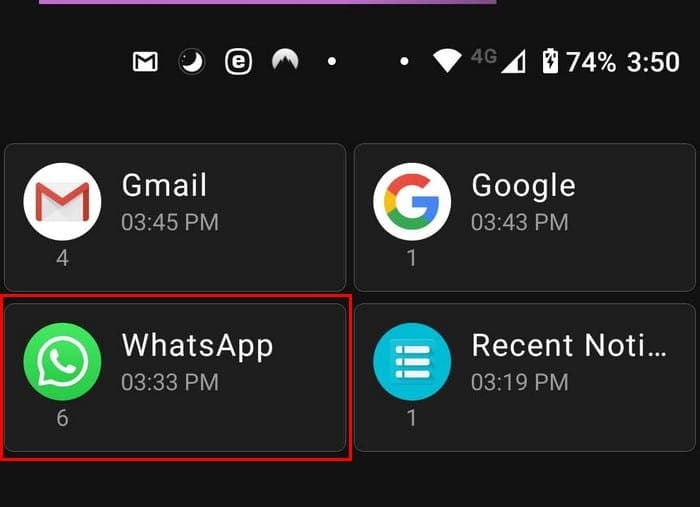
Recent notification is another popular app to recover deleted notifications. For a little over two dollars, you can upgrade to the Premium version. The app allows you to filter the notifications by time. For example, you can have the app show you notifications for today, the past two days, or the past three days.
You can also create a favorite apps group and choose between a light and dark theme. The app can show you all of the notifications as they arrive, or you can have them separate into groups. For example, if you only want to see your recent WhatsApp notifications, tap on the WhatsApp group.
If you don’t want your notification to be on the list forever, the app lets you add a time limit to them. Let’s say that you want the notifications erased after three days, set the time limit to three days, and they’ll be deleted after that time.
When you see a notification, you do what to see, tap on it to open the app. To see a notification you received a week ago, you can use the apps search option to a quick find. The app also comes with a widget you can add to your device’s home screen. You can use traditional design or transparent design. If the notification has a picture, Recent Notification will also show you the picture.
3. Notification Log
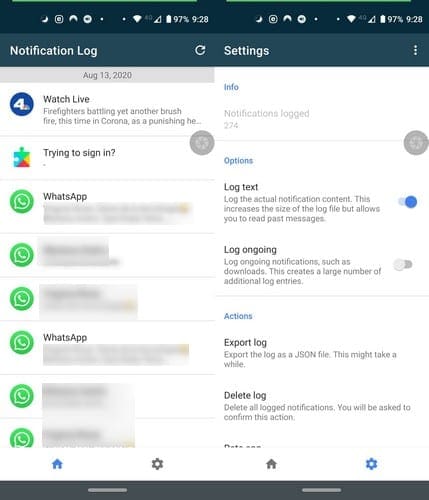
Notifications Log is a much simpler app. If you prefer using an app that doesn’t bombard you with too many options, then this app is worth a try. The app includes a refresh button at the top right and the setting cogwheel at the bottom.
In settings, you can do things such as delete the log, export the log, log ongoing notifications, and log the actual notification content.
4. Notisave
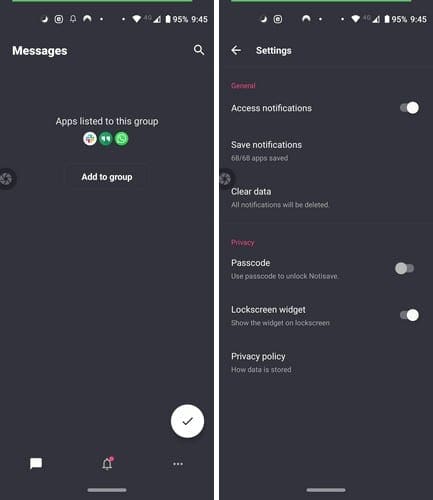
Another easy to use notification app is Notisave. The app keeps things simple and uses a dark theme from the very beginning. When showing messages from social media apps such as WhatsApp, Notisave will not only show you the app’s icon but the profile picture of the person the message is from.
Tap on the bell icon to see unread and read messages. Each notification will have dots to the right. By tapping on them, you can choose to not save that notification or export it.
The three dots at the bottom right will give you access to options to block notifications from specific apps, create/edits groups, and additional settings. You can also have the app require a passcode to use the app, and you’ll also see an option to clear your notification log.
Conclusion
By using one of the previously mentioned apps, you don’t have to worry about losing a notification for good. All the apps on the list are free with in-app purchases. Which app do you think you’re going to try out first? Share your thoughts in the comments below.