Family Link is Google’s parental control app. This handy app allows you to monitor your loved one’s phone without actually installing any app. It, instead, runs through your Gmail accounts. However, this doesn’t mean Family Link won’t leave any trace on the monitored phone. In fact, there will be a notification that can’t be dismissed. This can become annoying over time. That’s why this guide will teach you the three best ways to remove “This device is supervised with Family Link” notification from your loved one’s phone.

Contents
How to Remove “This Device Is Supervised With Family Link” Notification: 3 Simple Ways
You can remove the pesky Family Link notification in three ways. The first involves the app itself. The second goes through Google Play Services. The third requires you to download a third-party app. Let’s break down each of these methods.
No. 1 – Use Developer Options
Family Link doesn’t give you the option to remove “This device is supervised with Family Link” notification on the monitored phone. It only allows you to turn off the notifications you receive as the supervisor. However, with some creativity, this app can also help you achieve your goal. Here’s how:
Step 1: Launch the Family Link app.
Step 2: Tap the monitored device that displays the notification.
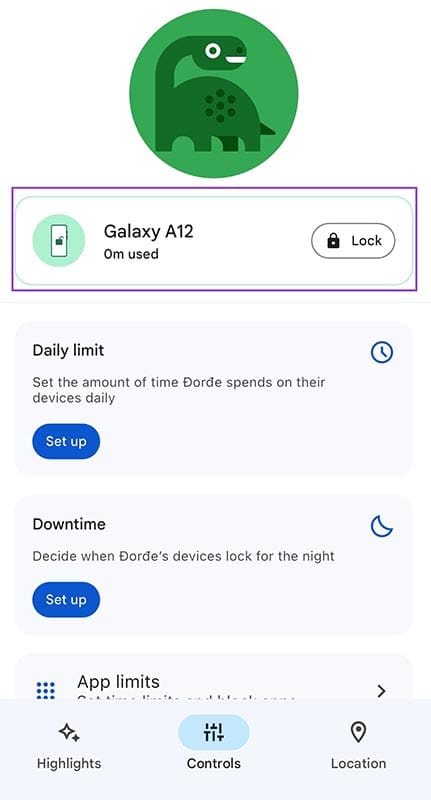
Step 3: Scroll down to “Developer Options.” Turn the slider on.
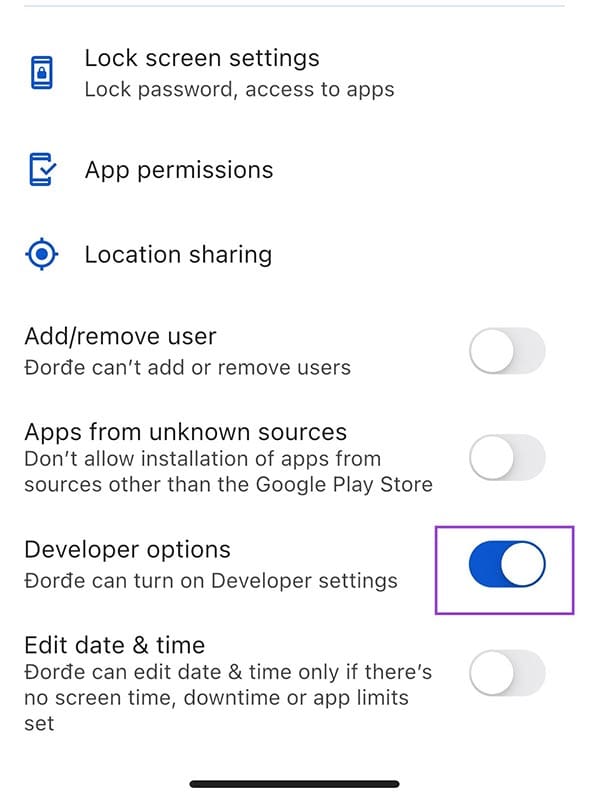
Now, you should be able to remove the notification from the monitored phone just as you would any other. This involves pressing and holding the notification and selecting the “Turn off notifications” button.
Afterward, go back to the monitoring phone and turn the “Developer Options” slider off.
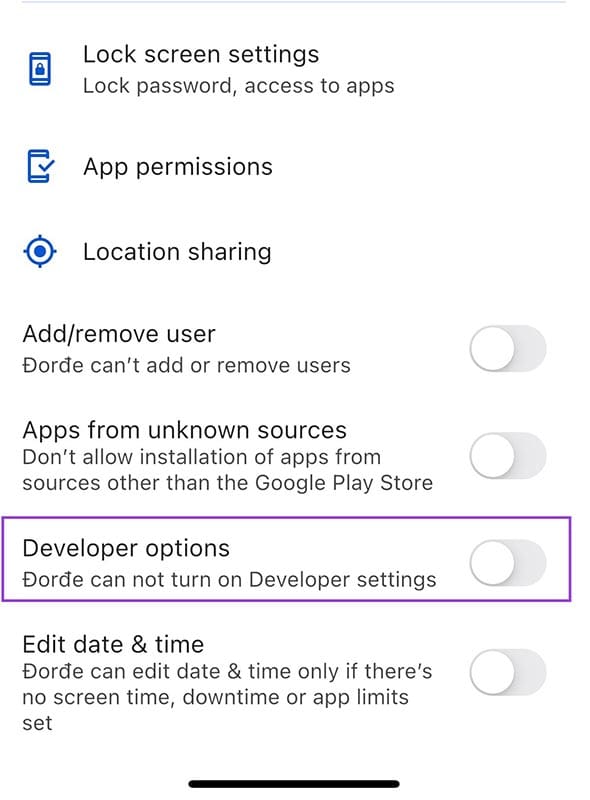
Some users have reported that the notification reappears after the monitored phone gets rebooted. So, you might have to repeat these steps from time to time.
No. 2 – Turn Off the Supervision Notification on Google Play
For most Android phones, the notification non grata comes from Google Play Services, not the app itself. That’s why you’ll need to access these services to get rid of it. However, you won’t be able to turn this specific notification off only. You’ll have to remove all supervision notifications. Here’s how.
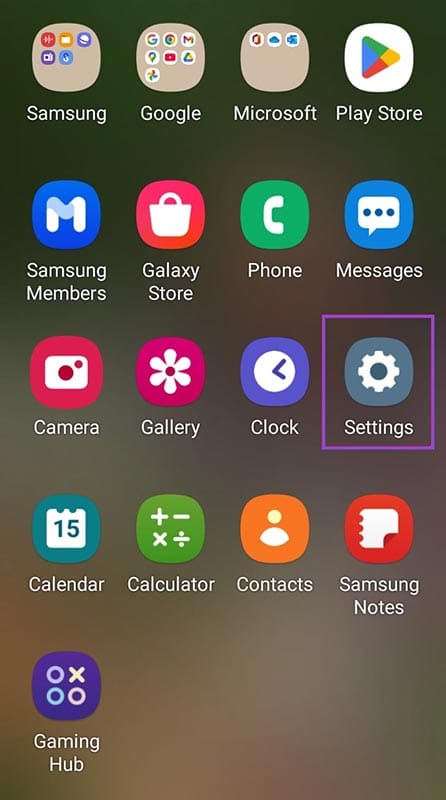
Step 1: Open the Settings app on the monitored phone.
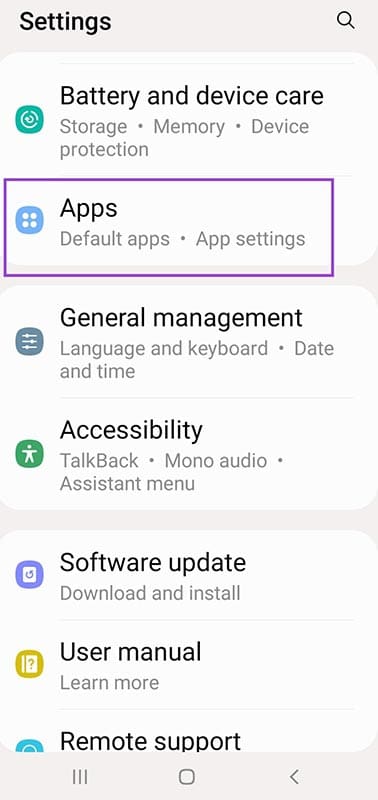
Step 2: Scroll down to the “Apps” tab.
Step 3: Locate “Google Play Services” on the list of apps.

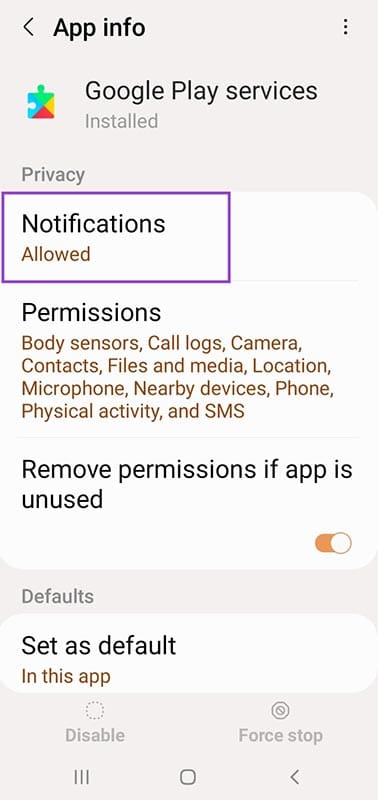
Step 4: Tap the “Notifications” button under “Privacy.”
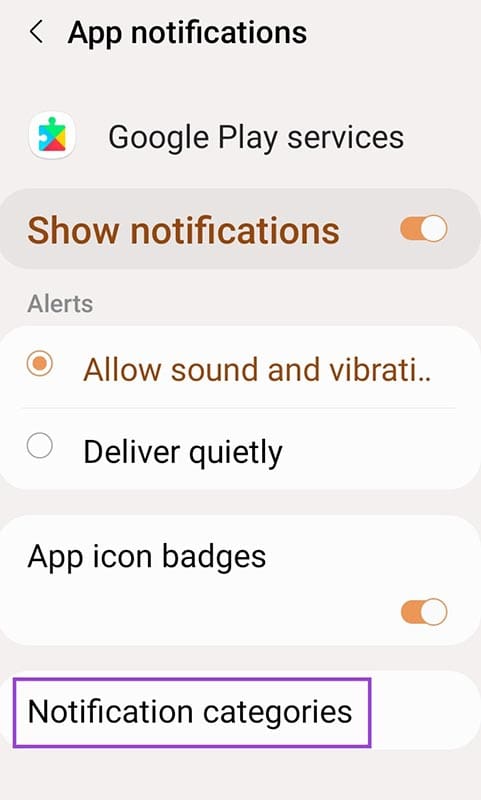
Step 5: Head to “Notification categories” at the bottom of your screen.
Step 6: Scroll down to the “Other” section. Here, you’ll find the “Supervision alerts” slider, which you should disable.
If you can’t seem to find the necessary button for Step 5, you might need to turn this option on first. You can do so in the “Notifications” panel by choosing “Advanced settings” and turning on the “Manage notification categories for each app” option.

If you still don’t see the option, you might have to turn off Google Play Services notifications altogether. This means the monitored phone will also stop receiving other notifications from Google Play, such as app updates and security alerts. It’s up to you – and the owner of the phone – to determine whether this trade-off is worth it.
No. 3 – Install a Third-Party App
The Family Link notification isn’t the only one annoying phone users. You can find many apps that are designed to help you manage your notifications. The FilterBox app has proven to be the best option for permanently removing the Family Link notification from the monitored phone. But keep in mind this is a paid app.

Other decent options include TidyPanel and Notify Blocker.
With FilterBox, you should be able to remove the Family Link notification in two simple steps. All you need to do is tap on it in the “Showing” list and hit “Dismiss.” The frustrating notification should instantly be removed.