Skip to content
LogoTechnipages
LogoTechnipages
  • Topics
        • Android
        • Browsers
        • Gaming
        • Hardware
        • Internet
        • iPhone
        • Linux
        • macOS
        • Office
        • Reviews
        • Software
        • Windows
        • Definitions
        • All Recent Posts
  • Product Reviews
  • About

Force Desktop Version of YouTube in Safari for iPhone & iPad

Mitch BartlettAugust 29, 2018 Comments (7)

If you wish to view the full desktop version of YouTube from the Safari for iOS browser on your Apple iPhone or iPad, you can by performing just a few steps. Follow this tutorial, and you’ll have access to all of the features the desktop version of the website offers in no time.

Contents

  • 1 Enable JavaScript Before Proceeding
  • 2 Option 1 – Quick Shortcut
  • 3 Option 2 – Desktop Menu
  • 4 Option 3 – Safari Setting
    • 4.1 iOS 9 & Later
    • 4.2 iOS 8

Enable JavaScript Before Proceeding

Before performing the below steps, ensure that JavaScript is enabled in Safari. Many of the features in YouTube won’t be available unless it’s enabled. You can do so by going to the Home screen and selecting “Settings” > “Safari” > “Advanced“. From there, switch “JavaScript” to “On“(Green).
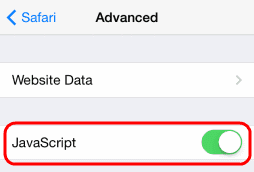
Safari iOS JavaScript setting

These steps may also not work if the YouTube app is installed. So you may want to uninstall it.

Option 1 – Quick Shortcut

You can quickly access the desktop version of YouTube in Safari for iOS by opening the Safari app, and typing “www.youtube.com/?app=desktop” without quotes. From there, tap “Go” and you will be immediately taken to the desktop version of YouTube.


Option 2 – Desktop Menu

If you don’t want to type out the long URL, you can perform these steps instead:

  1. Open the Safari app, type “youtube.com“, then press “Go“.
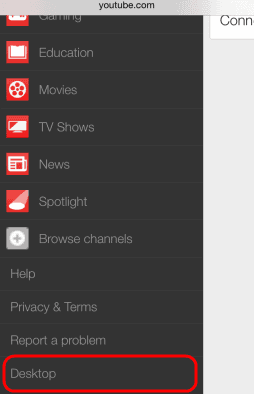
  2. The mobile version of YouTube will be displayed. You can then tap the menu button located in the upper-left corner of the screen.
  3. Scroll down to the bottom of the menu, then tap “Desktop“.
    YouTube Safari Desktop Option

Option 3 – Safari Setting

iOS 9 & Later

  1. Visit YouTube.com in the Safari web browser.
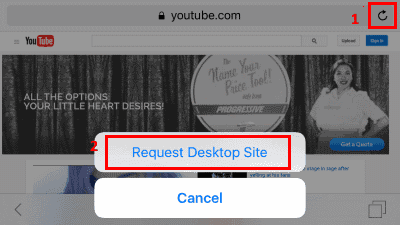
  2. Tap and hold the circle with arrows icon iOS Safari circle arrow in the upper-right corner.
  3. Select “Request Desktop Site“.
    iOS9 Desktop Site YouTube

You are done! The desktop version of YouTube is displayed.


iOS 8

  1. Open the Safari app, type “youtube.com“, then press “Go“.
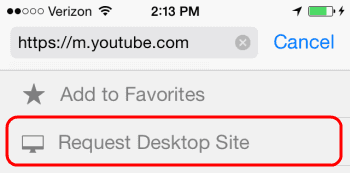
  2. Tap the URL in the address bar to highlight it and bring up the Bookmarks menu.
    iOS YouTube Address Bar Swipe
  3. Starting from just below the address bar, swipe downward to reveal the “Request Desktop Site” option. Select it and you’re done.
    YouTube Desktop

There you have it! Three ways to access the desktop version of YouTube from your iPhone or iPad.

Categories: iPhone

Author Mitch Bartlett

Through my career that spans over 20 years I have become an expert in Microsoft Systems Administration, Android, and macOS. I started this site as a technical guide for myself and it has grown into what I hope is a useful knowledgebase for everyone.

You Might Also Like

  • Does Wi-Fi Consume More Battery Power Than 3G or 4G/LTE?

    Mitch BartlettAndroid
  • How To Unlock Features in iOS 13

    MonaiPhone
  • Turning on Color Filters in iPhone Settings

    MonaiPhone

Comments

  1. Bertrand says:
    April 12, 2019 at 11:53 am

    Hey – finally I found the answer! Great job! Thanks a lot! :-)

  2. Lightshow says:
    July 17, 2017 at 11:53 am

    Also for people asking how to revert to mobile if you go my way it will give you a banner with a blue word saying mobile (click that)

  3. Lightshow says:
    July 17, 2017 at 11:51 am

    There is a way faster way; not to mention easyer way if you use the YouTube app. Enter the app then press the white arrow next to your name in the top right it will take you to the YouTube browser.

    From there hit the three dots in the top right (settings symbol) very bottom option is desktop.

    Then vuela you are on the desktop site with all the same functions, and you can follow your steps to loop it.

  4. Zeeshan pakistan says:
    August 22, 2016 at 10:07 am

    Thx man

  5. Anon says:
    January 30, 2016 at 10:32 pm

    How do i change it back to mobile?

  6. James says:
    December 26, 2015 at 9:03 pm

    How to I prevent it from opening YouTube links in the app?

  7. Kim says:
    December 16, 2015 at 12:45 pm

    Thank you!! Finally a true answer!

Leave a Reply

Your email address will not be published. Required fields are marked *

  • system32 folder opens on startup

    System32 Folder Opens on Startup – How to Fix

  • browser keeps opening hp support

    Browser Keeps Opening HP Support Assistant Tabs 

  • camera not working in vmware

    Camera Not Working in VMware – How to Fix

  • browser screen goes black

    Browser Screen Goes Black Intermittently 

  • computer heating up in hyper v

    Computer Heating Up When Using Hyper-V – How to Fix 

profile pic

The Experts Behind Technipages

My name is Mitch Bartlett. I've been working in technology for over 20 years in a wide range of tech jobs from Tech Support to Software Testing. I started this site as a technical guide for myself and it has grown into what I hope is a useful reference for all.

Learn More

technipages logo white
linkedin icon

Technipages is part of Guiding Tech Media, a leading digital media publisher focused on helping people figure out technology. Learn more about our mission and team here.

© 2026 Guiding Tech Media All Rights Reserved

  • About Us
  • Contact
  • Terms of Use
  • Privacy Policy

© 2026 Guiding Tech Media All Rights Reserved

Information from your device can be used to personalize your ad experience.
Do not sell my personal information.

Last Updated on August 29, 2018 by Mitch Bartlett