Tech-savvy Windows 11 users can enable Developer Mode to sideload apps from any source. Unfortunately, Developer Mode may not always work as intended. After turning on the switch, Developer Mode may sometimes automatically switch back off. If restarting your computer doesn’t solve the problem, follow the troubleshooting steps below.
Contents
Fix: Can’t Turn on Developer Mode on Windows 11
Disable Third-Party Programs
First things first, make sure you’re using an administrator account. Guest accounts may not have permission to enable Developer Mode. Then, close all the background programs running on your Windows 11 computer to ensure they’re not interfering with Developer Mode.
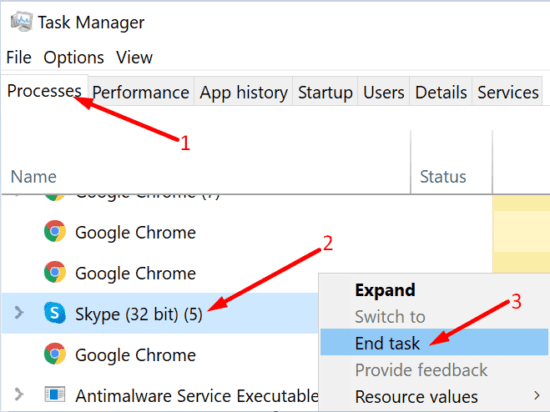
- Launch the Task Manager.
- Click on the Processes tab.
- Then, locate the programs you want to close.
- Right-click on each program and select End task.

- Try to enable Developer Mode again.
If you’re running third-party tune-up utilities, temporarily disable them. If the issue persists, uninstall all third-party system optimizers, and check if you notice any improvements.
Repair Corrupted System Files
If some of your system files got corrupted or deleted, specific Windows 11 features might not work correctly. Use SFC and DISM to detect and repair corrupted or missing system files automatically.
- Launch Command Prompt with admin rights.
- Then, run the sfc /scannow command and hit Enter.

- Wait until SFC finishes checking your system files.
- Then, run the DISM commands below one by one:
DISM /Online /Cleanup-Image /CheckHealthDISM /Online /Cleanup-Image /ScanHealthDISM /Online /Cleanup-Image /RestoreHealth
- Restart your computer and check if you can use Developer Mode.
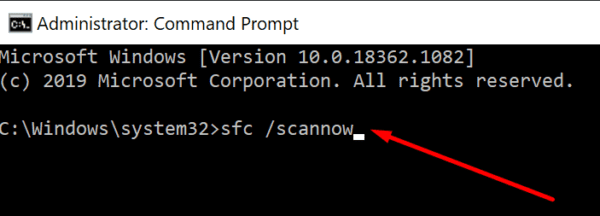
Alternatively, you can use PowerShell to run the commands above if you’re more familiar with this tool.
Enable Developer Mode via Group Policy
Note: The Group Policy Editor is not available on Windows 11 Home. If you’re running this OS version, go to the next step.
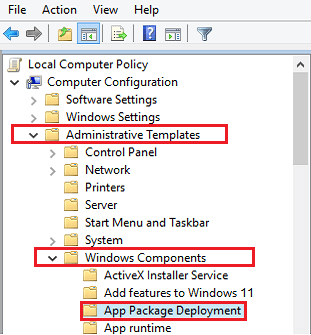
- Click on the Search icon and enter gpedit.msc.
- Launch the Group Policy Editor.
- Navigate to Computer Configuration.
- Select Administrative Templates.
- Then, go to Windows Components.
- Select App Package Deployment.

- Double-click on Allow all trusted apps to install.
- Enable the option.
- Then, enable the option that says Allow development of Windows Store apps and install them from an integrated development environment (IDE).
- Save the changes, and check if you can use Developer Mode.
Restart BITS
If you still can’t access Developer Mode, restart the Background Intelligence Transfer Service.
- Click on the Search icon.
- Type services.msc and hit Enter.
- Then, locate the Background Intelligence Transfer Service (BITS).
- Right-click on the service and select Restart.

Reset Your Computer
If the issue persists, try resetting your PC. If specific Windows system files fail to install correctly, resetting your machine should fix the problem.
- Go to Settings.
- Select System.
- Then click on Recovery.
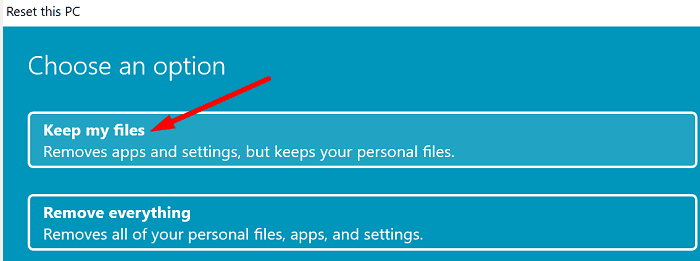
- Click on Reset this PC.

- Select the option that lets you keep your files and folders.
Contact Your Admin
If your computer is managed by a school or work organization, contact your IT admin for further help. As a quick reminder, Developer Mode lets you run unsigned scripts and apps, which may sometimes pose privacy and security risks. Many admins prefer to stay on the safe side and block Developer Mode.
Conclusion
Disable third-party background programs if you can’t use Developer Mode on Windows 11. Then, run SFC and DISM to repair corrupted system files. Additionally, restart the Background Intelligence Transfer Service. If you’re running Windows 11 Pro, check if you can enable Developer Mode via Group Policy. Lastly, if the issue persists, reset your PC and contact your admin if your machine is managed by an organization.
Did you manage to enable Developer Mode? Which solution worked for you? Let us know in the comments below.