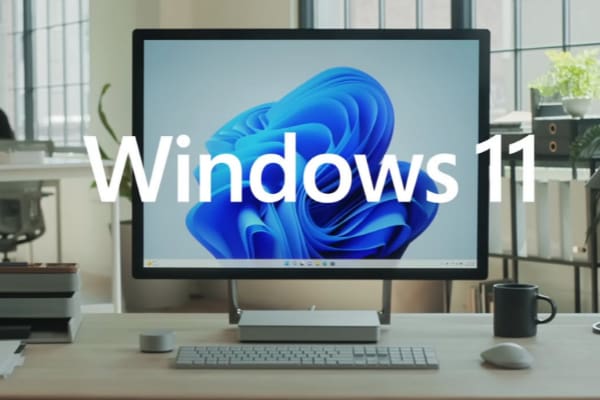
Customizing the widgets board on your Windows 11 computer lets, you quickly see the info you want. But if you recently purchased your computer or simply never got around to it, you’ll find widgets about topics you might not be interested in. But you can quickly eliminate the ones you don’t care about and place the interesting ones at the top of the list. You can go back at any time and make more changes.
Contents
How to Add a Widget to the Board on Windows 11
Let’s start by adding the widgets you want to see on the board. To add your widget, click or tap on the plus icon on the widget board. You can open the widget board by placing the cursor on the weather icon on the left or pressing Windows and W keys. If your Windows 11 computer has a touchscreen, you can also open the widget board by swiping right from the left side of the screen. You’ll see various subjects you can add when you click the plus icon. Simply click on the blue plus icon to add them.

Open the widget board, and the topics you added will be at the top. If you’re not happy with the layout of the widgets, you can always move them around. Place the cursor on the widget you want to move until it turns into a hand, and press the left mouse button. Drag it to where you want to place it, and if there are any widgets there, they will move out of the way automatically.
When you’re on the widgets board, you’ll also see the See More option at the bottom. When you click or tap on it, it’ll open in Microsoft Edge with a long list of widgets you can get more info.
What You Can Do With Your Widgets
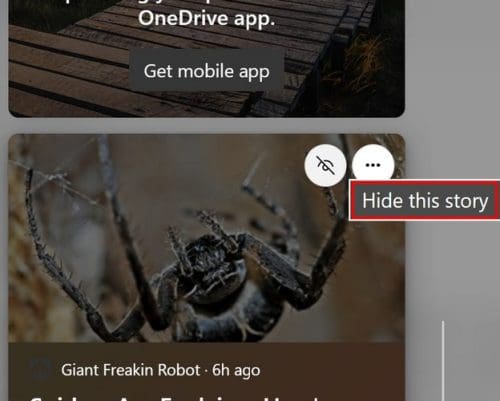
When you place the cursor on the widget, you’ll see the icons for additional options. For example, you’ll see an eye icon with a line across it to hide the story. If you click on the three dots, you’ll see additional options such as:
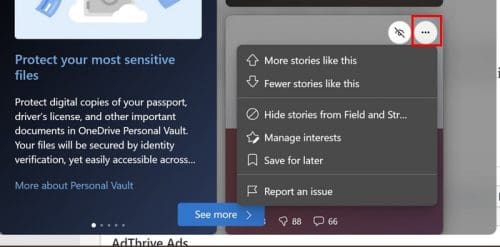
- More stories like this
- Fewer stories like this
- Hide stories from…
- Manage interests
- Save for later
- Report an issue
Not all widgets will have the same options. Some will have fewer such as the size you can make the widget and unpin it if that’s what you’ve done to it. Some widgets, such as the calendar one, will have the option to customize it, like adding additional calendars. You can even interact with some widgets, such as the To-Do widgets, where you can check off tasks directly from the widget.
Some widgets will let you customize the widget. For example, if you have a traffic widget on the board, you can customize it, so it shows you the traffic for a specific area. You can set your location for home and work, so you always know what to expect.
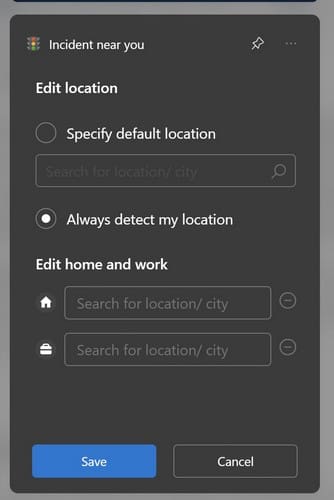
If the widget doesn’t have options to customize, it’ll have options to customize interest. When you click on this option, Microsoft Edge will open with the interests on the left. When you see a topic you like, click on the plus icon to add it.
How to Hide a Widget
You’ll see options to hide a specific story or news source on the widget. Maybe you don’t like a story but want to continue to read other stories from a news source. Or, perhaps, you never want to receive anything from one.
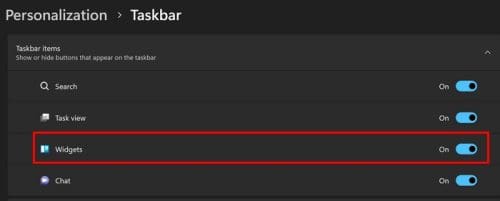
If you want to get rid of the widget board altogether, you can by going to Settings. Click on the Windows Start icon and click on Settings. Go to Personalization, followed by Taskbar. Toggle off the widget option, and you’re good to go.
How to Resize a Widget
There is also the option to make your favorite widgets bigger than the rest. Click or tap on the three dots of the widget and choose a size. Not all widgets will have the same size options.

Remember that you can also pin a widget to the top for faster access to your preferred widgets. You’ll only need to click on the three dots and choose the Pin Widget option. That’s all there is to it.
Further Reading
Speaking of widgets, if you want to continue reading about widgets, you can read about what you can do when the widgets stop working. If you’re a Telegram user, you can also read up on how you can add and customize widgets on the social media platform.
Conclusion
The widgets board is full of options which may seem overwhelming at first. But when you get rid of the ones you don’t need and pin the ones you do to the top, it’s smooth sailing from there. You have the option of customizing a widget or even receiving less info from a specific news source. Then there is the option of moving the widgets around or resizing them. Which widgets will you be pinning to the top? Share your thoughts in the comments below and don’t forget to share the article with others on social media.