
Many Android users complained their phones sometimes vibrate for no reason at all. The weirdest thing is that his issue occurs even when the Vibrate option is off. Hearing your device vibrate all of a sudden without a clear reason can be really confusing. Let’s explore what might be causing these weird phantom vibrations.
Contents
Why Does My Android Phone Keep Vibrating Out of Nowhere?
Check Your Notification Settings
Even if Vibrate mode is off, one of your apps could be trying to tell you something. You can add specific notification settings for each of your apps and set your phone to vibrate when you receive a notification or message.
- Navigate to Settings, and go to Notifications.
- Go to Manage all and check your notification settings for each app installed on your device.
- Tap Notification sound and check if you set your terminal to vibrate when you get a notification from that app.
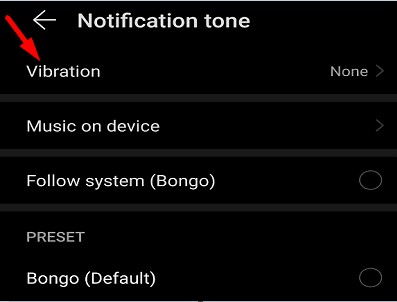
Going through all your app settings may take a while, but you should be able to find the culprit. Start with social media and instant messaging apps. That’s where users get the majority of their notifications from.
Download Nova Launcher
Nova Launcher is an app that replaces your home screen with a cleaner and faster home launcher. The app can also display more information about background processes. You can use Nova Launcher to identify what’s causing your terminal to vibrate all of a sudden.
- First, you need to download and install Nova Launcher from the Google Play Store.
- Then add a new widget to your home screen.
- Go to Activity, and select Notification List.
- Open the widget. You should see a list of all your recent notifications and the apps that sent them.
- Disable all notifications from the first app on the list and check if the issue persists.
Update Everything
If the random vibrations are caused by a temporary software glitch, you should be able to fix the problem by updating and restarting your device.
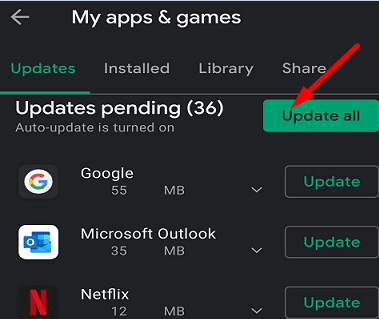
- Launch the Google Play Store app, and tap your profile icon.
- Go to Manage apps and device.
- Hit the Update All button to install all pending app updates.

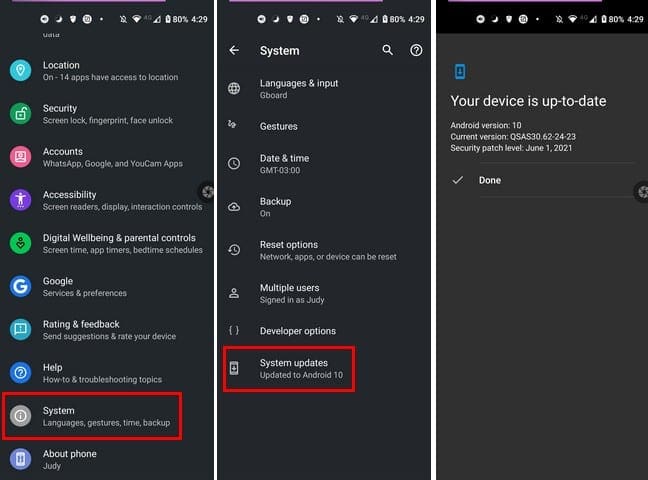
- Then go to Settings, and tap System.
- Select System Update, and check for updates.

- Press the Power button and turn off your phone.
- Wait for thirty seconds, turn on your device, and check if the issue persists.
Enable Safe Mode
Restart your phone into Safe Mode and check if the phantom vibrations persist. If they don’t, this indicates one of your apps is the culprit. Restart your phone normally, and uninstall recently installed apps. Check if this method solved the problem.
Conclusion
If your Android phone keeps vibrating randomly, check your notification settings for each app installed on your device. You can use Nova Launcher to check which of your apps sent the most recent notification. Then install the latest app and Android updates and enable Safe Mode.
Did these troubleshooting suggestions help you fix the problem? Let us know in the comments below. If you found other solutions to get rid of this issue, share your ideas with us.





Hey guys, just wanted to add that if you’re experiencing this issue on a Samsung, you can download the app ‘Good Lock” then install the module called ‘Nice Catch’ and make sure it’s turned on and that vibration history is on. It won’t show you what happened previously, but it will going forward so it can help if it is a persistent issue.
Hi. I had a similar problem which suddenly started for no apparent reason.
I managed to realise that the cause was my debit card (which was in my phone case) causing the NFC settings to get confused and continual vibrating about every second.
After removing the debit card the problem was solved and peace was restored.
None of the suggestions worked. What else can be done to stop the vibrating?
Turn off “Notification Reminder” in settings