Anyone who has set up a wireless router has come across it, whether you knew what it was for or not. It was first made by the WiFi Alliance, and it was created with the intention to help those who just don’t get along with technology. It’s not hard to understand how it works and how to deal with it.
Before WPS came along creating a wireless network name may have been a real headache for many since it had to be done manually. Creating a wireless network name required that you have knowledge of the WiFi device and the configuration modifications.
What is WPS?
WPS stands for WiFi Protected Setup, and its purpose is to make a connection between a wireless device and a router a lot easier. This technology will only work with wireless networks that require a password and are encrypted with the security protocols WPA Personal or WPA2. One thing to keep in mind is that WPS will not work if the wireless network being used is using the security protocol WEP security.
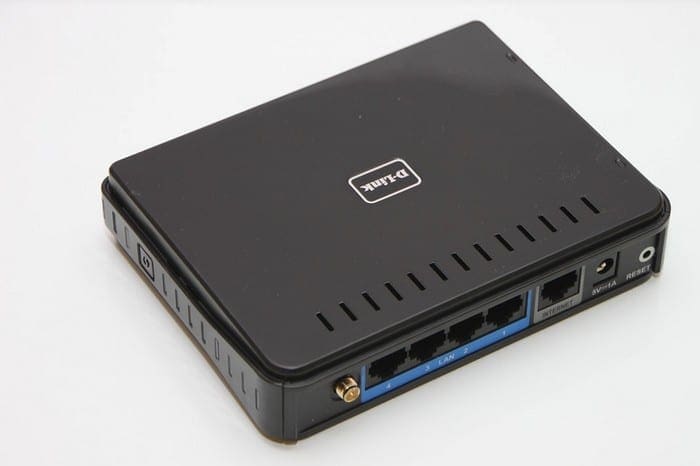
WPS is made to simplify the process of connecting your device to a wireless network. With WPS, you can skip the process of having to successfully connect to a network and then having to enter the password. It makes everything easier since it will set up a wireless network with an SSID and a secure WPA data encryption and authentication.
How Does WPS Work?
Now you know what WPS is, but how does it work? The first step would be to press the WPS button that is located on the back of your router. On some routers, it will be near the Ethernet ports. Grab the device you want to connect to the network and push the WPS button. Your device will connect to the network automatically without you having to enter any information.
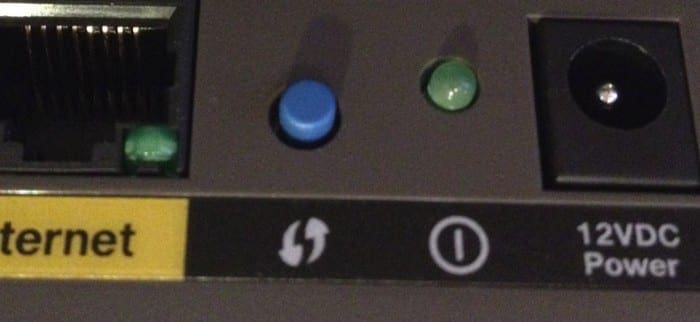
Even if you use WPS to connect to a network, you won’t have to repeat the process without having to push the WPS button again. Your device won’t have a problem remembering the necessary data to connect to the network.
When using WPS, there won’t always be a button to press. Some devices support WPS, but won’t have the button. In these cases, you’ll need to enter an eight-digit code that can be found in the WPS configuration page. This is a code that is created automatically and can’t be altered by the user.
On the majority of the routers, WPS will be enabled automatically, but there are some that will require that you turn it on by using the firmware of the router and the administration user interface.
Some models may even have one button to turn it on/off and enable WPS. If this is the type of model you have, by quickly pressing the button you’ll only turn the device on/off, but if you long-pres it for three seconds, it will turn on WPS. With WPS, you don’t have to worry about anyone guessing the passphrase or security key because it’s not the user that creates it.
Conclusion
WPS has its advantages, it still needs time to improve when it comes to security. Hopefully, with time it will get all the improvements it needs. What are your thoughts on WPS? Share your thoughts in the comments.