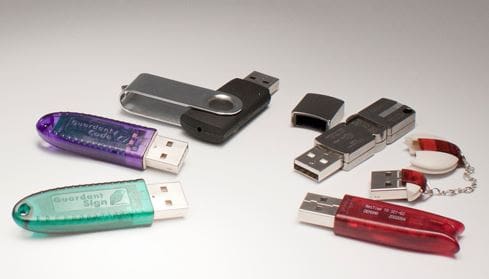
If you’ve ever used a computer, you’ve almost certainly used a USB device. Mice, keyboards, webcams, printers, speakers, microphones, thumb drives, external hard drives, and more typically connect to a computer via USB. But why is USB so standard?
History of USB
USB, short for Universal Serial Bus, was introduced in the mid-1990s. It was intended to connect peripherals to computers, providing communications and power. Before this, there were a wide variety of connector standards in use. Generally, these preceding standards were some combination of slower, larger, more expensive, or proprietary. Different devices often needed other connectors, which led to the need to place a large number of connector ports on the motherboard’s I/O plate. USB simplified everything and added some extra features too.
You might be able to guess from the word “Universal” in the name. USB was intended to replace as many different types of connectors as possible and become the one connector to rule them all. Its key selling points were that it was cheap, compact, and well-standardized. Because USB could be used to connect pretty much anything, economies of scale helped to keep the costs down. Furthermore, the connector had been designed to be simple and cheap in the first place, only using four electrical connectors. Again, the small number of connectors meant that the physical plug could be relatively small. This allowed more USB ports to be fitted to computers in the same space.
USB devices could have a small amount of onboard logic that automatically configures the connection with the computer. This meant that there was no need to set data rates or anything else manually; you could plug in and go. USB devices are hot-swappable. This means you can plug and unplug them without restarting the computer. You may have to go through an eject process, especially for storage devices, but not having to restart the computer is helpful, especially in the days before fast booting SSDs.
“Serial” Connectors
When USB was initially standardized, there was a single standard connector, Type-A. It featured two data pins and two other pins for power differential. The following type-B connector had the same pin structure but a different physical layout. Over time, more connectors were added, with a mini and micro variants of type-A and type-B. These more minor variants used a single extra connector to identify which cable end is intended for the host and peripheral.
The connectors received a redesign when USB 3.0 was standardized. Each connector type received an additional five connectors. Two pairs were used for new high-speed data transfers, with the fifth used to ground the signaling lines. The USB type-C connector was introduced simultaneously as USB 3.1 and offered a radical new design. Physically it’s much smaller than the type-A connector. At the same time, though, it also features far more connectors, a total of 24.
Additionally, as a massive usability win, it’s also reversible. Within all the connectors, there are four pairs of data transmission wires. However, these aren’t all intended to be used simultaneously. Instead, they’re intended to be there no matter which way up the cable is plugged in.
Later generations of USB have allowed using multiple data pin pairs simultaneously. This essentially doubles the bandwidth in one fell swoop. These pairs of data pins are referred to as lanes. Interestingly, the concept isn’t that dissimilar to a parallel cable.
Naming Scheme
One of the criticisms aimed at the USB Implementers Forum, the group that created the standards of USB, is the confusing naming schemes. The six different connectors by USB 2.0 were confusing enough with a type-A and type-B variant of the standard, mini, and micro connectors. USB 3.0 made everything worse. Adding the term superspeed was fine, but apart from the standard type-A connector, the physical shape of all six connectors changed significantly, complicating purchasing decisions by anyone unfamiliar with the situation.
With USB 3.2, the standard naming scheme went out the window. USB 3.2 gen 1 sounds better than USB 3.1. It’s not; it’s the same thing. Nothing was changed. You also had USB 3.2 Gen 2, USB 3.2 Gen 1×2, and USB 3.2 Gen 2×2. It’s pretty easy to understand that 3.1 Gen 2×2 is better than Gen 2, but the difference between Gen 1×2 and Gen 2 is minimal in practice, boiling down to implementation. As the names are so similar, they’re easily confusing, resulting in incorrect search results even when looking for the right thing.
With the publication of USB4, there was some hope that the naming scheme might have been at least improved. Unfortunately, that’s not the case; both USB4 Gen 2 and USB Gen 3 have the x2 modifiers. The scheme also offers new features, such as Display port passthrough and PCIe passthrough. Unfortunately, most of these features are also optional, making it more of a challenge to find out exactly which feature set is supported by which device. The most recent offense is the newest update to USB 4. Any sane person would call it USB5 or USB4.1. Not so the USB Implementors Forum; no, they named it USB4 2.0.
Conclusion
USB stands for Universal Serial Bus. It is the standard connector for computer peripherals and other devices. Current versions offer high-speed data transfers as well as high-power charging capabilities. The standard was intended to replace the broad variety of connectors used previously with one that worked better. It achieved market dominance but then developed its array of connectors. To simplify the market once again, all previous connectors have been deprecated with the Type-C connector. This change brought benefits such as faster data speeds and a reversible connector.