Skip to content
LogoTechnipages
LogoTechnipages
  • Topics
        • Android
        • Browsers
        • Gaming
        • Hardware
        • Internet
        • iPhone
        • Linux
        • macOS
        • Office
        • Reviews
        • Software
        • Windows
        • Definitions
        • All Recent Posts
  • Product Reviews
  • About

We Were Unable to Create Your Notebook Error in OneNote – Common Fixes 

Evan MercerJanuary 18, 2026 Comments (0)
unable to create notebook error in onenote

If you’re getting an “unable to create notebook” error in OneNote, you’re not alone. While the error is uncommon, you might see it at vastly different points and for a few reasons, typically due to a failure to connect your account credentials to Microsoft’s servers (regardless of your actual internet connection).

Here are some common fixes when OneNote can’t create notebook files properly.

Contents

  • 1 Common Troubleshooting Steps
  • 2 Fix 1 – Clear Cache to Resolve Unable to Create Notebook Error in OneNote
  • 3 Fix 2 – Repair the Installation if OneNote Can’t Create Notebook
  • 4 Fix 3 – Remove OneNote 2016 Credentials
  • 5 Fix 4 – Use OneNote for the Web

Common Troubleshooting Steps

These methods should be relatively quick and easy to test, depending on your internet connection:

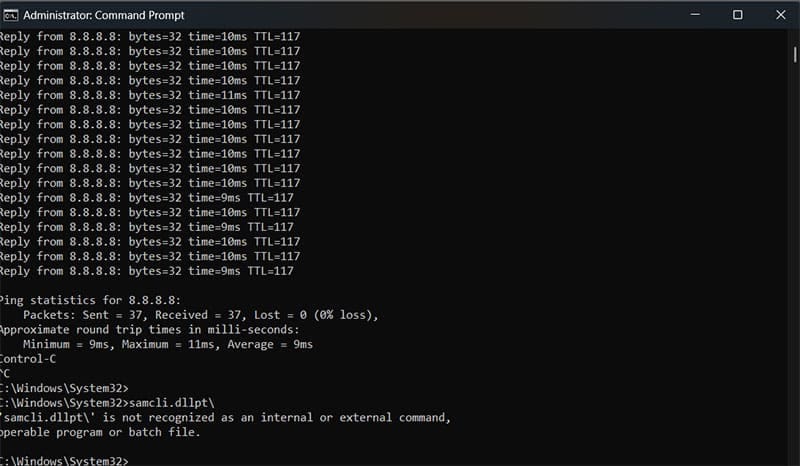
  • Make sure your internet connection is stable. You can do this by running an internet speed test or by performing a ping test through the Command Prompt (ping -t 8.8.8.8). You can stop pinging with “Ctrl + C”.
We Were Unable to Create Your Notebook Error in OneNote – Common Fixes 1
  • Log out of your account, then log back in.
  • Make sure that OneNote is updated and download the most recent Windows Update if possible.
  • Check if you have enough OneDrive storage (you can see this in the OneDrive pop-up on the toolbar by going to the Settings cog wheel).
We Were Unable to Create Your Notebook Error in OneNote – Common Fixes 2
  • Recheck the notebook’s name to ensure it doesn’t contain any special characters or end similarly to a file name, as that might prevent it from being saved.

If none of this works, you may need to look at slightly more complex fixes.

Fix 1 – Clear Cache to Resolve Unable to Create Notebook Error in OneNote

OneNote has its own cache, usually stored in the hidden AppData files. This cache doesn’t hold actual notebooks but login data and logs.

Step 1. Open File Explorer and go to C:\Users.

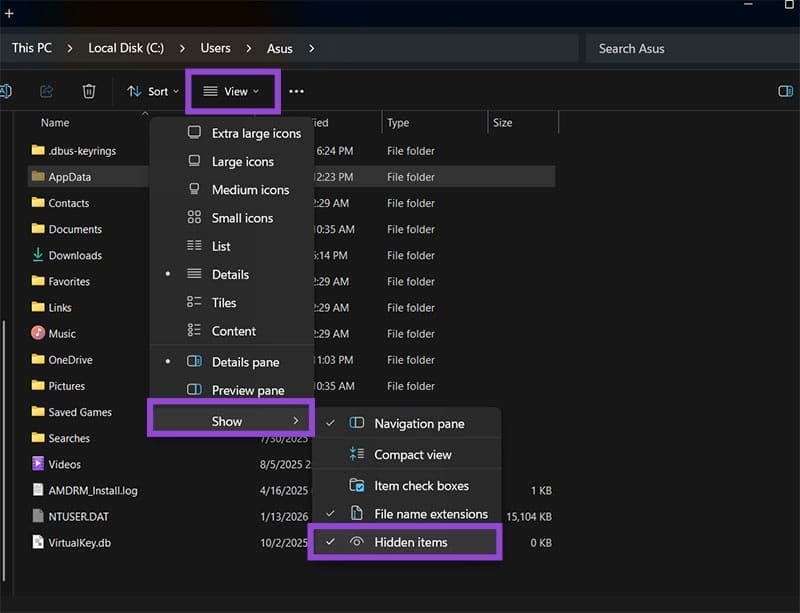
Step 2. Navigate to “C:\Users\<username>\AppData\Local\Microsoft\OneNote\16.0.” If you can’t see a folder, turn on “Hidden items” in the “View” section of the toolbar.
We Were Unable to Create Your Notebook Error in OneNote – Common Fixes 3

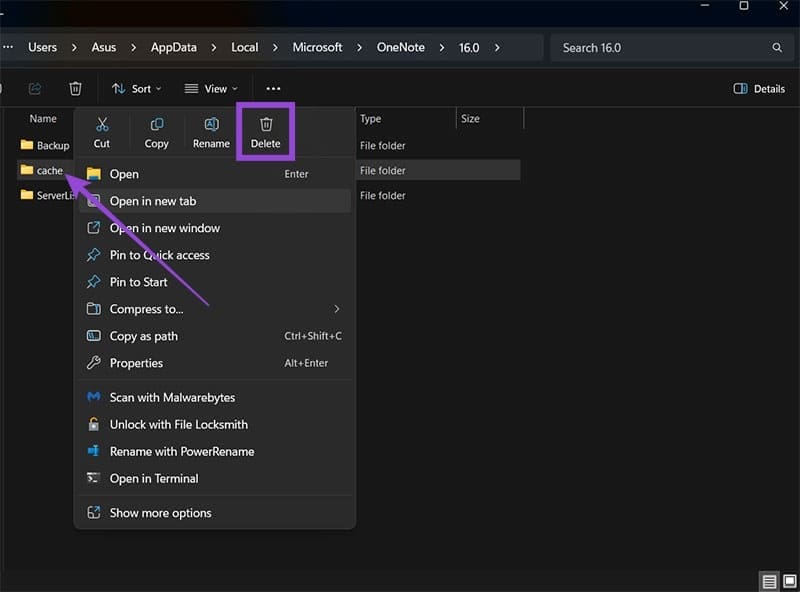
Step 3. Delete the entire “cache” subfolder.
We Were Unable to Create Your Notebook Error in OneNote – Common Fixes 4

Step 4. Run OneNote again and log back in with your account.

Fix 2 – Repair the Installation if OneNote Can’t Create Notebook

If your OneNote refuses to connect to the internet or your account properly, you might be best off starting from scratch or repairing the installation.

Step 1. Hit “Win + I” to open “Settings,” then choose “Apps” on the left.

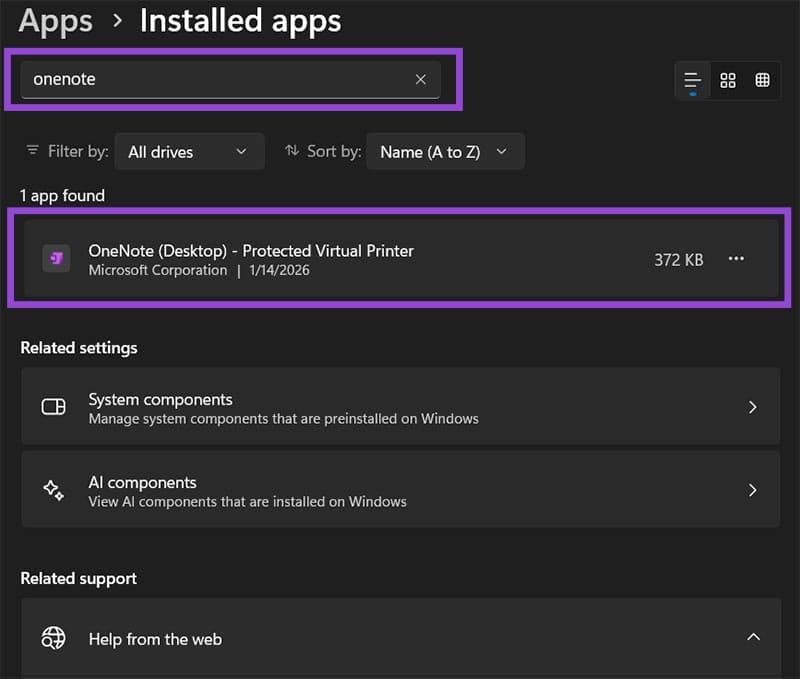
Step 2. Select “Installed apps” and search for OneNote in the textbox at the top.
We Were Unable to Create Your Notebook Error in OneNote – Common Fixes 5

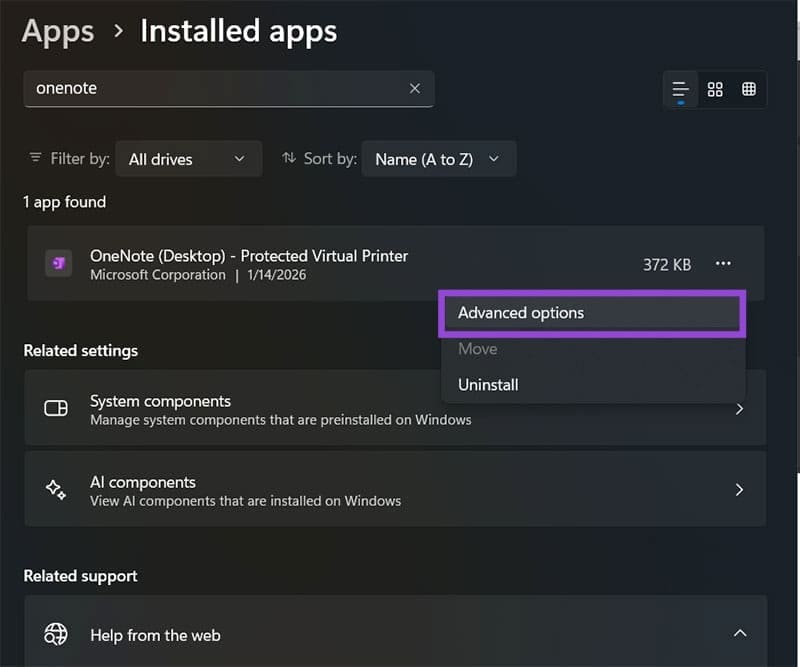
Step 3. Click on the “OneNote (Desktop)” entry and select “Advanced options” from the list.
We Were Unable to Create Your Notebook Error in OneNote – Common Fixes 6

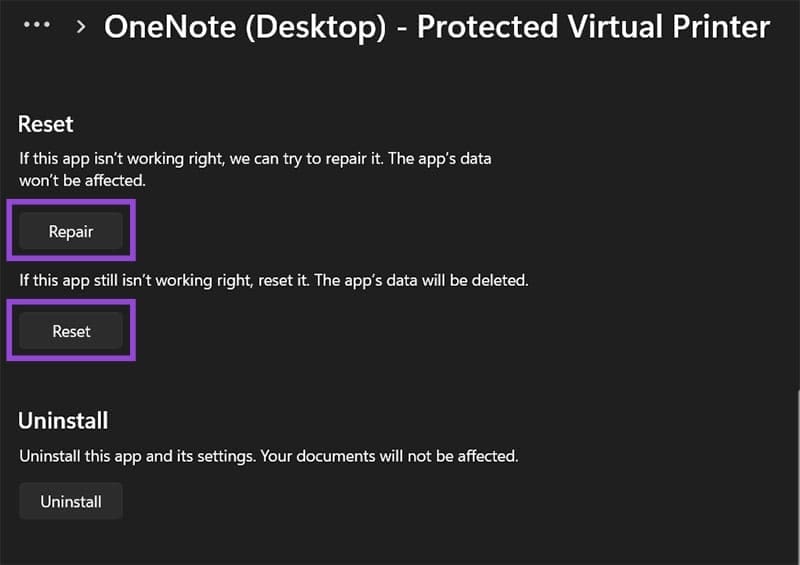
Step 4. Scroll down and select “Repair,” then follow the instructions. If that doesn’t work, use the “Reset” option.
We Were Unable to Create Your Notebook Error in OneNote – Common Fixes 7

Fix 3 – Remove OneNote 2016 Credentials

If you’ve previously used OneNote 2016 at any point, Windows may have stored these credentials in a different format than the newer versions. If these credentials are the first ones to be checked, the authentication may fail and lead to the “unable to create notebook” error message in OneNote, so they need to be removed.

Step 1. Search for “Credential Manager” and open the utility.

Step 2. Click on the “Windows Credentials” tab on the right.

Step 3. In the “Generic Credentials” category, find an entry named something like “MicrosoftOffice16_Data***.”
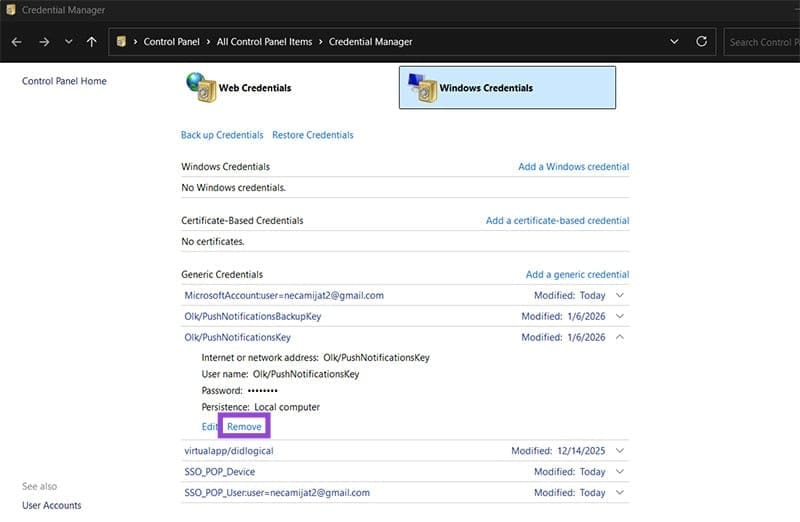
We Were Unable to Create Your Notebook Error in OneNote – Common Fixes 8

Step 4. Click on the entry and hit “Remove,” then restart OneNote and log in.

Fix 4 – Use OneNote for the Web

If your desktop app refused to make a notebook, you can use the browser version. It has roughly the same user interface, and you can use the same Microsoft account.

Step 1. Go to the OneNote for the Web page and select “Create new notebook.” You may need to log in.

We Were Unable to Create Your Notebook Error in OneNote – Common Fixes 9

Step 2. Make your notebook.

Step 3. Go back to the desktop app and try to open the notebook from there.

Categories: Office

Author Evan Mercer

I’m a computer science grad who loves to tinker with smartphones and tablets in my spare time. When I’m not writing about how to fix techy problems, I like hanging out with my dogs and sipping nice wine after a tough day.

You Might Also Like

  • Excel Header

    Copy and Paste Values Without Formulas in Excel 365

    Mitch BartlettOffice
  • Outlook: Error “An OLE registration error occurred. The program is not correctly installed…”

    Mitch BartlettOffice
  • Outlook Logo Header

    How to Change View to HTML or Plain Text in Outlook 2019, 2016, and 365

    Mitch BartlettOffice
  • Excel Calendar Template 2023 The 9 Best Sources You Must Know

    Excel Calendar Template 2023: The 9 Best Sources You Must Know

    Susan SheffieldOffice

Leave a Reply

Your email address will not be published. Required fields are marked *

  • error code 0x800704f8 fix

    Error Code 0x800704f8 – How to Fix 

  • back button in browsers doesnt work

    What to Do if the Back Button in Browser Doesn’t Work 

  • could not find this item

    “Could Not Find This Item” When Trying to Remove Files

  • no graphics signal on first boot

    No Graphics Signal on First Boot – How to Fix

  • system32 folder opens on startup

    System32 Folder Opens on Startup – How to Fix

profile pic

The Experts Behind Technipages

My name is Mitch Bartlett. I've been working in technology for over 20 years in a wide range of tech jobs from Tech Support to Software Testing. I started this site as a technical guide for myself and it has grown into what I hope is a useful reference for all.

Learn More

technipages logo white
linkedin icon

Technipages is part of Guiding Tech Media, a leading digital media publisher focused on helping people figure out technology. Learn more about our mission and team here.

© 2026 Guiding Tech Media All Rights Reserved

  • About Us
  • Contact
  • Terms of Use
  • Privacy Policy

© 2026 Guiding Tech Media All Rights Reserved

Information from your device can be used to personalize your ad experience.
Do not sell my personal information.

Last Updated on January 18, 2026 by Evan Mercer