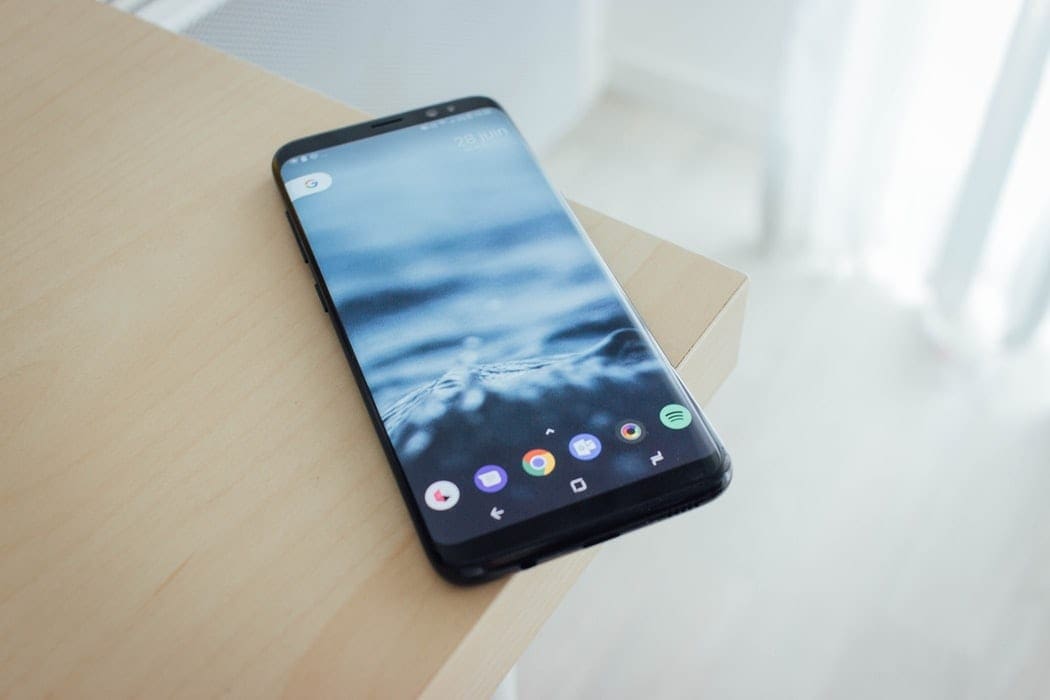
Beginning with the Galaxy S8 series, Samsung’s built-in calculator has improved by leaps and bounds. The improved UI/UX is a given, but one of its newer essential features is its unit converter.
The unit converter found in the Calculator app makes it possible to convert units of measurement, including length, area, volume, temperature, data, and mass. This feature is accessible in any modern Samsung phone released in the past three years, regardless of its model.
Contents
How to Use Unit Conversions in Built-in Samsung Calculator
To start using the unit converter, do the following:
Open the Calculator app on your Samsung device.
From the calculator’s main screen, tap on the ruler icon, usually located in the middle of your screen.
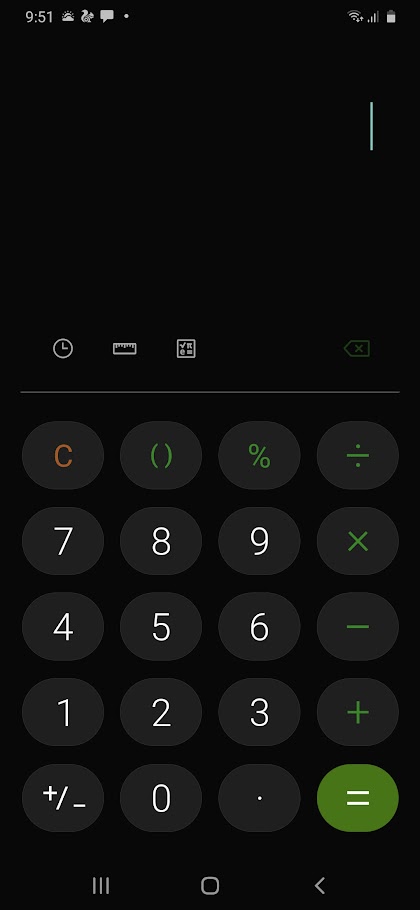

- Afterward, the phone will present conversion types from which to choose, area, length, mass, etc.
- You can select the type of unit from the top of the screen.
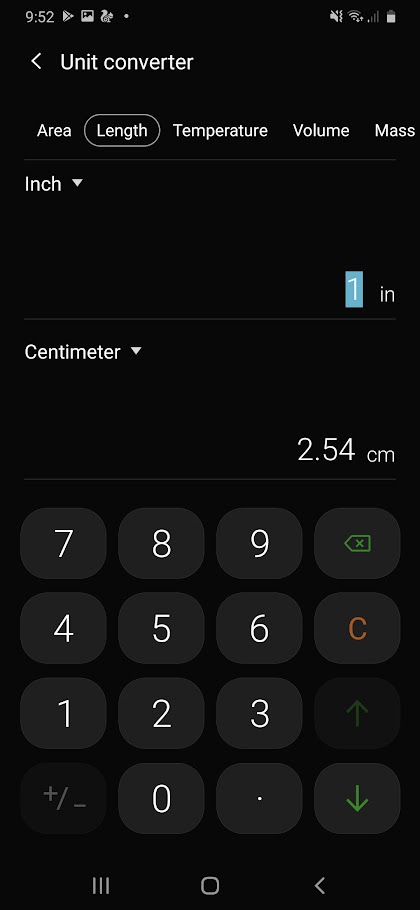
It goes without saying that this feature can be handy in many situations, especially for students or professionals who always need typical conversions in their everyday activities.
With that said, as mentioned before, unit conversion is only available for relatively modern Samsung phones. If you own an older model of Galaxy phones such as Galaxy S7, J5, or Note 7, you might need to rely on Google, or a third-party app downloaded from the PlayStore to do unit conversions.
Unit Conversions for Older Samsung Galaxy Devices
Older Samsung phones don’t have the unit conversion function. However, you can use other methods that aren’t as quick, but still useful.
Rely on Google Search
When in doubt, trust Google search. Truth be told, Google search provides an even more comprehensive selection of conversions compared to the built-in Samsung calculator itself.
If the modern Samsung calculator can only do six types of conversion, Google can do much more than that. Apart from the kinds of units available to Samsung, Google can perform other unit conversions, including currency, speed, pressure, and much more.
Here’s how to use it:
- From your Android’s home screen, open the Google app.
- On the search bar, type in the kind of conversion you wish to implement.
For instance, if you want to convert currency from USD to GBP, simply type in “USD to GBP”. You can also immediately put the number of units (e.g., “10 USD to IDR”) for instant conversion.
- After hitting the Search button, Google will present you with a calculator-like interface with the answer you need.
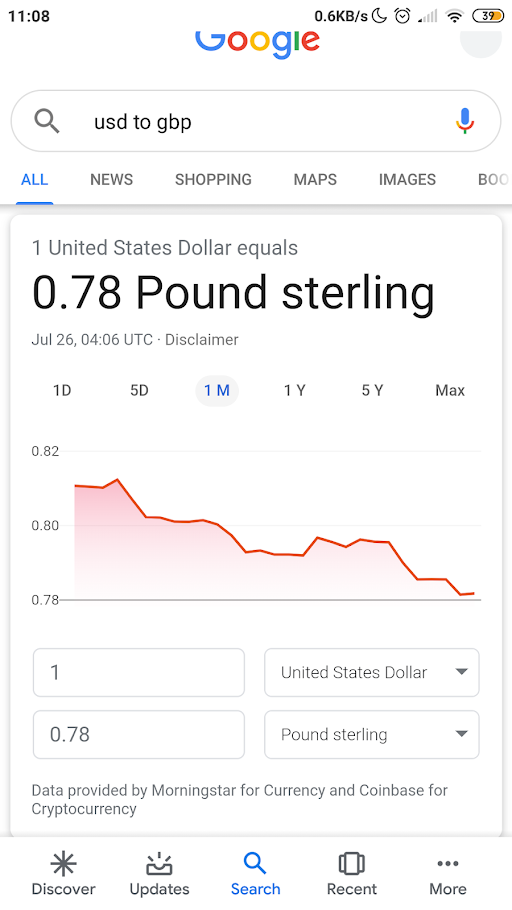
The most significant benefit of using Google search is its overall functionality. You also don’t have to download a new application — all you need is the internet. The biggest downside, however, is that you need to include the conversion type every time you open the app.
Use a Third-Party App
The best thing about dedicated apps is that the UI for them is tailored specifically for your particular needs. A decent unit conversion app will also give you a more intuitive interface to work with compared to the Google search method or even the native general-purpose calculator available on your phone.
One of the most popular unit conversion apps on the PlayStore is Unit Converter, developed by Smart Tools, Co. The developers boast the app’s user-friendliness for casual users.
When you first open the app, you will be immediately presented with essential sets of measurement units, ready to use when you are. To change the unit of measurement, simply select it from the categories and sub-categories menu options.
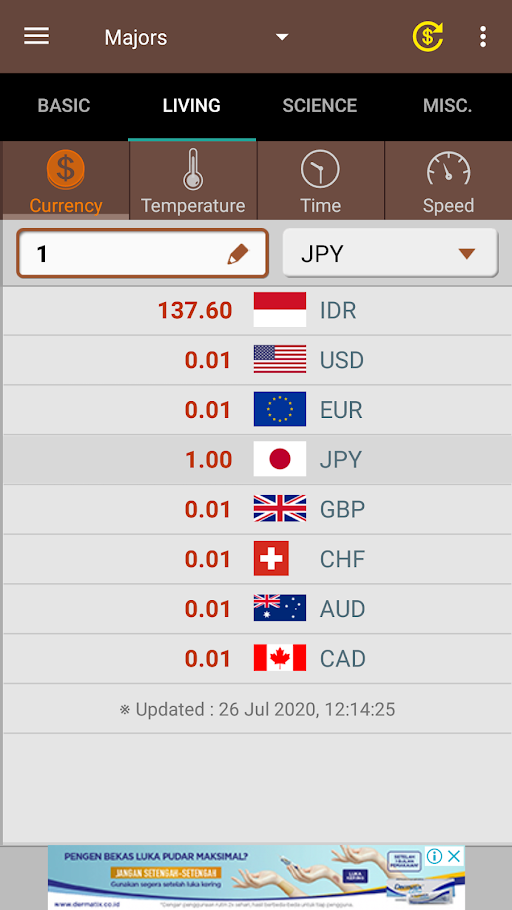
Another great app is ClevCalc – Calculator. Similar to your phone’s built-in calculator, ClevClac is not explicitly designed for unit conversion and therefore functions as a standard calculator, unlike Unit Converter. Moreover, should you compare ClevCalc to Samsung’s built-in calculator, you will see that ClevClac offers better usability thanks to better design and more extensive selections of conversion units. You can calculate fuel efficiency, discounts, currency, and there’s even a health calculator.
Wrapping Up
With Samsung’s upgrade to its calculator, users can now perform unit conversions right from their phone. But, it still has a considerably limited functionality and a long way to go to meet the demands of working and calculating users. If you wish to get more conversion options, try using Google search or a third-party app.