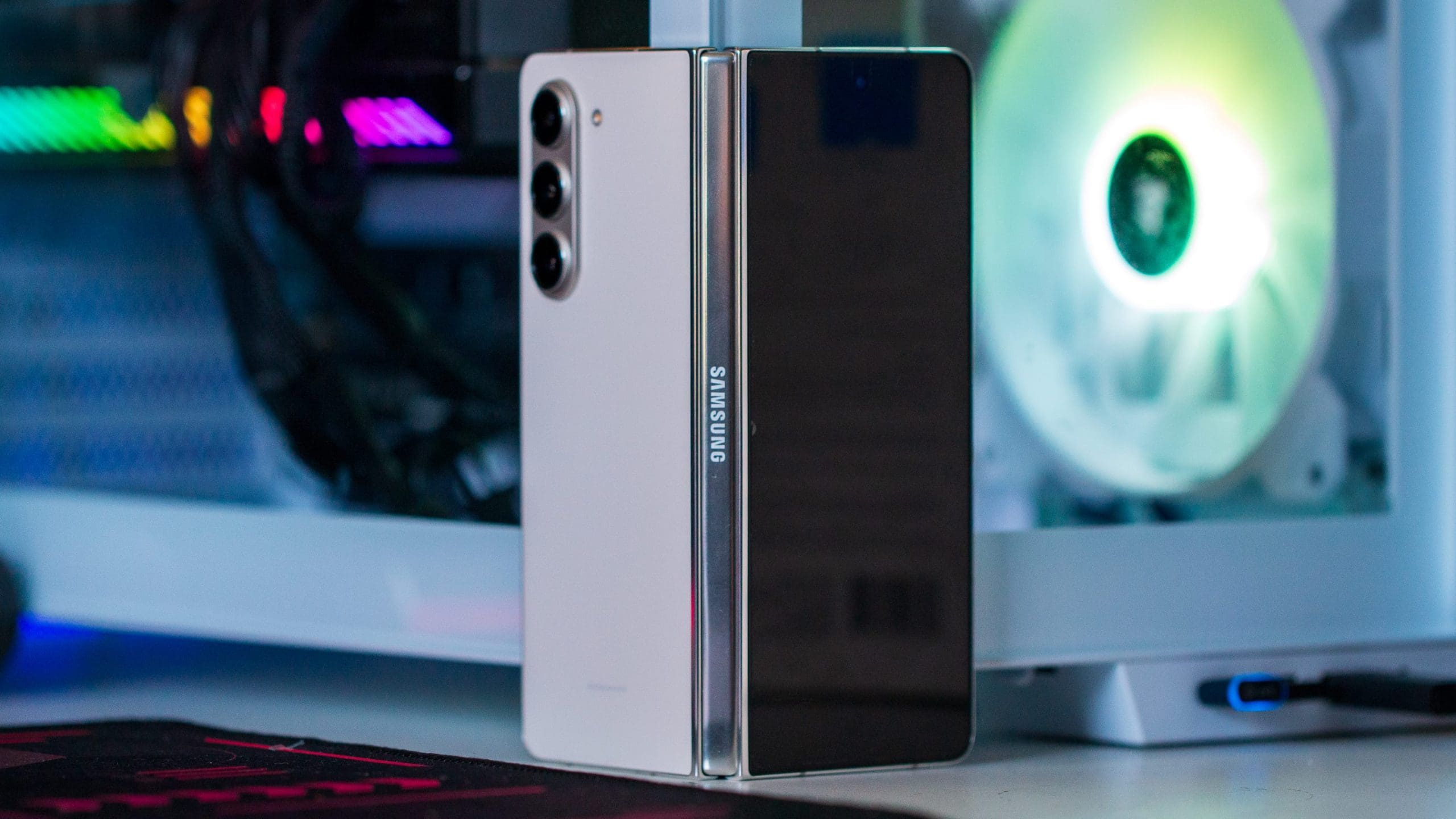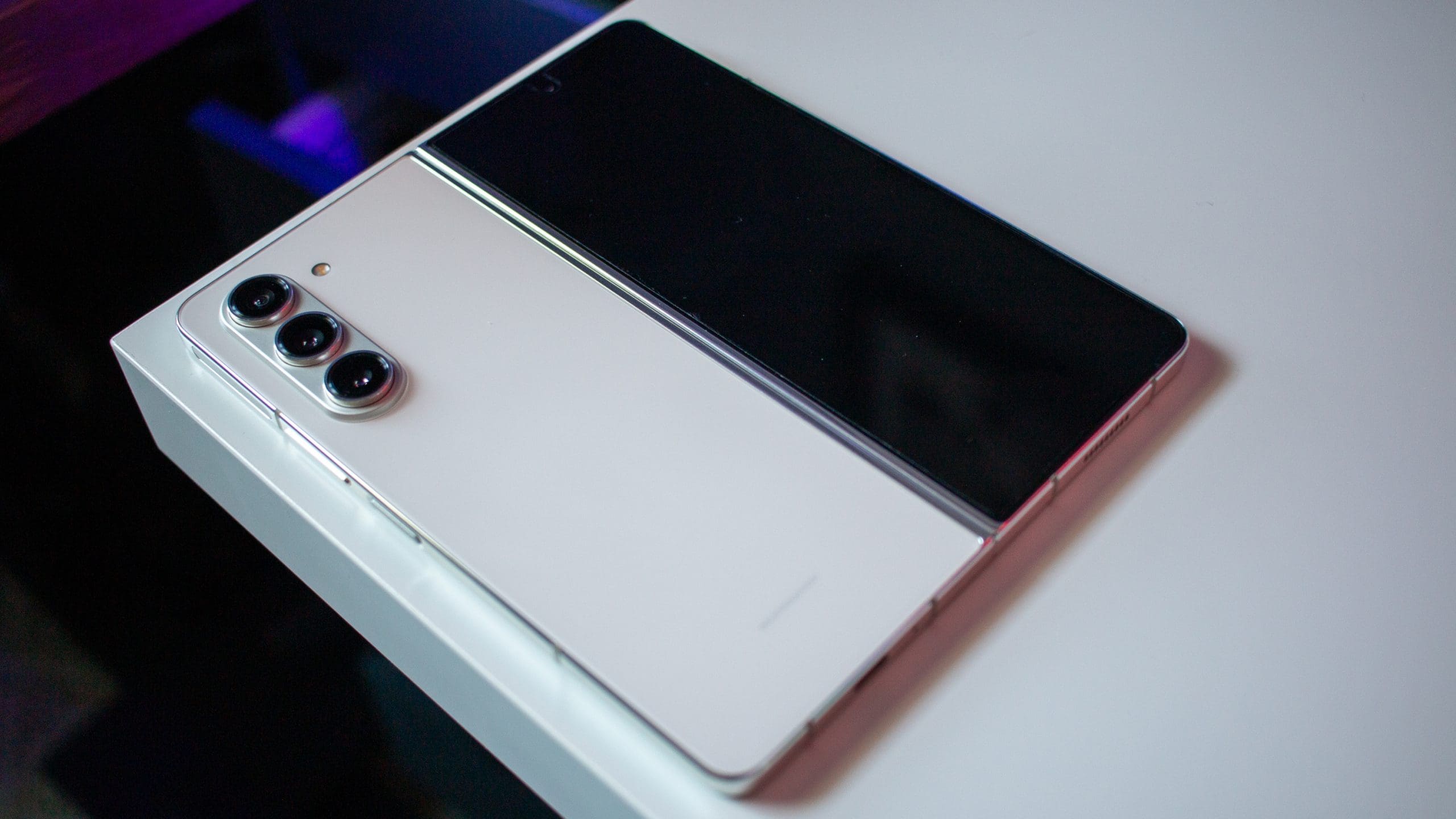
Fumbling around in your pocket or wallet to find the right card to pay with can be a real hassle. Over the last few years, various companies have been developing and launching contactless payment solutions.
This innovation allows you to simply take out your phone, hold it near the payment terminal, and go on your merry way. The big players in the game – Apple, Samsung, and Google – have all introduced options for their respective platforms. Almost every newly-released phone, including the Samsung Galaxy Z Fold 5, now offers this convenient feature.
Contents
What is Samsung Pay?

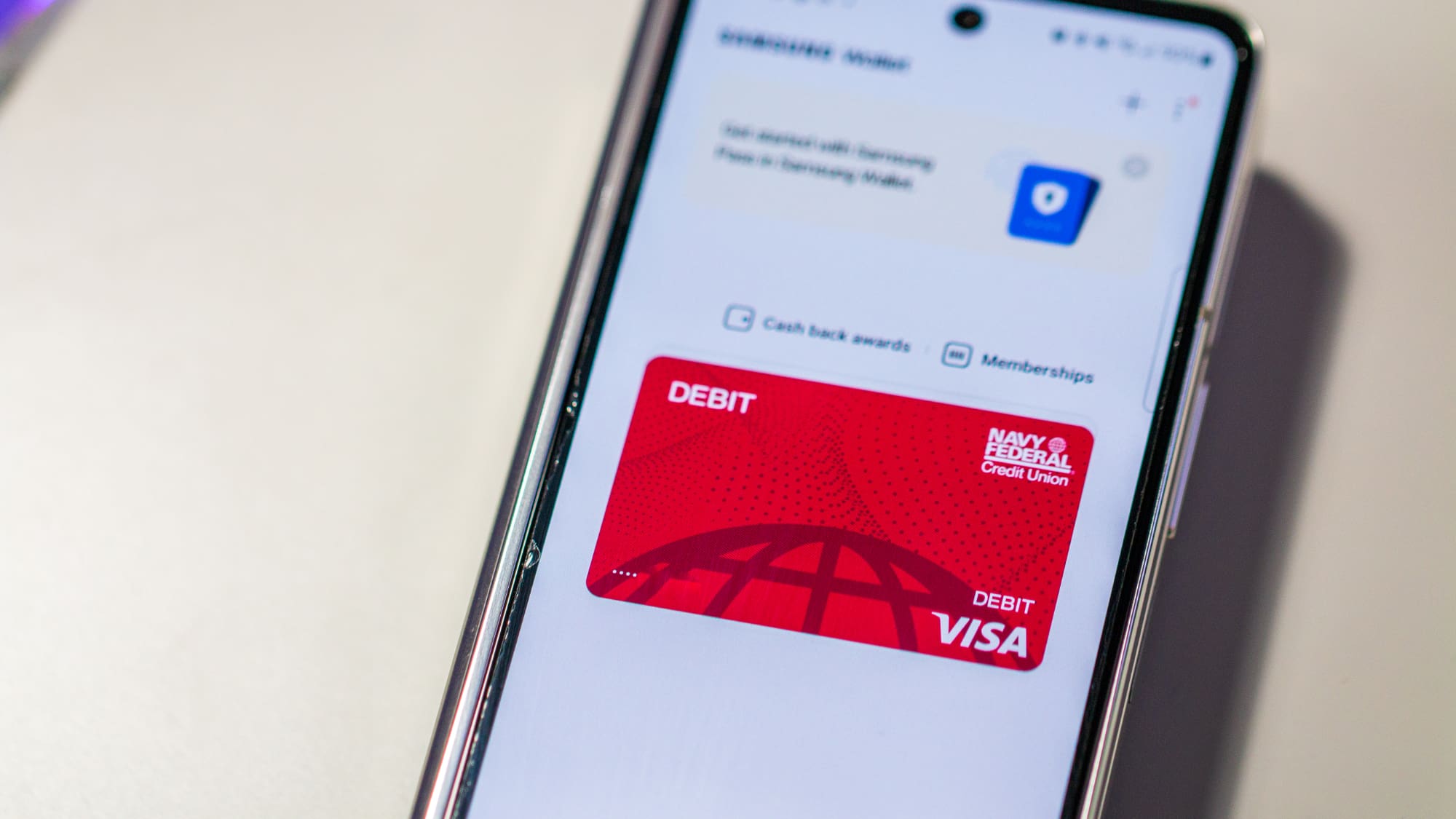
Samsung Pay is a mobile payment and digital wallet service by Samsung Electronics, allowing users to make payments using compatible phones and other Samsung-produced devices. It’s designed to replace the traditional physical card system, offering a more convenient and streamlined payment process. By storing your credit, debit, and loyalty cards on your Samsung device, you can make purchases almost anywhere you would swipe or tap your card.
Samsung Pay works by utilizing Near Field Communication (NFC), allowing for contactless communication between your device and the payment terminal. Unfortunately, Samsung no longer uses the Magnetic Secure Transmission functionality, which made it possible to use Samsung Pay even if the terminal didn’t support contactless payments.
Security is a paramount concern for Samsung Pay. It uses tokenization to replace sensitive card information with unique tokens during transactions, ensuring that your actual card details are never shared with the merchant. Additionally, Samsung Knox technology provides real-time monitoring and protection against potential threats. Samsung Pay is available in numerous countries and is continually expanding its reach. It supports a wide range of credit and debit cards from major banks and financial institutions, making it a versatile option for many Samsung device users.
Together, these features make Samsung Pay a user-friendly, secure, and widely accepted mobile payment solution. Whether you’re shopping at a local store or dining out, Samsung Pay offers a seamless and secure way to pay without reaching for your wallet.
More Than Just a Virtual Wallet
Samsung Pay has another handy feature that you might find appealing. Not only can you use it to pay for your purchases on the go, but it also allows you to store rewards cards from various retailers. This means that even if you don’t have a physical card or can’t recall your phone number, your rewards cards are always with you, ready to help you accumulate points from anywhere.
But the excitement with Samsung Pay doesn’t end there. The platform offers an array of rewards, including Cash Back options at specific retailers. It’s not just a tool for in-store purchases; you can also use Samsung Pay for online shopping.
Whether you’re looking to buy online or seeking local retailers to capitalize on special promotions, Samsung Pay provides a versatile and rewarding payment experience. It’s more than just a payment method; it’s a comprehensive solution that adds value to your shopping experience.
How to Set Up Samsung Pay
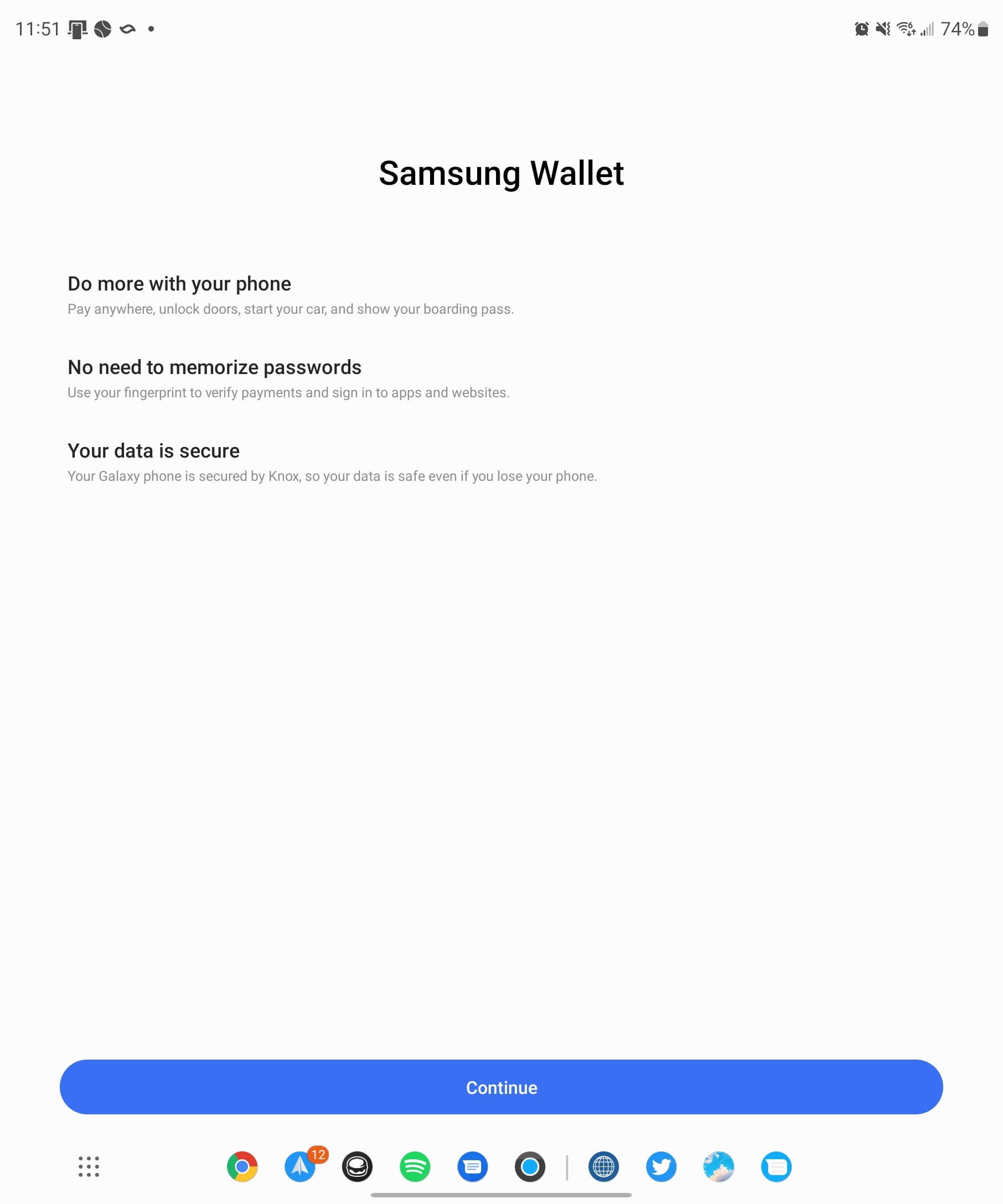
As you would expect, it’s not like all of your debit and credit card information are stored in Samsung Pay automatically. So you’ll need to go through the process of getting everything set up. Here’s how to set up Samsung Pay on the Galaxy Z Fold 5:
- Open the Samsung Wallet app on your Galaxy Z Fold 5.
- Tap the Continue button at the bottom of the page.

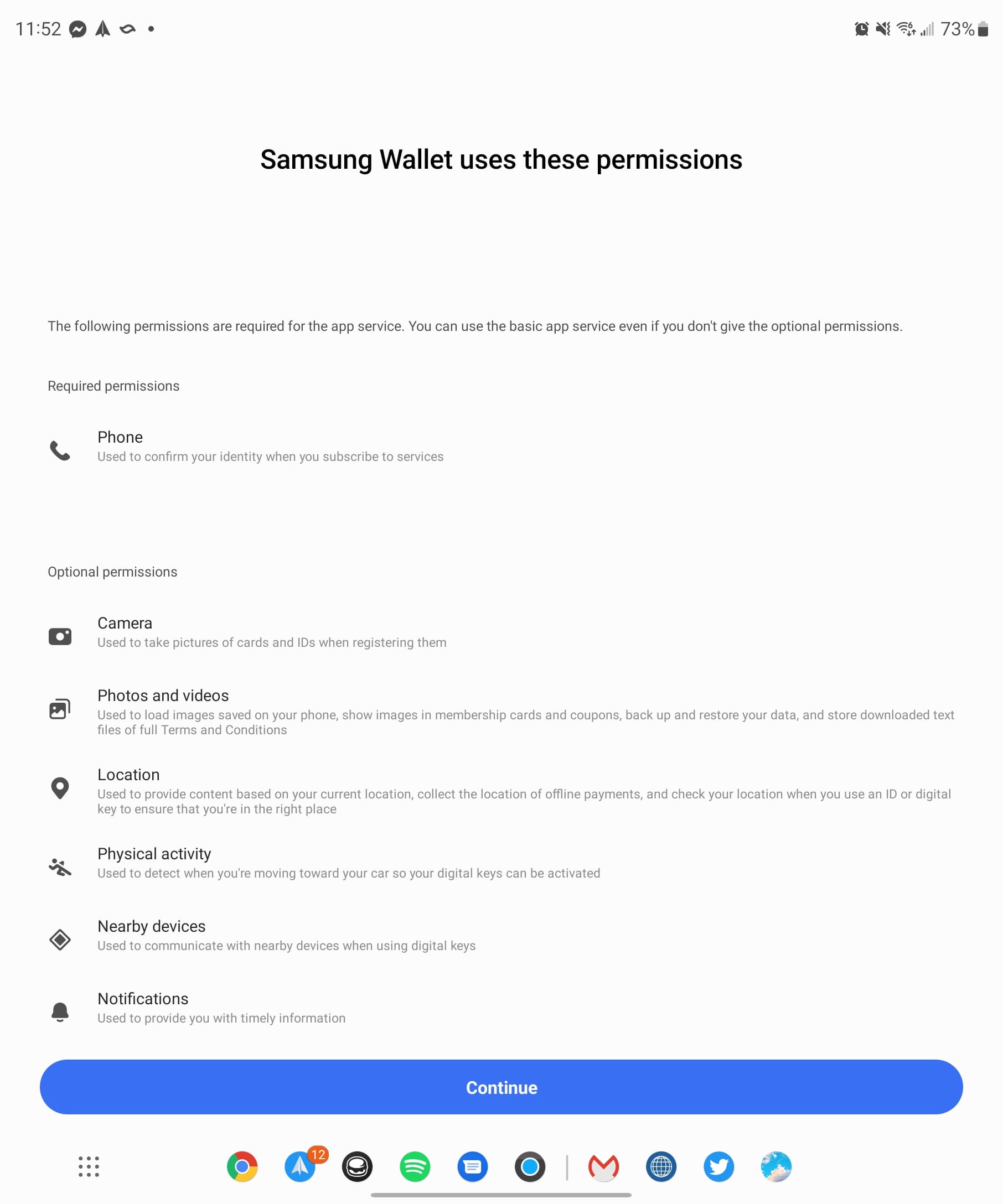
- When prompted, tap Allow to allow the Samsung Wallet app to send you notifications.
- Tap the Continue button from the Samsung Wallet Permission page.
-
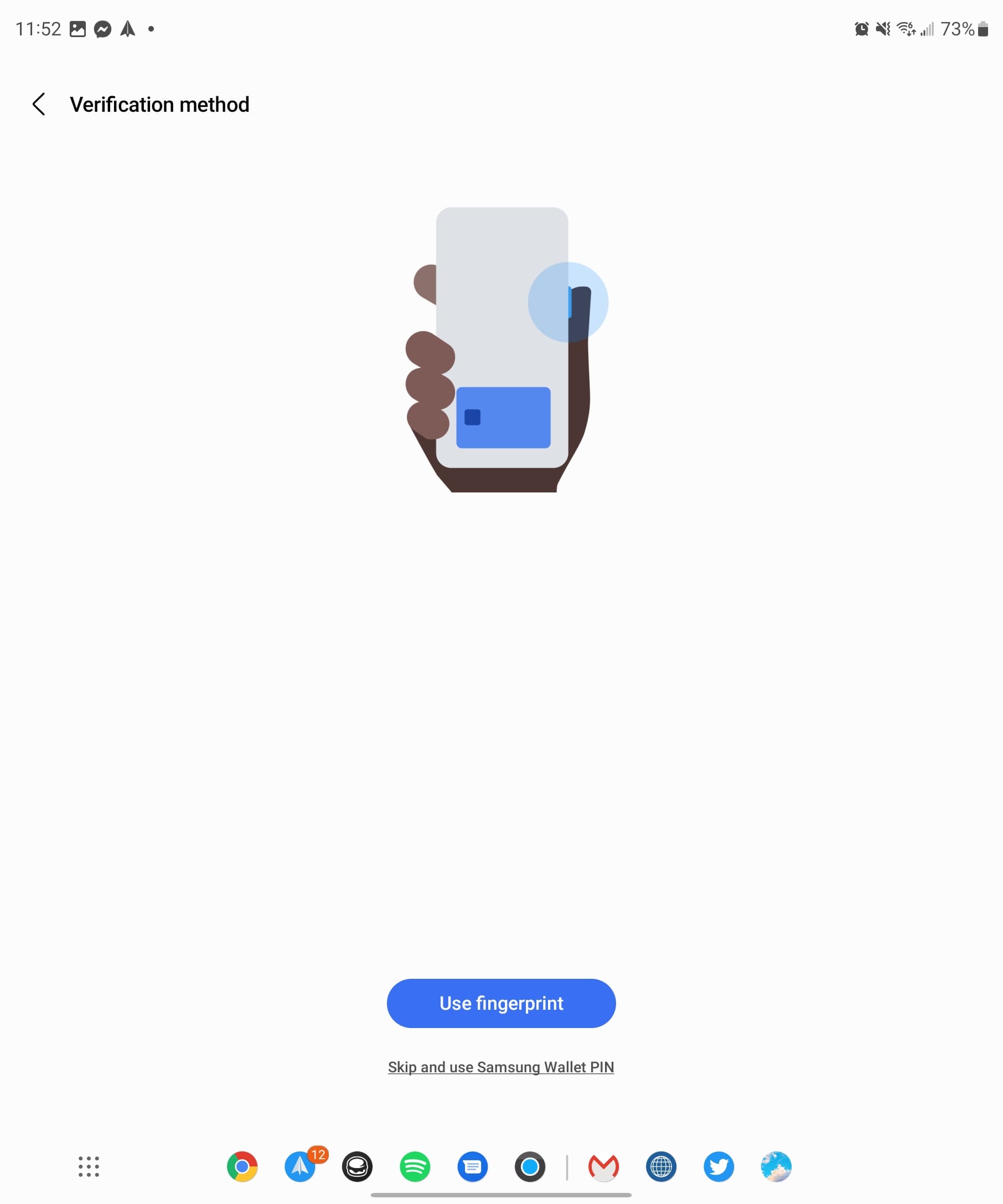
From the Verification method page, tap the Use fingerprint button.
- You can also use Samsung Wallet PIN instead by tapping the prompt below the button.
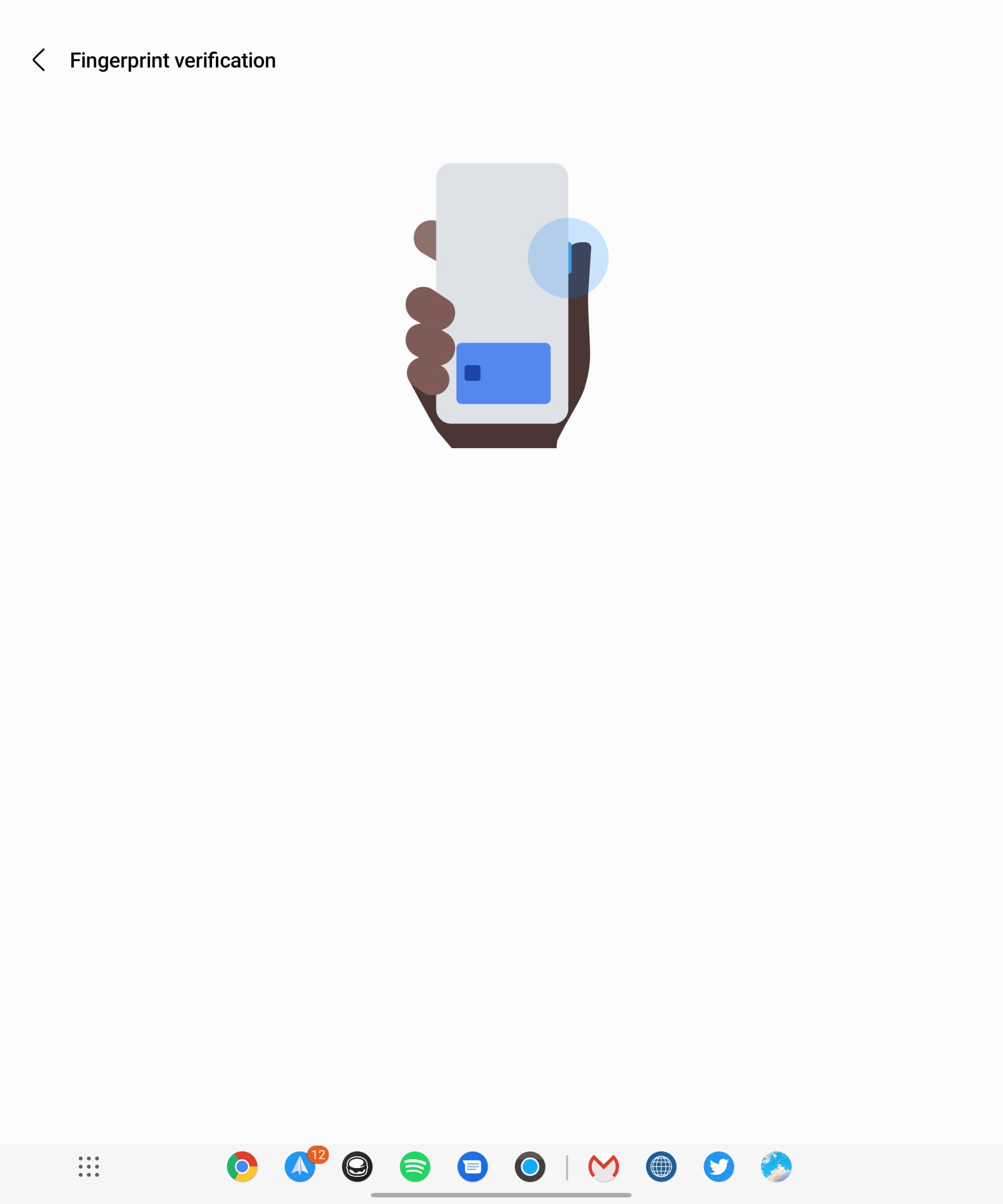
- Place your fingerprint on the Side Button for verification.
-
- This simply provides a backup method in the event that you can’t use the fingerprint scanner.
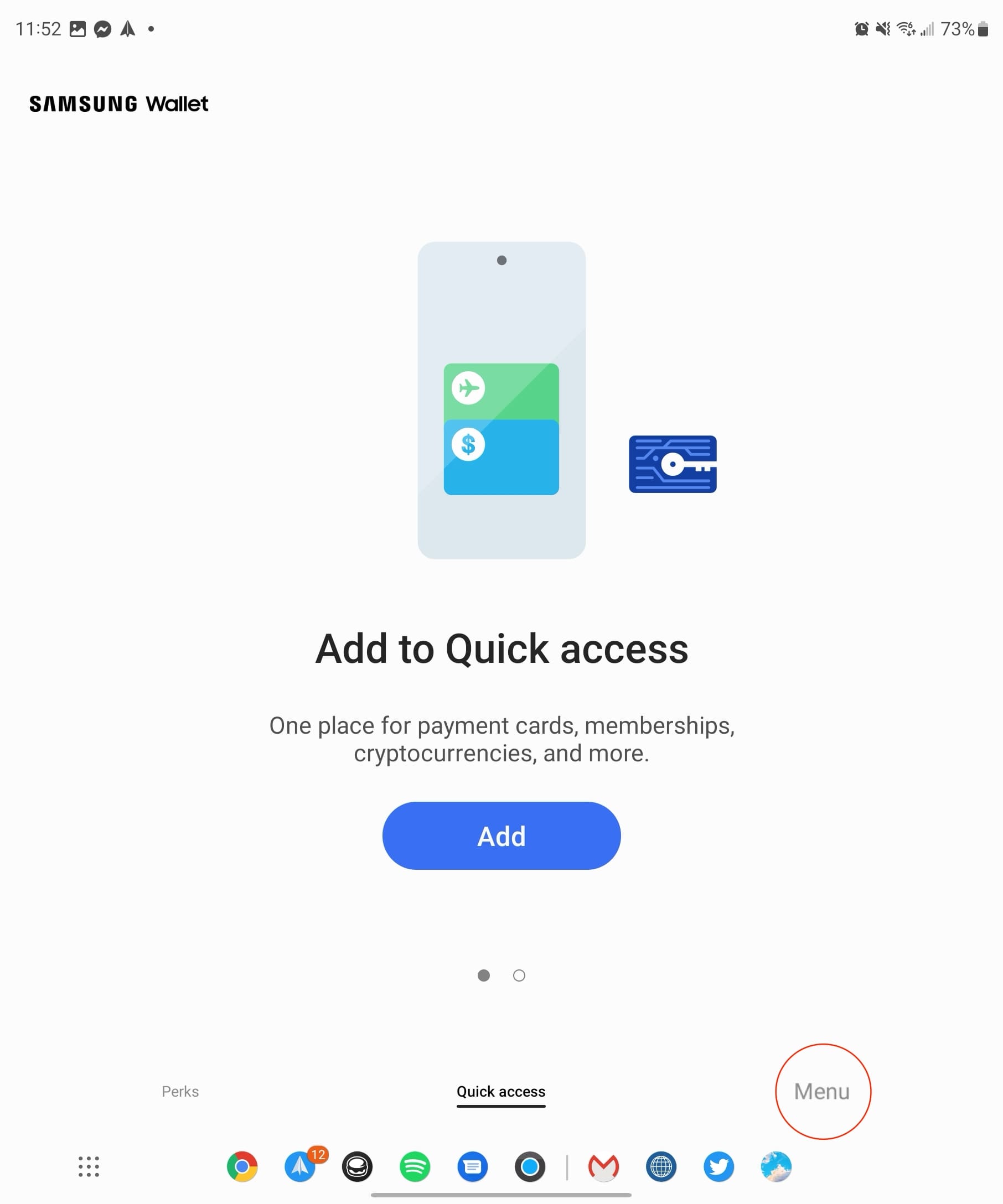
- From the main Samsung Wallet window, tap the Menu button in the bottom right corner.
- Tap Payment cards.
- Tap the + button in the top right corner.
- From the list of options, tap Add payment cards.
- Follow the on-screen steps to add your payment card to Samsung Wallet.

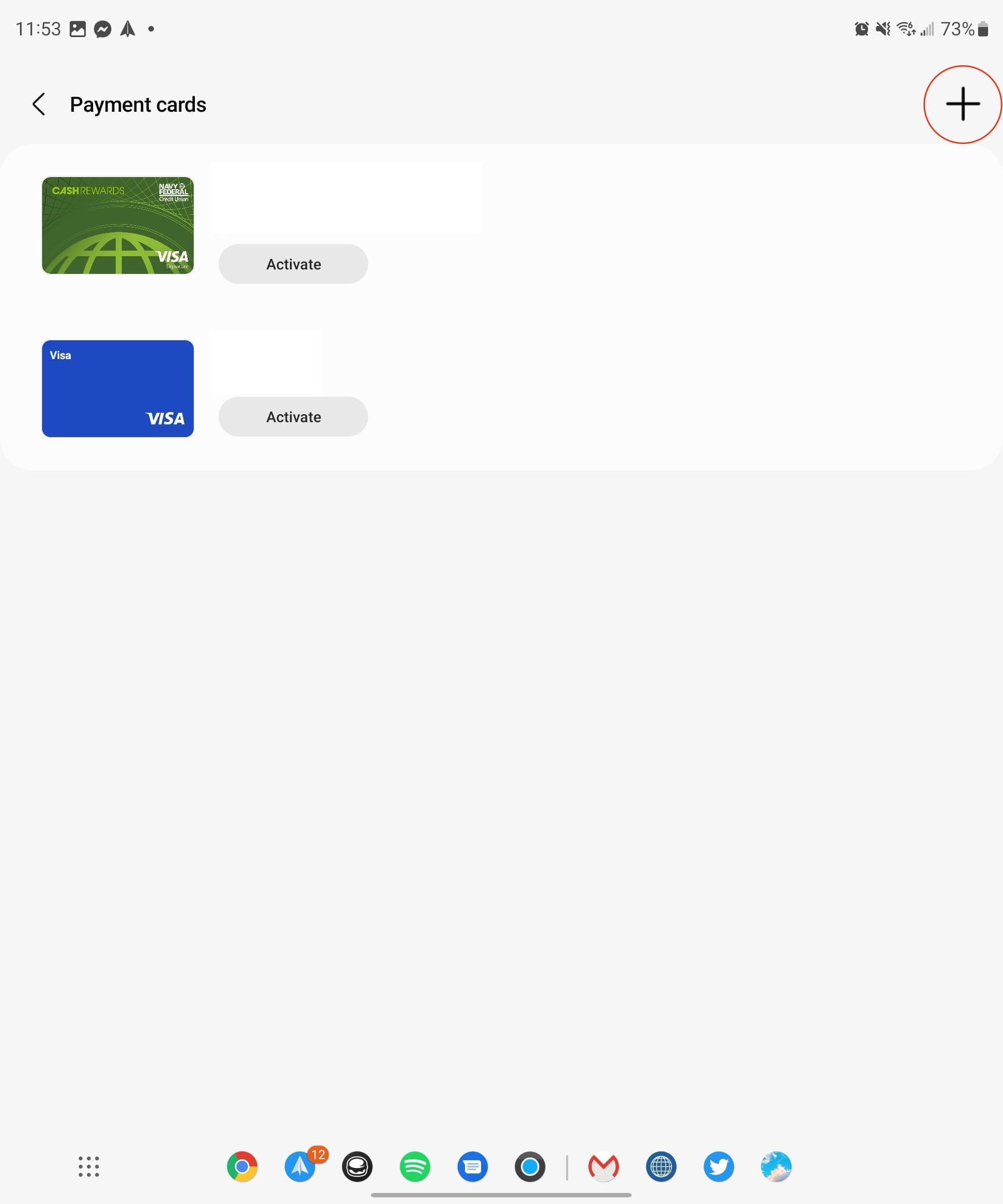
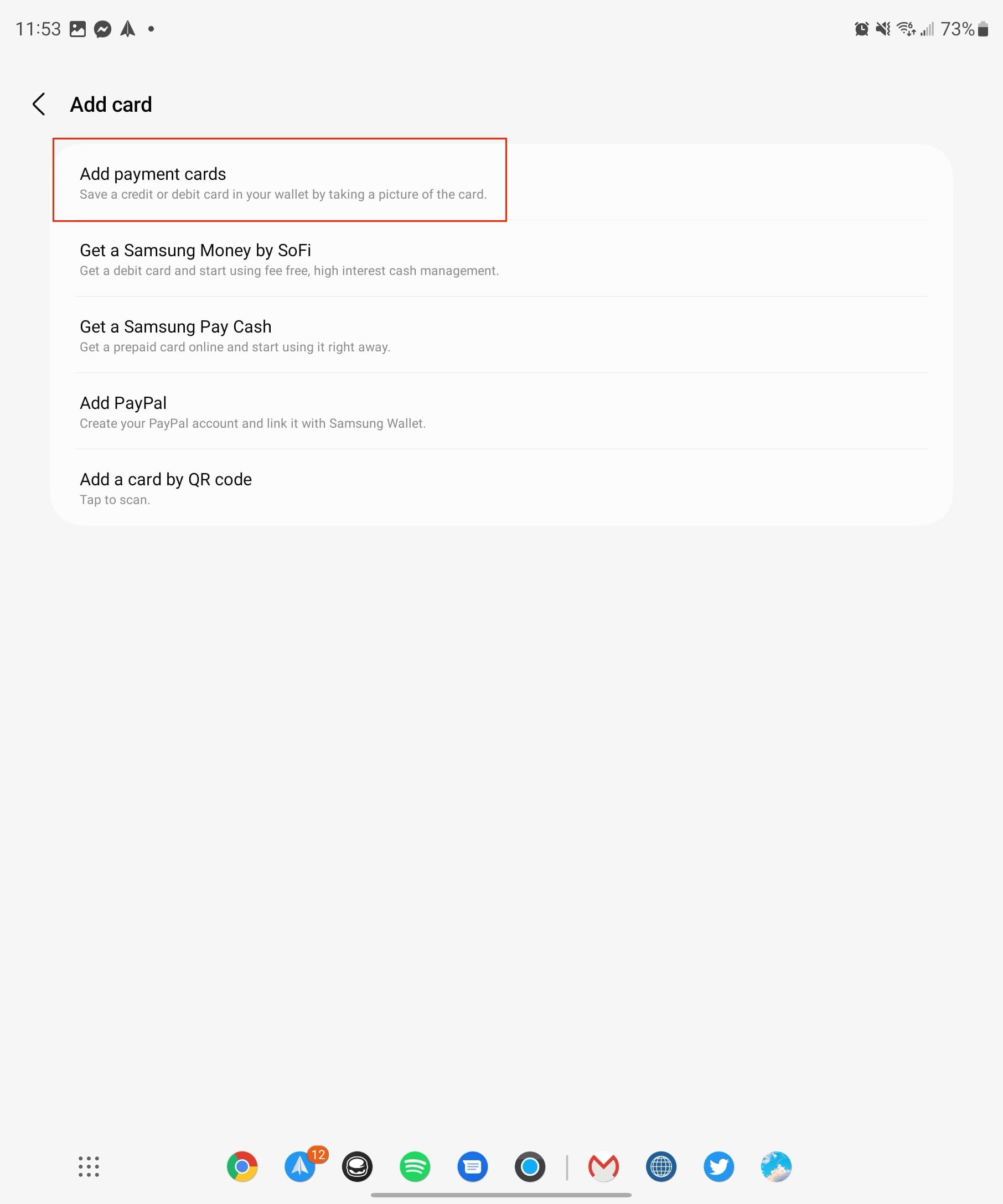
If you have multiple payment cards, you’ll want to repeat the process to get them all added. It’s also important to note that while the majority of banks are supported by Samsung Pay, your bank may require additional verification.
Use Samsung Pay with the Galaxy Z Fold 5

After you have added a payment method to Samsung Pay, then you can start using it immediately. In order to make a payment with Samsung Pay while you’re shopping, it’s pretty easy and straightforward.
- Swipe up from the bottom of your home screen or lock screen.
-
-
If you want to use a different card that has been added to Samsung Pay, swipe left or right and select it.
-
-
-
If you have registered your fingerprint scanner, tap the sensor with your finger.
-
- Place the back of the phone near the terminal or card machine. You will have 30 seconds to tap the terminal or you will have to repeat the above steps to activate Samsung Pay.
- Enter your card’s PIN if prompted on the payment terminal.
That’s it! Using Samsung Pay on the Galaxy Z Fold 2 or any other compatible Samsung device is easy as pie. Now, you won’t need to reach for your wallet and can just use your phone to pay for things where contactless payments are accepted, knowing that your information is secure but still at the ready at all times.
Conclusion
In conclusion, using Samsung Pay with the Galaxy Z Fold 5 is not just about making payments; it’s about embracing a new era of convenience, security, and rewards. From storing your credit, debit, and rewards cards to taking advantage of Cash Back offers and special promotions, Samsung Pay transforms your Galaxy Z Fold 5 into a versatile financial tool.
The seamless integration of technologies like NFC ensures compatibility with a wide range of terminals, making it a go-to option for both in-store and online purchases. Whether you’re a tech-savvy individual looking to streamline your shopping experience or someone seeking a secure and efficient payment method, Samsung Pay on the Galaxy Z Fold 5 has something to offer. Embrace the future of payments and make your wallet digital with Samsung Pay.