Skip to content
LogoTechnipages
LogoTechnipages
  • Topics
        • Android
        • Browsers
        • Gaming
        • Hardware
        • Internet
        • iPhone
        • Linux
        • macOS
        • Office
        • Reviews
        • Software
        • Windows
        • Definitions
        • All Recent Posts
  • Product Reviews
  • About

Unleash Your Inner Artist – Advanced Microsoft Paint Features You Might Not Know About

Evan MercerApril 7, 2026 Comments (0)
microsoft paint features

Microsoft Paint seems to have been around forever. Odds are pretty good you’ve grown up with it, too. It’s not the most advanced image creation and editing software, but it always gets the job done. That said, there are some advanced features that you might not be aware of that can completely change your painting game. In this article, we’ll be looking at some advanced Microsoft Paint features.

Contents

  • 1 Microsoft Paint Features You Might Not Know About
    • 1.1 Free-Form Rotate
    • 1.2 AI Features
    • 1.3 Remove Background
    • 1.4 Custom Brushes
    • 1.5 Eraser Override
    • 1.6 Choose Additional Colors
    • 1.7 Layers

Microsoft Paint Features You Might Not Know About

We’ve got a few reasons to prove that you can love Microsoft Paint for more than just nostalgia. Let’s dive into some advanced features of MS Paint below:

Free-Form Rotate
Advanced Microsoft Paint Features You Might Not Know About 1

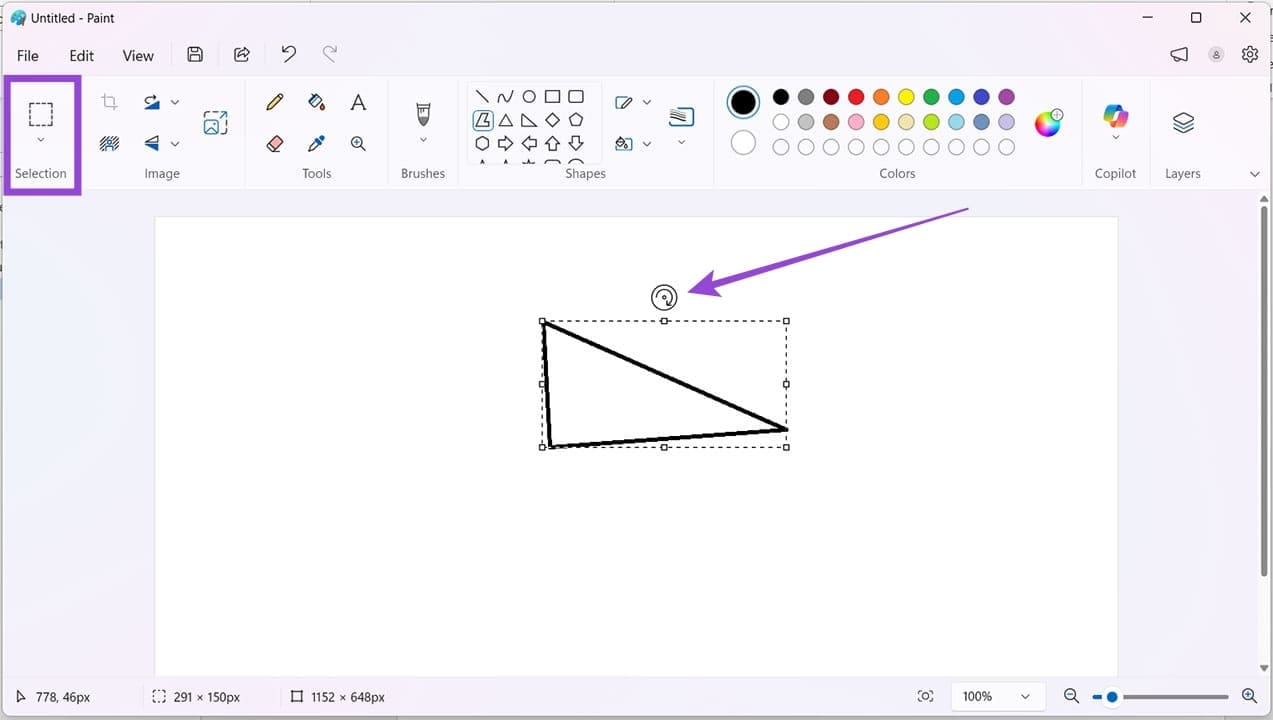
Let’s start with one of the newer features added to Paint. Free-form rotate is a much-requested feature. It allows you to rotate any element to any angle once placed on the canvas. The option appears as a circular arrow icon at the top of any selection (use the “Selection” button if it isn’t highlighted already). Simply click it and drag in the direction you want to rotate to a custom angle. Simple, yet invaluable.

AI Features
Advanced Microsoft Paint Features You Might Not Know About 2

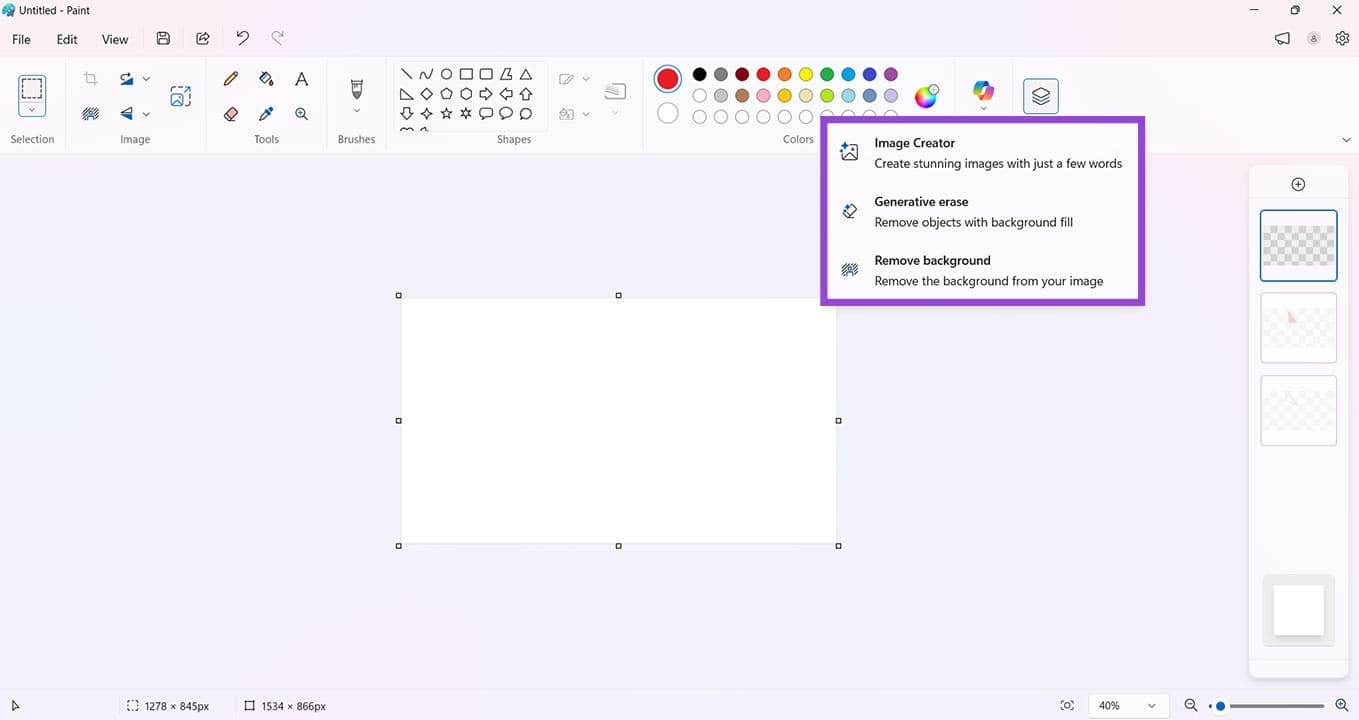
As with most other aspects of Windows 11, Copilot is embedded in Paint as well, offering several AI tools for you to use:

  • Image Creator – Use the text box to describe your desired picture and even choose the style from a list of presets.
  • Generative Erase – Remove any background images with a generative fill applied to the area.
  • Remove Background – We’ll be looking at this one a bit closer.

Remove Background
Advanced Microsoft Paint Features You Might Not Know About 3

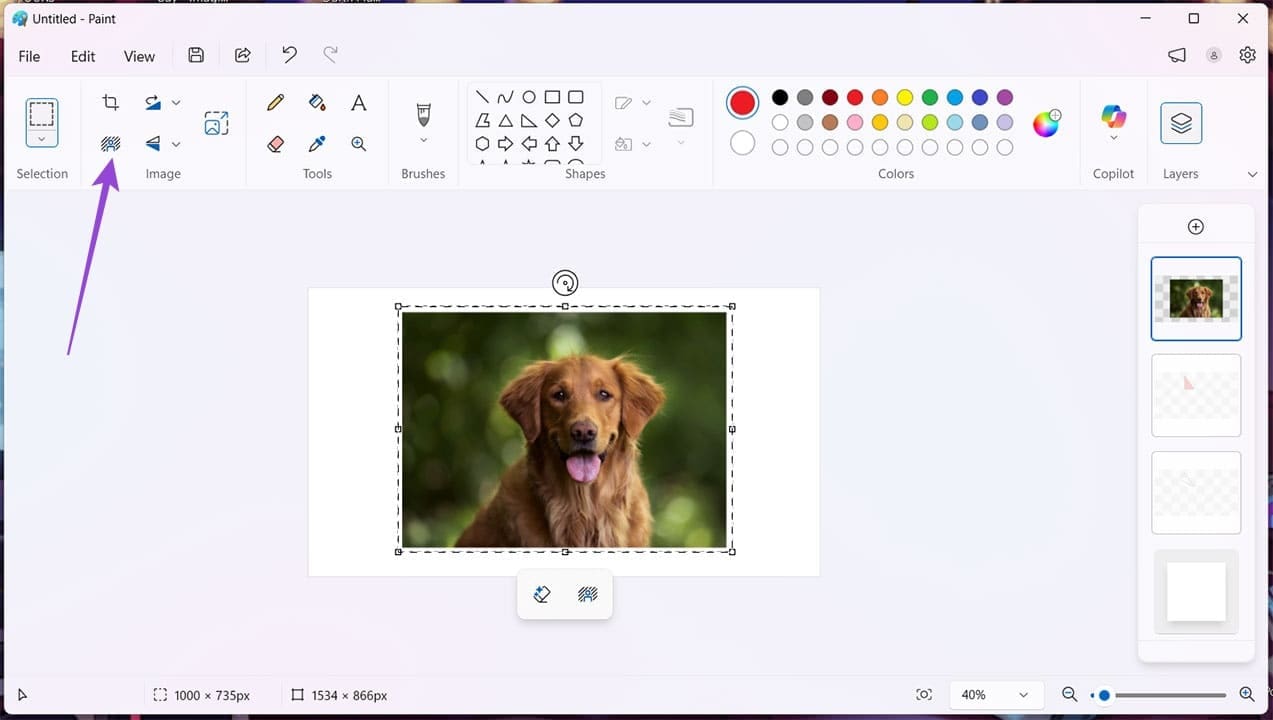
There was a time when removing a background was the domain of advanced software. Now, from AI to the simplest apps, it’s almost expected. Paint has this, too. You can remove any background via the “Remove Background” icon that can be found when selecting an image or in the “Image” subsection of the Top Menu. Paint will do the rest.

Custom Brushes
Advanced Microsoft Paint Features You Might Not Know About 4

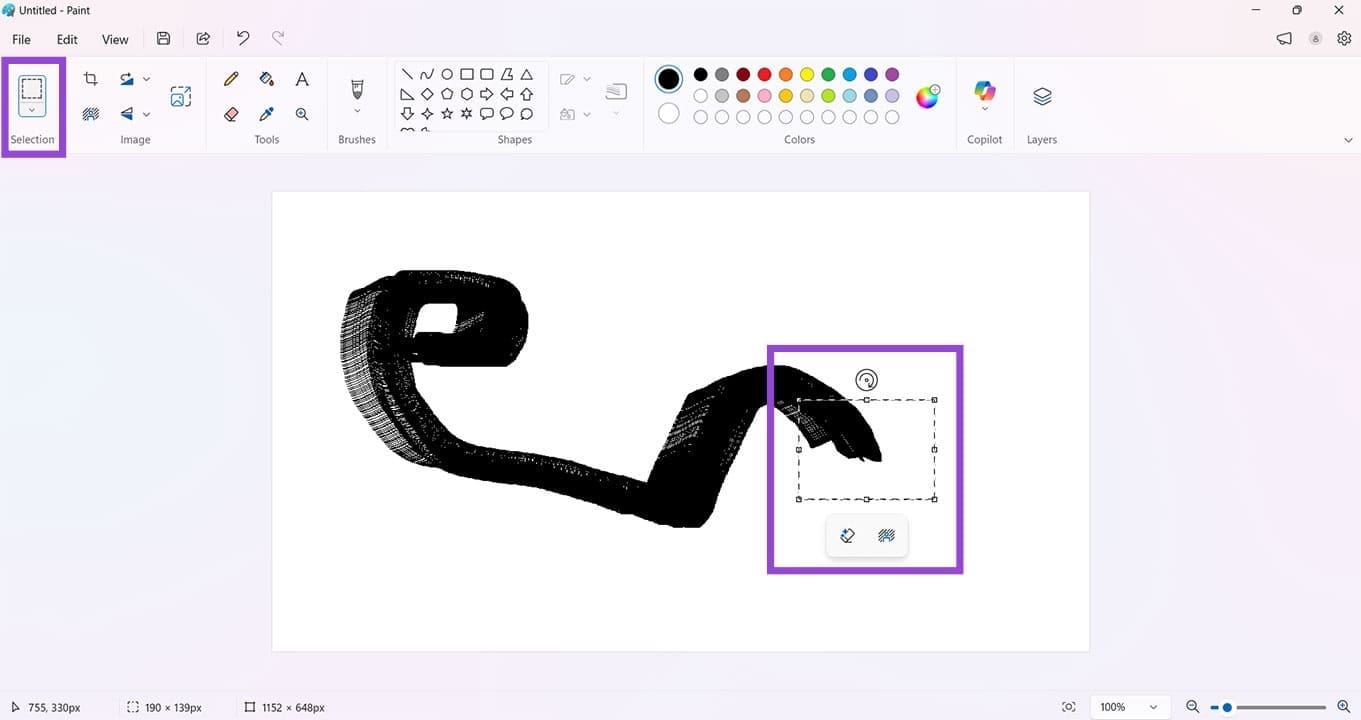
A very handy, though not widely known, feature is the ability to make a custom brush from any shape or scribble. Simply select a drawing with the “Selection” icon, then (Shift + Click) and drag the selection, and the shape will be dragged like a brush.

Eraser Override

MS Paint allows you to select two colors at a time. The left click paints the first, and the right, the second. If you want to override the first color with the second, you need to select the Eraser tool, then right-click when erasing. Only the primary color will be replaced by the secondary, leaving all other colors untouched.

Choose Additional Colors
Advanced Microsoft Paint Features You Might Not Know About 5

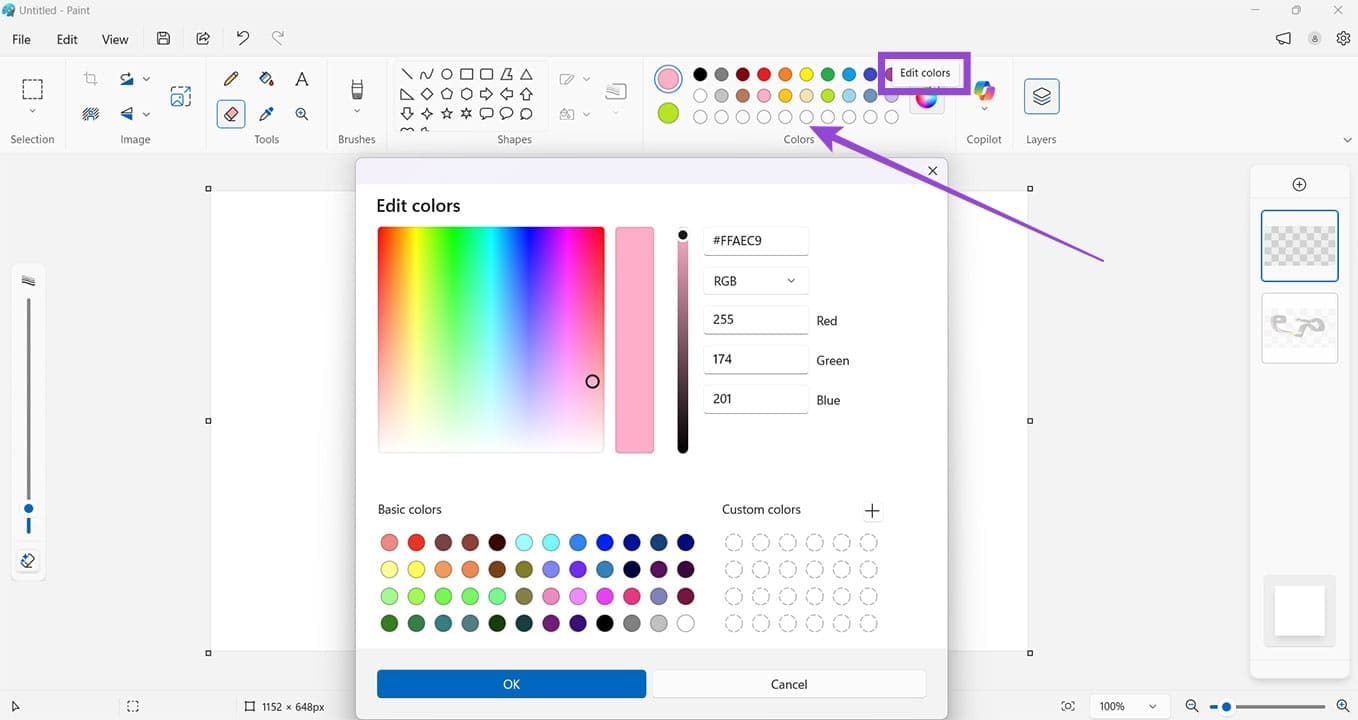
A third row of blank colors in your top menu means you can add custom colors for your work. Click the “Edit Colors” button next to the palette and choose what colors you’d like to add to the selection.

Layers
Advanced Microsoft Paint Features You Might Not Know About 6

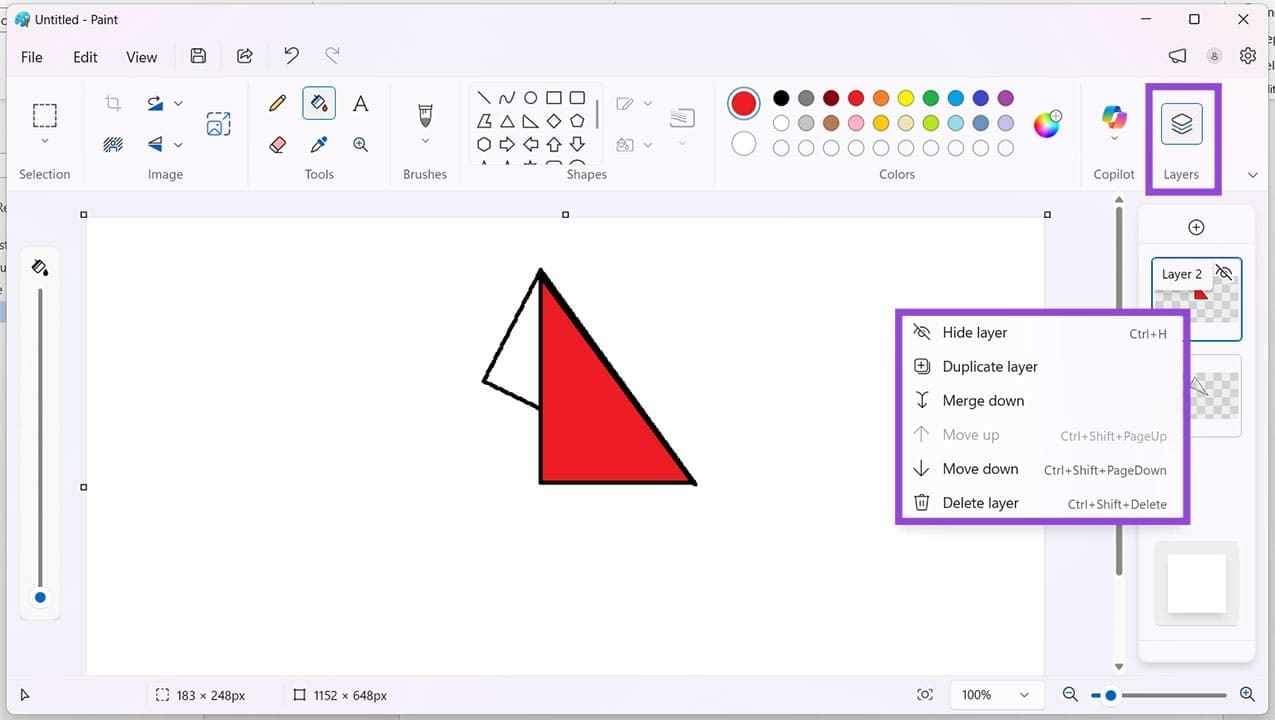
Layers, the bread and butter of countless other image editing tools and software, were never a part of the early Paint, but now come standard with it. This allow you to add or edit without changing the image layer below. It’s indispensable for digital artists and photo editors.

You can find the “Layers” icon in the top-right and activate its panel. To adjust, hide, or delete, simply right-click the layer in question.


Categories: Software

Author Evan Mercer

I’m a computer science grad who loves to tinker with smartphones and tablets in my spare time. When I’m not writing about how to fix techy problems, I like hanging out with my dogs and sipping nice wine after a tough day.

You Might Also Like

  • Slack: How To Change Your Password

    Mel HawthorneSoftware
  • Slack: How To Configure Automatic Slackbot Responses for Your Workspace

    Mel HawthorneInternet
  • Slack: How To Disable Public File Sharing

    Mel HawthorneInternet
  • What to Do if Microsoft Teams Insights Won’t Work

    Madalina DinitaSoftware

Leave a Reply

Your email address will not be published. Required fields are marked *

  • bluetooth toggle missing windows 11

    What to Do When Your Bluetooth Toggle Is Missing (Windows 11)

  • how to make chromebook run faster

    8 Ways to Make Your Chromebook Run Faster

  • error code 0xC0000428

    What Is Error Code 0xC0000428 and How to Fix It

  • windows 11 usb tethering

    Your Guide to USB Tethering on Windows 11

  • find the serial number of a laptop

    6 Ways to Find the Serial Number for Your Laptop

profile pic

The Experts Behind Technipages

My name is Mitch Bartlett. I've been working in technology for over 20 years in a wide range of tech jobs from Tech Support to Software Testing. I started this site as a technical guide for myself and it has grown into what I hope is a useful reference for all.

Learn More

technipages logo white
linkedin icon

Technipages is part of Guiding Tech Media, a leading digital media publisher focused on helping people figure out technology. Learn more about our mission and team here.

© 2026 Guiding Tech Media All Rights Reserved

  • About Us
  • Contact
  • Terms of Use
  • Privacy Policy

© 2026 Guiding Tech Media All Rights Reserved

Information from your device can be used to personalize your ad experience.
Do not sell my personal information.

Last Updated on April 7, 2026 by Evan Mercer