
Notifications are a common part of many modern online services; they’re designed to keep you informed of what’s happening when it happens. In some cases, such as for messaging apps, notifications are really important, as they alert you to messages when they come in. Many apps and services come with a number of notifications that aren’t important to you and can just be annoying.
Twitch comes with a range of notifications, to avoid seeing notifications you aren’t interested in, you can pre-emptively manage your notifications settings. The notification settings can be found in your account settings. To access them, click on your profile picture in the top-right corner, then click “Settings”.

How to configure your notification settings
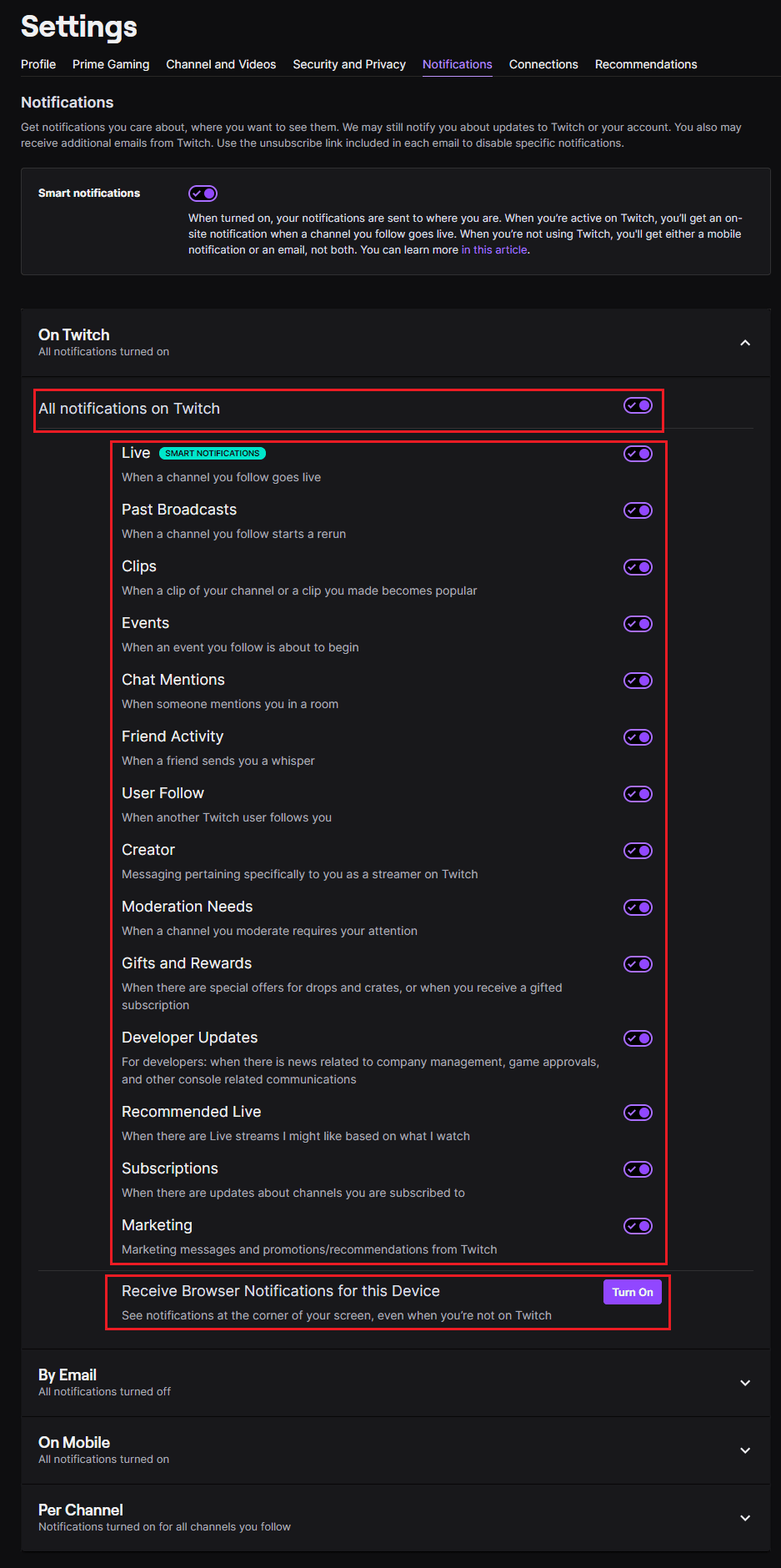
Once in the settings, switch to the “Notifications” tab. The first option is “Smart notifications” if you leave this setting enabled, Twitch will check if have a currently active session and send you a notification to that device, rather than sending a notification to all enabled devices.
The notification settings are split into three different device types: “On Twitch”, “By Email”, and “On Mobile”. “On Twitch”, is used to control the notifications that you can receive within a twitch browser tab. “By Email”, is used to control which notifications can be sent to your email address. “On Mobile”, controls which notifications can be sent to your smartphone. Each of the three device types can be individually configured to receive different sets of notifications, although the options themselves are the same for each platform.
The “Per Channel” section allows you to configure which of the channels you follow or are subscribed to can generate notifications. Click the slider to the “Off” position to disable notifications from a specific channel.
Tip: By default, all notifications are enabled for all devices and all channels.

You can choose to enable or disable notifications for when a channel you follow goes live, when a channel your follow starts rerunning an old stream, or if a clip from your channel or that you made, gets popular. You can also toggle notifications informing you when an event you follow is about to start, when you are mentioned in a chat room, when a friend sends you a “Whisper”, or if someone follows your Twitch account.
More administrative notifications include official messages sent to content creators, notifications informing you that a chat you moderate needs your attention, and if there are special offers on drops or crates or if you receive a gifted subscription. You can also configure notifications intended for developers, recommendations of new channels based on channels you watch, when a channel you are subscribed to has an update, and for Twitch marketing and promotion messages.
At the top of the list of notifications for each device, you can disable them all by clicking the “All notifications on Twitch”, “All emails”, or “All push notifications” sliders respectively to the “Off” position. Specifically, in the “On Twitch” notificaiton settings, you can also enable browser notifications by clicking “Turn On” at the bottom of the list.




How do I change the notification sounds for the app? I’m using the app on Android. Thanks in advance.