
Amazon’s Blink Camera system is a relatively decent choice for a security solution. Apart from the sleek design of its outdoor and indoor cameras, Blink also offers a bunch of features including zero monthly fees, wireless connection, Alexa integration, and free—albeit quite limited—data storage.
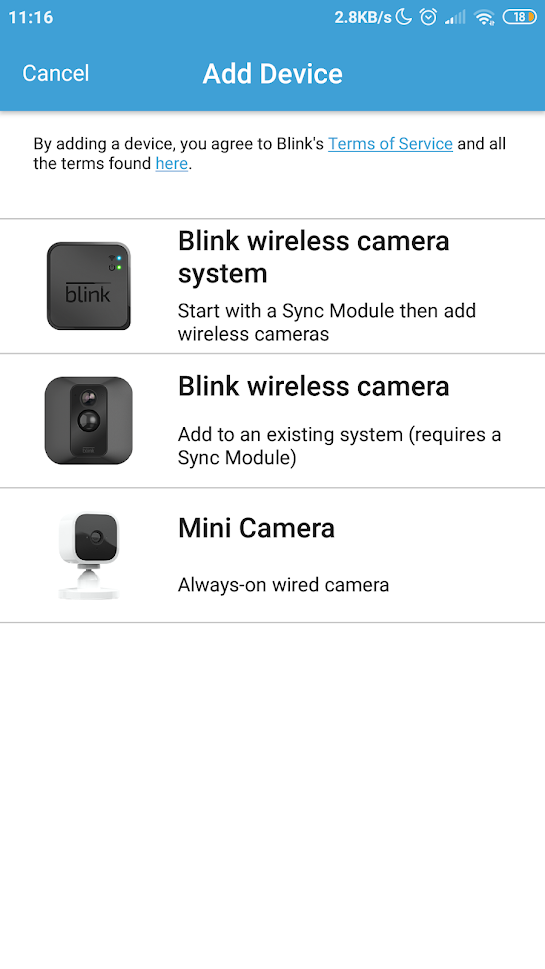
Along with its affordable price, you can’t go wrong with Blink for your primary home security needs. That being said, though, Blink users frequently face issues with the device.
The most common problem is the sudden absence of motion alert notifications. This is a massive problem since one of the main reasons why people install the Blink system in the first place is to be notified of any suspicious movement.
If you’re running into this problem too, know that many things can cause this. Thankfully, there many different solutions for you to try out as well.
Contents
1. Your Blink Motion Detection Is Disabled
This is sort of the equivalent to making sure your computer is plugged in if it’s not turning on. You may want to start by making sure you’ve enabled motion detection. If you’re sure you did, then someone may have turned off motion detection from your Android device. Either way, it’s smart to check.
To enable motion detection, here’s what you need to do:
- Open your Blink Home Monitor app —> select Camera Settings.
- Afterward, make sure that the slider directly below Motion Detection is turned on.
- Once motion detection is enabled, you need to arm your system. Loading your system means making it ready to detect motion, record suspicious movements, and send you notifications if necessary. Typically, you want to arm your system only when you are not at home. Refer to this guide to arm Blink.
After you get your system is armed, the next thing you need to do is to let Blink show notifications on your device. To do this, you need to:
- Go to the Settings app.
- Select Notifications Center or Notifications & status bar.
- Choose Blink.
- Verify that the slider beside Show notifications is turned on.


2. An Unforeseeable Error Is Lurking
If you have already enabled, armed, and allowed notifications for motion detection and didn’t see any results, chances are, there is an unknowable error residing in your system. Try some of the following troubleshooting basics.
- Sign out then re-sign in from your account on the Blink app.
- Restart your Android device.
- Make sure “Do Not Disturb” is off. To access DND, go into Settings then select Sound.
- Update your application, then sign in again.
- Uninstall your Blink app, then re-install it from the PlayStore. You won’t have to set up the system settings again. They are tied to your account.
The troubleshooting tips mentioned above are the most basic of fixes. If none of them settle your issue, you can try the following.
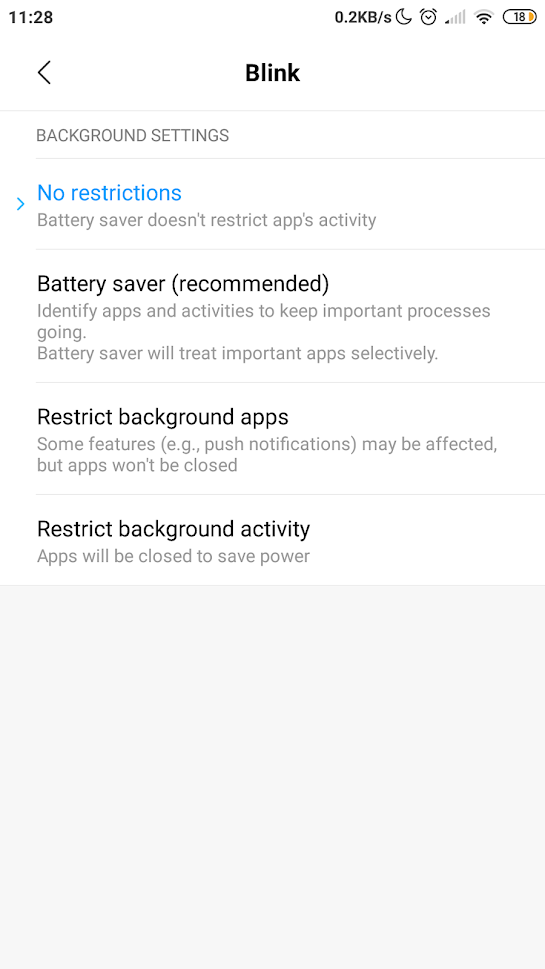
- Open the Settings app, then go to Battery.
- Under Power, make sure that the Battery saver is disabled.
- Afterward, go back to Battery options then tap on Choose apps.
- Select the Blink app.
- Make sure that No restrictions are applied and not Battery saver. This ensures that the Blink app can operate with no limitations.

Hopefully, one of these methods will reset that strange problem.
3. Your Sensitivity Setting Is Incorrect
Sometimes, it’s not that your Blink motion alert doesn’t function properly; instead, the system sensitivity to detect moving heat is set too low to trigger the alarm. This can happen when someone unknowingly alters the sensitivity setting, or the default setting doesn’t work. To set the correct sensitivity value, you need to:
- Open the Blink app, then navigate to Camera Settings.
- Scroll down to the Motion Detection section, then locate the Sensitivity slider.
- With the slider, adjust the sensitivity from L (low) to H (high).
- If you’re done, tap on Save to save the setting.
Adjusting the sensitivity to the absolute value may require some trial and error. Make the sensitivity too high, and your pet (if you have one) could accidentally trigger the alarm. On the other hand, set it too low and not even an adult walking by would be detected.
Try increasing the sensitivity incrementally, then walk through your camera’s surveillance. Keep doing this until you receive the desired alert notification. After that, convince your pet to walk past the field of view to ensure that she won’t be detected by the motion alert.
Final Thoughts
Many may argue that the Blink camera is not the best security surveillance system out there, but at least its affordability makes up for it. Blink is a relatively new product compared to other established brands, so it’s likely to encounter more problems. If none of the troubleshooting tips we have mentioned work for you, then you may have to wait for the company to add patches or more features.




When I ring my blink door bell I can here the notification but do not get the banner across the screen so I can open notification banner to see and hear the person at my door. I have a android phone. Please help or I will return this doorbell for a different brand.