When trying to diagnose issues with your PC, Task Manager is often the first place to look for information. However, when you get the unhelpful value for network usage 0% on Task Manager despite having access to the internet (even if it is intermittent), you might have more questions than answers.
There are a few possible causes for why you might see no network usage in Task Manager, but all of them should be fairly straightforward to fix.
Contents
Fix 1: Check for Real-Time Task Manager Updates
In some rare cases, your Task Manager might not be actually updating the information on your PC in real time (usually due to conflicting system settings). Here’s how to fix this:
Step 1. Open the Task Manager.
Step 2. Click on “Settings” in the bottom-left corner.
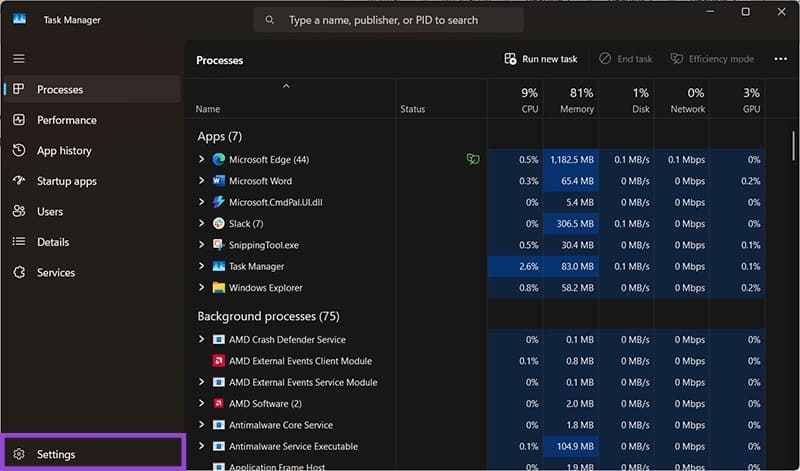
Step 3. In the dropdown menu on “Real time update speed,” set the value to “High” or “Normal,” then check if your data has started updating.
This should be a global setting so it will impact other displays (for CPU, GPU, and memory usage), making it fairly obvious to check by opening a new program and seeing if you still get the Task Manager network usage at 0%.
Fix 2: Re-Enable the Network Data Usage Driver
The NDU driver is a core Windows driver that monitors network usage, but some third-party programs might disable it for their own versions. This prevents the operating system from displaying accurate info, resulting in the listed network usage at 0% in Task Manager.
Step 1. Search for “Command Prompt” in the search bar and select “Run as administrator.” Confirm the User Account Control prompt.
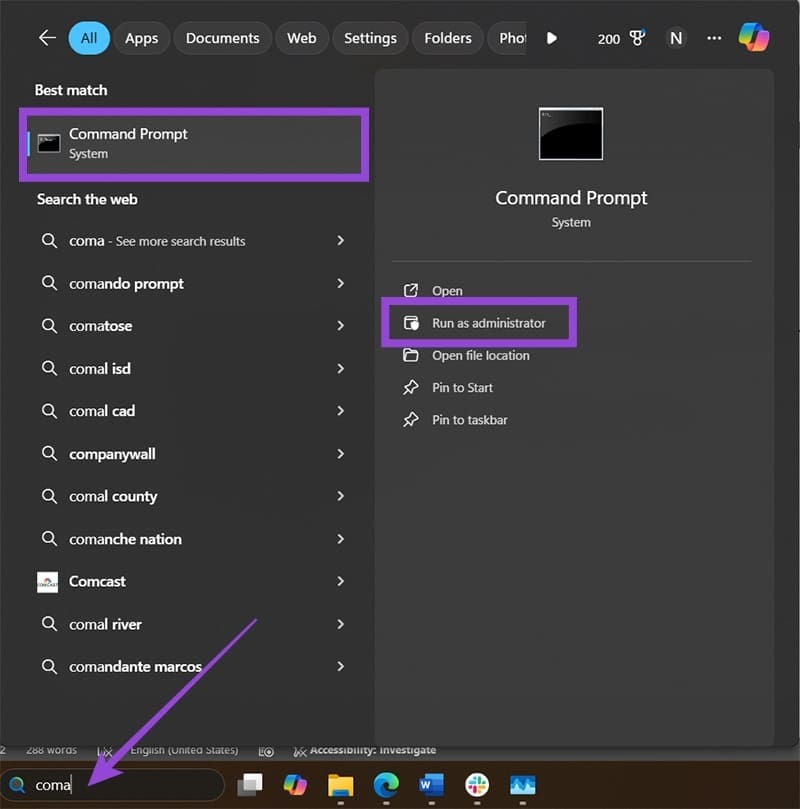
Step 2. Paste the following command and hit “Enter:”
sc config ndu start=auto
You should get a “SUCCESS” return message.
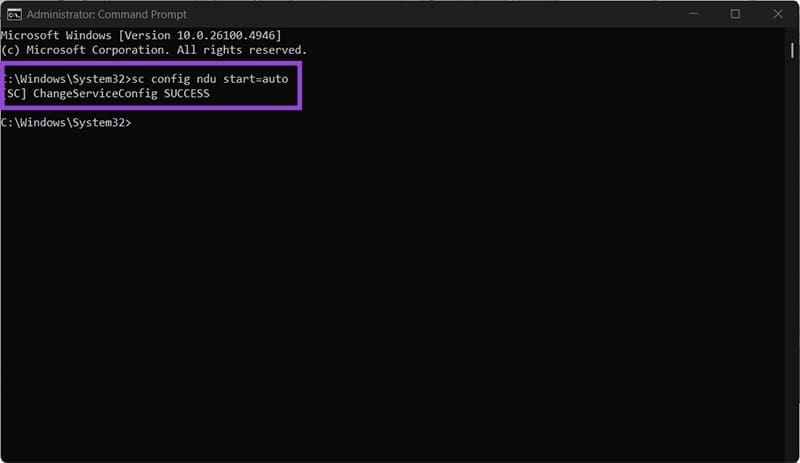
Step 3. Restart your PC.
Fix 3: Uninstall Third-Party Network Monitoring Software
In some cases, third-party software disables the native drivers and prevents them from loading on startup. This usually results in showing no network usage in Task Manager while the third-party tool seems to work correctly.
Unfortunately, for these tools, your options boil down to which tool you want to use since they are usually incompatible. If you decide to uninstall the third-party software, make sure to uninstall its background services in the process (it might show up in the uninstall screen). This should revert the Windows NDU driver to base functionality.
Fix 4: Run the Network Troubleshooter
If your Task Manager is not detecting a network, but you still have access to the internet, it might be best to start searching for a different network altogether. The default Windows network troubleshooter might be able to disconnect or remove superfluous networks.
Step 1. Open Settings and go to “System.”
Step 2. Scroll down and select “Troubleshoot.”
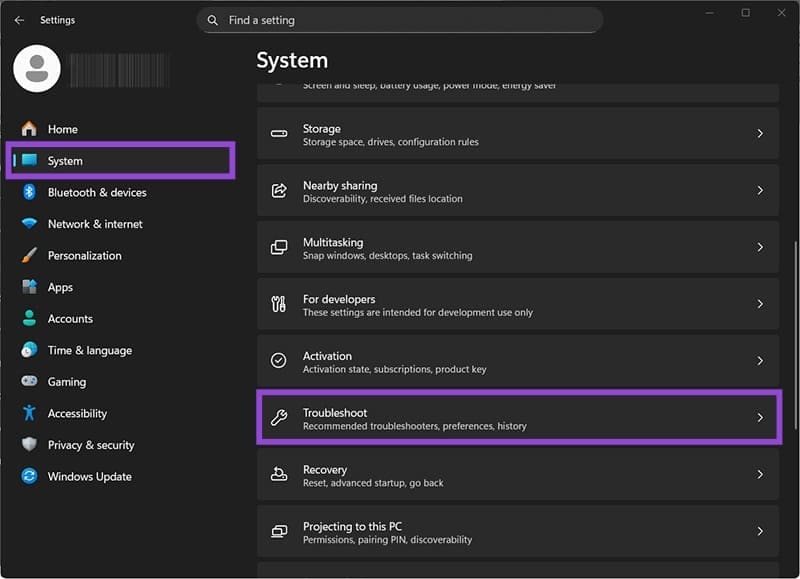
Step 3. Select “Other troubleshooters,” then choose “Run” for the option “Network and Internet.”

Step 4. Follow the instructions on the screen and check if the troubleshooter did anything.
Fix 5: Remove Third-Party Connectors and Drivers
Occasionally, Windows might be trying to pull network usage from a VPN network that doesn’t forward that data properly. Clear your PC’s proxy and VPN settings and check if that solves the issue with the Task Manager network usage at 0%.
Step 1. Go to the Control Panel (in Windows 11, you have to use search for it).
Step 2. Select “Network and internet,” then choose “View network status and tasks.”

Step 3. Go to “Change adapter settings” on the left.
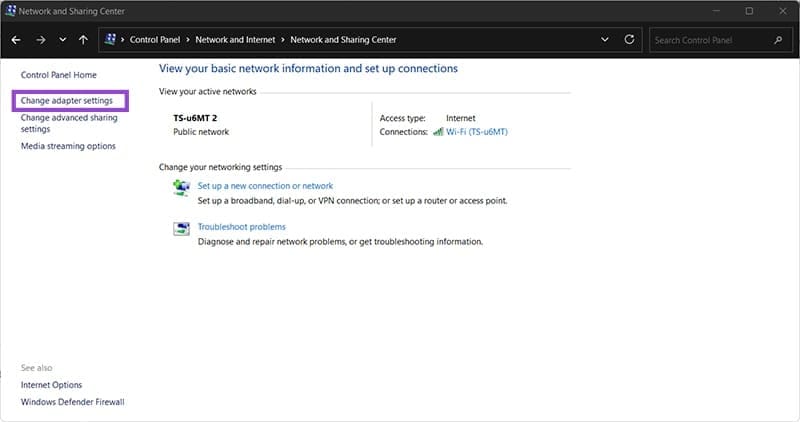
Step 4. Right-click on the network type you’re currently connected to (Wi-Fi or Ethernet), then select Properties.
Step 5. In the “This connection uses the following items” section, uncheck all third-party addons (which should have different names from the other list items).
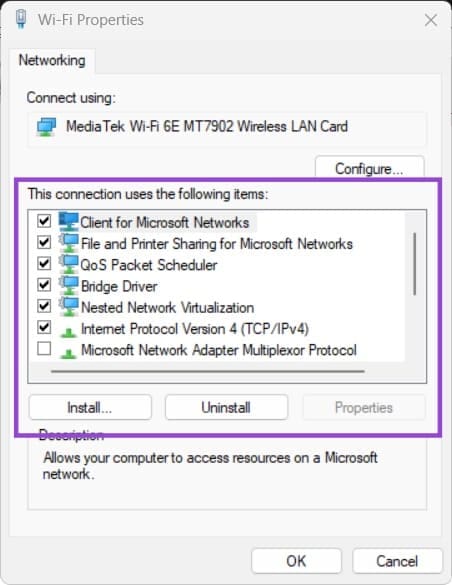
Step 6. You can also directly uninstall these addons through the “Uninstall” button.