If you’re wondering if it’s normal that your System32 folder opens on startup, it’s not. The System32 folder is a critical part of the Windows operating system and, generally speaking, shouldn’t be tampered with. So, unless you’ve specifically set the folder to open on startup, there’s no reason it should open when Windows boots up.
Contents
What Causes the System32 Folder to Open on Startup?
Usually, the System32 folder opens on startup due to:
- A third-party application
- A corrupted registry value
- A misconfigured startup item
However, it could also be due to malware.
Trojan variants like Trojan.System32, worms such as Worm:Win32/Cabresov.A, and other forms of malware often disguise themselves as legitimate files in or target the System32 folder to evade detection.
How to Stop System32 Opening on Startup
To stop the System32 folder from opening on startup, follow these steps in order.
Check Startup Paths
Step 1. Press Win+R to open the Run command.
Step 2. Type “shell:startup” and press “Enter” to open the Startup folder.
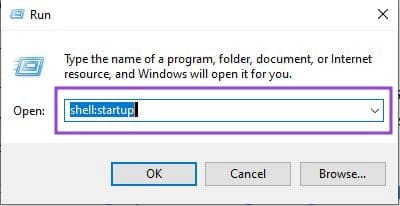
Step 3. Delete any shortcuts related to System32 or suspicious entries, especially those pointing to Libraries.
Perform a Clean Boot
Step 1. Press Win+R.
Step 2. Type “msconfig” and press “Enter.”
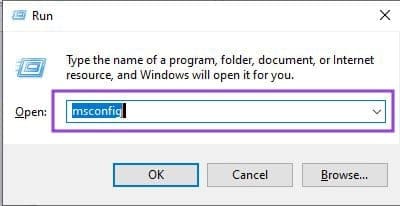
Step 3. In the System Configuration window, go to the Services tab. Check “Hide all Microsoft services” and click “Disable all.”

Step 4. Switch to the Startup tab.

Step 5. Click “Open Task Manager.”
Step 6. Disable all startup items. Restart your computer.
If the issue is resolved, re-enable services and startup items one by one to identify the culprit.
Run a Full System Antivirus Scan
Step 1. Perform a full system scan with Windows Defender or a trusted third-party antivirus.
Step 2. Remove any identified threats and restart the system.
Run System File Checker (SFC)
Step 1. Search for “command prompt,” right-click it, and select “Run as administrator.”
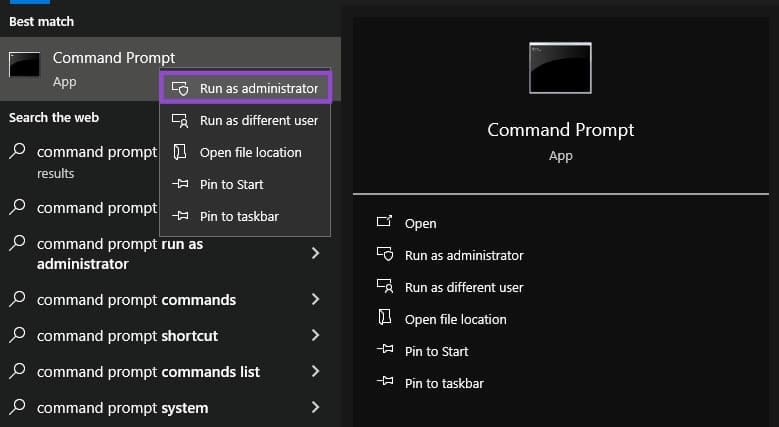
Step 2. Type SFC /scannow and press “Enter.”
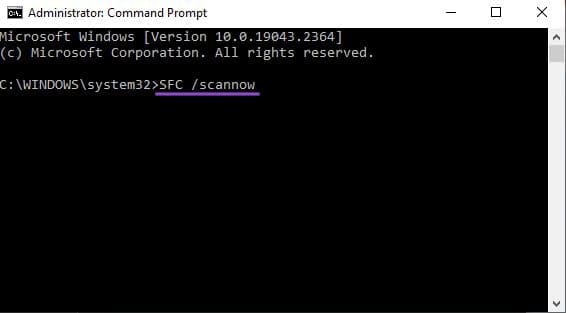
Step 3. Wait for the scan to complete.
Step 4. If corrupted system files are found and repaired, restart the system.
Use DISM to Repair the System Image
If SFC fails to fix the issue, run the DISM command. It repairs the Windows image, which sometimes resolves underlying file corruption.
Step 1. Search for “command prompt,” right-click it, and select “Run as administrator.”
Step 2. Type Dism /Online /Cleanup-Image /RestoreHealth (including the spaces) and press “Enter.”

Check Task Scheduler
Step 1. Press Win+R to open the Run command.
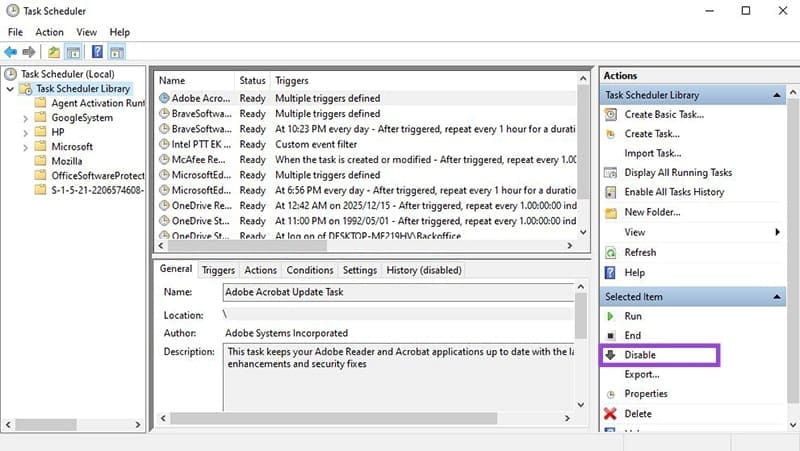
Step 2. Type “taskschd.msc” and press “Enter” to open Task Scheduler.

Step 3. Disable any tasks scheduled at startup that reference System32.
Check the Registry
Step 1. Press Win+R to open the Run command.
Step 2. Type “regedit” and press “Enter” to open the Registry Editor.

Step 3. Click “File -> Export” to back up the registry before making any changes.
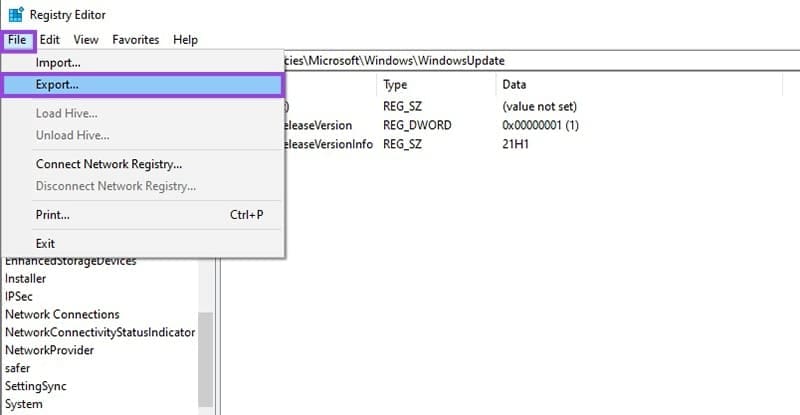
Step 4. Check the following startup keys and cautiously delete any suspicious entries:

HKEY_CURRENT_USER\Software\Microsoft\Windows\CurrentVersion\Run
- Contains programs set to run when the current user logs in
HKEY_LOCAL_MACHINE\Software\Microsoft\Windows\CurrentVersion\Run
- Lists programs that start for all users
HKEY_CURRENT_USER\Software\Microsoft\Windows\CurrentVersion\RunOnce
- Entries here run once and are typically deleted afterward
HKEY_LOCAL_MACHINE\Software\Microsoft\Windows\CurrentVersion\RunOnce
- Similar to RunOnce for the local machine
HKEY_LOCAL_MACHINE\Software\Microsoft\Windows NT\CurrentVersion\Winlogon\Userinit
- Should only point to userinit.exe – malware may append additional entries
HKEY_LOCAL_MACHINE\System\CurrentControlSet\Control\BootVerificationProgram
- Can be abused to run malicious programs during boot
HKEY_CURRENT_USER\Software\Microsoft\Windows\CurrentVersion\Policies\Explorer\Run
- Policy-based startup entries for the current user
System Restore
If the issue persists, restore your system to a point before the problem started occurring.
Step 1. Search for “recovery” in the Start menu.
Step 2. Open the Recovery panel.
Step 3. Select “System Restore” to choose a restore point.
If All Else Fails…
If none of the above steps work, consider a clean installation of Windows using the Media Creation Tool. Remember to wipe all disk partitions during setup to avoid any residual issues.