
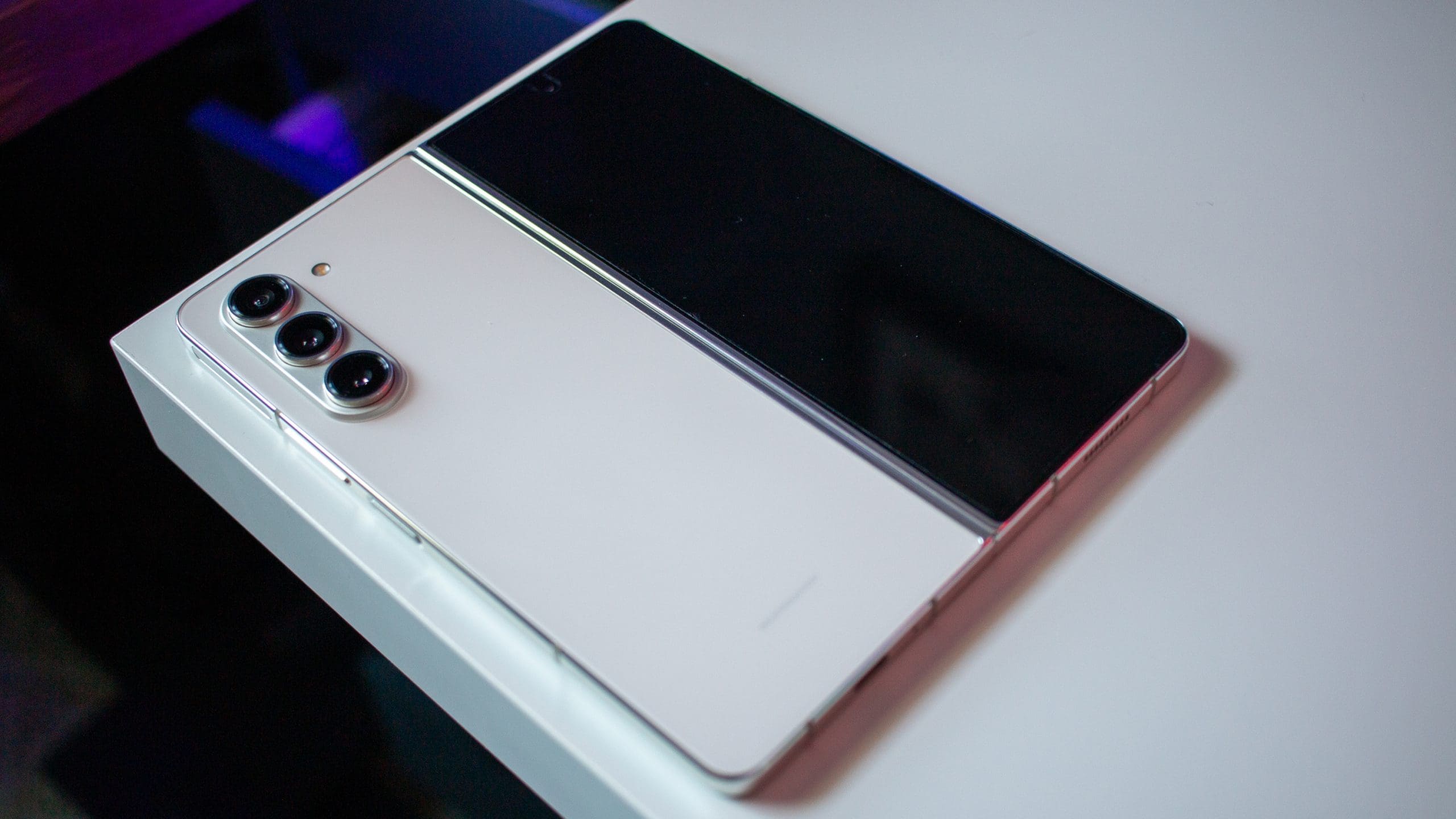
Hey there! It looks like you’re interested in the Samsung Galaxy Z Fold 5 and its compatibility with a stylus. Well, you’re in luck! I’ve got all the details you need to know, and I’ll break it down into a comprehensive guide for you. Let’s dive right in!
Contents
Can You Use a Stylus With the Galaxy Z Fold 5??
Absolutely! The Galaxy Z Fold 5 is designed to work with its new Z Fold 5 S Pen model, allowing you to write, draw, and navigate your screen like never before. But that’s not all; you can even use the S Pen Pro with your Z Fold 5. Let’s explore the details.
The Z Fold 5 S Pen
-
Compatibility: Specifically designed to work with the Galaxy Z Fold 5.
-
Case: Comes with a case to keep your S Pen close while maintaining a slim profile.
-
S Pen Tip: The tip is designed to work with the foldable screen on your Z Fold 5.
-
Charging: No charging required.
The S Pen Pro
-
Compatibility: Works with various Galaxy models, including Z Fold 3, Z Fold 4, Z Fold 5, Tab S6, Tab S7, Tab S8, Note10, S21 Ultra, S22 Ultra, S23 Ultra, and Galaxy Book models.
-
Air Actions: Supports a Bluetooth connection with the phone for Air actions and remote control.
-
S Pen Tip: Comes with an auto-retractable Pro Tip optimized to work with any screen.
-
Charging: Charges via a USB-C cable.
Differences Between the Z Fold 5 S Pen and S Pen Pro
The Galaxy Z Fold 5 will work with both the Z Fold 5 S Pen and the S Pen Pro, but there are some differences between the two:
-
Z Fold 5 S Pen: Designed specifically for the Galaxy Z Fold 5, doesn’t require charging.
-
S Pen Pro: More versatile, works with various Galaxy models, supports Air actions, and requires charging.
Where to Buy
Both the Z Fold 5 S Pen and the S Pen Pro are available on the Samsung website.
Can You Use Other S Pen Models with the Galaxy Z Fold 5?
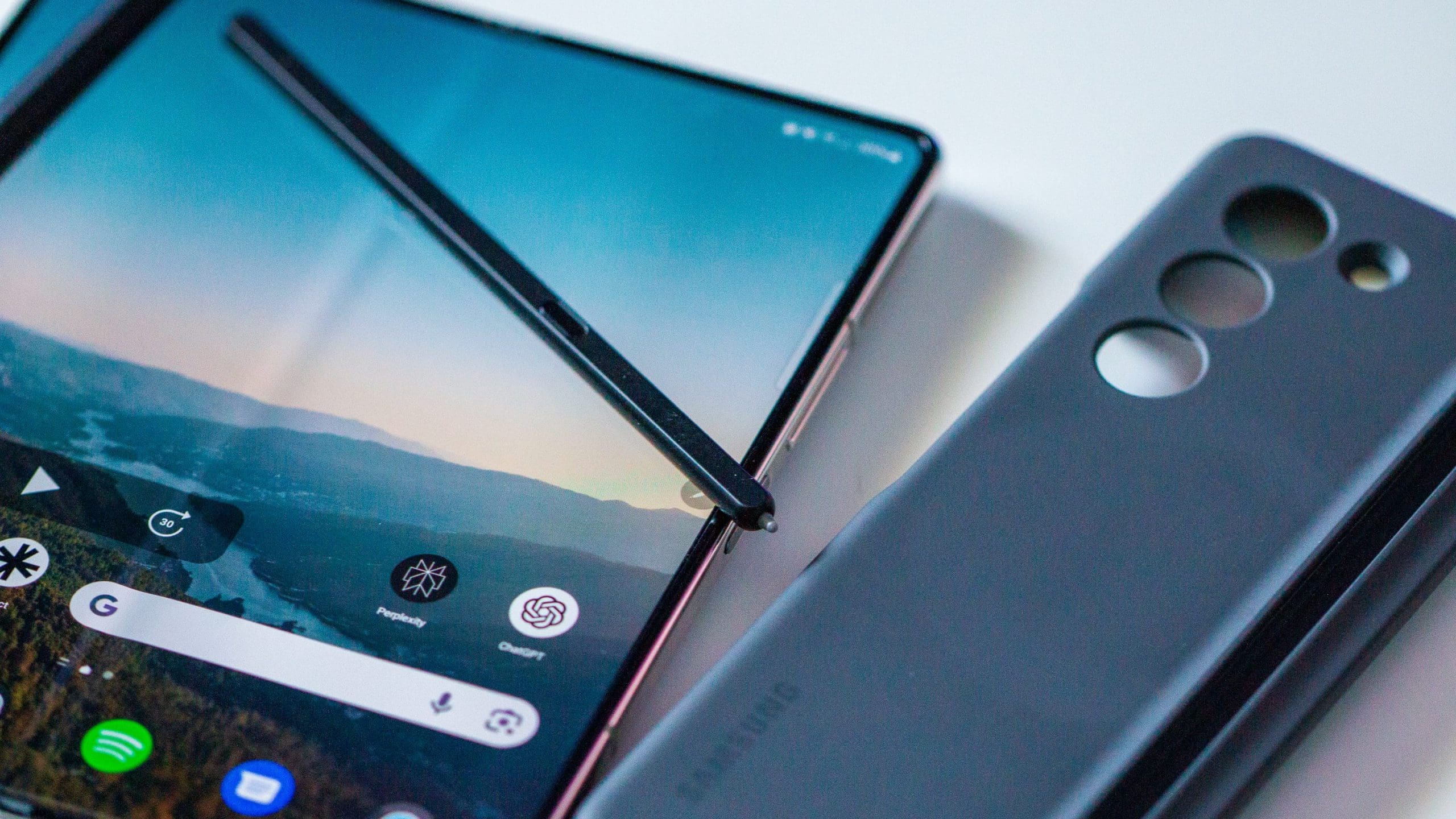
Other traditional S Pen models, such as those designed for the Galaxy S23 Ultra, Galaxy Note series or Galaxy Tab models, are not mentioned as compatible with the Galaxy Z Fold 5. The specific design and functionalities of the Z Fold 5 S Pen and S Pen Pro are tailored to the unique foldable screen of the Z Fold 5, which may not be suitable for other S Pen versions.
If you’re looking to use a stylus with the Galaxy Z Fold 5, it’s best to stick with the Z Fold 5 S Pen or the S Pen Pro. These are the officially supported options, and they offer a tailored experience for the device.
Using other versions of the S Pen may not provide the same level of compatibility and could potentially lead to issues with the device’s foldable screen. The only exception to this “rule” is that you can actually use the same S Pen Fold Edition that was introduced with the Galaxy Z Fold 3 and re-released with the Galaxy Z Fold 4. This is thanks to the built-in retractable stylus that is found on the S Pen Pro, allowing you to jot down notes without needing to worry about damaging the Fold 5’s screen.
Always refer to the official guidelines from Samsung to ensure you’re using compatible accessories.
Conclusion
The Samsung Galaxy Z Fold 5 brings a new level of interaction with its support for the Z Fold 5 S Pen and S Pen Pro. Whether you’re taking notes, doodling, or navigating your device, the stylus options provide a smooth and intuitive experience.
So, if you’re a Galaxy Z Fold 5 owner or planning to become one, the stylus support is definitely a feature to explore.


I would like the note series to continue as it’s easier to use the pen than my fingers.I need a new phone but there is no Note 21.