Skip to content
LogoTechnipages
LogoTechnipages
  • Topics
        • Android
        • Browsers
        • Gaming
        • Hardware
        • Internet
        • iPhone
        • Linux
        • macOS
        • Office
        • Reviews
        • Software
        • Windows
        • Definitions
        • All Recent Posts
  • Product Reviews
  • About

How to Scan Documents Using Android Camera

Mel HawthorneFebruary 5, 2020 Comments (5)
Phone Scanner Header

The days of huge, heavy scanners are long since over – with printing and scanning technology having developed quickly, devices are much smaller now. What though, if you don’t have one to hand? Odds are you do, even without knowing.

Android phones support scanning of documents natively – you don’t need to install any apps or even change any settings to use this function. All you need is your document and your normal Android camera. Launch it and point it at the document. It may take a few seconds, but a yellow outline with a scan button in the middle will appear.

In order to get a scan – which will be of the section within the outline only – tap the Scan in the middle. Unlike a regular photo, the scan will be cropped automatically and turned to be the right way up – meaning even if your camera is looking at it upside down, the scan will be the right way up.
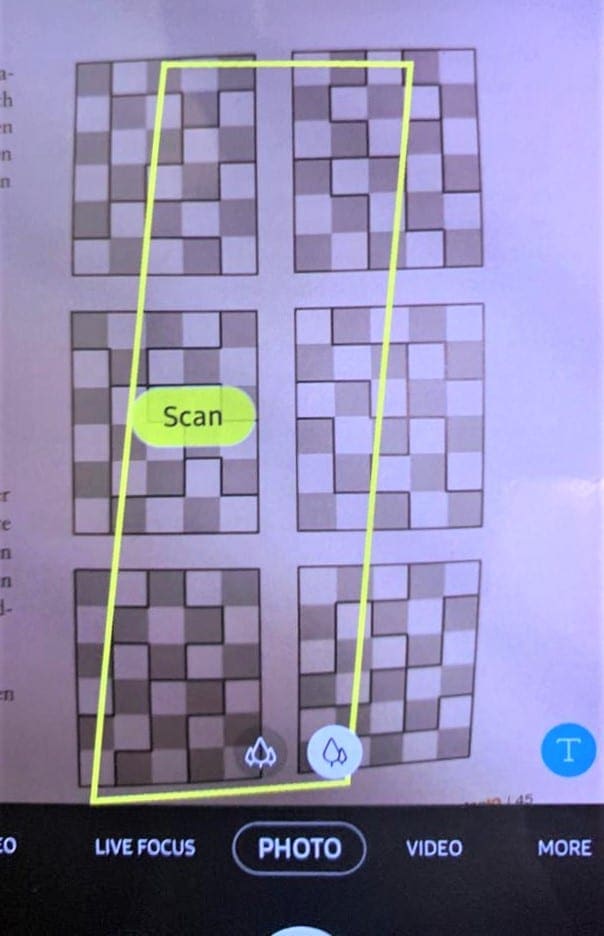
A slightly misplaced Scan area and button

Android will also apply some minor white-correction to make sure that the contrast of your scan is preserved. Because of all this, it will take longer than usual until the new image appears in your camera roll – it may take a few seconds. That’s all there is to it!

Some tips on scanning with an Android camera:

  1. Make sure you have sufficient lighting. The lighter it is, the better the results will be.
  2. If the yellow outline doesn’t capture everything you want, adjust the position of the phone a little until it does. More light may also help.
  3. If the yellow outline covers more than you want, you can use a finger or small object to ‘mark’ the edge – your camera should pick up the ‘new’ end of your document. Alternatively, you can just crop your image later.
  4. Don’t press the normal photo button or your phone will take a normal picture of the whole visible area – click on the Scan button specifically.
Categories: Android

Author Mel Hawthorne

You Might Also Like

  • Android: How to Disable Auto-Correct in Easy Steps

    Mitch BartlettAndroid
  • Google Maps: Clear Navigation and Search History

    Mitch BartlettAndroid
  • Android Restore Screen

    How to Backup Your Entire Android Device to PC

    Mitch BartlettAndroid
  • how to delete whatsapp messages for everyone after long time

    How to Delete Week Old WhatsApp Messages

    Madalina DinitaAndroid

Comments

  1. Pavlo says:
    June 28, 2022 at 9:50 am

    Some documents clearly this does not catch andno manual option. Big dissapointment. User experience is not taken care of.

  2. Leonard says:
    July 8, 2021 at 3:34 pm

    Is there a way to go into scan mode? Without that information the article is unfortunately useless.

  3. nm says:
    June 8, 2021 at 2:49 pm

    Irritating article. The scan yellow outline appears if the thing you are photographing looks sufficiently rectangular. But if the thing you are photographing isn’t rectangular or have sharp differences in color than then the background it won’t show up. And so for as I can tell you can’t make it appear. And if the document has a photo of a person in it it may choose portrait mode instead. So far as I can tell, we can’t *tell* it to go into scan mode. It’s *great* when it works but really irritating when it doesn’t.

  4. Dawn Self says:
    April 10, 2021 at 6:40 pm

    What does the scan button look like? Where is it located on my camera page?

  5. Karen Zipser says:
    November 27, 2020 at 1:31 pm

    So what’s the difference between a scan and a photo? Do I get a pdf instead of a jpg?

Leave a Reply

Your email address will not be published. Required fields are marked *

  • clipchamp unexpected application error

    Clipchamp Unexpected Application Error: Here’s the Solution 

  • winload.efi file missing error

    Winload.EFI File Missing Error on Boot – How to Fix

  • fix error 0x9cfc7550

    How to Fix Error 0x9cfc7550 (We Couldn’t Create a New Partition) in Windows 

  • fix error code 0x3000008 1

    How to Fix Error Code 0x3000008 for Remote Desktop Connection

  • fix error code 0x80190001 1

    How to Quickly Fix Error 0x80190001 for Microsoft or Outlook Account Login 

profile pic

The Experts Behind Technipages

My name is Mitch Bartlett. I've been working in technology for over 20 years in a wide range of tech jobs from Tech Support to Software Testing. I started this site as a technical guide for myself and it has grown into what I hope is a useful reference for all.

Learn More

technipages logo white
linkedin icon

Technipages is part of Guiding Tech Media, a leading digital media publisher focused on helping people figure out technology. Learn more about our mission and team here.

© 2025 Guiding Tech Media All Rights Reserved

  • About Us
  • Contact
  • Terms of Use
  • Privacy Policy

© 2025 Guiding Tech Media All Rights Reserved

Information from your device can be used to personalize your ad experience.
Do not sell my personal information.

Last Updated on February 5, 2020 by Mitch Bartlett