

Huawei Mate phones are reliable devices that will rarely let you down. They’re fast, versatile and stable. But sometimes users may experience performance slowdowns, the phone might get stuck or freeze and become unresponsive and so on.
The good news is that you can quickly fix these issues by performing a soft or hard reset. In this guide, we’ll walk you through the process and we’ll list the steps to follow.
Contents
How to Soft Reset Your Huawei Mate 20
A soft reset is a simple troubleshooting method that allows you to basically restart your phone. This will close all the apps running in the background and clear random access memory data.
Rest assured, your data remains safe, you won’t lose any messages, photos and other items stored on your device.
Steps to perform a soft reset on your Huawei Mate 20 device:
- Hold down the Power button located on the right edge of your device right under the Volume buttons
- Two options will appear on the screen: Restart and Power Off. Tap Power Off

- Wait until your phone shuts down
- Leave it like that for 10 or 30 seconds
- Then hold down the Power button again to power up your phone.
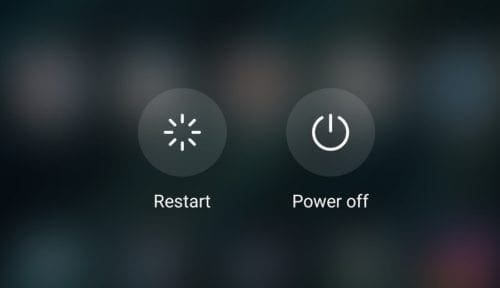
How to Hard Reset Your Huawei Mate 20
Before we dive in, it is worth mentioning that performing a hard reset on your Huawei phone will lead to data loss. More specifically, you will lose all the data stored on your device. It will be as if you bought a new phone.
We recommend backing up your data on a computer or cloud storage service such as Google Drive, DropBox, or other such services.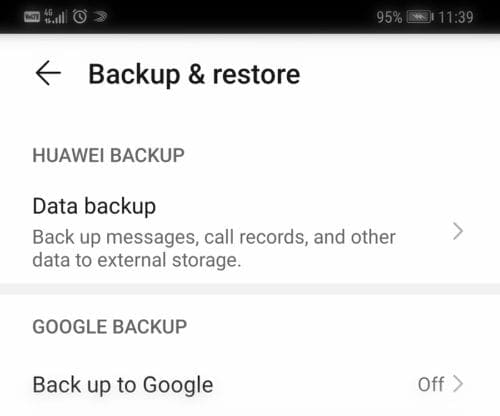
In this manner, you’ll be able to restore your data once the hard reset is complete.
Steps to perform a hard reset on your Huawei Mate 20 device
Method 1 – Using the Settings Menu
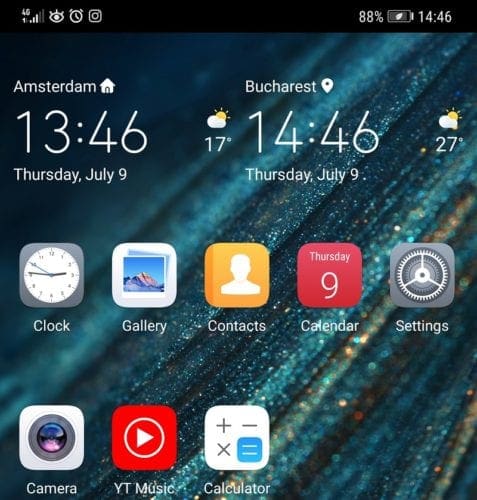
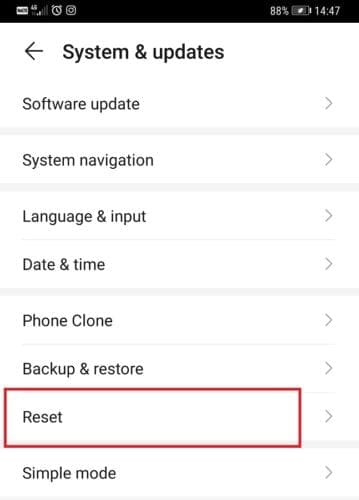
- Go to Settings

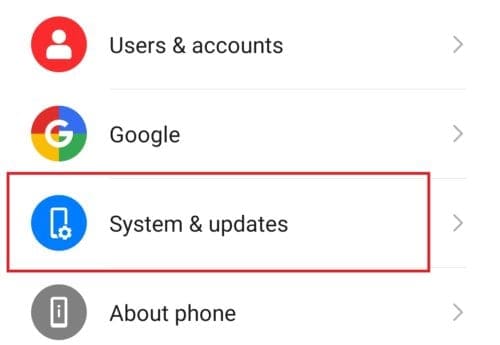
- Tap System & updates

- Tap the Reset option

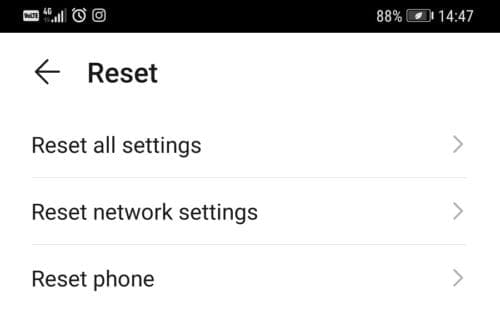
- There will be three options that you can choose from: Reset all settings, Reset network settings and Reset phone

- Choose the third option, Reset phone
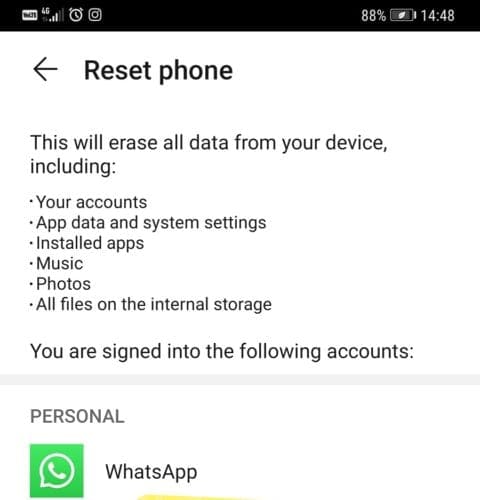
- You’ll be informed this action will delete absolutely all the data stored on your device, including: your accounts, photos, installed apps, etc.

- Scroll down and tap Reset phone
- Enter your security code to confirm your choice and launch the reset process.
The whole process can last anything between two to ten minutes, and sometimes even more, depending on how much data you’ve got stored on your device.
Method 2 – Using hardware keys
If you can’t access the Settings menu and use the built-in Reset option, you can go into Recovery Mode.
Here are the steps to follow:
- Turn off your phone
- Press and hold down the Volume Up button and simultaneously connect your USB charger. It’s important to connect the USB charger while holding down the Volume Up button.
- Wait a few seconds for the phone to boot into Recovery Mode
- Remove the USB charger after your phone entered Recovery Mode
- Now, select Wipe Cache/Factory reset to reset your phone
- Your phone will restart when the process is finished.
And this is how you can perform a soft or hard reset on your Huawei Mate 20 device. Use this solution whenever your phone is running slowly or freezing, gets stuck on the boot screen, randomly restarts on its own or if you’re getting all sorts of system and app errors.
Of course, the best approach is to soft reset the device first. But if that didn’t work, you can opt for a hard reset as well.




Is a soft reset likely to fix a non working camera huawei app and are pictures and data destroyed