Skip to content
LogoTechnipages
LogoTechnipages
  • Topics
        • Android
        • Browsers
        • Gaming
        • Hardware
        • Internet
        • iPhone
        • Linux
        • macOS
        • Office
        • Reviews
        • Software
        • Windows
        • Definitions
        • All Recent Posts
  • Product Reviews
  • About

Opera for Android: How to Configure the Built-In VPN

Mel HawthorneAugust 28, 2020 Comments (2)

One of the key selling points of the Opera browser on Android is the built-in VPN functionality. With this feature, you’re able to hide your IP address and online activity securely. You can also change your apparent location to appear to be in “America”, “Asia”, or “Europe”.

A VPN or Virtual Private Network is a tool that uses an encrypted network connection to securely tunnel your browsing data through a VPN server. This prevents your online activity from being monitored as the monitor would only see encrypted data between your device and the VPN server which would be unreadable without the encryption key. VPNs also change your apparent IP address to that of the VPN server. This can allow you to appear to be in another location, potentially allowing you to bypass geo-restrictions, grating access to location locked content.

Opera’s built-in VPN can be configured from within the in-app settings. To be able to access the in-app settings, first tap the Opera icon in the bottom-right corner of the app.

Tap the Opera icon in the bottom-right corner of the app to be able to access the in-app settings.

Next, tap “Settings” at the bottom of the popup pane to open the settings.

Tap “Settings” at the bottom of the popup pane.

In the settings, tap the slider for the second option “VPN” to the “On” position to enable the VPN. To configure the VPN settings, you will need to tap on the “VPN” label.
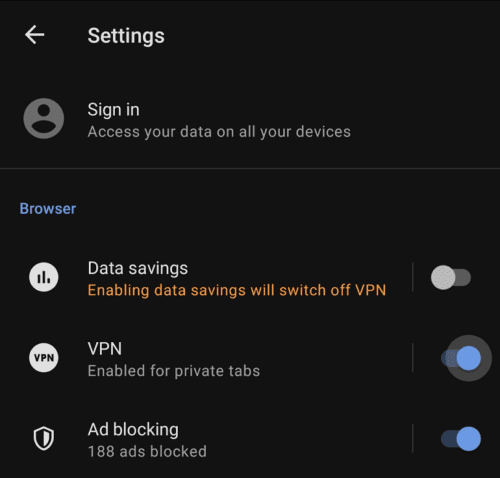
Tap the “VPN” slider to toggle the VPN on and off, or tap the label to configure the VPN settings.

In the VPN settings, there are three options. The first checkbox is used to configure if the VPN applies to all tabs if disabled, or exclusively to private tabs if enabled.

The next setting is the Virtual location, which is the location of the VPN server. You have four options, “Optimal” chooses the fastest option, and should be used unless you want to appear in a certain region. The regions you can choose between are “America”, “Asia”, and “Europe”.

The last option is “Bypass VPN for search”. This will avoid using the VPN to connect to search engines so that you can keep getting location-relevant and language-specific search results.

Tip: These options are only visible when the VPN slider is enabled.

You can configure a number of VPN options when the VPN is enabled.

Categories: Android | Internet

Author Mel Hawthorne

You Might Also Like

  • LinkedIn: How to View Full Version Website On Android or iPhone

    Mitch BartlettAndroid
  • Brave

    Brave for Android: Enable Background Video Playback

    Mel HawthorneAndroid
  • Firefox for Android: How to Force Enable Zooming

    Mel HawthorneAndroid
  • Opera for Android: How to Configure Dark Mode

    Mel HawthorneAndroid

Comments

  1. Linda says:
    May 5, 2021 at 3:47 pm

    Virtual Location That Is. In VPN settings. On my android ZTE phone.

  2. Linda says:
    May 5, 2021 at 3:39 pm

    Hi. Just set my virtual site to Asia. Message says no data transferred yet. Question… am I waiting for something? Thanks.

Leave a Reply

Your email address will not be published. Required fields are marked *

  • npu power management bug

    What Is the NPU Power Management Bug and How Do You Fix It?

  • pc can't enroll for windows 10 extended security updates

    PC Can’t Enroll for Windows 10 Extended Security Updates – How to Fix

  • hdd better than an ssd

    When Is an HDD Better Than an SSD?

  • top graphics cards for 2026

    Top 5 Graphics Cards for 2026

  • roblox error 280

    Having Trouble With Roblox Error 280? Here’s What to Do

profile pic

The Experts Behind Technipages

My name is Mitch Bartlett. I've been working in technology for over 20 years in a wide range of tech jobs from Tech Support to Software Testing. I started this site as a technical guide for myself and it has grown into what I hope is a useful reference for all.

Learn More

technipages logo white
linkedin icon

Technipages is part of Guiding Tech Media, a leading digital media publisher focused on helping people figure out technology. Learn more about our mission and team here.

© 2026 Guiding Tech Media All Rights Reserved

  • About Us
  • Contact
  • Terms of Use
  • Privacy Policy

© 2026 Guiding Tech Media All Rights Reserved

Information from your device can be used to personalize your ad experience.
Do not sell my personal information.

Last Updated on August 28, 2020 by Mitch Bartlett