Skip to content
LogoTechnipages
LogoTechnipages
  • Topics
        • Android
        • Browsers
        • Gaming
        • Hardware
        • Internet
        • iPhone
        • Linux
        • macOS
        • Office
        • Reviews
        • Software
        • Windows
        • Definitions
        • All Recent Posts
  • Product Reviews
  • About

Microsoft Family: How to Add Money to a Child Account

Madalina DinitaMarch 3, 2022 Comments (0)
microsoft-family-add-money-child-account

Microsoft Family can help you simplify your family’s digital life and track your kids’ online activities. You can choose which websites they can visit, how much time they spend online, and what they can purchase. Speaking of which, you can also teach your kids to shop responsibly by setting a certain budget for online purchases. Here’s how you can add money to your child’s account on Microsoft Family.

Contents

  • 1 Steps to Add Money to a Child Account on Microsoft Family
    • 1.1 Microsoft Family Doesn’t Support Custom Deposits
    • 1.2 Conclusion

Steps to Add Money to a Child Account on Microsoft Family

Follow these steps to transfer money to a Child Account on Microsoft Family:

  1. Open a new browser tab and go to family.microsoft.com.
  2. Log in to your Family account.
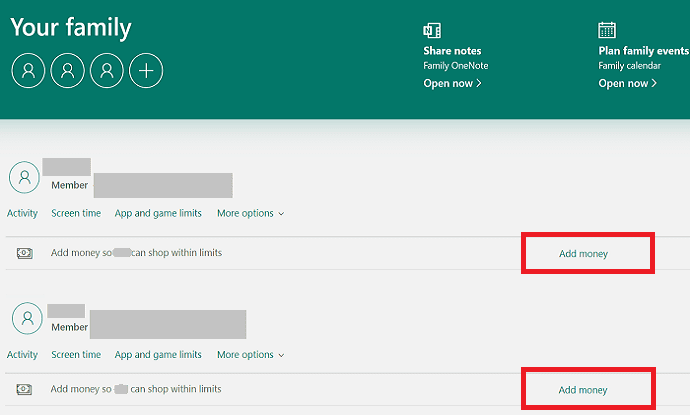
  3. Select the Child Account you want to add money to.
  4. Click on Add money. microsoft-family-add-money-to-child-account
  5. Select the amount of money you want to add.
  6. Select the payment method you want to use.
  7. Confirm your choice.

Directly managing your kid’s account is the best solution to prevent them from going on a spending spree. You can also use Microsoft Family to reward your child for getting good grades, completing their weekly chores, and whatnots.

You can always check your child’s spending history to keep track of their recent purchases. By the way, there’s also a handy “Ask to Buy” button that your child can use to let you know they want to make a purchase but don’t have enough money. You can either accept their request and add money to their account or select the Deny button to reject the request and keep spending within limits.

Microsoft Family Doesn’t Support Custom Deposits

You can only add a fixed amount of money to a Child Account: $10, $15, $25, $50, $75, or $100. Unfortunately, Microsoft Family doesn’t support custom deposits.

Many users disagree with this approach, saying that Microsoft should not hold any balances. Some went as far as calling the system “a very crafty way to try and elicit more money from customers.”

Conclusion

To add money to your child’s account on Microsoft Family, select the account you want to add money to and click on “Add money.” Then, select the amount of money you want to add and confirm your choice.

How much money do you spend on Microsoft Family every month? Let us know in the comments below.

Categories: Windows

Author Madalina Dinita

Madalina has been a Windows fan ever since she got her hands on her first Windows XP computer. She is interested in all things technology, especially emerging technologies -- AI and DNA computing in particular.

You Might Also Like

  • What to Do When the Taskbar Won’t Hide in Windows 10

    Judy SanhzWindows
  • Change Screen Brightness In Windows 10

    Change Screen Brightness in Windows 10

    MonaWindows
  • Microsoft-Teams-See-Who-Opened-File

    Microsoft Teams: Can You See Who Opened a File?

    Madalina DinitaWindows
  • fix-windows-11-fingerprint-not-available

    Windows 11: Fingerprint Option Is Currently Unavailable

    Madalina DinitaWindows

Leave a Reply

Your email address will not be published. Required fields are marked *

  • fix filecoauth.exe application error

    Fix FileCoAuth.exe Application Error 

  • fix error code 0x80010002 in windows update

    How to Fix 0x80010002 Error in Windows Update 

  • an unexpected error is keeping you from copying files

    How to Fix “An Unexpected Error Is Keeping You From Copying” for Files 

  • fix page fault in nonpaged area bsod

    How to Fix “Page Fault in Nonpaged Area” BSOD 

  • fix ERROR_SYSTEM_SHUTDOWN

    How to Fix ERROR_SYSTEM_SHUTDOWN

profile pic

The Experts Behind Technipages

My name is Mitch Bartlett. I've been working in technology for over 20 years in a wide range of tech jobs from Tech Support to Software Testing. I started this site as a technical guide for myself and it has grown into what I hope is a useful reference for all.

Learn More

technipages logo white
linkedin icon

Technipages is part of Guiding Tech Media, a leading digital media publisher focused on helping people figure out technology. Learn more about our mission and team here.

© 2025 Guiding Tech Media All Rights Reserved

  • About Us
  • Contact
  • Terms of Use
  • Privacy Policy

© 2025 Guiding Tech Media All Rights Reserved

Information from your device can be used to personalize your ad experience.
Do not sell my personal information.

Last Updated on March 3, 2022 by Judy Sanhz