When you make your iPad’s keyboard bibber, it makes it easier for you to type. You don’t have to worry about pressing the wrong button and sending the wrong message. The following tips will help you see how to make your iPad’s keyboard bigger without installing third-party apps. Let’s start with the easiest method.
Contents
Make Your iPad’s Keyboard Bigger By Changing Positions
If you have your iPad in Portrait mode, your iPad’s keyboard will be at its smallest. You can make your iPad’s keyboard bigger by switching to landscape mode. Landscape mode is when the longer edge of the screen is parallel to the ground. Once you have your iPad in this position, it’s a good idea to lock it in this position.

You can do this by swiping down from the top right of your screen to make the Control Center appear. Tap on the Rotation Lock icon that has a lock with an arrow around it. If you ever need to use the keyboard in portrait mode, you can turn off the Rotation Lock feature.
Make Your iPad’s Keyboard Bigger By Turning Off the Floating Keyboard
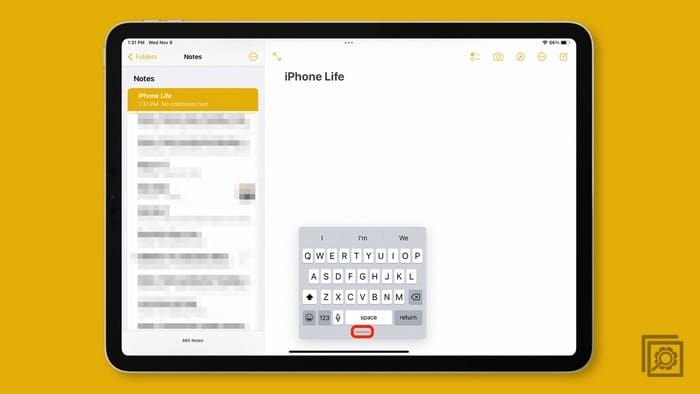
You can make your iPad’s keyboard bigger or smaller by using gestures. Assuming your iPad is in landscape mode, move two fingers away from each other as if making the keyboard bigger. This is going to make the keyboard bigger.
You can also long-press on the keyboard icon at the bottom right of the keyboard and drag your finger to the Floating option.
If you ever want to make the keyboard smaller, place two fingers on opposite sides and make a gesture like trying to make the keyboard smaller.
Make Your iPad’s Keyboard Bigger by Using a Third-Party App
If you don’t have space for a third-party app, the first two methods can help you make your iPad’s keyboard can help. But if you have room for a third-party app, then there are plenty to choose from in the App Store. For example, you can try an app called Hanx Writer that makes your keyboard look like a typewriter. It makes the same sounds a typewriter would make, including the ring bell when it passes to a new line.

Make Your iPad Bigger by Turning Off Split Keyboard
If your iPad has a physical home button, then you can also make your keyboard bigger by using the Dock and Merge option. Make the keyboard appear by opening an app that requires you to type something. When the keyboard appears, long-press on the keyboard icon at the bottom right. Tap on the Dock and Merge option, and your keyboard will be bigger. If you want to turn off this feature so your keyboard doesn’t split anymore, go to:
- Settings
- Keyboard
- Toggle off the split keyboard option
Further Reading
There are other devices where you can make your keyboard bigger as well. If you want to make the keyboard bigger on your Android device, here are the steps to follow.
Conclusion
Making the keyboard on your iPad bigger makes it easier for you to type and get your message across. It makes it less likely for you to press the wrong button and end up with a typo. You can even install a third-party app if you have the space and change the style of the keyboard and make it bigger as well. Do you usually use the keyboard in landscape or portrait mode? Share your thoughts in the comments below, and don’t forget to share the article with others on social media.