If your laptop restarts when connecting to Wi-Fi, it can be incredibly bothersome. You’ll constantly have to deal with unwanted restarts and delays when trying to get online. In addition, there are several possible root causes of this issue. It might be related to a virus, a driver issue, or a recent system update.
Fortunately, there are ways to fix it.
Contents
Fix 1: If Your Laptop Restarts When Connecting to Wi-Fi – Run an Antivirus Scan
One of the first things to try if you’re facing an issue when trying to connect to Wi-Fi is to scan your laptop for viruses. A single piece of malware can wreak havoc on your system and may well be the root cause of your connectivity issues. Here’s how to fix it.
Step 1. Open your antivirus program and look for the “Scan” button to initiate a system scan. Wait for it to complete, then follow the on-screen instructions to deal with any identified threats.

Fix 2: Restore Your System
Often, issues like this emerge after updates or changes to your system. You might have downloaded some corrupt files, for example, or installed an update that has caused more harm than good. Rolling your device back to a previous state may be enough to fix the problem.
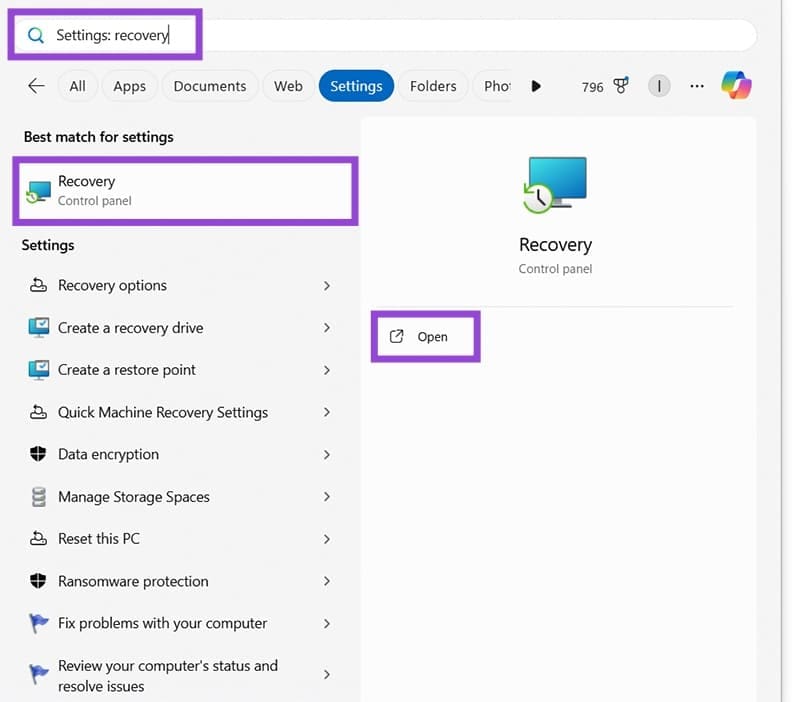
Step 1. Go to the “Recovery” menu in the “Control Panel.” The fastest way to do this is to simply type “Recovery” or “System Restore” into the search bar and click the corresponding icon.
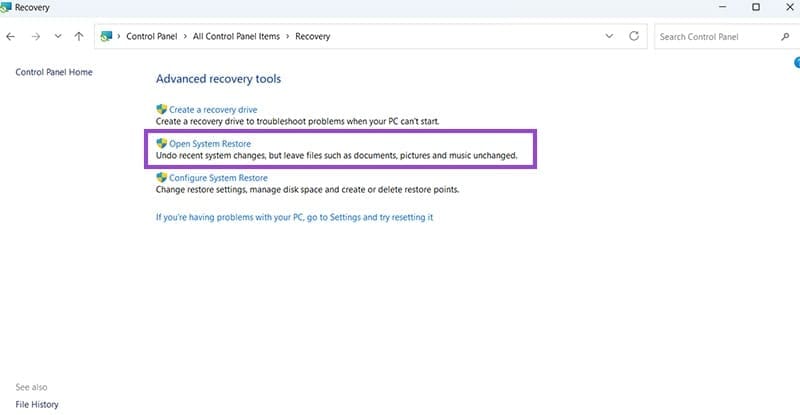
Step 2. Click on “Open System Restore.”
Step 3. Choose one of the available restore points and follow the on-screen prompts to restore your device.

Fix 3: Update Your Device
Instead of rolling your device back to solve this problem, you can also try moving it forward by installing the latest updates that you might have missed. New updates often come with bug fixes and improvements that may resolve whatever issue you’re having.
Step 1. Open the “Settings” by pressing the “Windows” and “I” keys together.

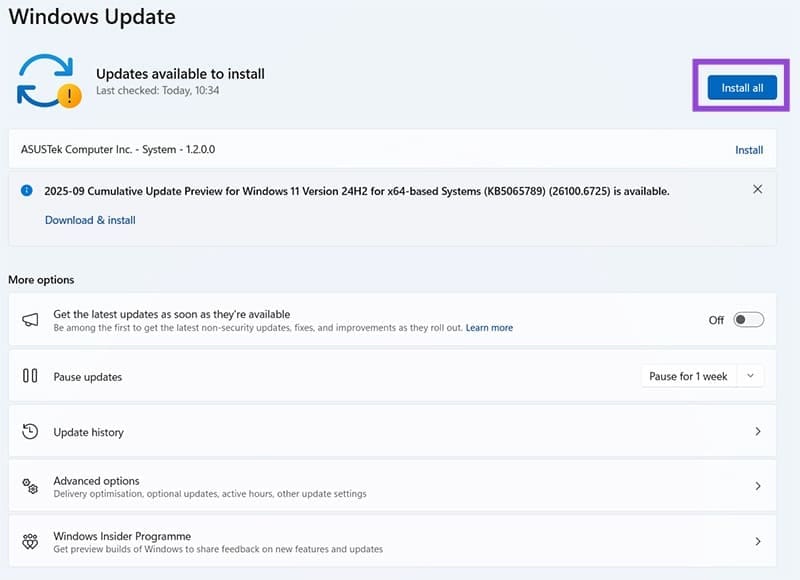
Step 2. Click on “Windows Update.” Then, if any updates are available, click the “Install” or “Install all” button in the top-right corner.
Fix 4: Try a Network Reset
A “Network Reset” is a helpful built-in function in Windows that lets you reset your network adapter to its default settings. It often resolves networking or connection problems, like your laptop restarting when connecting to Wi-Fi.
Step 1. Open the “Settings” menu via the Start menu shortcut or by pressing “Windows” and “I” at the same time.
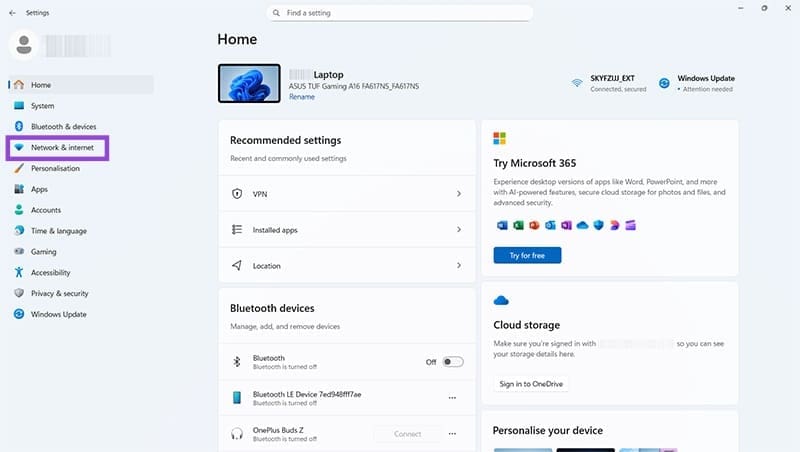
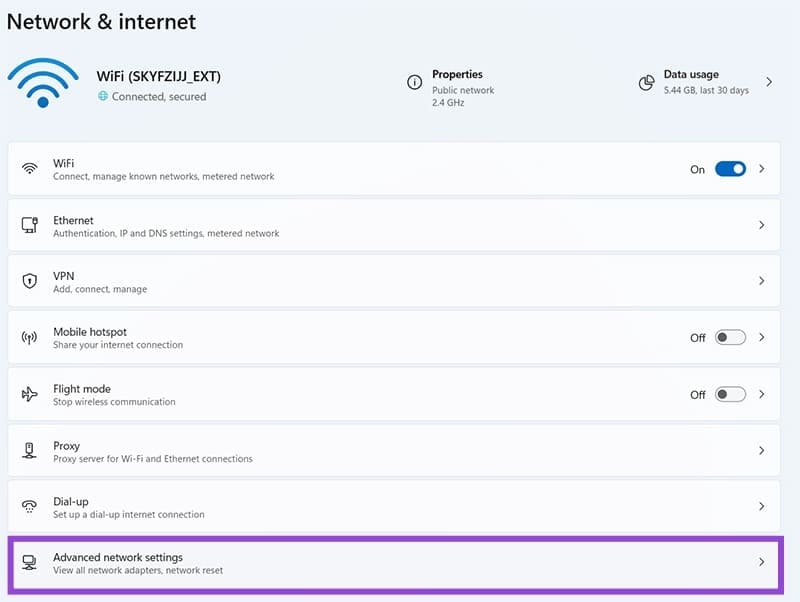
Step 2. Click on “Network & Internet,” then “Advanced network settings.”
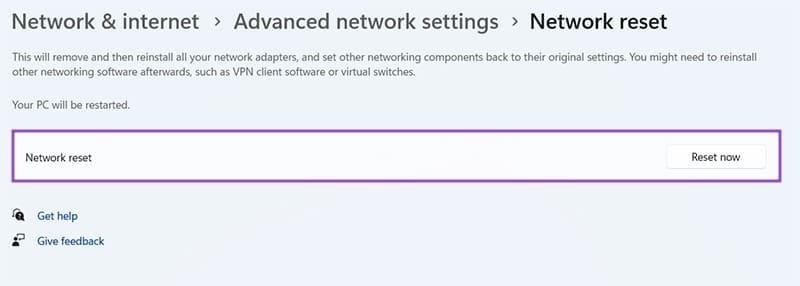
Step 3. Click the “Network reset” button, then “Reset now.” Note that your device will need to restart for the full reset to take place.
Fix 5: Update Wireless Drivers
Another possible reason your laptop restarts when connecting to Wi-Fi is an issue with your wireless drivers. They might be out of date, causing a connectivity issue.
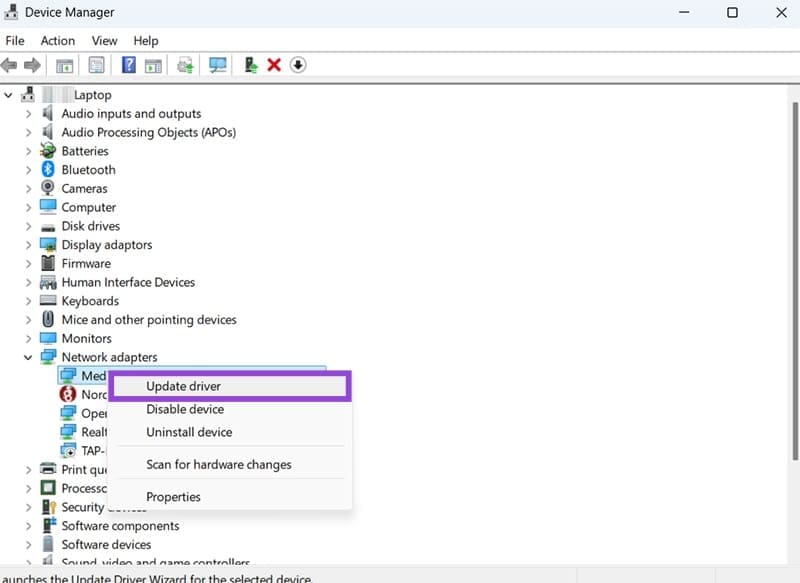
Step 1. Open the “Device Manager,” which you can find by simply typing “Device Manager” into the search bar.
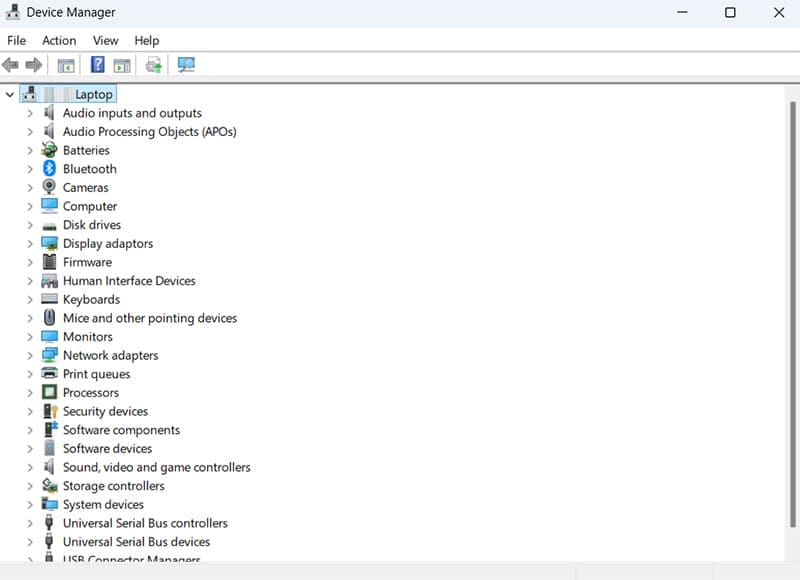
Step 2. Scroll down to find the “Network adapters” and click the arrow to open the list.
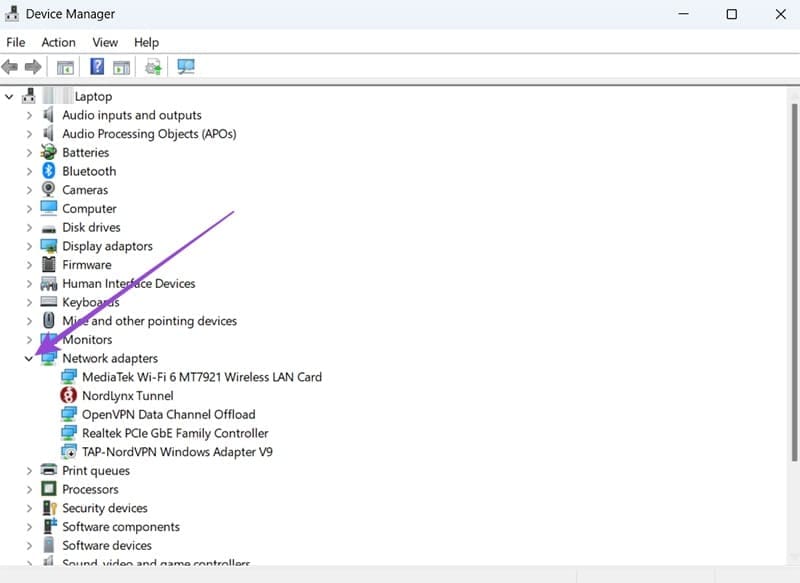
Step 3. Find your laptop’s Wi-Fi adapter in the list and right-click it. Then choose “Update driver,” followed by “Search automatically for drivers” to update it.