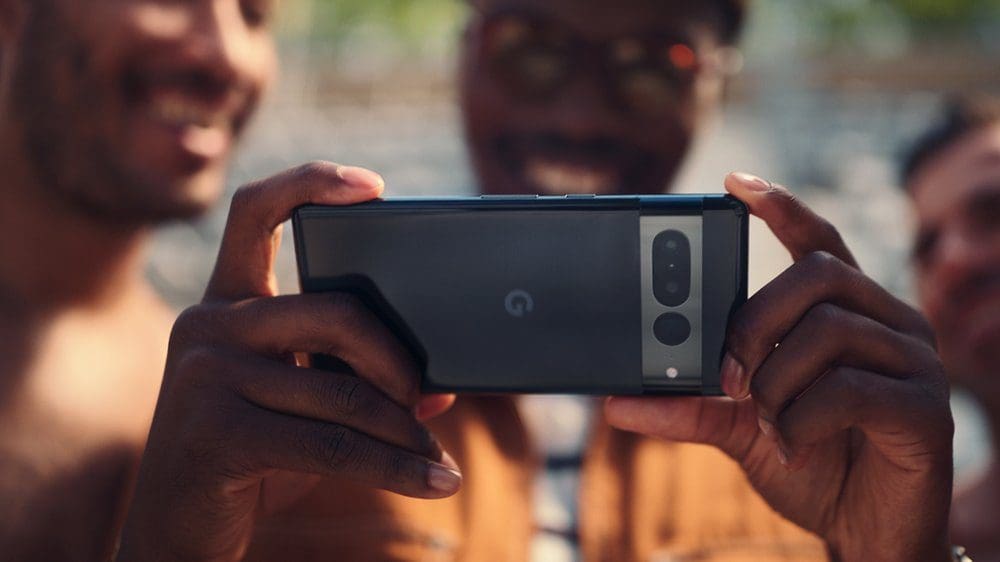
Over the past few years, we’ve been seeing phone makers implement different ways for you to enjoy your smartphone’s camera. The most recent trend has been to add a “macro” mode, and with the release of the Pixel 7 Pro, Google has joined the fray. Google’s Pixel lineup of phones is widely recognized among the best when it comes to camera quality, and that continues with the Pixel 7 lineup.
What Is Macro Focus
With most flagship smartphones, you likely already have a physical telephoto lens for those times when you want to get a closer shot. But when it comes to macro photography, we’re seeing a different approach taken altogether.
You might think that the telephoto lens would be the one being used for macro photography, but this isn’t the case. Instead, you can use Macro Focus on Pixel 7 Pro with the help of the ultrawide sensor instead.
The Pixel 7 Pro is comprised of the same triple camera setup as the Pixel 6 Pro, using a 50MP main wide-angle lens, along with a 12MP telephoto sensor and a 12MP ultrawide camera. So it might come as a surprise to discover that you can’t use Macro Focus even if you own last year’s Pixel 6 Pro.
How to Use Macro Focus on Pixel 7 Pro
In addition to the photos being handled by the ultrawide camera, Google is also taking advantage of its on-device AI power thanks to the Google Tensor G2 chip. This is part of the reason why you won’t actually find a toggle in the camera app to manually toggle and use Macro Focus on Pixel 7 Pro.
Instead, it’s all handled on your device, as the processor recognizes how close you are to a subject and automatically switches over. By default, Macro Focus is enabled on the Pixel 7 Pro out of the box. But if you want to double-check for yourself, here’s how you can make sure that this feature is enabled and available.
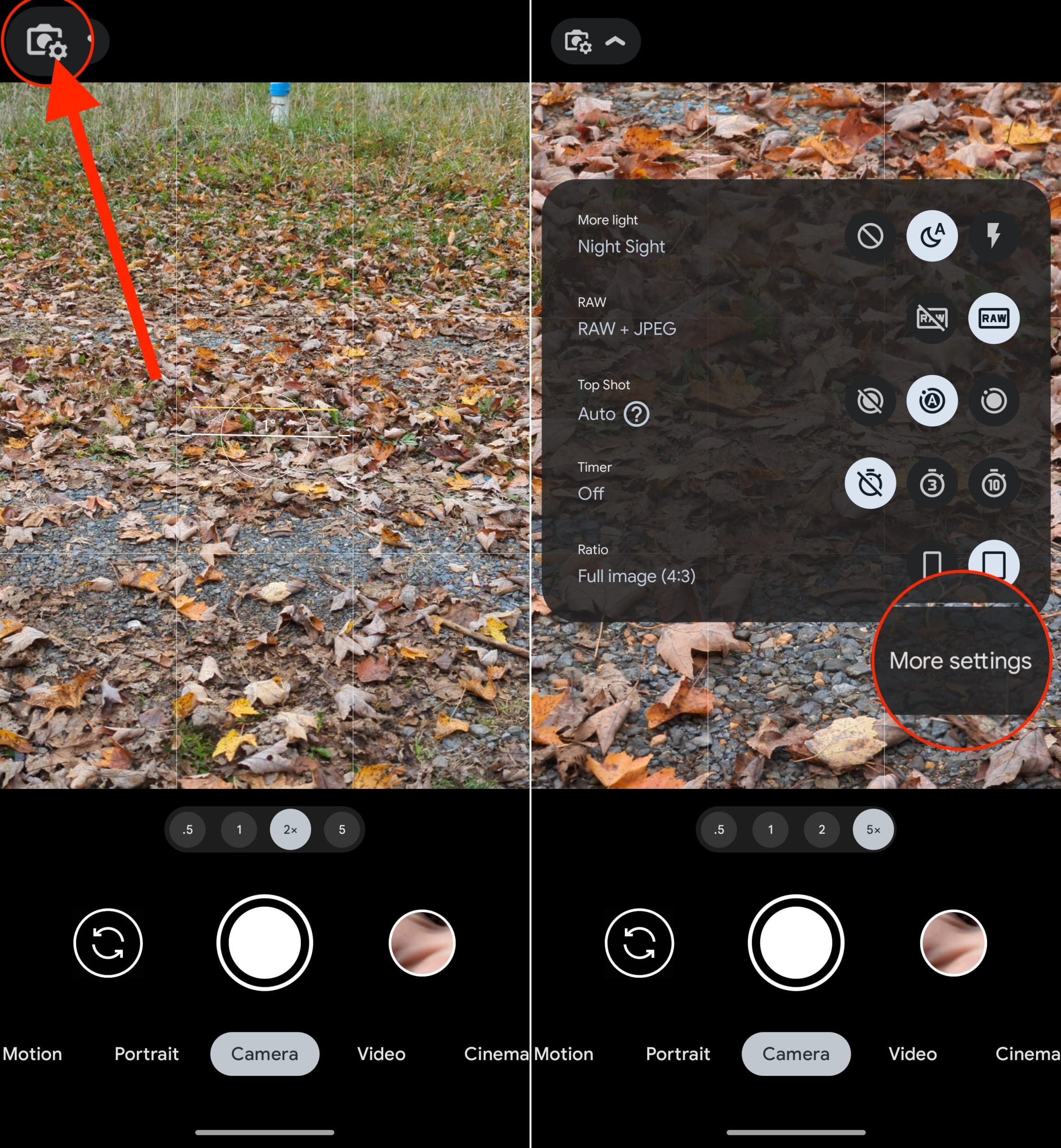
- Open the Camera app on your Pixel 7 Pro.
- In the top left corner, tap the Camera with Gear button.
- From the drop-down menu that appears, tap the More settings button.
- Scroll down until you reach the Composition section.
- If necessary, tap the toggle next to Auto Macro to the On position.
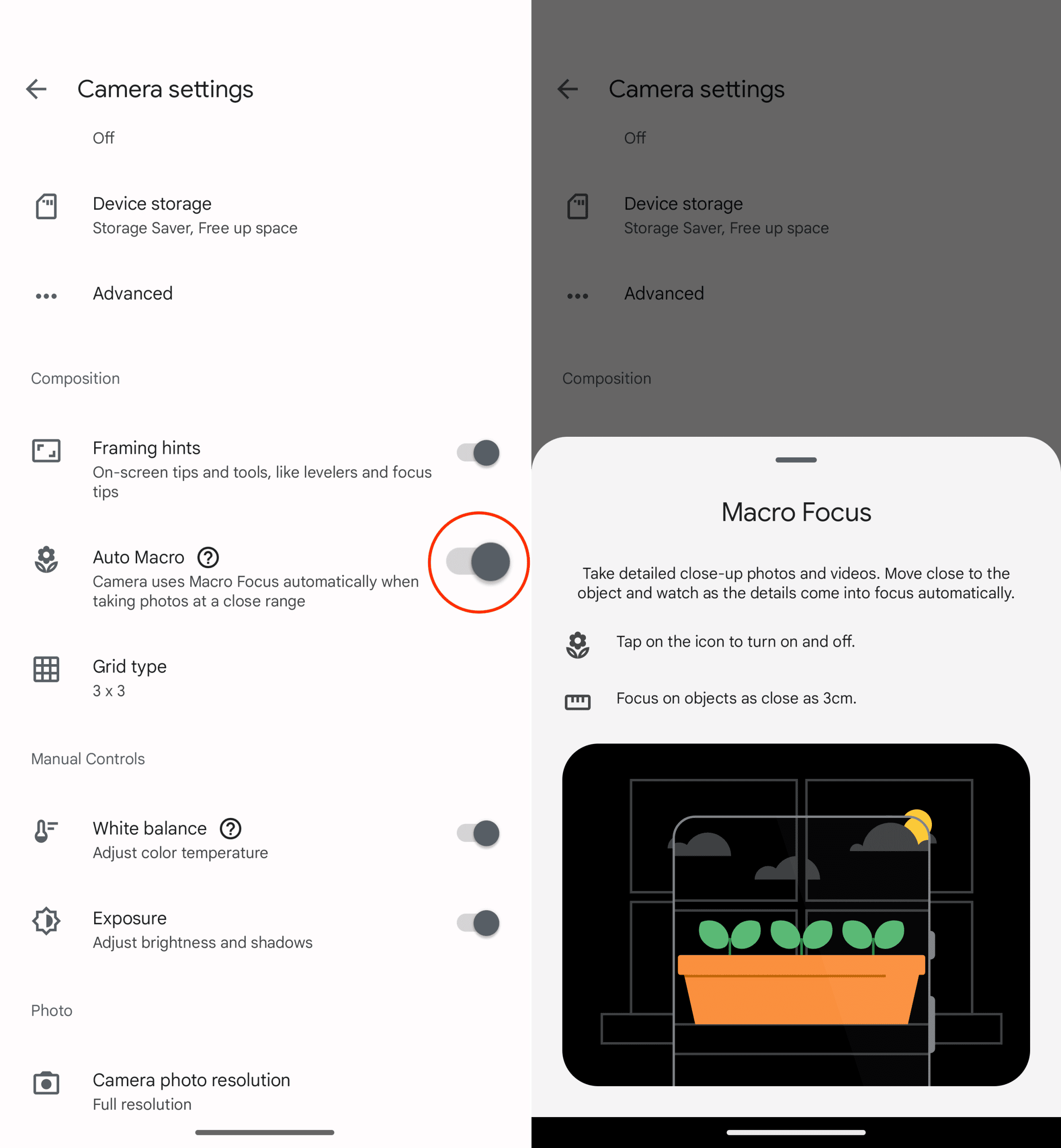
As we mentioned before, you can start to use Macro Focus on Pixel 7 Pro out of the box without fiddling with any settings. So here’s how you can do just that and take your mobile photography to the next level:
- Open the Camera app on your Pixel 7 Pro.
- Locate the object that you want to take a photo of.
- Move the camera closer to the object or subject until you see a small flower icon appear above the focus finder.
- If you want to zoom in closer, tap the 2x or 5x buttons above the shutter button.
- Tap the Shutter button once the subject is in focus.
Something that we want to point out is that if you are trying to get close to a subject but don’t want to use Macro Focus, all you need to do is tap the small flower icon that appears. After a moment, you’ll see as the camera changes its focus distance. And if you tapped either the 2x or 5x buttons, your Pixel 7 Pro switches over to the physical telephoto camera, providing better pictures quality compared to the ultrawide lens.