The Samsung Galaxy S24 series brings powerful communication features, including a remarkable AI-powered tool called Live Translate. Live Translate enables real-time language translation during phone calls, breaking down language barriers and bridging communication gaps. Want to converse effortlessly with friends, family, or colleagues who speak a different language? Your Galaxy S24 lets you do just that.
In this article, we’ll delve into how to set up and utilize Live Translate on your Galaxy S24, making international communication as easy as chatting with someone fluent in your native tongue.
Contents
Understanding Live Translate
Live Translate taps into the capabilities of Samsung’s Bixby virtual assistant and leverages advanced language models to provide near-instant translations of spoken conversations. With its seamless integration into the Galaxy S24’s native Phone app, you don’t have to jump between applications to take advantage of it.
Enabling and Configuring Live Translate
Before immersing yourself in a multilingual phone call, let’s ensure Live Translate is prepared and configured. Follow these steps:
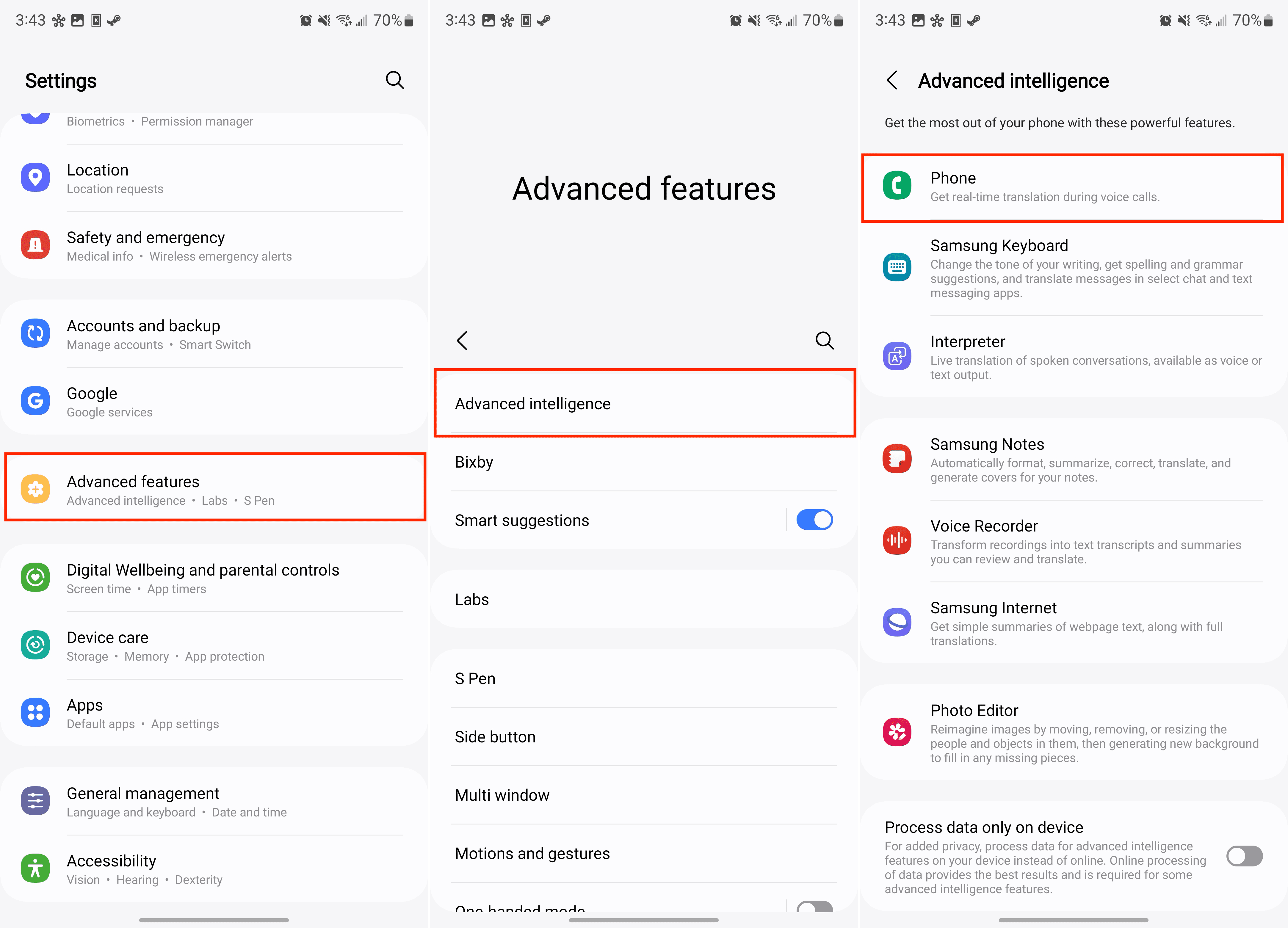
- Open the Settings App: Find the Settings app on your Galaxy S24 home screen or app drawer.
- Access Call Assist Settings:
- Locate and tap on “Advanced Features.”
- Tap “Advanced Intelligence”
- Tap “Phone”

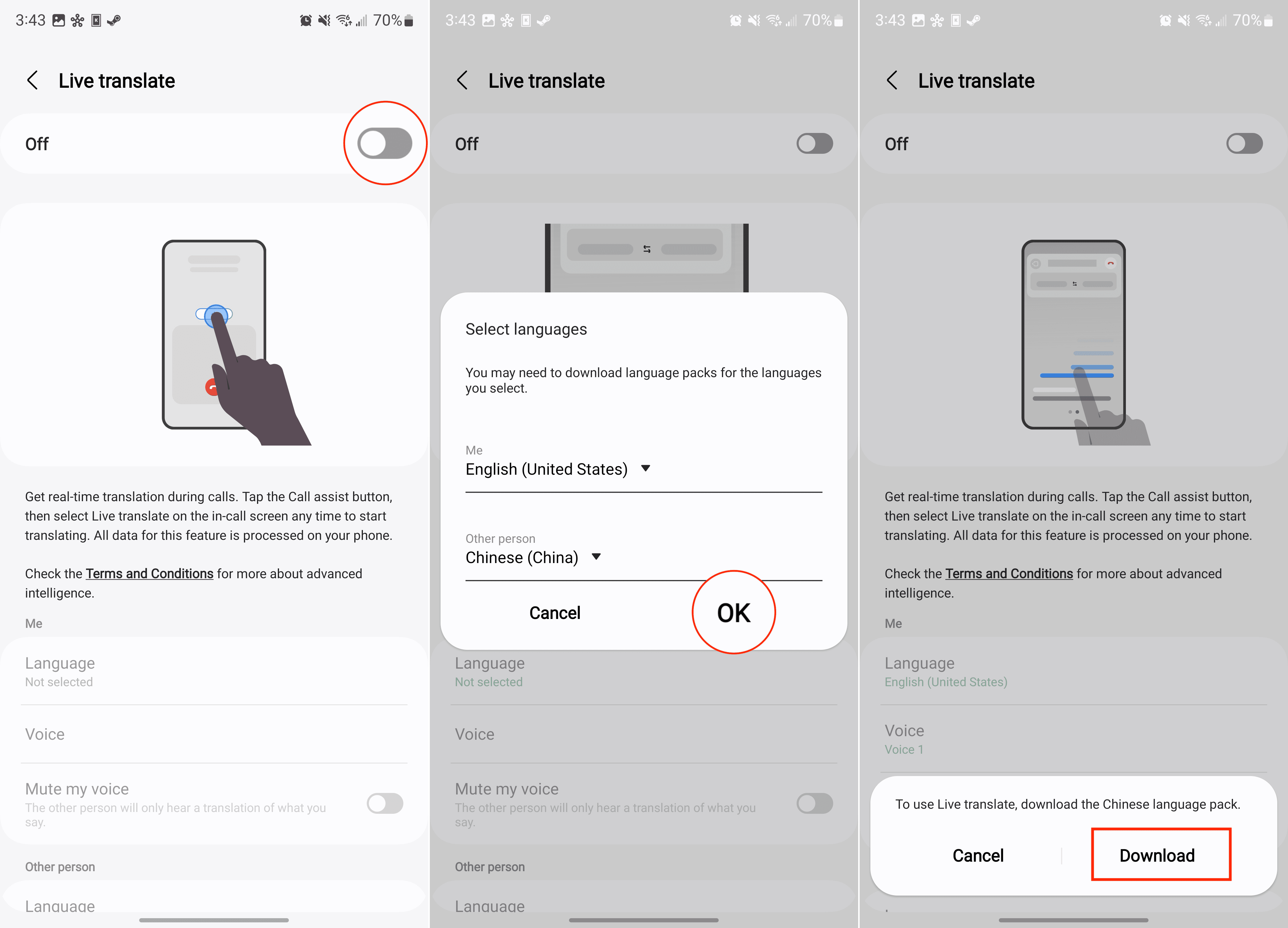
- To enable Live Translate, tap the toggle next to “On”
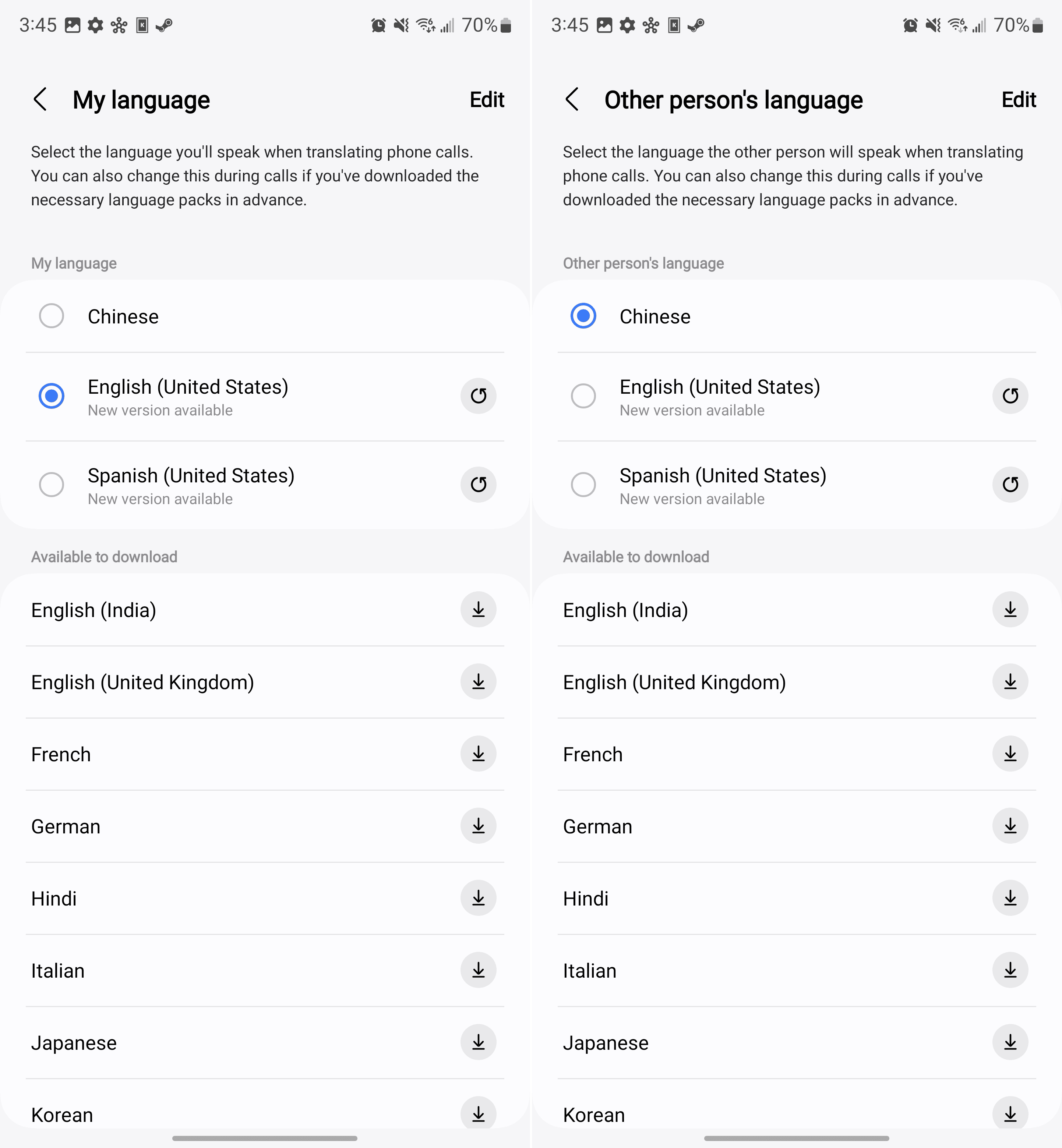
- When prompted, select the language that you want to use with Live Translate
- Customize Your Languages:
- Under “Me,” choose the language you’ll primarily speak during translated calls.
- Under “Other person,” select the language of the person you’ll be conversing with.

- Download Languages: If the needed languages are not already on your device, tap the download icon beside each to ensure the offline translation is available.
Using Live Translate on a Phone Call
Now that your Live Translate is ready to go, here’s how to effortlessly use it during phone calls:
- Make or Receive a Call: Initiate or answer a phone call with the person you wish to communicate with, even if they speak a different language. Use the Phone app just as you normally would.
- Find the Call Assist Button: Once the call connects, you’ll see a button labeled “Call assist” on the call screen. Tap on it.
- Activate Live Translate: A new “Live Translate” button will appear. Tap it to start the translation process.
- Begin the Conversation: Now it’s time to talk! Bixby will automatically identify the languages being spoken. It will transcribe and translate the conversation, displaying both the original text and the translation on your screen in real time.

Optimizing Your Live Translate Experience
Follow these tips to get the most of Live Translate:
- Speak Clearly: For the best results, ensure you and the other person speak clearly and at a moderate pace. This aids the translation accuracy.
- Minimize Background Noise: Background noise can interfere with voice recognition. Find a quiet place, if possible, to make your translated calls.
- Internet Connection: While Live Translate offers offline translation for downloaded languages, an active internet connection improves speed and accuracy for a larger spectrum of languages.
- Supported Languages: Be aware that Live Translate doesn’t support every language globally. Check the supported language list in your settings, especially if you plan on having conversations with speakers of less common languages.
Additional Useful Settings
The “Live translate” settings menu within the “Call assist settings” section of your Galaxy S24 phone allows for further customization and refinement of your Live Translate experience:
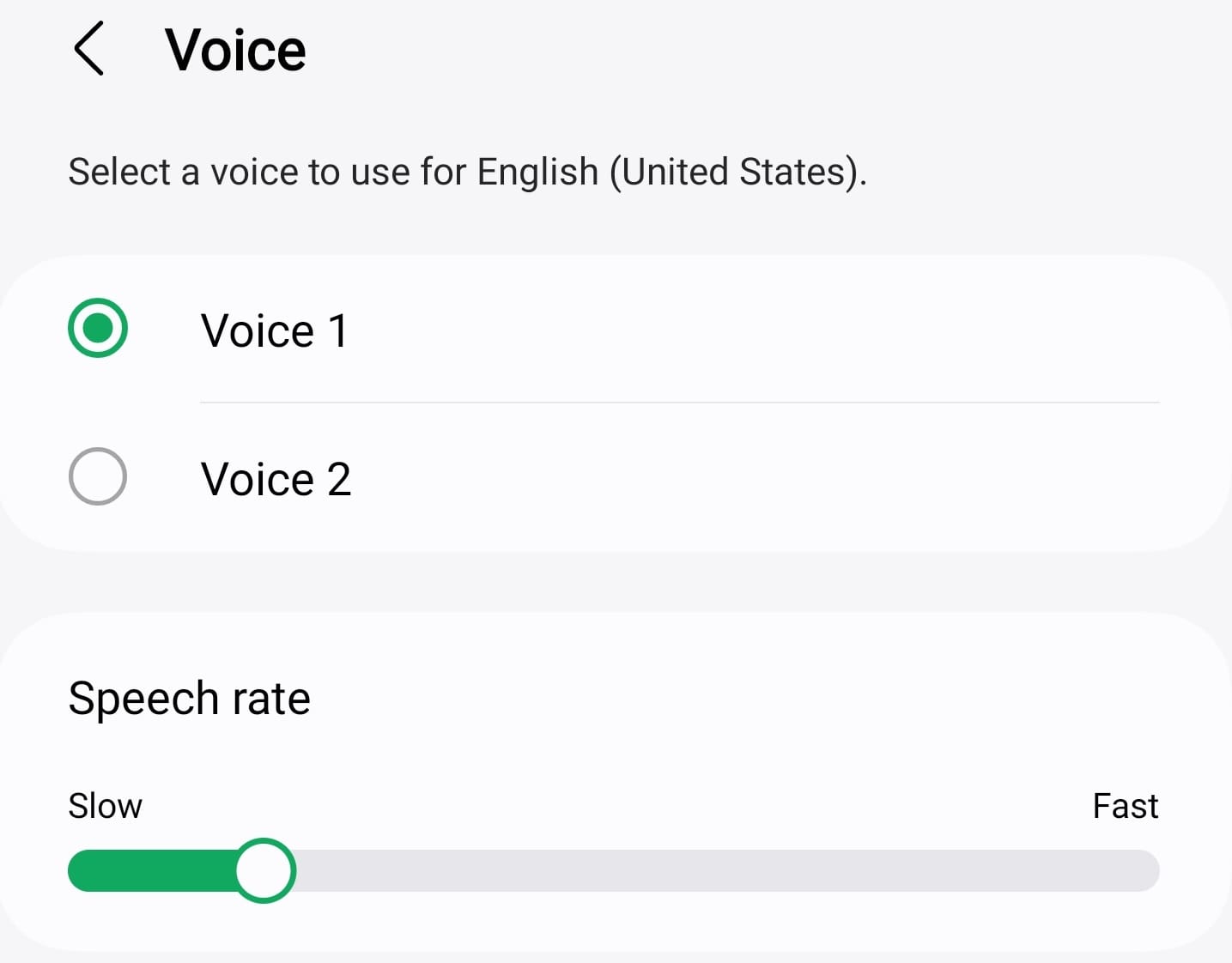
- Voice and Language Choices: Tap on “Voice” to pick between a range of different voices and inflections for the translated audio.
- Speak Rate: To match the pace of the conversation, consider adjusting the “Speech rate”. Make translations faster or slower to tailor the output to your preferences.

- Show Original Text: Want to follow along with the raw transcript to compare with the translation? You can toggle “Show original text” on or off as desired.
Beyond Phone Calls: Expanding Live Translate Usage
While the primary appeal of Live Translate lies in facilitating barrier-free phone calls, it’s worth noting that Samsung’s translation powerhouse has broader applications across your Galaxy S24. Let’s examine a few more scenarios:
- Text Message Translation: Need to communicate with someone via text in a different language? Samsung’s Keyboard app has embedded translation capabilities. With it, you can type out a message in your language and get a real-time translation ready for sending.
- Bixby Routines: You can further streamline communication by harnessing Bixby Routines. For example, create a routine that automatically activates Live Translate upon receiving a call from an international number you frequently communicate with.
- Camera (Bixby Vision): Encountered a sign, menu, or document in a language you don’t comprehend? Utilize Bixby Vision by aiming your camera at the foreign text. Bixby can identify and translate it right before your eyes!
A Note on Accuracy and Nuances
Despite the impressive advancements in AI-driven translation, keep these factors in mind:
- Translation Quality: Though usually accurate, translation technologies are not flawless. Live Translate should not be treated as a replacement for a professional human translator where precision and cultural sensitivity are critical.
- Understanding Context: While Live Translate works its magic on vocabulary and grammar, some nuances and idioms might still get lost in translation. It’s best to maintain clarity and consider cultural differences in certain expressions.
Beyond Words: Enhancing Cross-Cultural Connections
The Samsung Galaxy S24’s Live Translate feature represents a remarkable stride towards overcoming linguistic obstacles. Whether connecting with a coworker abroad, chatting with a friend during your travels, or expanding your business network, Live Translate helps build relationships and understanding across borders. It empowers you to embrace the diversity of our world through clear and meaningful communication.
Let us know if you’d like more in-depth explorations of Live Translate, language learning on your Galaxy S24, or other AI-powered features your device has to offer!