Using RAW format on smartphones offers significant benefits for photographers who desire greater control over their images and the editing process. Since RAW files preserve all the original data captured by the camera sensor, they retain a higher dynamic range, accurate color representation, and more detail compared to compressed formats such as JPEG.
This added flexibility allows photographers to make substantial adjustments during post-processing, such as altering exposure, correcting white balance, and enhancing shadows or highlights, without degrading the image quality. Shooting in RAW is particularly useful when capturing scenes with challenging lighting conditions or when aiming for a specific artistic vision that requires fine-tuning during the editing stage.
Contents
What is Expert RAW?
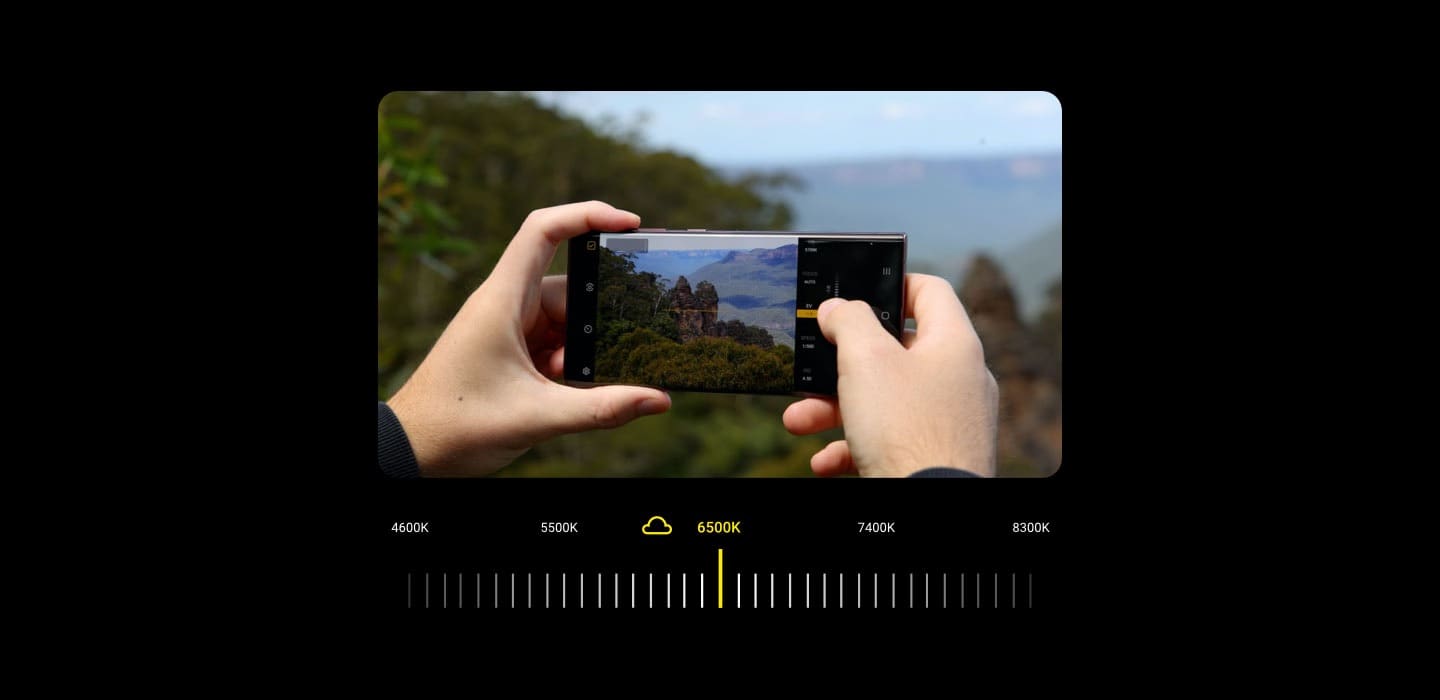
Expert RAW is a powerful photography feature available on select Samsung phones. This feature enables photographers to capture images in RAW format, providing them with more control over the editing process and preserving a higher level of detail and quality in the final output. While standard JPEG images are processed and compressed automatically by the camera software, resulting in some loss of detail and flexibility, RAW files retain all the original image data captured by the camera sensor, allowing for a greater range of adjustments during post-processing.
To make the most out of Expert RAW, Samsung phone users should have some experience with image editing software, such as Adobe Lightroom or Photoshop, which can handle RAW files. These applications allow users to take full advantage of the data-rich images produced by Expert RAW, enabling them to fine-tune aspects like exposure, white balance, and contrast without sacrificing image quality. Ultimately, Expert RAW on Samsung phones empowers photographers to create visually stunning images with greater flexibility and control, elevating the mobile photography experience to new heights.
How to use Expert RAW on Galaxy S23
While most Galaxy S23 owners likely won’t ever need to take photos in the RAW format, having the ability to do so is just one of the great things about using Android phones. With that in mind, here’s how you can download and use Expert RAW on Galaxy S23:
- Open the Galaxy Store on your Samsung Galaxy S23.
- Tap the Search icon in the top right corner.
- Search for Expert RAW.
- Open the appropriate app listing.
- Tap the Install button.
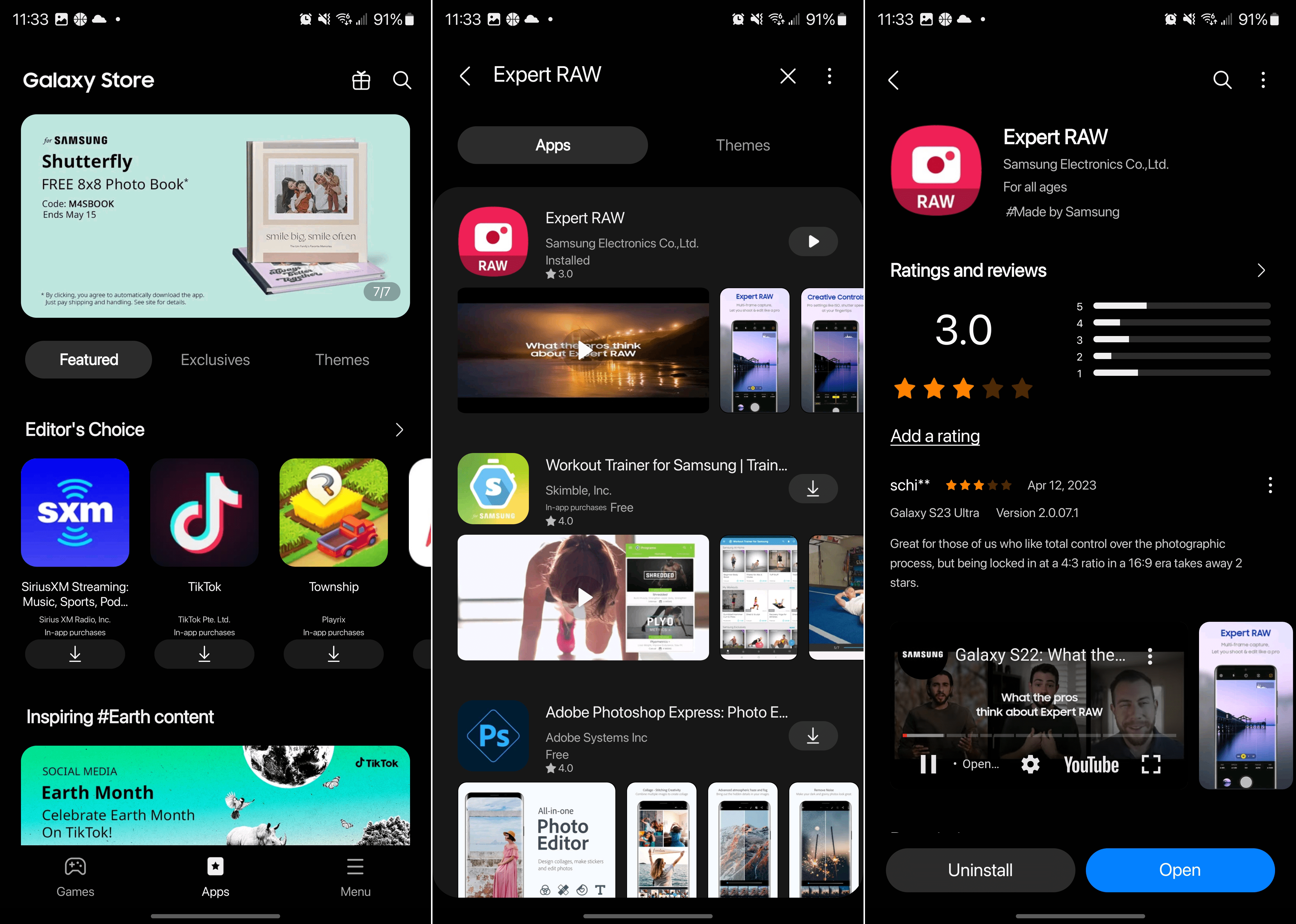
With Expert RAW installed, you’ll see a new app icon appear on your Home Screen. This might come as a surprise, but Samsung has decided to separate the Expert RAW app from the standard Camera app that’s pre-installed on your Galaxy S23.
As we mentioned, the biggest reason why you would want to use Expert RAW is for the additional controls that are offered. These include things such as White Balance, Shutter Speed, Focus, Light Meter (EV), and ISO (adjust light sensitivity). Some of these tools can be found in the main Camera app, but Expert RAW is more designed for professional photographers.

But the great thing about having access to Expert RAW on Galaxy S23 is the fact that it opens the door for more people to take mobile photography seriously. There’s another benefit to being able to use Expert RAW on Galaxy S23 and that’s the Astrophotography mode.
This is different from just taking photos in Night Mode, as it actually takes a slow-motion video of the night sky. By doing so, you can capture a time-lapse of the different constellations. Samsung has even gone so far as to implement an Augmented Reality-type view, giving you a map of the constellations above and around you.
Settings for Expert RAW on Galaxy S23
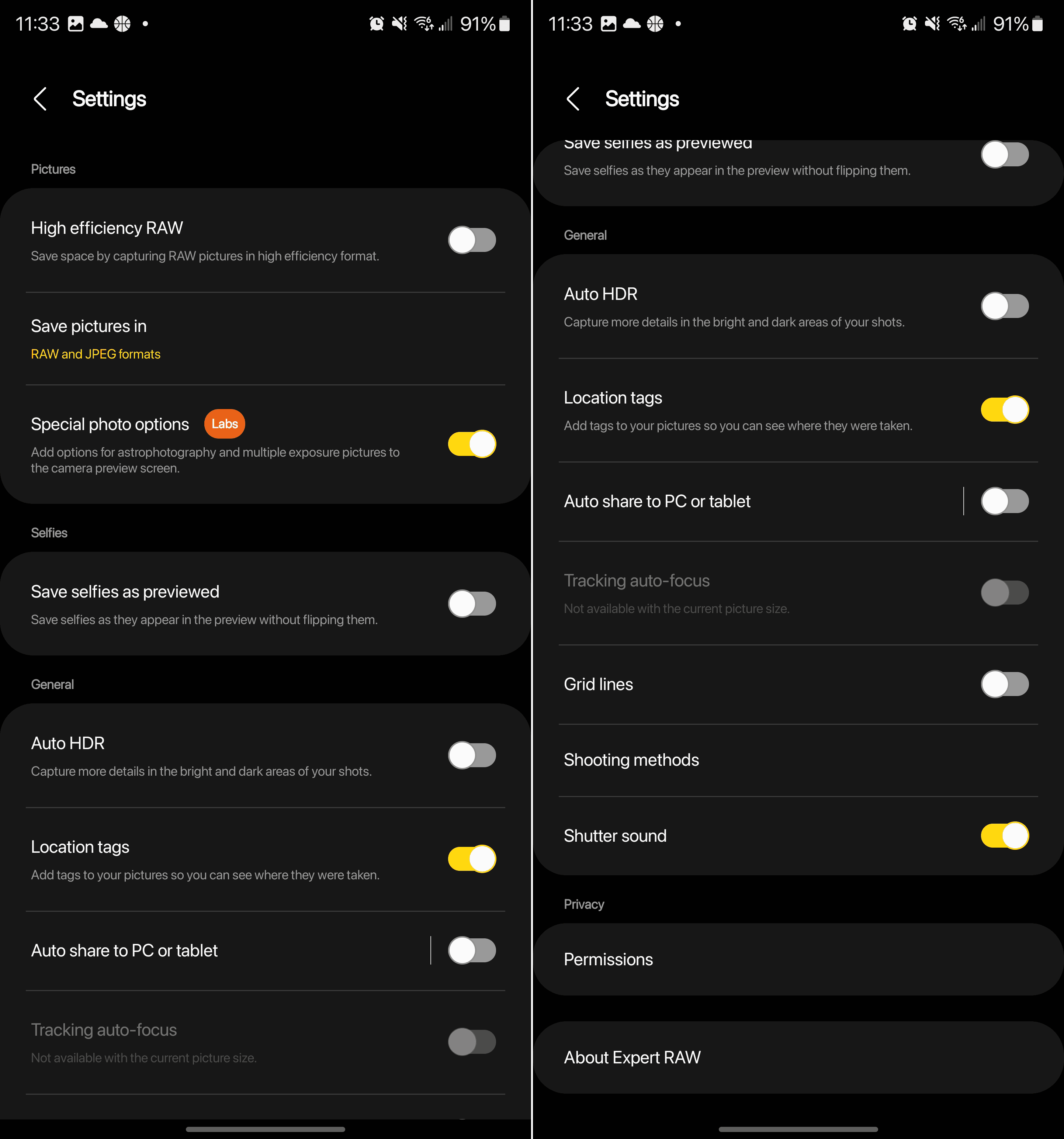
Samsung does a pretty great job at providing users with a bunch of different options and settings to mess around with, this trend continues with Expert RAW on Galaxy S23. These settings are different from the ones that you use in the main Camera app, so you won’t have to worry about things getting messed up between the two. That being said, here are all of the different settings for Expert RAW on Galaxy S23:
-
High-efficiency RAW: Save space by capturing RAW pictures in high-efficiency format.
-
Save pictures in RAW format, JPEG format, RAW, and JPEG formats.
-
Special photo options: Add options for astrophotography and multiple exposure pictures to the camera preview screen.
-
Save selfies as previewed: Save selfies as they appear in the preview without flipping them.
-
Auto HDR: Capture more details in the bright and dark areas of your shots.
-
Location tags: Add tags to your pictures so you can see where they were taken.
-
Auto share to PC or tablet
-
Tracking auto-focus
-
Grid lines
-
Shooting methods
-
Shutter sound
One of the great things about Android phones is the control and versatility that you have. And who better than Samsung to make accessing the different features and options easier than any other phone maker on the market.